ProjectScaffold for VS Code
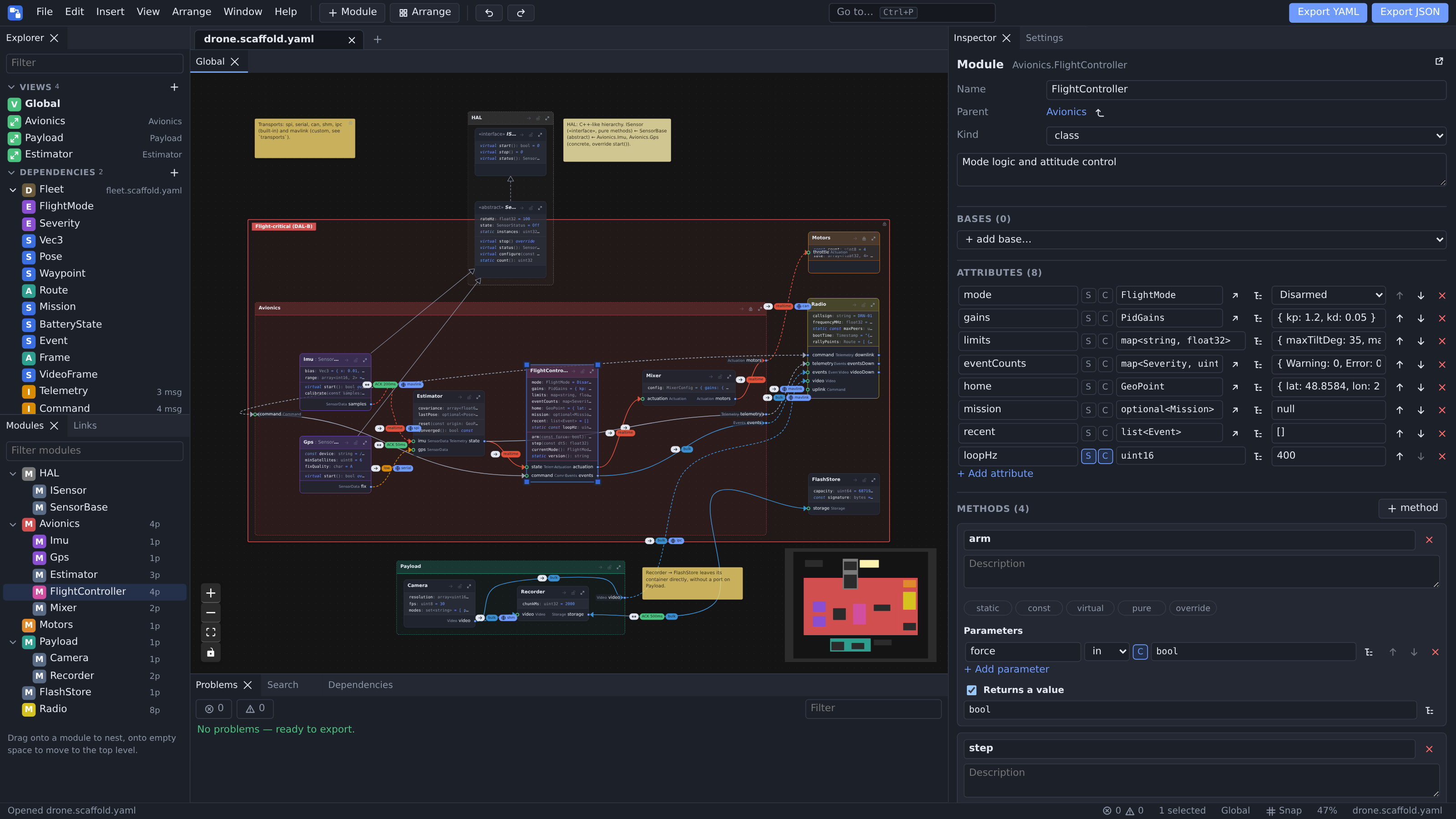
Diagram editor for software architecture inside VS Code: modules, ports, typed interfaces and
constrained links, saved as a plain *.scaffold.yaml / *.scaffold.yml / *.scaffold.json file that feeds
code skeleton generators. Built-in C++17 code generation (with a Python peer for remote links).
Features
- Text and diagram side by side: edit either one, the other follows. Undo, save, hot exit and git diff stay
VS Code's: the file is a regular text document.
- Linked selection: the text cursor and the diagram selection follow each other.
- Side bar with the app's Explorer, Modules, Links, Dependencies and Settings for the file being edited.
- Problems panel and Outline / breadcrumbs for project files, on the line of each entity.
- Export YAML/JSON (no editor data, for generators) and the diagram as PNG/SVG.
- Generate Code: a C++17 CMake project, hand-written code kept across generations.
- Colors follow the VS Code color theme.
Getting started
Create a file ending with .scaffold.yaml, for example hello.scaffold.yaml:
schemaVersion: 1
project:
  name: Hello
types: []
interfaces:
  - name: Greeting
    messages:
      - name: greet
        params:
          - name: who
            type: { kind: primitive, name: string }
        returns: { kind: primitive, name: string }
modules:
  - name: Client
    ports:
      - { name: greeting, role: out, interface: Greeting }
  - name: Server
    ports:
      - { name: greeting, role: in, interface: Greeting }
links:
  - name: client_to_server
    from: { module: Client, port: greeting }
    to: { module: Server, port: greeting }
    constraints:
      direction: bidirectional
      ack: { required: false }
      performance: { class: normal }
      remote: { enabled: false }
Open Preview (Ctrl+K V, or the icon in the editor title): the diagram opens beside the text.
Add modules, drag between an out port and an in port to link them, edit types and interfaces in the side
bar. Every change lands in the text.
ProjectScaffold: Generate Code writes the C++ project into generated/hello next to the file.
More examples: examples/.
Ways to edit
| Mode |
How to open |
Use it for |
| Text + preview |
Open Preview (Ctrl+K V) on a project file |
Editing text and diagram together |
| Full diagram editor |
Reopen Editor With… › ProjectScaffold, or Open in Full Diagram Editor (explorer context menu) |
Diagram only, any YAML/JSON project file |
| ProjectScaffold panel |
Activity bar icon (opened with the preview, projectScaffold.preview.showSideBar) |
Browsing modules, links, dependencies |
- Changes made on either side update the other; undo in the preview undoes the diagram's changes.
- Selecting an entity in the side bar shows it in the diagram and the text; opening a view or an editor opens it
in the diagram (a preview when none is open); Show dependency opens the Dependencies view.
- While a diagram has the focus, its shortcuts win over VS Code's (Ctrl+P, Ctrl+Shift+P, Ctrl+E…): its own
command palette is Ctrl+Shift+P,
? lists every shortcut.
Code generation
Generate Code renders the built-in LiquidJS templates into generated/<project> next to the file (setting
projectScaffold.generate.outputDir); Generate Code Into… picks another directory, remembered for the file.
The project must have no errors.
Code written inside the user sections is kept when generating again:
bool Controller::setMode(const ::common::Mode mode)
{
    // <user:method.setMode>
    return mode != ::common::Mode::Fault; // kept across generations
    // </user:method.setMode>
}
- Files changed outside their user sections are reported as conflicts, not overwritten.
- Sections with no place left (renamed method, module or port) go to
<file>.orphans, never lost.
- A template set in
<output directory>/.scaffold/templates/ replaces the built-in one.
Commands
All under ProjectScaffold: in the command palette.
| Command |
Description |
| Open Preview |
Diagram beside the text (Ctrl+K V) |
| Open in Full Diagram Editor |
Diagram in its own editor |
| Show Source |
Text of the diagram's file |
| Add Module |
New module in the diagram |
| Auto-arrange |
Lay out the diagram (ELK) |
| Export YAML… / Export JSON… |
Project file without editor data |
| Export Diagram as PNG… / as SVG… |
Image of the diagram |
| Generate Code / Generate Code Into… |
C++17 code into the default or a chosen directory |
Settings
| Setting |
Default |
Description |
projectScaffold.syncSelection |
true |
Text cursor and diagram selection follow each other |
projectScaffold.preview.position |
left |
Side of the text where the preview opens (left / right) |
projectScaffold.preview.showSideBar |
true |
Opening a preview shows the ProjectScaffold side bar |
projectScaffold.generate.outputDir |
generated/${project} |
Output of Generate Code, relative to the file |
App settings (theme, link style, port style, grid, minimap…) are in the side bar's Settings view; Theme
VS Code (the default) follows the color theme.
Language-agnostic YAML/JSON, described by a JSON Schema:
schema/scaffold.schema.json.
The editor section holds layout only and is ignored by generators. Full reference in the
main README.
Workspace files (*.scaffold-workspace.yaml) are not opened by the extension: open project files one by one.
Build from source
scripts/build_vscode.sh
code --install-extension dist-vscode/project-scaffold-vscode-<version>.vsix
| |

