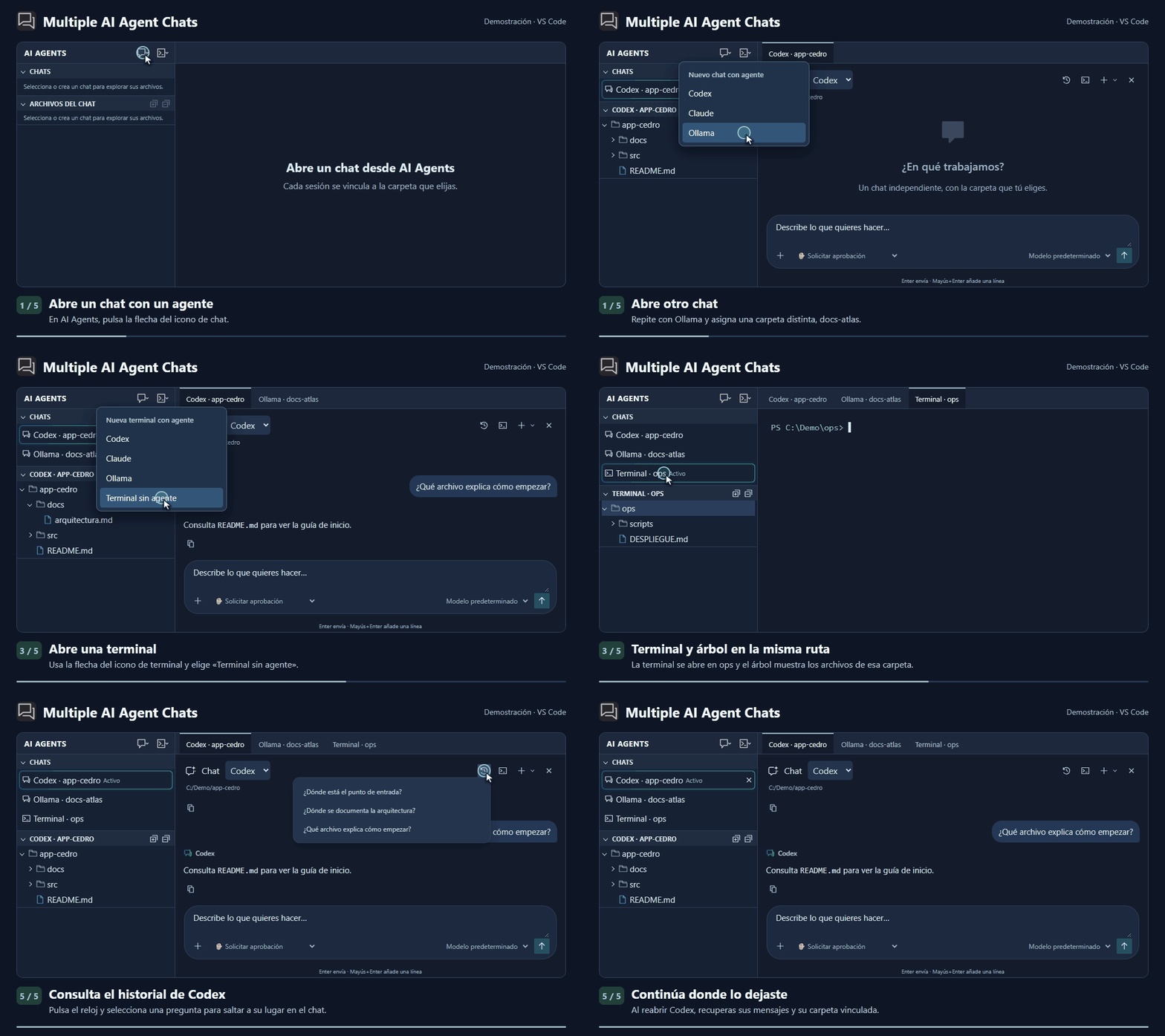
Multiple AI Agent ChatsRun Codex, Claude and Ollama chats per folder, open native Claude Code tabs, and clone or sync private Markdown repositories with GitHub Markdown Vault. Installation Launch VS Code Quick Open ( Ctrl+P), paste the following command, and press enter.Copied to clipboard |

Multiple AI Agent Chats
Manage Codex, Claude Code, and Ollama from the AI Agents sidebar in VS Code. Each chat or terminal can use a different local folder. Selecting a session also switches the file explorer to its folder. Español. Gestiona chats de Codex, Claude y Ollama por carpeta, abre pestañas nativas de Claude Code y clona o sincroniza repositorios privados con GitHub Markdown Vault. This project is independent of OpenAI, Anthropic, and Ollama. Supported agents / Agentes compatibles · Claude Code · Codex · Ollama Demo
CodexOpen independent chats with local history, attach files, and choose a permission mode. Install the official Codex CLI separately and sign in. If detection fails, set Claude CodeWhen you create a Claude chat, choose how to access Claude:
The official Claude Code extension is installed as a dependency and provides the Claude Code executable when it is not installed separately. For terminal sessions, install the official Claude CLI or the Claude Code extension and sign in. The extension detects native and global npm installations, including Node.js version managers. If detection fails, set OllamaUse installed models for local chats and download models from the chat panel. Install Ollama separately and install a model to start chatting. The extension can use the local server on port 11434 or start its own on port 11435. If detection fails, set With a tool-capable model, you can ask the chat to list directories and read UTF-8 files in the chat folder. For files outside that folder, provide an absolute path. The chat asks for approval before sending external file contents to your local Ollama server. You can also attach files manually. InstallationUse VS Code 1.145 or later and open a trusted local workspace. Search for Using the sidebar
Use the formatting toolbar below the message input to add emphasis, lists, code, links, or tables. The formatting button below the draft shows or hides the toolbar. Paste text or PNG, JPEG, and WebP images directly into the message editor. Images appear as removable attachments and require a model that supports image input. The extension interface is available in English and Spanish. While a response is running, Enter or the send control queues your next message for that chat. The composer shows waiting messages and has a separate stop control. GitHub Markdown VaultUse the Vault button in a chat to select a local Markdown folder or choose Clone existing Markdown repository. To clone, enter a private GitHub repository's HTTPS URL or The Vault works locally. If you choose to sync with GitHub, the extension verifies that the remote repository is private before syncing. See the changelog for recent improvements to chat history, the Vault, and message controls. Terminal sessionsOpen the terminal button's dropdown in AI Agents, select Codex, Claude, Ollama, or Shell (no agent), and choose a starting folder. The terminal opens in the editor area. Select its sidebar entry to return to the terminal and browse its associated folder. Closing the terminal removes its sidebar entry. Closing the entry also closes the terminal. Reopening it starts a new process in the saved folder. Changing directories inside the terminal preserves the folder associated with the session. Agent terminals use the installed provider CLIs. The Ollama terminal uses an installed model. Shell (no agent) opens a system shell. Troubleshooting
Privacy and permissionsCodex, Ollama, and Claude API chat history, session names, and folder paths are stored locally in VS Code's extension storage. The extension operates without telemetry. Each provider handles its own authentication. Messages and selected attachments are sent to your chat provider. Codex can run commands or edit files according to the selected permission mode. Privacy policy DevelopmentUse Node.js 22 or later and npm. Packaging regenerates the third-party notices and verifies the VSIX. Tests use sample data and run without real credentials. Optional UI checks require Microsoft Edge. The Marketplace publisher ID is LicenseThe project uses the MIT License. Original dependency licenses are in licenses/, listed in the third-party notices, and recorded with checksums in DEPENDENCY-LICENSES.json. Provider services, external apps, trademarks, and models have their own terms. See the license review and review report for the scope of the technical review. |