Claude Code Companion
Copilot-style indicators for the official Claude Code for VS Code extension. Shows the current model, effort level, session permission mode, and usage limits — in the status bar, a dedicated sidebar panel, and/or the editor title bar, in any combination you like.
VS Code does not allow one extension to inject UI into another extension's webview, so these indicators live in VS Code's own UI surfaces (the same ones GitHub Copilot uses) rather than literally inside the Claude chat input.
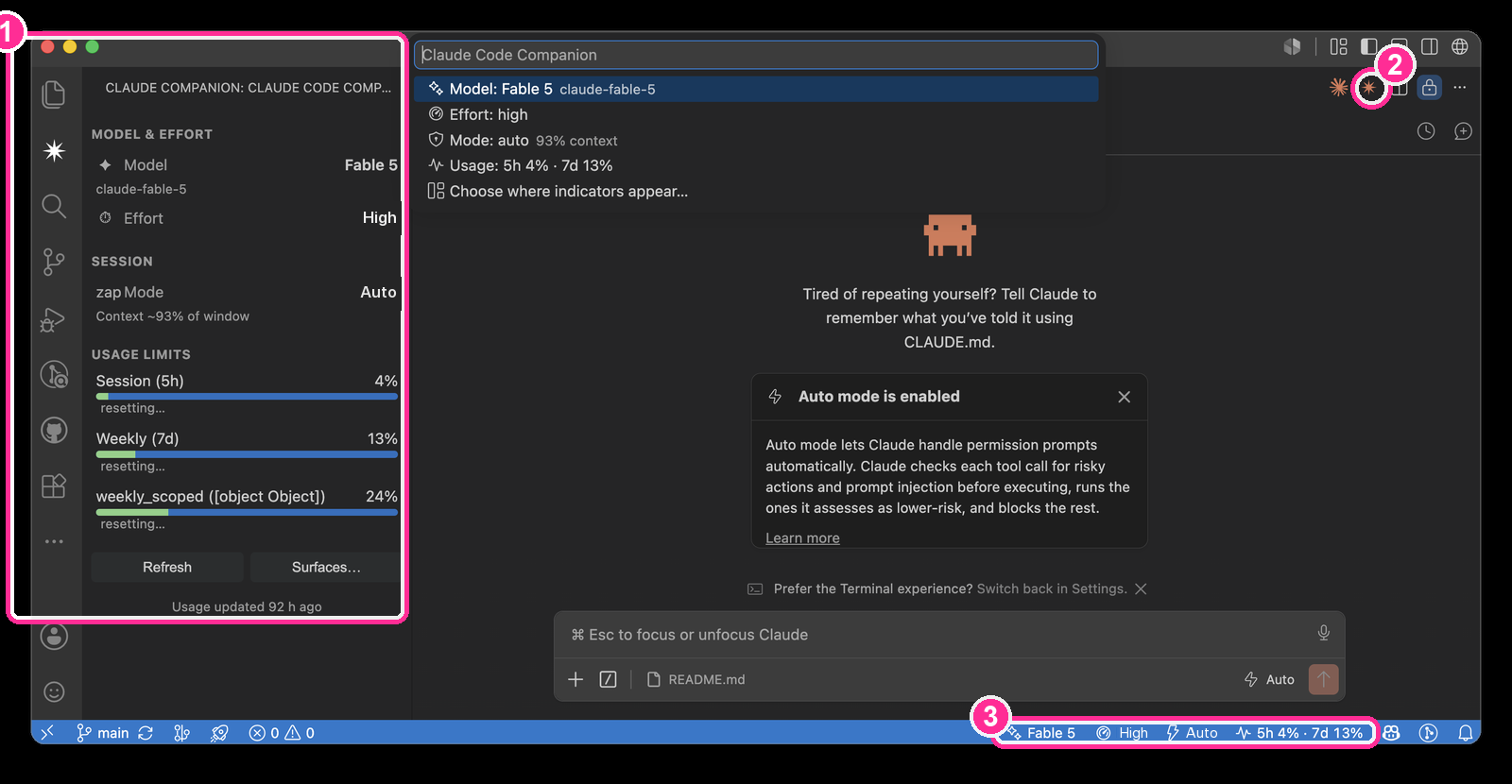
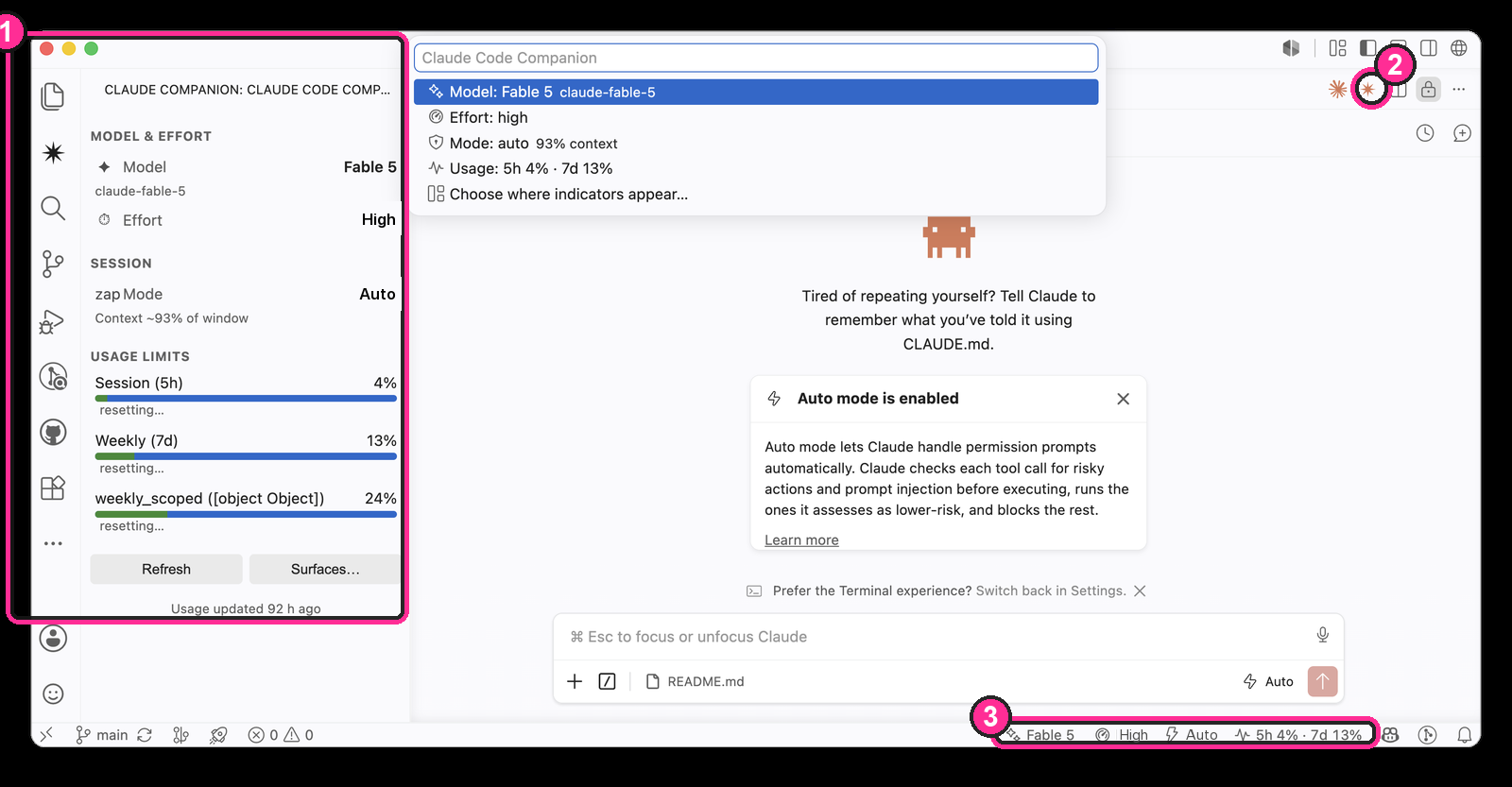
1 sidebar panel · 2 editor title bar icon · 3 status bar
Surfaces
Run Claude Companion: Choose Where Indicators Appear… from the Command Palette to toggle any combination, or set the booleans directly:
| Surface |
Setting |
What you get |
| Status bar |
claudeCompanion.surface.statusBar (default on) |
Four text items — model, effort, mode, usage — each with a rich tooltip and click action. |
| Sidebar panel |
claudeCompanion.surface.sidebar (default off) |
A "Claude Companion" icon in the activity bar opening a panel with all four indicators, progress bars for every usage limit, and Refresh/Surfaces buttons. |
| Editor title bar |
claudeCompanion.surface.editorTitle (default off) |
A single icon button in the title bar of the active editor. Icon only — VS Code's editor-title API doesn't support dynamic text — but the icon swaps shape based on your usage. Click it for the full quick-actions list. |
All three can be on at once; they all read the same underlying state and stay in sync.
Icon
The activity bar icon and the editor title button share one visual language: a Claude-style sparkle as the base mark, plus a small badge that represents the extension watching/reporting on Claude. The activity bar icon and the editor title's normal state use the exact same SVG file (resources/activity-icon.svg); the editor title button swaps only the badge shape as usage rises — circle (normal) → triangle (warning) → diamond (error) — so severity reads by silhouette, not just color, since VS Code recolors contributed icons to match the theme.
Indicators
| Item |
Shows |
Click action |
✦ Fable 5 · 1M |
Configured model (from ~/.claude/settings.json), · 1M for 1M-context variants |
Quick pick to change the model for new sessions |
⏱ high |
Effort level |
Quick pick to change the effort level |
⚡ auto |
Permission mode of the most recent session in this workspace (read from the session transcript), plus context-window fill in the tooltip |
Explains how to switch modes (Shift+Tab in the Claude input) |
~ 5h 4% · 7d 13% |
5-hour and weekly usage limits with reset countdowns in the tooltip; turns yellow/red near the limit |
Detailed usage breakdown |
How it works
Everything is read locally — no network requests, no API keys:
~/.claude/settings.json — model and effort level (also written back when you use the pickers).~/.claude.json → cachedUsageUtilization — usage percentages that Claude Code itself refreshes.~/.claude/projects/<workspace>/*.jsonl — session transcripts, for the per-session permission mode, actual model used, and token counts.
Files are watched and additionally polled (default every 10 s, configurable). One computeState() call feeds the status bar, the sidebar HTML, and the editor-title severity context key, so all three surfaces always agree.
Settings
claudeCompanion.surface.statusBar / surface.sidebar / surface.editorTitle — which surfaces are active (any combination).claudeCompanion.showModel / showEffort / showMode / showUsage — toggle each indicator within the status bar surface.claudeCompanion.pollIntervalSeconds — polling interval (default 10).claudeCompanion.usageWarningPercent / usageErrorPercent — thresholds for warning/error color (status bar, sidebar bars) and icon (editor title bar) (default 70 / 90).
Caveats
- Model/effort changes apply to new Claude Code sessions; a running session keeps its current model until you change it in-session (
/model).
- The mode indicator reflects the most recently active session for this workspace — with several parallel sessions it shows the latest one.
- Usage percentages mirror Claude Code's own local cache (
~/.claude.json), not a live query — they can lag behind what Claude Code itself shows you, sometimes by a meaningful margin, since Claude Code only refreshes that cache on its own schedule. The tooltip / sidebar footer always shows when it was last updated; run /status in a Claude Code session for the current figures. If a window's reset time has already passed without Claude Code re-fetching, the indicator marks it ⚠ stale rather than showing a number that's likely wrong.
- The editor title bar button is icon-only by design (a VS Code API limitation, not a bug) — use the sidebar or status bar if you want live text at a glance.
- VS Code keeps a separate extension list per profile. If you don't see the indicators after installing, confirm you installed into the profile your window is actually using (Command Palette → "Profiles: Show Profiles" to check, or
code --profile "<name>" --install-extension <vsix>).
Development
No build step — plain JavaScript, zero dependencies. Open this folder in VS Code and press F5, or package with npx @vscode/vsce package.

