Markup AI Lint
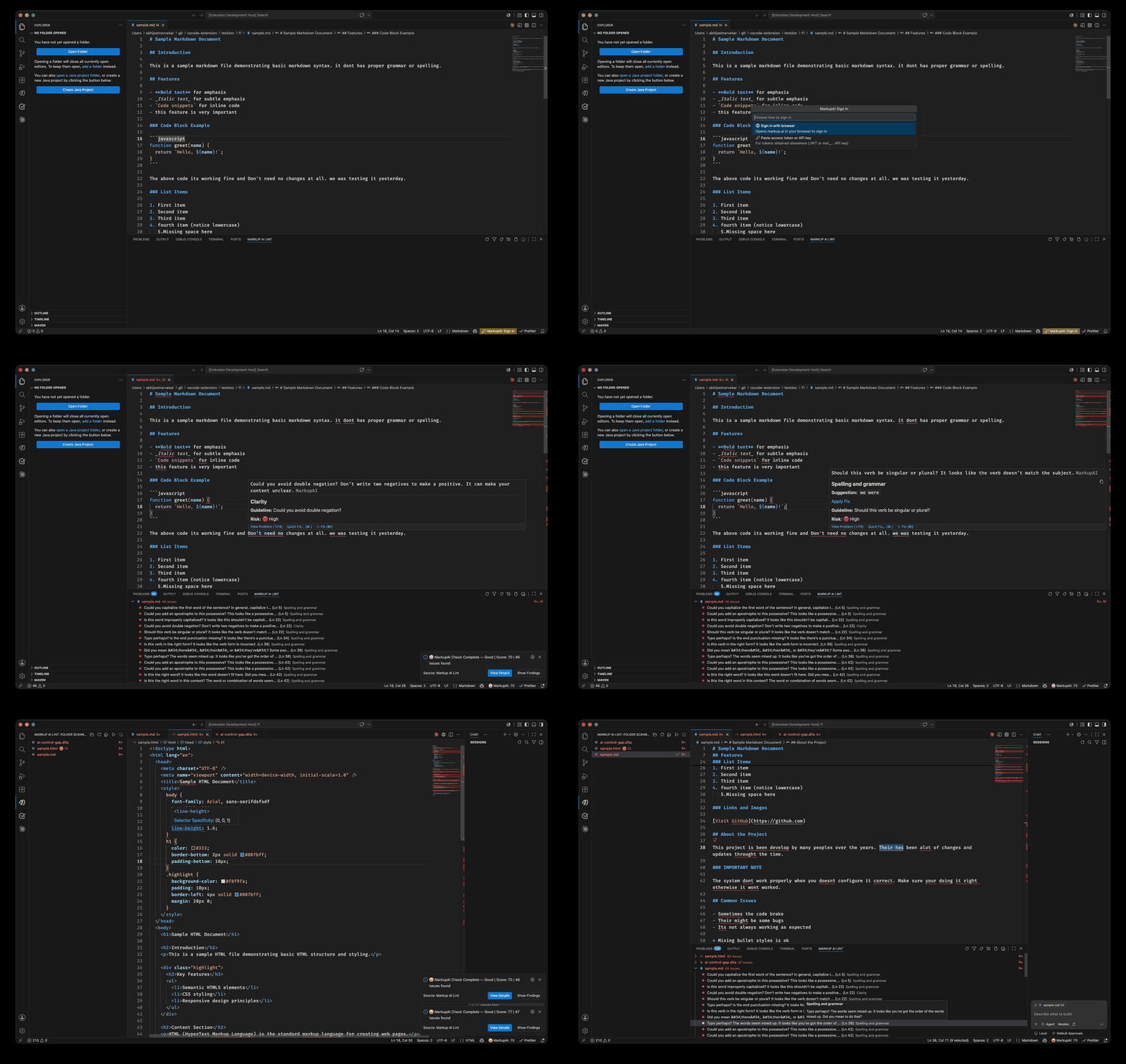
Native content linting for VS Code — inline diagnostics, quick fixes, a findings panel, and batch folder checking, powered by the Markup AI Style Agent.
Looking for the sidebar panel experience (issue cards, whole-document or selection checks)? That now ships as the separate Markup AI extension. Markup AI Lint is the native, editor-integrated experience.
Features
🔍 Real-time Content Analysis
- Automatically checks your documents with the Markup AI Style Agent
- Underlines issues directly in the editor with high / medium / low risk levels
- Shows a risk summary (or quality score, when enabled) in the status bar
💡 Smart Suggestions
- Hover over underlined issues to see detailed explanations
- One-click "Apply Fix" to instantly correct issues
- Quick-fix actions available via the lightbulb menu (Ctrl+. / Cmd+.)
📊 Risk Assessment
- View the risk summary for the current document in the status bar (e.g.
2H 3M 11L)
- Click it for a detailed breakdown by risk level
- Organizations with numeric scoring enabled also see a quality score (0–100)
📁 Folder Scanner
- Check multiple documents in a folder at once
- Select specific files or check all files in a folder
- View results in a tree structure with quality scores
- Perfect for auditing entire documentation folders
⚙️ Configurable
- Select any style guide from your organization, or use the organization default
- Enable/disable checking on file open or on content change
- Easily toggle Markup AI issues on/off via context menu
Getting Started
1. Install the Extension
Install from the VS Code Marketplace or build from source.
2. Sign In
- Click the "Markup AI Lint: Sign in" prompt in the status bar, or run
Markup AI Lint: Sign In from the Command Palette (Ctrl+Shift+P / Cmd+Shift+P)
- Choose Sign in with browser — complete the sign-in at markup.ai and return to VS Code
- Alternatively, choose Paste access token or API key to use a token obtained elsewhere
3. Start Writing
Open any text document and Markup AI will automatically analyze your content!
Commands
All commands are listed under the Markup AI Lint category in the Command Palette.
| Command |
Description |
Markup AI Lint: Check Content |
Manually trigger a content check |
Markup AI Lint: Sign In |
Sign in via browser or paste a token |
Markup AI Lint: Sign Out |
Sign out and clear the stored session |
Markup AI Lint: Select Style Guide |
Choose a style guide for content analysis |
Markup AI Lint: Show Content Scores |
View the risk assessment breakdown |
Markup AI Lint: Toggle Enable/Disable |
Enable or disable the extension |
Markup AI Lint: Change Folder |
Choose a folder to check multiple files |
Markup AI Lint: Check All Files |
Check all files in selected folder |
Markup AI Lint: Check Selected Files |
Check only selected files in folder |
Right-click in any editor to access:
- Markup AI - Check Content: Run a manual content check
- Markup AI - Disable/Enable Issues: Quickly toggle issue visibility
Configuration
Access settings via File > Preferences > Settings and search for "Markup AI Lint":
| Setting |
Description |
Default |
markupai-lint.enabled |
Enable/disable Markup AI Lint checking |
true |
markupai-lint.styleGuide |
Style guide ID (empty = organization default; use the picker) |
"" |
markupai-lint.checkOnOpen |
Automatically check when a file is opened |
true |
markupai-lint.checkOnChange |
Automatically check when content changes |
false |
markupai-lint.checkDelay |
Delay (ms) before checking after a change |
2000 |
Sign-in tokens are stored securely in VS Code Secret Storage, not in settings.
Issue Severity Levels
Issues are highlighted with different colors based on severity:
- 🔴 Error (red underline): High risk issues
- 🟡 Warning (yellow underline): Medium risk issues
- 🔵 Information (blue underline): Low risk suggestions
Requirements
- VS Code 1.120.0 or higher (Desktop or Remote)
- A Markup AI account (markup.ai)
- ✅ VS Code Desktop (Windows, macOS, Linux)
- ✅ Remote Development (SSH, Containers, WSL)
- ✅ Virtual Workspaces (Cloud storage, read-only folders)
- 🚧 VS Code for Web — not yet available (see below)
Web Compatibility
The extension codebase is web-compatible — no Node.js built-in modules are used, and all file operations go through VS Code's workspace.fs API. A browser-targeted bundle is built and validated in CI to prevent regressions.
However, the extension currently works on desktop only because the Markup AI API does not yet allow browser CORS requests from the web extension host. Once the API CORS allowlist is updated, the existing web bundle (wired up via the browser entry in package.json) will work as-is.
Testing
This extension has comprehensive test coverage using Vitest:
# Run tests
npm test
# Run tests with coverage
npm run test:coverage
# Interactive test UI
npm run test:ui
Coverage: 90%+ across all modules
Development
# Install dependencies
npm install
# Compile TypeScript
npm run compile
# Run tests
npm test
# Run linter
npm run lint:check
# Package extension
npm run package
# Validate web compatibility
npx @vscode/vsce package --target web --out dist/web.vsix
CI/CD Pipeline
The GitHub Actions workflow (build.yml) runs the following checks on every push and pull request:
- Code formatting —
prettier --check
- Type checking —
tsc --noEmit
- Linting —
eslint
- Compile — esbuild bundles for desktop (Node.js) and web (browser)
- Tests —
vitest with coverage
- SonarQube scan — static analysis
- Web bundle verification — ensures the browser-targeted bundle builds successfully (catches accidental Node.js imports)
- Package — produces the desktop VSIX artifact
Support
For issues, feature requests, or questions, please visit the Markup AI documentation or contact support.