Task Pinboard
Pin your favorite VS Code tasks to the status bar for one-click access.
Task Pinboard adds a status-bar button that lists every task VS Code can see —
npm scripts, shell tasks, build/test tasks — in one searchable picker. Pin the
ones you run all the time and they show up as their own status-bar buttons, so
running them is a single click instead of a trip through the Tasks menu.
Overview
VS Code's own Tasks: Run Task command works, but it means the same
multi-step trip every time: open the command palette, find the command, find
the task, run it. Task Pinboard replaces that with:
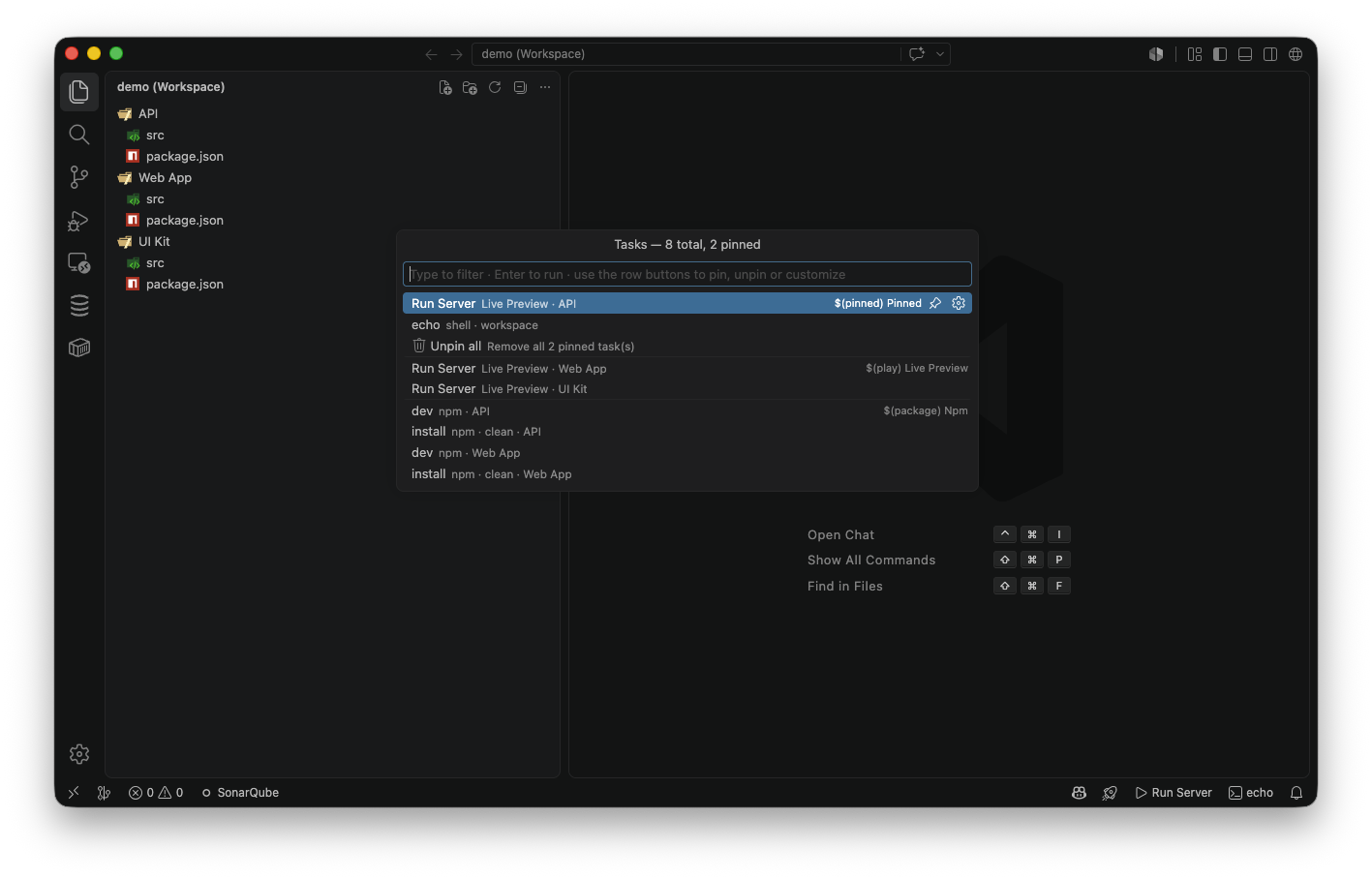
- One picker for every task, grouped by source (npm, shell, workspace,
…), with the ones you've pinned kept together at the top.
- Inline actions on each row — pin, unpin, or customize an icon — so
running or organizing a task never opens a second dialog.
- Dedicated status-bar buttons for pinned tasks. Click one, the task runs.
Features
- Every task, one place. Tasks are fetched the same way VS Code's own
Tasks menu does, then grouped by source and searchable by name, type, or
scope.
- Pin up to 5 tasks to the status bar for instant, one-click execution.
- Per-task icon and format. Each pinned task can show as icon + text,
icon only, or text only, with its own icon chosen from a built-in set.
- No secondary dialogs to run a task. Enter runs the selected task
directly from the picker.
- Unpin all, with a confirmation prompt, to reset your pinboard in one
step.
- Per-workspace persistence. Pinned tasks and their icons are remembered
per workspace and restored on reload.
Getting started
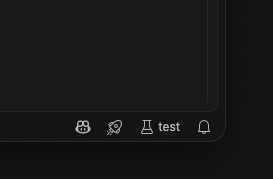
- Click the rocket button in the status bar (bottom right), or run
Task Pinboard: Show Tasks from the Command Palette.
- Browse or type to filter. Tasks you haven't pinned yet show a pin button
on the row.
- Click the pin button (or press it via the row's button) to pin a task —
it's added to the status bar immediately with a default icon.
- Click the pinned task's status-bar button any time to run it.
How pinning works
Each row in the picker carries its own buttons instead of opening a follow-up
menu:
- Unpinned task → a pin button. Click it to pin with the default
icon + text format.
- Pinned task → an unpin button and a gear button. Unpin removes it from
the status bar immediately; the gear opens a small wizard to choose the
format (icon + text, icon only, text only), pick an icon (from VS Code's
full built-in codicon set, grouped by category, or by typing any codicon
name), and, for text formats, set custom status-bar text instead of the
task name.
- Enter on any task row runs it right away — pinning and running are
separate actions, not steps in the same flow.
Pinned tasks live in the status bar to the left of the main Task Pinboard
button, most recently pinned first, up to 5 at a time.
Requirements
- Visual Studio Code 1.90.0 or later.
- Workspace tasks for Task Pinboard to show — from
.vscode/tasks.json,
package.json npm scripts, or any other task provider VS Code picks up.
Frequently asked questions
Why isn't there a keyboard shortcut?
Bind one yourself to taskPinboard.showTasks in Keyboard Shortcuts — it isn't
bound by default so it can't collide with shortcuts you already use.
Does pinning change my tasks.json?
No. Pinned tasks and their display settings are stored in VS Code's workspace
state, not in your task definitions.
Why a 5-task limit on the status bar?
Past that, the status bar gets crowded enough that a one-click button stops
being faster than opening the picker and filtering.
What happens to a pinned task if it's removed from tasks.json?
Its status-bar button disappears the next time the task list refreshes,
since it's no longer a task VS Code can run. Unpinning it explicitly clears
its saved configuration.
Contributing
git clone https://github.com/marcin-zajac/task-pinboard.git
cd task-pinboard
npm install

npm run esbuild-watch   # rebuild on save
npm run lint            # check code quality
npm run icon            # regenerate icon.png from icon.svg
Press F5 in VS Code to launch an Extension Development Host with the
extension loaded.
Bug reports and feature requests are welcome on the
issue tracker.
Release notes
0.2.0
- Inline play button on every row — run a task straight from the list
without pinning it or pressing Enter first.
- Custom status-bar text for pinned tasks, independent of the task name.
- Icon picker now covers VS Code's full built-in codicon set (500+ icons,
grouped by category), plus free-text entry for any codicon name.
- Extension Development Host launch config now opens the demo workspace.
0.1.0
- Inline pin/unpin/customize buttons on each row, replacing the old
execute-or-pin follow-up menu — running or pinning a task is now a single
action.
- Unpin all, with a native confirmation prompt.
- Status-bar button is now icon-only.
- Refreshed extension icon.
0.0.1
- Status-bar picker listing every workspace task, grouped by source.
- Pin up to 5 tasks to the status bar for one-click execution.
- Per-task icon and display-format customization.
- Persistent, per-workspace pinned-task storage.
License
Released under the MIT License.

