Skip to content
| Marketplace
Sign in
Visual Studio Code>Debuggers>Android Device HubNew to Visual Studio Code? Get it now.
Android Device Hub

Android Device Hub

Maratib Ali Khan

|
3 installs
| (0) | Free
Manage, start, stop, restart, and mirror Android emulators (AVDs) and physical devices from VS Code using the official Google Android CLI & Android Device Hub.
Installation
Launch VS Code Quick Open (Ctrl+P), paste the following command, and press enter.
Copied to clipboard
More Info

Android Device Hub

Android Device Hub Logo

Control, manage, pair, and mirror Android Virtual Devices (AVDs), USB devices, and Wireless (WLAN) phones directly from Visual Studio Code — powered by the official Google Android CLI (android) and Android Device Hub.


Overview

The Android CLI (android) is the modern foundation for Android development from the command line. Android Device Hub wraps the entire Android CLI, ADB, and Device Hub workflow into an intuitive, zero-config GUI experience inside VS Code — eliminating the need to memorize terminal flags or switch between tools to manage your devices.

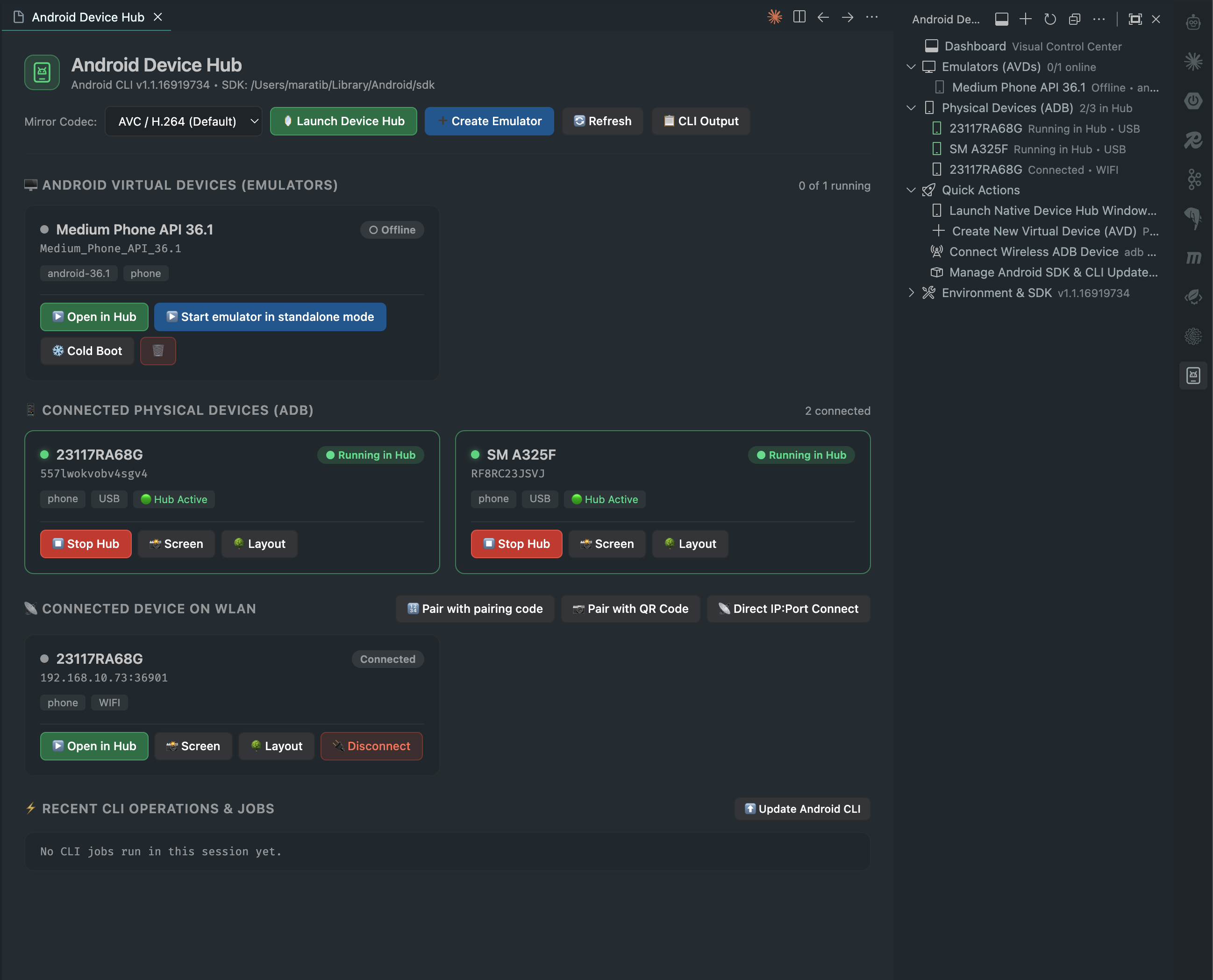
Clicking the Android Device Hub icon in the VS Code Activity Bar opens both the Sidebar TreeView and the Visual Control Center Dashboard on first launch, giving you instant control over:

  • Android Virtual Devices (Emulators): Start in Android Device Hub, start in standalone mode, cold boot, stop, restart, create from device profiles, or delete AVDs.
  • Connected Physical Devices (USB): One-click Open in Hub (▶️) and live Stop Hub (⏹️) with real-time process tracking, screenshots, and UI layout tree inspection.
  • Connected Device on WLAN (Wireless Debugging): Pair and connect Android 11+ phones over Wi-Fi using Pair with pairing code (6-digit PIN), Pair with QR Code (with automatic mDNS / Bonjour discovery), or Direct IP:Port Connect.
  • Automatic Android CLI Detection, Installer & Version Checker: Automatically checks if your android CLI is on the latest release on startup, alerts you when an upgrade is available, and provides a one-click ⚠️ Update CLI badge in the Dashboard header.

Key Features

1. Visual Control Center Dashboard & Activity Bar TreeView

  • First-Click Auto-Launch: Clicking the Android Device Hub icon in the left Activity Bar opens both the Sidebar TreeView and the Dashboard on initial open (and shows the TreeView on subsequent toggles), with a Dashboard shortcut pinned as the top node of the tree.
  • Smooth Loading Experience: Displays a smooth loading spinner while initial CLI verification and device discovery complete, then fades in the Dashboard without layout jumps.
  • Organized Sidebar Sections:
    • Dashboard (Visual Control Center)
    • Emulators (AVDs)
    • Physical Devices (ADB)
    • Quick Actions
    • Environment & SDK

2. Dual-Mode Emulator Management (Device Hub & Standalone Mode)

Every configured Android Virtual Device (android emulator list --long) is displayed as an interactive card on the Dashboard and in the Sidebar TreeView:

  • ▶️ Open in Hub / ⏹️ Stop Hub: Launch the emulator directly in Android Device Hub (android device hub --device <id>), or stop the active Hub window with the red ⏹️ Stop Hub button.
  • ▶️ Start emulator in standalone mode / ⏹️ Stop Emulator: Boot the emulator in its standalone window (android emulator start <avd>), and stop it (⏹️ Stop Emulator) once running.
  • ❄️ Cold Boot & 🔄 Restart: Boot without loading a snapshot (--cold) or perform a clean restart (stop + start).
  • ➕ Create & 🗑️ Delete Emulators: Create new AVDs from official hardware profiles (medium_phone, small_phone, medium_tablet, foldable_1_1, foldable_4_3, small_desktop, medium_desktop, large_desktop) or remove existing AVDs.

3. Connected Physical Devices (USB)

  • Focused Device Hub Workflow: Physical devices are dedicated to opening and controlling the device in Android Device Hub without accidental reboot buttons.
  • Live Hub Status Indicators:
    • When a physical device is not running in Android Device Hub, its sidebar icon uses the normal icon color and displays a Play (▶️) inline action button.
    • Once started or already running in Android Device Hub, its sidebar icon and card indicator turn green (● Running in Hub), and the action button switches to a red ⏹️ Stop Hub button.

4. Connected Device on WLAN (PIN Code, QR Code & Direct Connect)

Connect and control physical Android devices wirelessly over Wi-Fi without a USB cable:

  • 🔢 Pair with pairing code:
    • Open Settings → Developer options → Wireless debugging → Pair device with pairing code on your phone.
    • Enter the Pairing IP & Port and 6-Digit Wi-Fi Pairing PIN in the modal dialog. The extension runs adb pair, automatically discovers the device's _adb-tls-connect._tcp port via mDNS/Bonjour (dns-sd), and connects the device.
  • 📷 Pair with QR Code:
    • Click 📷 Pair with QR Code to open a modal dialog with a standard Android Wireless Debugging QR code.
    • Scan it from Settings → Developer options → Wireless debugging → Pair device with QR code on your phone.
    • A live 1.5-second mDNS/Bonjour watcher automatically detects your phone on the network, pairs it, connects it, and closes the dialog automatically.
  • 📡 Direct IP:Port Connect:
    • Connect to already-paired wireless devices or TCP/IP 5555 endpoints (adb connect <ip:port>).
  • Automatic Endpoint Deduplication:
    • When ADB registers both an <ip>:<port> transport and an adb-<serial>._adb-tls-connect._tcp mDNS transport for the same phone, the extension merges them into a single clean WLAN device card and disconnects all aliases together when you click 🔌 Disconnect.

5. Zero-Config CLI Installer & Startup Update Checker

  • One-Click CLI Installation: If the android CLI is not installed on your system, a guided Welcome View and Dashboard banner install the official Google Android CLI for your OS and CPU architecture (darwin_arm64, darwin_x86_64, linux_x86_64, linux_arm64, windows_x86_64) and run android init.
  • Startup Version Check & Yellow Update Badge:
    • On first startup, the extension checks Google's official METADATA endpoint to verify whether your installed android CLI is up to date.
    • If a newer version is available, VS Code prompts you to upgrade and displays a compact yellow ⚠️ Update CLI (v...) badge on the second line of the Dashboard header card for one-click upgrading (android update).

6. Developer Inspection & Productivity Tools

  • 📸 Capture Device Screenshot: Captures the live device screen (android screen capture) and opens the PNG in VS Code.
  • 🔍 Capture Annotated UI Screenshot: Captures the screen with numbered bounding boxes around interactive UI elements (android screen capture --annotate).
  • 🌳 Inspect Live UI Layout Tree (JSON): Dumps the active app's UI hierarchy (android layout --pretty) into a formatted JSON editor tab.
  • 📦 Fast Delta APK Install: Right-click any .apk file in the VS Code Explorer and select Install APK on Android Device (Fast Delta Install) (android install --use-delta-install).

Getting Started Guide

  1. Open Android Device Hub:
    • Click the Android Device Hub icon on the left VS Code Activity Bar.
    • On your first click, both the Devices & Emulators sidebar tree and the Android Device Hub Dashboard will open automatically.
  2. Verify or Install the Android CLI:
    • If android CLI is already installed, your emulators and connected devices load automatically.
    • If missing, click Install Android CLI & Device Hub in the Welcome View.
    • If an update is available, click the yellow ⚠️ Update CLI badge in the Dashboard header.
  3. Start, Pair, or Mirror a Device:
    • Emulator: Click ▶️ Open in Hub to mirror in Android Device Hub, or ▶️ Start emulator in standalone mode to launch the standalone emulator window.
    • USB Device: Click ▶️ Open in Hub (or the Play icon in the sidebar) to launch real-time screen mirroring, and ⏹️ Stop Hub to close it.
    • WLAN Device: Under Connected Device on WLAN, click 🔢 Pair with pairing code, 📷 Pair with QR Code, or 📡 Direct IP:Port Connect.

Commands Reference

Command Title Description
android-device-hub.openDashboard Open Android Device Hub GUI Dashboard Opens the Visual Control Center Dashboard
android-device-hub.refreshDevices Refresh Devices & Emulators Re-scans emulators, ADB devices, and running Hub windows
android-device-hub.mirrorDevice Open in Android Device Hub Launches android device hub for the selected device
android-device-hub.stopDeviceHub Stop Hub Closes the running Android Device Hub window for the selected device
android-device-hub.launchHubWindow Launch Native Device Hub Window Opens the native Android Device Hub desktop window
android-device-hub.startEmulator Start Emulator Starts an offline Android Virtual Device in standalone mode
android-device-hub.coldBootEmulator Cold Boot Emulator (--cold) Boots an emulator without loading a snapshot
android-device-hub.startHeadlessEmulator Start Headless Emulator (--headless) Starts an emulator without a standalone window
android-device-hub.stopEmulator Stop Emulator Stops a running Android Virtual Device
android-device-hub.restartDevice Restart Emulator Stops and restarts a running emulator
android-device-hub.coldRestartEmulator Cold Restart Emulator Stops a running emulator and restarts it with --cold
android-device-hub.createEmulator Create New Virtual Device (AVD) Creates a new AVD from a hardware profile
android-device-hub.deleteEmulator Delete Virtual Device (AVD) Stops (if running) and deletes an AVD
android-device-hub.captureScreenshot Capture Device Screenshot Saves and opens a PNG screenshot of the device screen
android-device-hub.captureAnnotatedScreenshot Capture Annotated UI Screenshot Captures a screenshot with numbered UI element bounding boxes
android-device-hub.inspectLayout Inspect Live UI Layout Tree (JSON) Opens the foreground app's UI layout hierarchy as JSON
android-device-hub.installApk Install APK on Android Device Installs an .apk file using fast delta install
android-device-hub.connectWirelessAdb Connect Wireless ADB Device Connects to a device over Wi-Fi (adb connect <ip:port>)
android-device-hub.disconnectWirelessAdb Disconnect Wireless ADB Device Disconnects a wireless ADB device and all its mDNS aliases
android-device-hub.installCli Install Android CLI & Device Hub Downloads and initializes the official Google Android CLI
android-device-hub.updateCli Update Android CLI Updates the Android CLI to the latest version (android update)
android-device-hub.selectCliPath Locate Existing Android CLI Binary Configures a custom android binary path
android-device-hub.manageSdkPackages Manage Android SDK Packages & Updates Installs or updates Android SDK packages
android-device-hub.showEnvInfo Show Android CLI & SDK Environment Info Displays detected versions, CLI path, and SDK path
android-device-hub.showOutputLogs Show Android Device Hub Output Logs Opens the Android Device Hub Output channel

Extension Settings

Setting Type Default Description
androidDeviceHub.cliPath string "" Custom path to the android CLI executable. Leave empty to auto-detect from PATH or ~/.local/bin/android.
androidDeviceHub.sdkPath string "" Custom path to the Android SDK (--sdk flag override). Leave empty to use the path reported by android info.
androidDeviceHub.autoRefreshInterval number 5000 Polling interval in milliseconds to automatically refresh device and Hub states (set below 2000 to disable).
androidDeviceHub.defaultMirrorCodec string "avc" Default video streaming codec passed to android device hub --codec (avc, h264, hevc, vp8, vp9, av01).
androidDeviceHub.headlessOnMirror boolean false Prefer starting offline emulators in headless mode (--headless) when launching directly into Android Device Hub mirroring.

Author

Maratib Ali Khan

  • Website: https://maratib.github.io
  • GitHub: @maratib

License

MIT — Copyright (c) 2026 Maratib Ali Khan

  • Contact us
  • Jobs
  • Privacy
  • Manage cookies
  • Terms of use
  • Trademarks
  • Your Privacy Choices
  • Consumer Health Privacy
© 2026 Microsoft