Android Developer Studio

Lightweight Modern Android Development inside VS Code — built for Kotlin, Jetpack Compose, KMP, CMP, and Gradle Kotlin DSL (.kts).
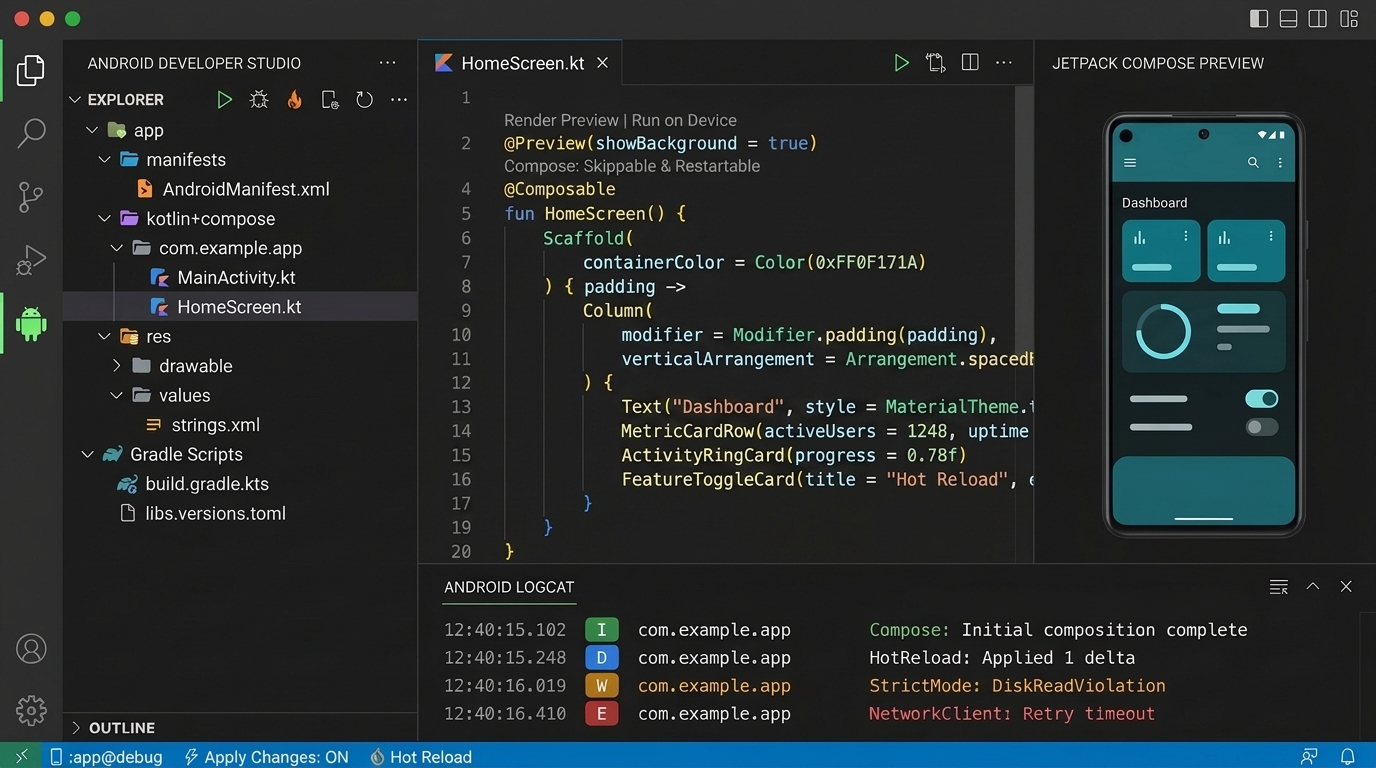
Quick Start
- Install Android Developer Studio (includes the companion Android Device Hub, Kotlin LSP, Gradle, Java Debug, and TOML extension pack).
- Open an Android / KMP / CMP workspace — or click the Android Developer Studio icon in the Activity Bar to launch New Project automatically.
- Run or Preview directly from the Explorer header toolbar, editor title bar, or inline
@Preview CodeLenses.
User Guide
- Explorer (
Android / KMP / Packages): Organizes each Gradle module into manifests, compacted kotlin+compose source sets (main, commonMain, androidMain, iosMain, test), qualifier-grouped res/, and a unified Gradle Scripts node.
- Single Horizontal Toolbar: Right on the Explorer header — Run, Debug, Apply Changes, Hot Reload, Sync Gradle, Compose Preview, and Refresh adapt to the sidebar width, with Build, Build Variant, Logcat, Device Hub, Tests, Lint, Compose Stability, Scaffolding, APK Analyzer, and Release Signing organized under the
... More Actions menu.
- Outline: Sits collapsed below Explorer and mirrors active-file symbols (Kotlin, Compose, XML, Gradle
.kts) with cursor tracking and click-to-jump navigation.
- Right-Click Scaffolding: Right-click any module, source set, or package to generate a Compose Screen + ViewModel + UiState, Jetpack Component (Room, Hilt, Ktor, Glance), or Feature Module (
:feature:<name>).
2. New Project (Android, KMP & CMP)
Run Android Developer Studio: New Project (or open an empty workspace) to scaffold a production-ready project:
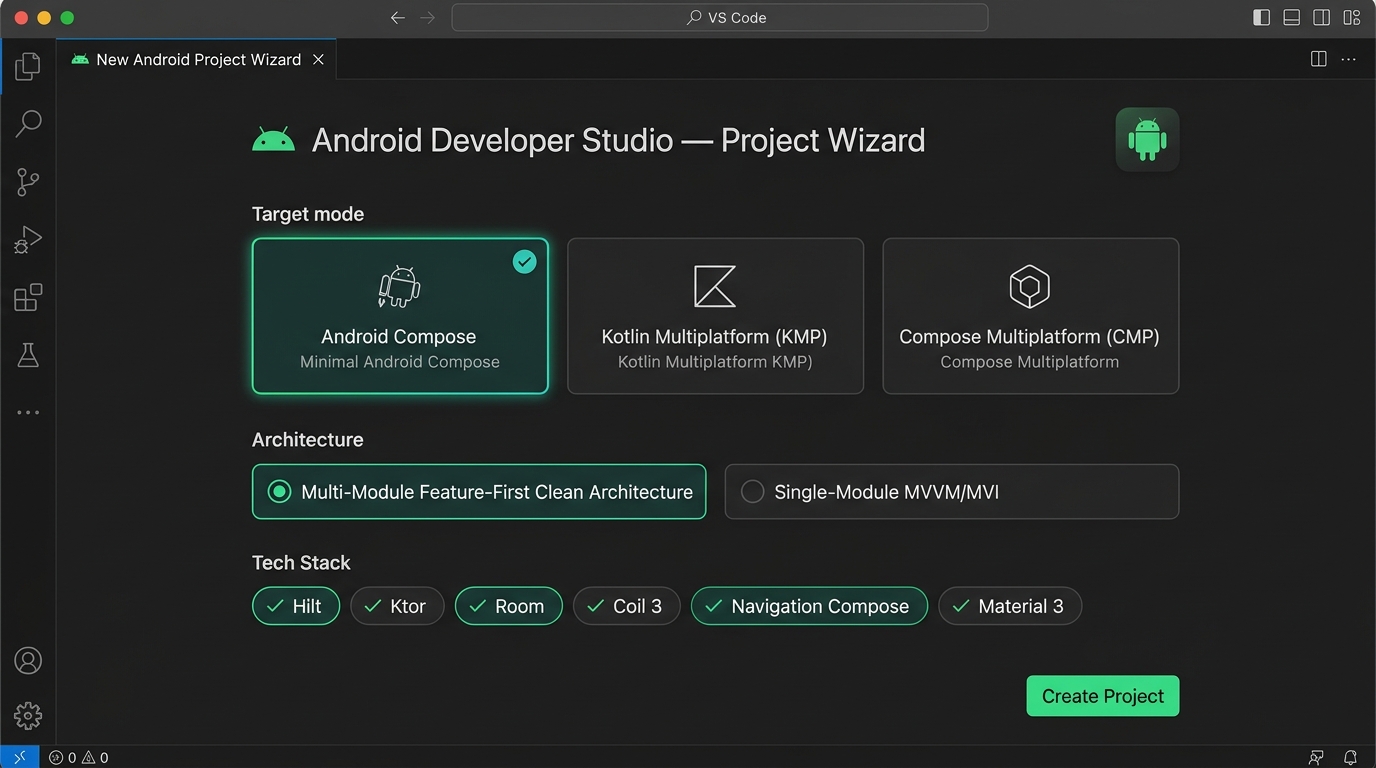
- Target Modes: Pure Android Compose, Kotlin Multiplatform (KMP) (
:shared), or Compose Multiplatform (CMP) (:composeApp).
- Architectures: Multi-Module Feature-First Clean Architecture (
:core:*, :feature:*) or Single-Module MVVM/MVI.
- Stack & Blueprints: Pick DI (Hilt, Koin, Kotlin-Inject, Metro, or None), Navigation (Navigation Compose, Voyager, Decompose, Circuit, or None), Networking (Ktor, Retrofit, or None), Storage (Room, SQLDelight, DataStore, Multiplatform Settings, or None), Coil 3, and ready-to-run Material 3 screens.
3. Run, Apply Changes, Hot Reload & Debugging
| Action |
Shortcut (macOS / Win-Linux) |
What It Does |
| Run App |
Toolbar / Run App |
Fast delta build & install (--use-delta-install / ./gradlew install<Variant>) to the active device. |
| Apply Changes & Restart Activity |
Cmd+Ctrl+R / Ctrl+F10 |
Uses Android Studio's JVMTI live swap to apply code/resource edits without restarting the app process. Toggle from the Status Bar. |
| Hot Reload |
Cmd+Alt+R / Ctrl+Alt+R |
Fast delta apply on demand or automatically on .kt / .java / .xml save. |
| Debug App |
Toolbar / Debug App |
Launches in debug mode, forwards JDWP (adb forward), and attaches the Kotlin/JVM debugger. |
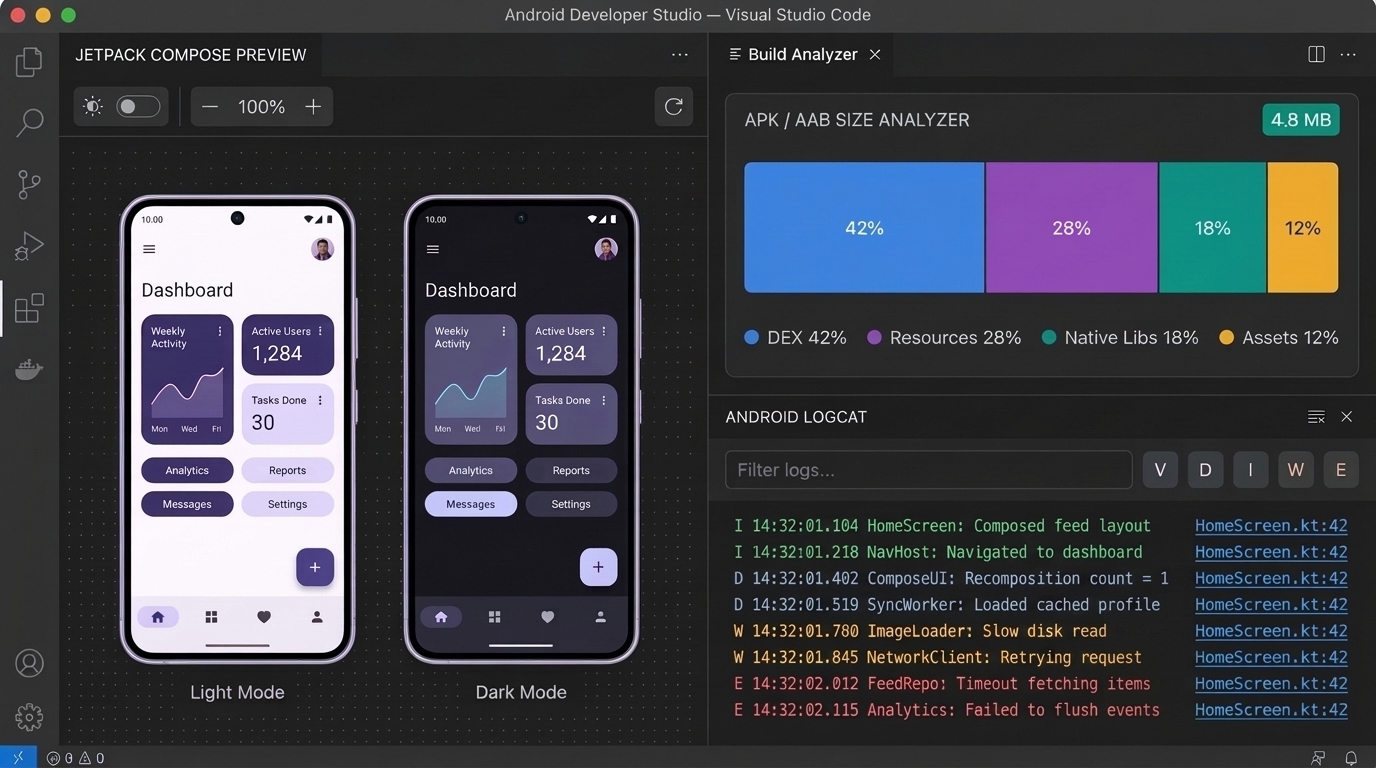
- Jetpack Compose Preview: Click
Render Preview above any @Preview function to render in the right sidebar with Light/Dark toggle, zoom, warm --daemon rendering, and hover-to-source component tree inspection.
- Compose Stability CodeLens: Inline
Skippable & Restartable vs. Unstable Params annotations above @Composable functions.
- Android Logcat Console: Opens automatically in the bottom panel on Run/Debug with app PID filtering,
V/D/I/W/E level filters, search, and clickable .kt:line stack trace links.
- APK / AAB Analyzer & Release Signing: Inspect
DEX / Resources / Native Libs / Assets size breakdown, deobfuscate R8 stack traces with mapping.txt, generate .jks keystores, and build signed release bundles.
5. Kotlin, Manifest & Gradle Intelligence
- Kotlin &
R.* Navigation: Works seamlessly with JetBrains Kotlin LSP (plus built-in Go-to-Definition, Hover, Symbols, and incremental kotlinc diagnostics fallback) and resolves R.string.* / R.drawable.* / R.color.* resources.
- Auto-Suppress Compose
FunctionName Warnings: Automatically handles false-positive lowercase warnings on PascalCase @Composable / @Preview functions.
- AndroidManifest & Gradle
.kts: Completions, hover docs, diagnostics, quick fixes, and libs.versions.toml Version Catalog update checks.
Key Settings
| Setting |
Default |
Description |
androidStudio.defaultBuildVariant |
":app@debug" |
Default module and build variant. |
androidStudio.applyChangesEnabled |
true |
Enable JVMTI Apply Changes & Restart Activity. |
androidStudio.hotReloadOnSave |
false |
Automatically Hot Reload when saving .kt, .java, or .xml files. |
androidStudio.autoOpenLogcatOnRun |
true |
Auto-open bottom Logcat panel on Run, Debug, or Apply Changes. |
androidStudio.autoRenderPreviewOnSave |
true |
Refresh active Compose Previews when saving .kt files. |
androidStudio.enableComposeStabilityCodeLens |
true |
Show inline Compose skippability CodeLenses. |
androidStudio.autoSuppressComposeFunctionName |
true |
Auto-suppress false-positive FunctionName warnings on @Composable functions. |
androidStudio.explorerViewMode |
"android" |
Default Explorer mode (android, kmp, or packages). |
androidStudio.kotlinLanguageSupportMode |
"auto" |
Kotlin intelligence mode (auto, builtin, or lspOnly). |
License
MIT © Maratib Ali Khan
| |

