Spotyy for VS Code
Spotify controls in your status bar, plus a local-network team music layer: see what teammates on the same Wi-Fi are listening to, get vibe-match highlights, and focus together in Focus Rooms.
Works in VS Code, Cursor, Windsurf, VSCodium and other VS Code–based editors. It interoperates with the Spotyy JetBrains plugin, so IntelliJ and VS Code users on the same network see each other and can share Focus Rooms.

Features
- Playback controls: previous / play-pause / next, now-playing track and volume in the status bar, with a live progress ring around the play button (same look as the JetBrains plugin)
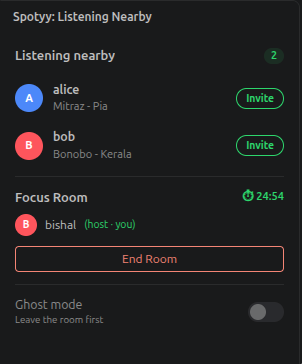
- Listening nearby: a sidebar view of teammates on your LAN and what they're playing
- Vibe match: highlights when you and a teammate play the same song (✦) or the same artist (∼)
- Focus Rooms: start a 25 / 45 / 60 minute shared countdown and invite teammates; the host can remove members
- Ghost mode: stop broadcasting what you listen to
Requirements
- The Spotify desktop app (the web player isn't supported)
- macOS: uses AppleScript. On first use, allow your editor to control Spotify in System Settings → Privacy & Security → Automation.
- Linux: uses MPRIS over D-Bus. Installing
playerctl is recommended. Snap-packaged Spotify blocks D-Bus access; use the official .deb.
- Windows: not supported yet (controls are no-ops).
- Team features need everyone on the same subnet, with UDP port 57372 open for broadcasts.
Commands
All commands are under Spotyy: in the Command Palette: Play / Pause, Next Track, Previous Track, Volume Up/Down, Set Volume…, Show Listening Nearby, Toggle Ghost Mode, Start Focus Room…, Leave Focus Room.
Settings
| Setting |
Default |
Description |
spotyy.statusBar.maxTrackLength |
40 |
Max characters of the track name in the status bar |
spotyy.statusBar.showVolume |
true |
Show the volume item |
Privacy
Spotyy broadcasts your OS username and current track over UDP to your local subnet only. Nothing is sent to the internet. Turn on Ghost mode to stop broadcasting.
Development
npm install
npm run build        # bundle to dist/extension.js
npm test             # protocol/unit tests
npm run package      # produce spotyy-x.y.z.vsix
npm run icons        # rebuild media/spotyy-icons.woff (needs: python3 -m pip install fonttools)
Press F5 from the vscode/ folder (with .vscode/launch.json) to launch an Extension Development Host.

