DeepSeek Harness UI for VS Code
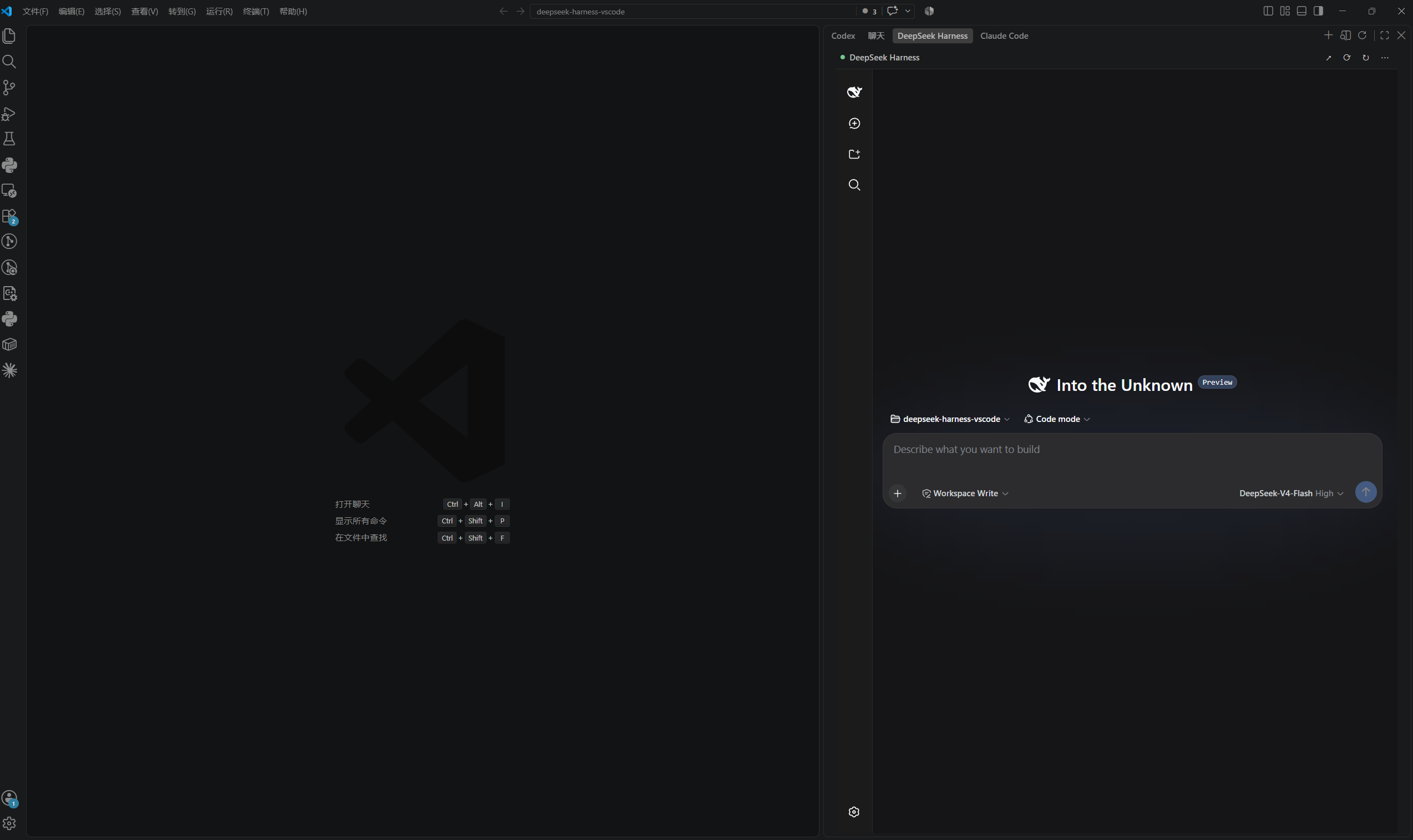
An unofficial, local-first VS Code workspace for the official DeepSeek Harness Web UI.
The extension keeps the complete official Harness experience—sessions, streaming, tools, approvals, questions, subagents, skills, model settings, and workspaces—beside your editor. It adds editor-native context, file navigation, diff, process lifecycle, and diagnostics without reimplementing the Harness protocol.
简体中文说明随包提供:README.zh-CN.md。
Features
- Official Harness Web UI in the Activity Bar or an editor tab.
- Managed local runtime or connection to an existing Harness URL.
- Automatic runtime discovery: custom command →
dsh on PATH → npx @deepseek-ai/dsh.
- Start, stop, restart, refresh, browser-open, logs, and status-bar controls.
- Add the current selection or complete file to the Harness composer.
- Context is always copied to the clipboard before automatic insertion, so it is never lost if the upstream UI changes.
- Open
file:// links from Harness in VS Code at the requested line and column.
- Compare any two local files with the VS Code diff editor.
- Theme-aware, keyboard-accessible, narrow-sidebar layout.
- Authenticated loopback proxy with HTTP, SSE, and WebSocket support.
Requirements
- VS Code 1.90 or later.
- Node.js supported by the installed DeepSeek Harness release. The current Harness preview requires Node.js 22.19+ or 24+.
- A configured DeepSeek Harness model/provider. The extension never reads or stores your API key.
If dsh is already installed, the extension uses it. Otherwise it uses:
npx --yes @deepseek-ai/dsh web --host 127.0.0.1 --port 0
The first start can take longer while npm downloads the official package.
Quick start
- Install the VSIX: Extensions → … → Install from VSIX….
- Select the DeepSeek Harness icon in the Activity Bar.
- Wait for the official Web UI to become ready.
- Open a source file, select code, then run DeepSeek Harness: Add Selection to Context or use the editor context menu.
Useful commands:
| Command |
Purpose |
DeepSeek Harness: Focus Chat |
Focus the Activity Bar view |
DeepSeek Harness: Open in Editor |
Open a persistent editor-tab workspace |
DeepSeek Harness: New Session |
Invoke the official UI's new-session flow |
DeepSeek Harness: Add Selection to Context |
Copy and insert selected code |
DeepSeek Harness: Add File to Context |
Copy and insert the complete active file |
DeepSeek Harness: Compare Files |
Open a two-file VS Code diff |
Start / Stop / Restart |
Manage the owned local runtime |
Show Logs |
Open lifecycle and diagnostic output |
Configuration
| Setting |
Default |
Description |
deepseekHarness.connectionMode |
auto |
auto, managed, or external |
deepseekHarness.externalUrl |
empty |
Existing Harness Web URL for auto/external mode |
deepseekHarness.command |
empty |
Custom executable plus optional prefix arguments |
deepseekHarness.port |
0 |
Managed Web port; 0 asks the OS for a free port |
deepseekHarness.startupTimeout |
60 |
Startup timeout in seconds |
deepseekHarness.openOnStartup |
false |
Focus the view when a workspace opens |
Examples:
// Use an already running Harness instance.
{
  "deepseekHarness.connectionMode": "external",
  "deepseekHarness.externalUrl": "http://127.0.0.1:3080"
}
// Use a non-standard executable path on Windows.
{
  "deepseekHarness.connectionMode": "managed",
  "deepseekHarness.command": "\"C:\\Tools\\dsh.cmd\""
}
Troubleshooting
The first launch times out
Open DeepSeek Harness: Show Logs. If npm is still installing the official package, increase deepseekHarness.startupTimeout and retry. Verify node --version satisfies the Harness requirement.
The official page opens in a browser but not in VS Code
Run DeepSeek Harness: Restart, then Refresh UI. Check that security software allows loopback connections to 127.0.0.1. The proxy never binds to a LAN address.
Selection was not inserted
The formatted context was copied before insertion. Focus the Harness composer and paste. A notification confirms this fallback. Because the bridge deliberately stays thin, an upstream composer markup change cannot lose your text.
A file link does not open
Only existing regular files are accepted. Relative paths must stay inside an open VS Code workspace. HTTP links and path traversal are never opened as files.
Architecture and security
The extension starts or connects to the official Web server, then places an authenticated reverse proxy on a random 127.0.0.1 port. The iframe receives a high-entropy bootstrap token; subsequent requests must be same-origin. The proxy supports streaming and WebSocket traffic and injects only a narrow editor bridge.
Secrets remain owned by DeepSeek Harness. The extension does not log authorization headers, cookies, API keys, or credential-bearing URLs. External instances are never stopped by the extension; only child processes that it starts are terminated.
Status
DeepSeek Harness is currently a developer preview and may introduce breaking changes. This extension intentionally reuses the official UI to minimize protocol drift. Automatic composer insertion and UI-driven new-session selection have clipboard or manual fallbacks when upstream markup changes.
This community project is not affiliated with or endorsed by DeepSeek. DeepSeek and DeepSeek Harness are trademarks of their respective owners.
License
MIT. See the bundled LICENSE file.

