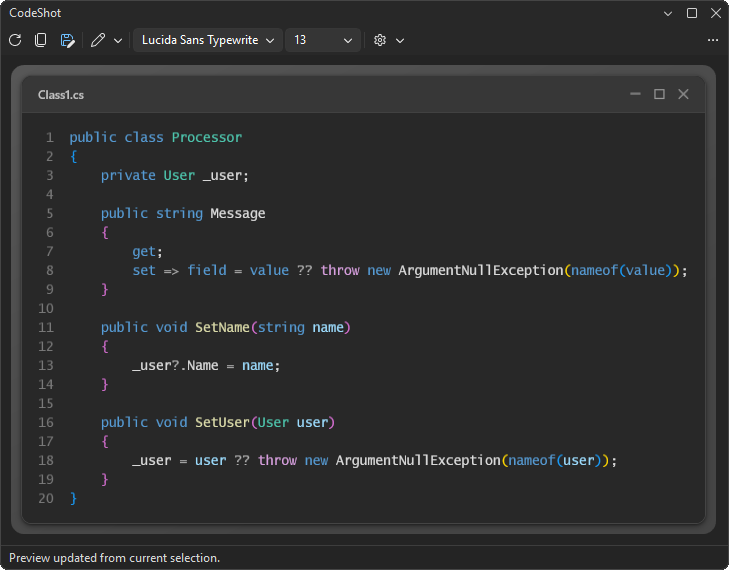
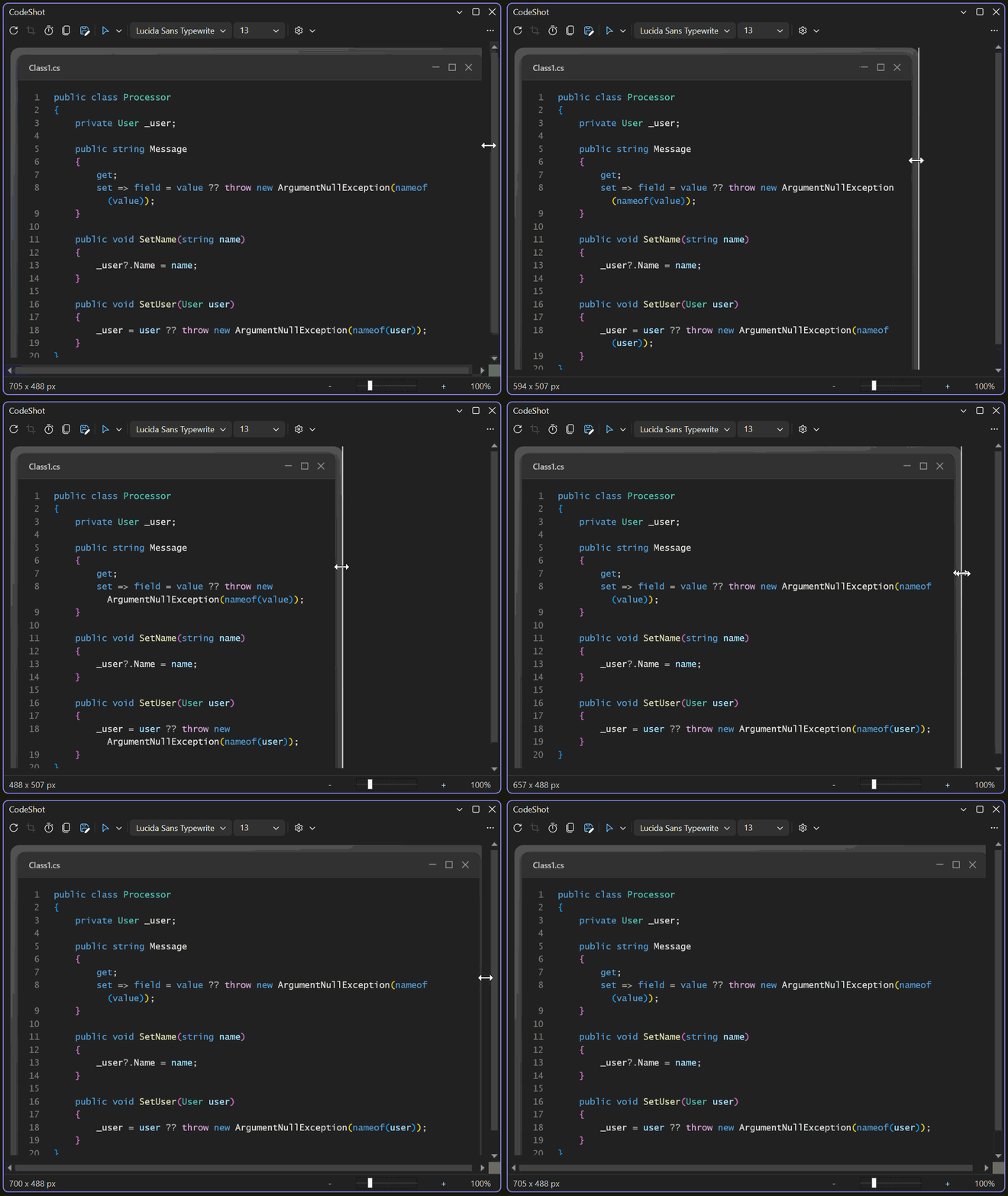
CodeShotTurn the current editor selection into a polished PNG screenshot without leaving Visual Studio. Copy it to the clipboard or save it to disk. |

CodeShot for Visual Studio
Install CodeShot from the Visual Studio Marketplace or get the latest CI build from Open VSIX Gallery. Create polished, annotated code screenshots without leaving Visual Studio. CodeShot preserves your editor's syntax colors, gives you tools to call out or redact details, and copies a share-ready PNG in seconds.
Turn a selection into a presentation-ready image while staying in your editor.
Why CodeShot
Use CodeShot for documentation, pull requests, release notes, bug reports, presentations and social posts without re-creating your editor appearance in a separate design tool. Getting started
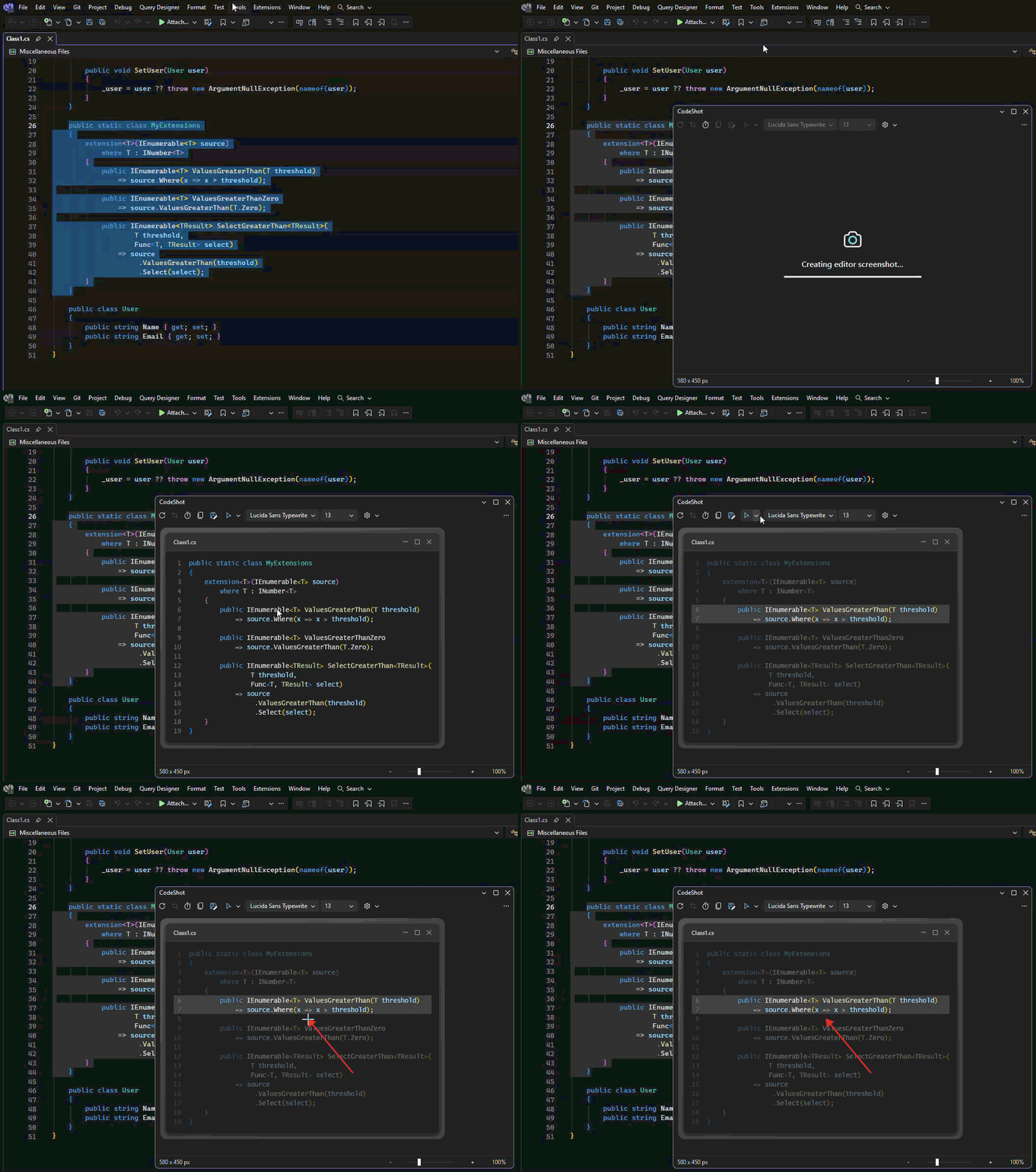
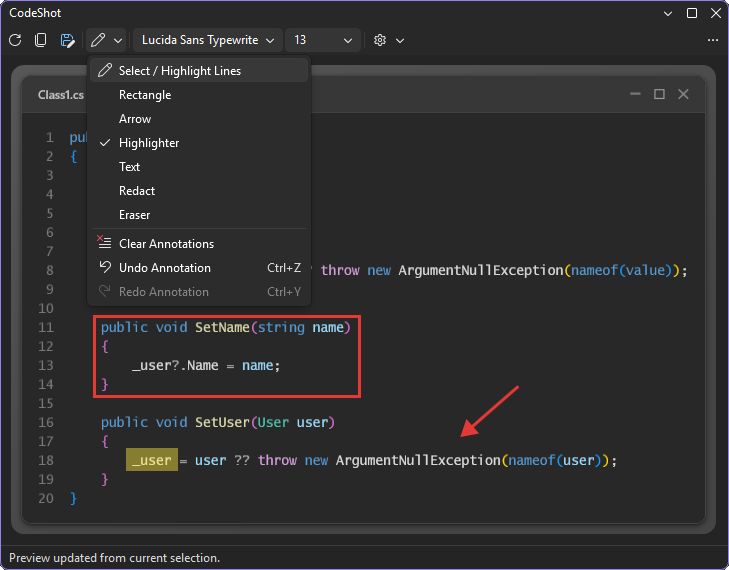
Opening CodeShot copies the initial screenshot automatically. A progress indicator remains visible while a screenshot is being prepared. Later selection changes update the preview without replacing the clipboard. Annotate and redact before sharingUse the Annotate menu to point at an expression, add a note, highlight an identifier or cover sensitive content. In Select mode, drag an annotation to move it or drag its handles to resize it. Clicking a line without selecting an annotation emphasizes it and dims the surrounding code. Ctrl+Z and Ctrl+Y undo and redo each annotation change. Redactions are baked into the exported PNG. When one is present, CodeShot also omits the unredacted plain-text clipboard format.
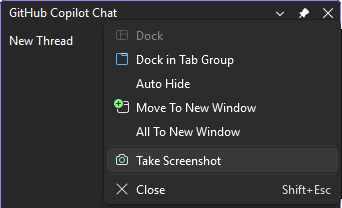
Explain the important parts and cover sensitive values before the image leaves Visual Studio. Capture Visual Studio tool windowsRight-click a visible tool window's title bar and choose Take Screenshot. CodeShot copies the screenshot immediately and opens it for cropping, annotation and export. Use Refresh Preview to return to the current editor selection. Tool-window capture uses the pixels currently visible on screen, including Win32 and WebView content. Keep the window unobscured while capturing it. Other tabs in the same docking group are excluded, and pixels outside the rounded frame remain transparent. Cropping and its undo history are available for tool-window captures; text captures use the editor selection as their natural boundary.
Capture Error List, Test Explorer, Solution Explorer and other visible tool windows. Capture Visual Studio menus and dialogsIn the CodeShot tool window toolbar, choose Capture Foreground UI in 5 Seconds, then open the top-level menu, context menu, cascading submenu or modal dialog you want while the countdown appears in the tool window. CodeShot captures the topmost Visual Studio surface at the pointer or the foreground modal window, copies the image and opens it for cropping, annotation and export. Keep the entire surface unobscured during capture. Top-level menus include only the active header and visible cascading submenus. Context menus are trimmed to their visible command surface so background pixels, transparent margins and window shadows are excluded. Customize and exportThe toolbar controls font, size, line numbers, title bar and indentation. Drag the right edge of a text screenshot to resize it; narrower widths wrap long lines, and double-clicking the edge restores the selection's natural width.
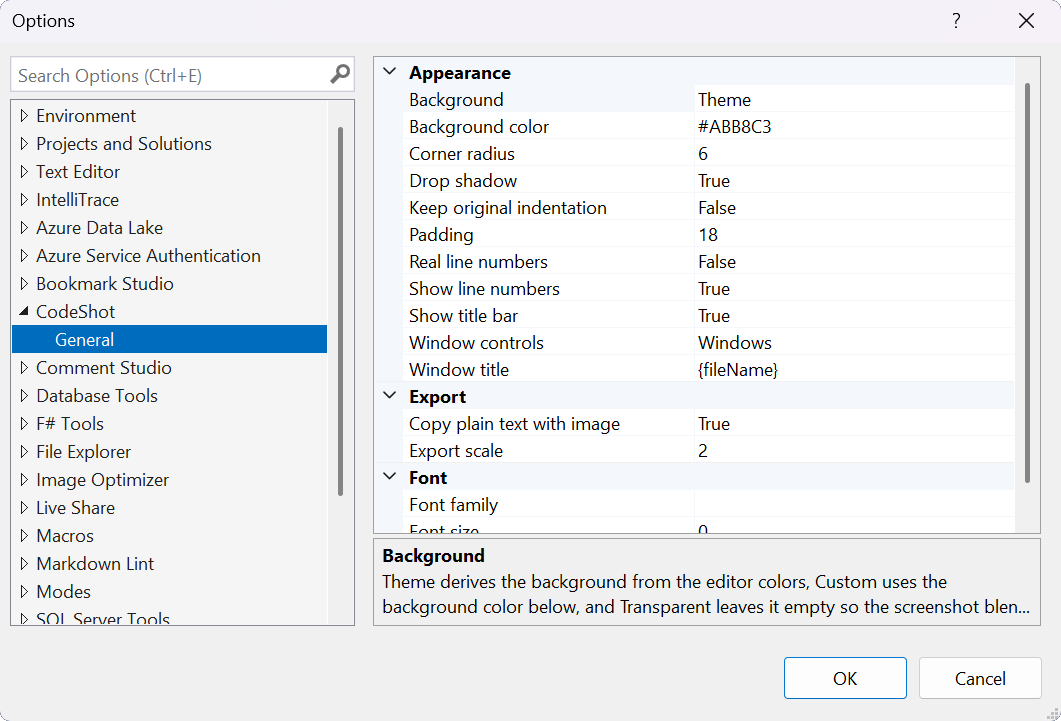
The status bar shows the exported screenshot dimensions. Use its slider or Ctrl+mouse wheel to zoom the preview without changing the exported image. Tools > Options > CodeShot > General contains appearance and export settings, all remembered between sessions.
Keyboard shortcuts
Shortcuts other than Ctrl+Shift+M apply while CodeShot has focus. They can be rebound under the CodeShot scope in Tools > Options > Environment > Keyboard. PrivacyCodeShot processes screenshots locally inside Visual Studio. It does not upload source code or images. Redactions are rendered into the exported PNG, and the plain-text clipboard format is omitted whenever a redaction is present. Get involvedFound a bug or have an idea? Open an issue or pull request on the GitHub repo. CreditsCodeShot was inspired by the excellent CodeSnap extension. |