Tokyo Ghoul Theme 🩸
Theme Previews
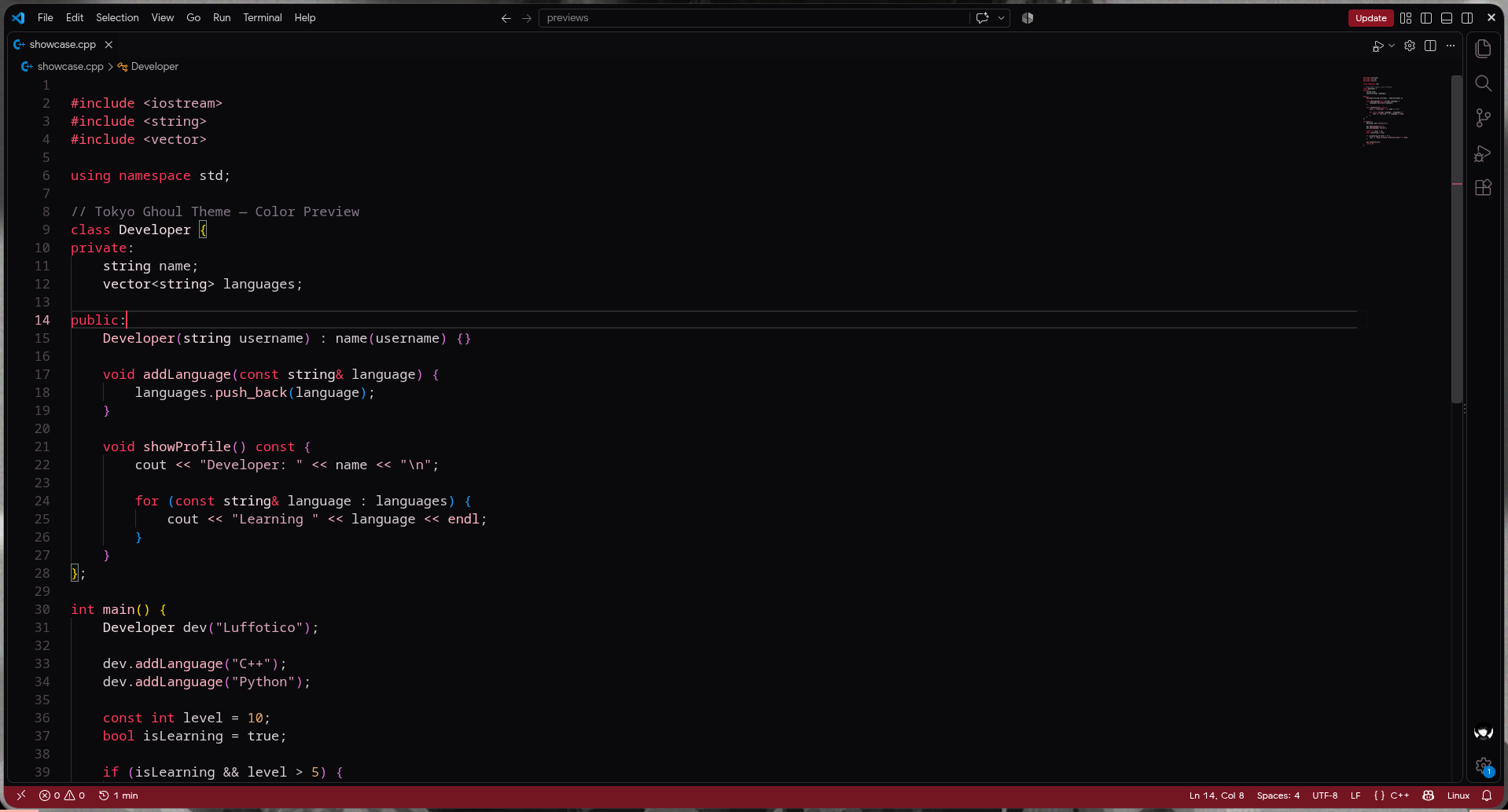
Tokyo Ghoul — One Eyed
A dark theme featuring deep black backgrounds,
crimson accents, and soft pink syntax highlighting.
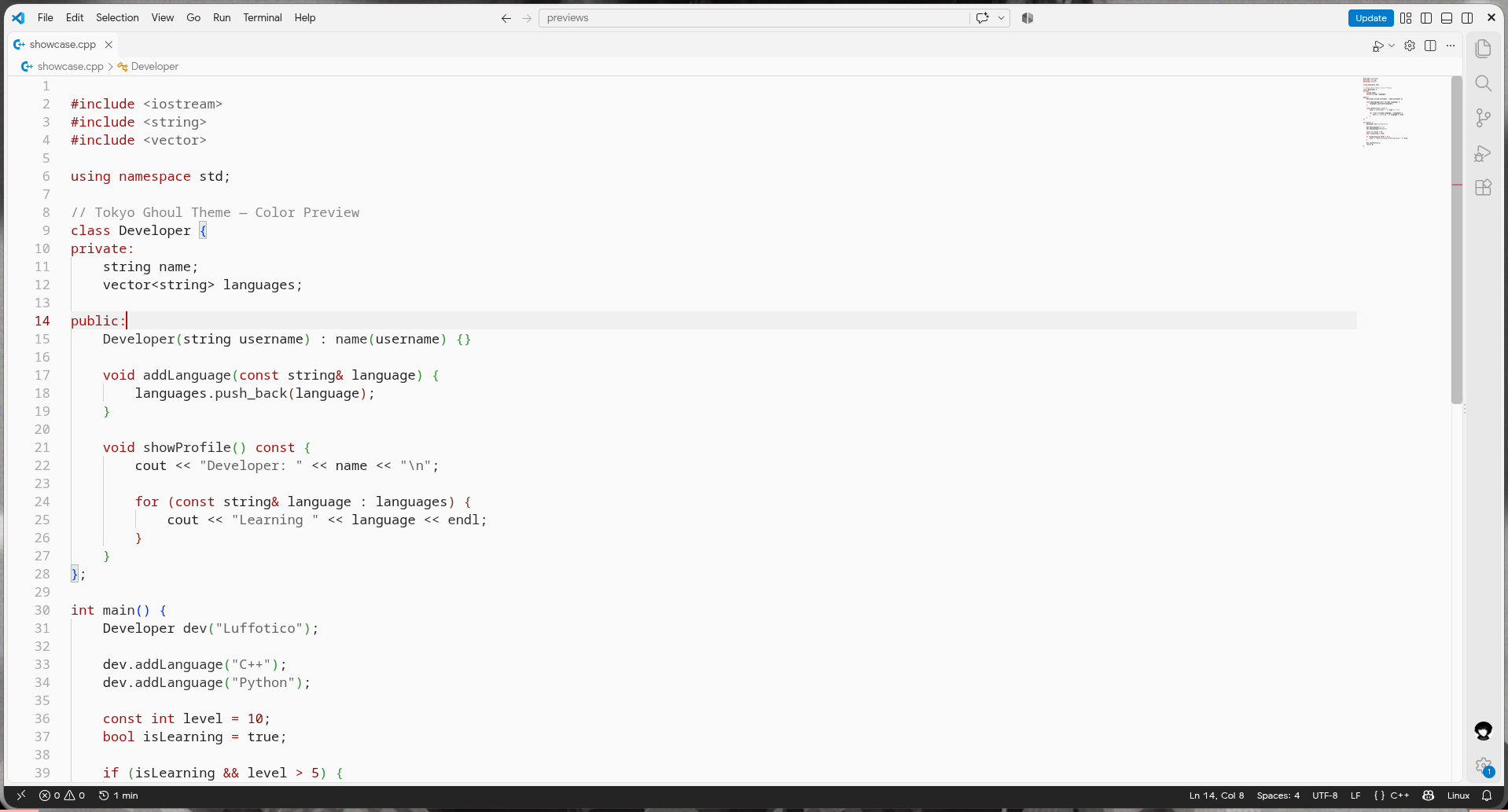
Tokyo Ghoul — White Reaper
A minimalist light theme featuring cool whites,
silver tones, and subtle crimson accents.
A dark, Tokyo Ghoul–inspired color theme for Visual Studio Code.
One Eyed
A near-black editor with crimson keywords, pale-pink accents, and subtle gray comments. Designed for coding with a moody, high-contrast look.
What it changes
- VS Code colors: editor, sidebar, title bar, status bar, selections, and syntax highlighting.
- Includes Tokyo Ghoul — One Eyed as the first color theme.
- Works with C++, Python, and other supported languages; syntax colors may vary by language extension.
It does not change your file icons, font, keybindings, editor layout, or installed extensions. You can keep Material Icon Theme.
Install locally from VSIX
- From the project folder, run
npx --yes @vscode/vsce package --allow-missing-repository to create a .vsix file.
- In VS Code, open Extensions (
Ctrl+Shift+X).
- Select ... → Install from VSIX..., then select the generated
.vsix file.
- If you are connected through Remote SSH, choose Show Local so you can select the package on your own computer.
- Open the theme picker with
Ctrl+K, then Ctrl+T, and select Tokyo Ghoul — One Eyed.
If you previously customized colors in your user settings.json, remove the workbench.colorCustomizations and editor.tokenColorCustomizations properties, as these can override the selected theme. Keep workbench.iconTheme and your other personal settings.
Development (Arch Linux + Fish)
Install prerequisites:
sudo pacman -S nodejs npm unzip
Edit the theme colors in:
themes/one-eyed-color-theme.json
Build and install a local update:
cd ~/Downloads/tokyo-ghoul-theme-0.1.1
npx --yes @vscode/vsce package --allow-missing-repository
code --install-extension tokyo-ghoul-theme-0.1.1.vsix --force
Then run Developer: Reload Window in VS Code. For regular development, move this folder somewhere permanent instead of leaving your only copy in Downloads.
Add more themes later
- Copy
themes/one-eyed-color-theme.json to a new filename, such as themes/white-reaper-color-theme.json.
- Change the new palette.
- Add another entry in the
contributes.themes array of package.json, pointing to that file.
- Increment the
version in package.json, repackage, and reinstall.
- Switch between themes with
Ctrl+K, then Ctrl+T.
Project structure
tokyo-ghoul-theme/
├── images/
│   └── icon.png            # Extension listing icon, not file icons
├── themes/
│   └── one-eyed-color-theme.json
├── package.json            # Theme contribution and extension metadata
├── README.md               # Documentation
├── CHANGELOG.md
└── .vscodeignore
Credits and disclaimer
Fan-made theme inspired by the atmosphere of Tokyo Ghoul. Not affiliated with, endorsed by, or officially associated with the anime, manga, or its rights holders. The extension icon was generated as original fan-inspired imagery.
The first release was created as a personal learning and customization project.

