ICS — Indented C#Edit C# with indentation instead of braces. Your .cs files stay standard C#. Installation Launch VS Code Quick Open ( Ctrl+P), paste the following command, and press enter.Copied to clipboard |

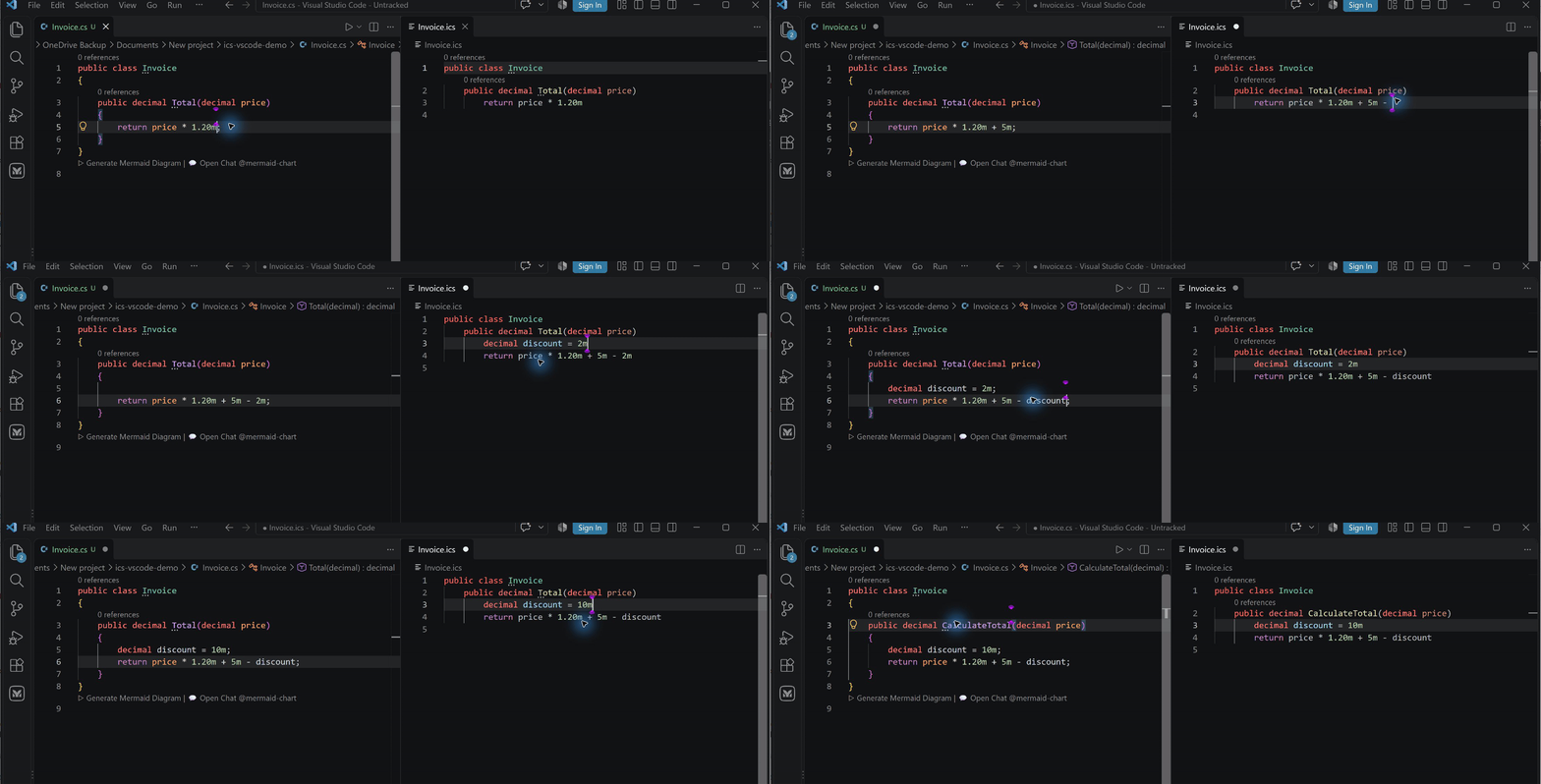
ICS — Indented C# for VS CodeEdit your existing C# with indentation instead of braces. Changes flow between the C# and ICS panes, while your project keeps standard The same file, with and without braces
Recorded in VS Code. Playback is edited for pace. Both panes are editable and stay in step. The Start with a C# fileInstall ICS — Indented C#, open a Type in either pane; after a short pause, the other updates when the code is convertible. Your project continues using ordinary To toggle the view using the keyboard, press Ctrl+K, release both keys, then press I. On Mac, press Cmd+K, release both keys, then press I. Why ICS
See the differenceThe same C# on disk ICS in the editor Work in the ICS editorThe ICS view supports hover, Go to Definition, Find References, completion, semantic highlighting, and reference-count code lenses. Analysis runs locally on the generated C# projection. See the language-service scope and limitations. Enable Editor Fidelity in the ICS Control Panel → Live Editing (or set ICS: Change Signature… in the editor context menu or Command Palette opens native parameter choices for a resolvable source declaration or call. Reorder or remove existing parameters, or add required/optional parameters with a C# type and explicit, named, inferred or omitted-default call-site values. Roslyn updates related source declarations and callers across the loaded SDK solution, including constructors, indexers, delegates and interface implementations. Existing parameter names and types retain their identities; use Rename to change a parameter name. Changes use the guarded unsaved workspace transaction. Stale source, invalid parameter ordering, conflicting declarations and new compiler errors reject the whole operation. Related external definitions can require an explicit warning confirmation. Outline, breadcrumbs and Go to Symbol show the current file's declarations. Symbol occurrences distinguish reads and writes, and declarations and executable blocks can be folded. Enter indents recognized single-line block headers. Completion also offers ICS-native With this option enabled, SDK-style C# projects supply the context for completion, parameter help, diagnostics, definitions and references. Analysis loads the nearest solution, including downstream consumers, or the nearest project's reference graph when no solution exists. It uses evaluated compiler settings, restored references and unsaved buffers. Install a compatible .NET SDK and restore the project first. Analysis never changes saved C# files. Files outside SDK projects retain localized analysis. Use Discovery folders are scanned together, compiling each resolved SDK graph once.
Background watches cover loaded projects, known linked-source directories,
ancestor build settings, The normal Rename command updates resolvable symbols across the loaded solution in one undo transaction. It checks every affected buffer before applying edits and leaves them unsaved. Conflicting names, stale buffers, invalid open ICS views and edits that cannot map safely to ICS are rejected. If a closed standalone ICS companion is reported, open it and repeat the rename. Quick Fix offers bundled Roslyn C# fixes such as importing a namespace, qualifying a type or implementing missing interface members. A selected fix is recalculated against current buffers and applied as one unsaved undo transaction. Structural fixes may canonicalize the affected ICS document after conversion checks. Applicable Fix All actions cover a document, project or solution using the same guarded edit path. File creation, moves and deletion can join that transaction. Actions that require project/reference/configuration changes or unsupported IDE operations are unavailable with a reason. Other options-dialog actions and third-party code-fix providers are not included. The native Refactor menu offers applicable C# refactorings for selected ICS, including Extract Method, Extract Local Function, introducing a local and inlining a temporary variable. Whole-line and block selections use native ICS positions. Edits use the same guarded conversion, unsaved workspace edit and single-undo path; stale source or selection snapshots cannot resolve an old offer. Guarded file creation, rename, move and deletion can join the same native edit transaction. Broader project-system operations and other IDE options dialogs remain outside this path. Planned file actions keep private ICS previews and physical ICS companions separate. A closed preview follows a later rename or deletion invoked from another editor, retaining its saved draft and common baseline. Native Undo/Redo works from the invoking editor or the reopened target, including earlier file actions from that IDE session. Closed previews do not contribute abandoned edits to analysis. Explorer and native file/folder renames also keep private previews attached and move their standalone ICS companions. Native Undo/Redo retains those identities, including after the option is turned off. If a companion destination is occupied, the existing files stay intact and the view becomes a recoverable draft; undoing the source rename reattaches it. Ordinary file deletion retains the independent saved bytes, raw C# working copy and private ICS draft; native Undo restores the pair. Deleting a folder retains recovery copies but follows VS Code's irreversible-folder behavior. Disk changes made by another application still require manual recovery. VS Code may ask to include ICS refactoring changes with a deletion. Choose OK to retain paired native file history. Skip Changes retains private recovery copies while VS Code performs the original deletion. With Enable editor fidelity enabled, completion includes symbol types, method
signatures, overload counts and available source documentation. The documentation
includes each overload's signature. Selecting a suggestion
replaces the full partial identifier, including text to the right of the caret.
In an SDK project, suggestions can also add a missing import or generate an
override body. Accept these suggestions with Tab or Enter. The ICS buffer and
its open C# companion change together in one undo step; an offer is rejected if
its source or project context changes before acceptance.
Parameter help shows method, constructor, indexer and attribute overloads,
highlights the current argument, and handles named, optional and Open ICS companions contribute current declarations while common method bodies, calls, indexers and signatures are unfinished. Completion, parameter help, navigation, references and read-only hierarchies use those current declarations and native positions. Recovery never rewrites the draft. Generating C# and applying workspace transformations still require valid source; unprojectable indentation errors can temporarily limit cross-file features. Enter also recognises parenthesis-free ICS These queries recover common unfinished typing states such as With fidelity enabled, Go to Definition and Go to Type Definition can open read-only C# declarations from referenced assemblies and generated source. Library navigation includes available documentation and signatures, and decompiles method bodies when an implementation assembly is available. Reference-only libraries fall back to declarations. Call Hierarchy and Type Hierarchy use the same SDK project context and map source entries to their ICS positions. Reopen a hierarchy after changing its source or project context; stale entries cannot expand. With editor fidelity enabled, live preview working copies use private Free and ProLive in-memory C# ↔ ICS synchronization is free. ICS Pro enables:
ICS Pro is $29 once. No subscription. Includes all 1.x updates, eight activations for one person, and a 30-day refund guarantee. After purchase, run ICS: Enter License Key; use ICS: Deactivate License to release an activation before moving it. Full pricing and terms · Activation transfer policy PrerequisitesRequires VS Code 1.100 or later. The converter is bundled. Microsoft's .NET Install Tool automatically installs the required user-level .NET 10 runtime on first use, which may require an Internet connection. A system-wide .NET installation is not needed. The validated desktop target for this release is Windows. Native macOS/Linux, WSL, Remote SSH, Dev Containers and Codespaces workflows remain unvalidated. ICS runs on the workspace host, so a remote host would need its own compatible .NET runtime and, for project analysis, SDK and restored references. Runtime acquisition alone does not establish remote compatibility. The extension is disabled in untrusted workspaces (Restricted Mode). Live editing, saves, and recoveryBy default, live updates change editor buffers only; disk writes occur on save or an explicit output command. Pro's optional auto-save can also write each successful update. Incomplete code is normal while typing. Until it becomes convertible, the other pane keeps its last verified text and is marked out of date—it is not overwritten with a partial conversion. If both panes have independent edits, ICS: Resolve Preview Conflict lets you review and choose. Local recovery copies can contain source code; the editing and recovery guide explains where they live and how to remove them. Other ways to work
The full VS Code guide covers save behavior, conflicts, recovery, workspace-wide conversion, and troubleshooting. C# clipboard fragmentsICS: Paste C# as ICS converts complete C# statements, members or declarations at a statement/declaration margin, with one undo step. ICS: Copy Selection as C# copies one contiguous selection of complete ICS statements or members. Copy Generated C# continues to copy the whole document. Partial expressions and incomplete fragments are outside this first version; a failed explicit conversion leaves both the clipboard and documents unchanged. With Enable editor fidelity on, ordinary paste can also offer Paste C# as ICS. Text copied within ICS retains normal paste behavior. If automatic conversion is unavailable, VS Code falls back to ordinary text paste. A paste that would change a multiline string's value through the target document's line endings is refused; use a matching line-ending format or edit the paired C#. File-based apps and merge conflictsBasic conversion supports .NET 10 file-based programs, preserving the shebang
and Git merge-conflict markers block fresh conversion. An existing ICS view retains its last verified text and any recovery draft. Resolve the markers in the paired C# file; Resolve Preview Conflict opens that source rather than replacing its markers with the ICS draft. Refresh from C# after resolving; if both sides have independent edits, review both before choosing a version. AI assistantsCopilot and other AI completions, chat edits and next-edit suggestions in ICS are unvalidated. This release makes no AI compatibility claim. Suggestions may contain ordinary C# syntax; review them in the paired C# editor or use explicit C# clipboard conversion for complete fragments. Keyboard and screen readersThe Windows smoke check covered keyboard movement, Go to Symbol in Editor
( Use VS Code's Editor: Accessibility Support setting ( Settings at a glanceFree live pairing needs no configuration. To change conversion behavior, open VS Code Settings and search for ICS. The three Pro automation settings are Structural C# braces disappear from the ICS view automatically. The optional The control panel's document actions use the last open text tab while the panel
has focus. Apply Preview to C# applies a paired preview; Sync Standalone ICS
to C# generates a companion for an independent local
Optional-brace examples and preservation rules · Complete settings reference Main commands
To toggle the view, press Ctrl+K (Cmd+K on Mac), release both keys, then press I. Ctrl+Alt+S (Cmd+Option+S) applies a preview. VS Code's standard Format Document command also formats ICS. Privacy, terms, and output ownershipConversion, language services, recovery, and diagnostics run locally. The Microsoft .NET Install Tool may contact Microsoft to install or update the required runtime. ICS contacts Lemon Squeezy for Pro licence activation, validation and deactivation. Validation can happen automatically when Pro access is checked and the cached result has expired or is about to expire. Deactivation happens when you request it, or automatically to release an activation that ICS has just rejected, such as a key for a different product. ICS does not claim ownership of source code, ICS files, or generated C# processed or produced using the extension.
Reporting bugsRun ICS: Report Issue to prepare a scrubbed diagnostic in a local editor. Review it before copying anything to the public support tracker. Do not submit proprietary source, license keys, paths, customer information, or other sensitive data. |