Error & Success Reactor 🔊
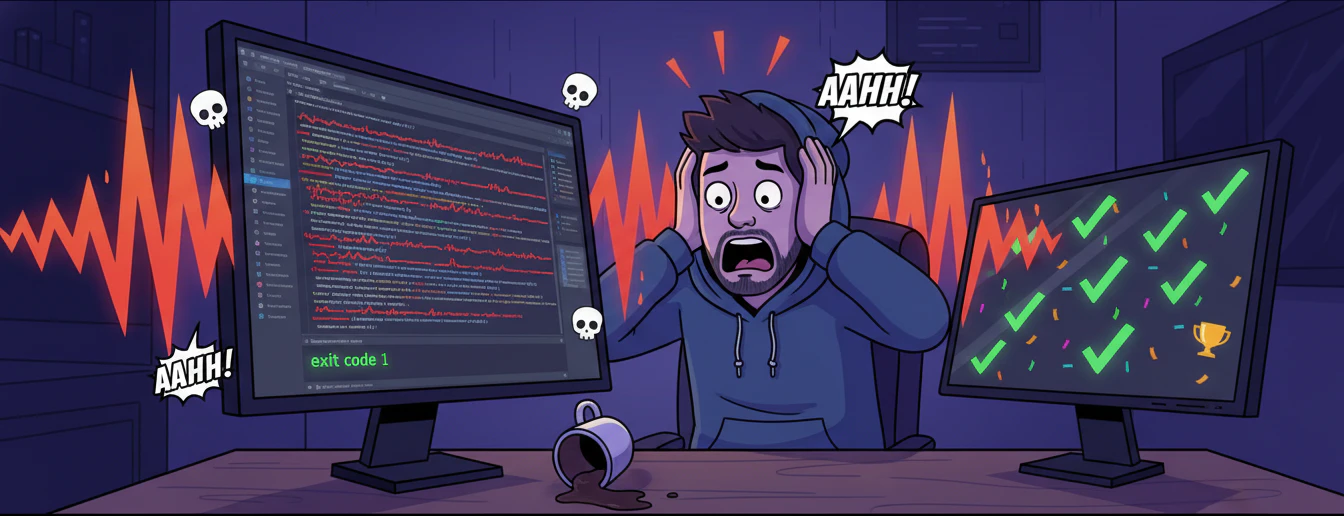
The ultimate VS Code extension that reacts to your code with sound — screams when things go wrong, celebrates when they go right.
Terminal failures, red squiggles, broken saves, failed builds, crashed debuggers — nothing escapes the scream. Successful commands get a victory sound. Fully customizable with per-sound settings, funny toasts, escalation mode, waveform viewer, DND schedule, and more.




✨ Features at a Glance
- ⚡ 5 Trigger Sources — terminal failures, diagnostic errors, save-with-errors, task failures, debug session crashes
- 🔊 Instant Playback —
sound-play npm for ~50ms latency (no shell spawn)
- 🎵 Sound Library — import
.mp3 files, per-sound volume/speed/pitch/reverse
- 🎲 Random Sound Mode — separate random toggles for error and success sounds
- 🎉 Success Sounds — plays a different sound when commands succeed (exit code 0)
- 😱 Funny Toasts — 15 randomized hilarious roast messages on every scream
- 🔥 Escalation Mode — sound gets louder and faster as your error streak grows
- 🌙 Do Not Disturb — schedule quiet hours (handles overnight windows)
- 📊 Stats & Counters — daily error count, current streak, lifetime scream counter
- 🎨 Settings Webview — a full GUI panel to manage everything visually
- 📈 Waveform Viewer — visualize any sound file with Web Audio API
- 🔇 Quick Mute — suppress sounds without losing streak/stat tracking
- 🛡️ Guards — cooldown, ignored exit codes, error pattern detection
| Platform |
Audio Engine |
Status |
| Windows |
sound-play (fast) → PowerShell MediaPlayer (fallback) |
✅ Fully supported |
| macOS |
sound-play (fast) → afplay (fallback) |
✅ Fully supported |
| Linux |
sound-play (fast) → ffplay / paplay / aplay (fallback) |
✅ Fully supported |
Advanced audio processing (speed, pitch, reverse) requires ffmpeg on all platforms.
📦 Installation
From VSIX
- Download
error-screamer-2.3.0.vsix
- In VS Code:
Ctrl+Shift+P → Extensions: Install from VSIX...
- Select the file → reload VS Code
- Turn your speakers on and write bad code 😈
From Source
git clone https://github.com/DhakadG/ErrorScreamer.git
cd error-screamer
npm install
# Press F5 in VS Code to launch Extension Development Host
📖 User Manual
⚡ Trigger 1: Terminal Failure (always on)
The core trigger. Every time a terminal command exits with a non-zero code, it screams.
Example:
- Open the integrated terminal
- Run
ls nonexistent or exit 1
- 🔊 SCREAM!
Also supports error pattern detection — scan terminal output for keywords like Error:, Traceback, etc. even when exit code is 0. Enable via errorScreamer.errorPatternDetectionEnabled.
🔴 Trigger 2: Diagnostic Errors (live, while typing)
Watches your code in real-time. The moment a new Error-severity diagnostic (red squiggle) appears, it screams. Uses a 150ms debounce to avoid spam while typing, and resets its baseline when you switch files.
Example:
- Open any
.js, .ts, .py file
- Type something broken like
const = ;
- The moment VS Code shows the red squiggle → 🔊 SCREAM!
Only screams when errors increase. Fixing errors does not trigger it.
To turn off: Set errorScreamer.playOnDiagnostics to false.
💾 Trigger 3: Save & Scream
Every time you press Ctrl+S, it checks if the saved file still has Error-severity diagnostics. If it does — scream.
Example:
- Have a file open with red squiggles
- Press
Ctrl+S
- 🔊 Caught!
To turn off: Set errorScreamer.playOnSave to false.
🛑 Trigger 4: Task Failure
When a VS Code Task (build scripts, test suites, etc.) exits with a non-zero code, it screams.
How to trigger:
Ctrl+Shift+B (Run Build Task) or Terminal → Run Task- If the task fails → 🔊 SCREAM!
To turn off: Set errorScreamer.playOnTaskFailure to false.
🐛 Trigger 5: Debug Session Crash
When a debug session terminates (crash, exception, stopped), it screams.
How to test:
- Create
test.py with 1/0
- Press
F5 to debug
- Python crashes with
ZeroDivisionError → 🔊 SCREAM!
To turn off: Set errorScreamer.playOnDebuggerCrash to false.
😱 Funny Toast Messages
When showErrorToast and funnyToasts are both enabled, each scream shows a random hilarious roast:
|
|
| 😱 AAAHHHHHH! You broke it again! |
💀 RIP your code. Rest in errors. |
| 🚨 ERROR DETECTED. INITIATING SCREAM PROTOCOL. |
🤦 Have you tried turning your brain off and on again? |
| 🔥 Your code just burst into flames! |
🫠 The code is melting... MELTING! |
| 📢 ATTENTION: Your code has committed a crime! |
😂 It's not a bug, it's a ✨ feature ✨ |
| 🧨 KABOOM! Another error explosion! |
☠️ Your code just ragequit. |
...and more! (15 total)
🔥 Escalation Mode
The more you mess up, the louder and faster it gets.
- Enable
errorScreamer.escalationEnabled
- Set a threshold (default: 3 consecutive errors)
- Each tier above threshold adds volume boost + speed boost
- Status bar shows
$(flame) Escalation tier N!
🌙 Do Not Disturb
Don't want screams during a late-night meeting?
- Enable
errorScreamer.doNotDisturbEnabled
- Set start/end times (e.g.
23:00 → 08:00)
- Sounds are silently suppressed during those hours
- Handles overnight windows correctly
🔇 Quick Enable / Disable
Ctrl+Shift+P → Error & Success Reactor: Toggle On/Off — master switchCtrl+Shift+P → Error & Success Reactor: Quick Mute — mutes sounds, but streak/stats still track
🎵 Custom Sounds
Ctrl+Shift+P → Error & Success Reactor: Import Sound File — opens a file picker for .mp3 and asks which category (Error or Success)- Or drop any
.mp3 into sounds/errors/ or sounds/success/ — it appears automatically
- Use Error & Success Reactor: Select Error Sound to set the active error sound
- Each sound has its own Volume / Speed / Pitch / Reverse / Label — all configurable in the Settings panel
Folder structure:
sounds/
  errors/        ← error sounds (.mp3)
    aahh.mp3
    fahhhh.mp3
    ...
  success/       ← success sounds (.mp3)
    mission-passed.mp3
    ...
📊 Stats & Counters
- Status bar (bottom-right) — shows current streak, mute state, escalation tier
- Daily stats — error count per day (last 7 days in the Settings panel)
- Lifetime scream counter — persistent across sessions, shown in Settings panel stats
- Click the status bar item to view today's stats
Ctrl+Shift+P → Reset Lifetime Scream Counter to start fresh
⚙️ All Settings Reference
Open VS Code Settings (Ctrl+,) and search errorScreamer:
General
| Setting |
Type |
Default |
Description |
enabled |
boolean |
true |
Master switch |
muted |
boolean |
false |
Quick mute (stats still track) |
activeSound |
string |
"aahh" |
Sound ID for errors (from sounds/errors/) |
successSound |
string |
"mission-passed" |
Sound ID for success (from sounds/success/, empty = disabled) |
successCooldownSeconds |
number |
5 |
Seconds between success sounds |
randomErrorSound |
boolean |
false |
Random sound per error |
randomSuccessSound |
boolean |
false |
Random sound per success |
cooldownSeconds |
number |
3 |
Seconds between error sounds |
showErrorToast |
boolean |
false |
Show notification after each sound |
funnyToasts |
boolean |
true |
Use funny randomized messages in toasts |
Triggers
| Setting |
Type |
Default |
Description |
playOnDiagnostics |
boolean |
true |
Scream on new diagnostic errors |
playOnSave |
boolean |
true |
Scream on save-with-errors |
playOnTaskFailure |
boolean |
true |
Scream on task exit ≠ 0 |
playOnDebuggerCrash |
boolean |
true |
Scream on debug session end |
diagnosticDebounceMs |
number |
150 |
Debounce for diagnostics (ms) |
Detection
| Setting |
Type |
Default |
Description |
errorPatternDetectionEnabled |
boolean |
false |
Scan terminal output for keywords |
errorPatterns |
array |
["error:", "Error:", ...] |
Keywords to match |
ignoredExitCodes |
array |
[] |
Exit codes to skip |
Escalation
| Setting |
Type |
Default |
Description |
escalationEnabled |
boolean |
false |
Auto-boost on streak |
escalationThreshold |
number |
3 |
Streak before escalation starts |
escalationVolumeBoost |
number |
0.2 |
Volume added per tier |
escalationSpeedBoost |
number |
0.3 |
Speed added per tier |
Do Not Disturb
| Setting |
Type |
Default |
Description |
doNotDisturbEnabled |
boolean |
false |
Enable DND schedule |
doNotDisturbStart |
string |
"23:00" |
Start time (24h) |
doNotDisturbEnd |
string |
"08:00" |
End time (24h) |
Per-Sound (stored in global state)
Each sound has: Volume (0–1), Speed (0.5–4×), Pitch (0.5–2×), Reverse, Enabled, Custom Label.
🛠️ All Commands Reference
Press Ctrl+Shift+P and type Error & Success Reactor:
| Command |
What it does |
| Toggle On/Off |
Master enable/disable |
| Quick Mute |
Mute sounds (stats still track) |
| Select Error Sound |
Pick from sound library |
| Test Current Sound |
Play the current error sound |
| Adjust Current Sound Settings |
Volume / Speed / Pitch dialog |
| Toggle Random Error Sound |
Random error sound per error |
| Toggle Random Success Sound |
Random success sound per success |
| Toggle Reverse Playback |
Reverse the active sound |
| Enable/Disable Current Sound |
Toggle sound in library |
| Edit Label for Current Sound |
Custom display name |
| Import Sound File |
Import .mp3 from disk |
| Open Waveform Viewer |
Visualize waveform |
| View Today's Error Stats |
Show today's count |
| Reset Lifetime Scream Counter |
Reset to 0 |
| Open Settings |
Full settings webview panel |
🔧 How It Works
Error & Success Reactor hooks into five VS Code native APIs simultaneously:
| # |
API |
Trigger |
| 1 |
vscode.window.onDidEndTerminalShellExecution |
Terminal command finishes (exit code + pattern matching) |
| 2 |
vscode.languages.onDidChangeDiagnostics |
Red squiggles increase while typing (150ms debounce + delta check) |
| 3 |
vscode.workspace.onDidSaveTextDocument |
File saved with errors |
| 4 |
vscode.tasks.onDidEndTaskProcess |
VS Code task exits non-zero |
| 5 |
vscode.debug.onDidTerminateDebugSession |
Debug session terminates |
All triggers route through a shared guard chain: enabled → muted → DND → cooldown → play → toast → escalation → stats.
Playback pipeline:
- Fast path —
sound-play npm (~50ms, no shell spawn) for normal playback
- Slow path — platform-specific shell commands with ffmpeg for speed/pitch/reverse
🧪 Testing
npm test          # 130 unit tests
npm run lint      # ESLint
Tests cover: pattern matching, audio filter chains, platform command builders, atempo decomposition, toast pool validation, category-aware sound discovery, and more.
📦 Packaging
npm install -g @vscode/vsce
vsce package --out builds/
VSIX is ~400 KB — only sound-play is bundled, devDependencies are excluded.
📜 License
MIT © Error & Success Reactor Contributors
PRs, issues, and feature requests welcome!

