Skip to content
| Marketplace
Sign in
Visual Studio Code>SCM Providers>Git ProNew to Visual Studio Code? Get it now.
Git Pro

Git Pro

longtd

|
3 installs
| (0) | Free
Review and stage changes, write commits, explore History and recover rebases, merges and stashes from one Git sidebar.
Installation
Launch VS Code Quick Open (Ctrl+P), paste the following command, and press enter.
Copied to clipboard
More Info

Git Pro

Git workflows for VS Code: review changes, stage files, write commits, browse History and manage repositories from one sidebar.

Website: git-pro.longtd.me · Source: github.com/nhech/git-pro

Requirements and known limits are in compatibility and limitations. Report problems on GitHub Issues.

See Git Pro in action

Screenshots use a demo repository in VS Code with dark and light themes. Layout varies with the VS Code version and window width.

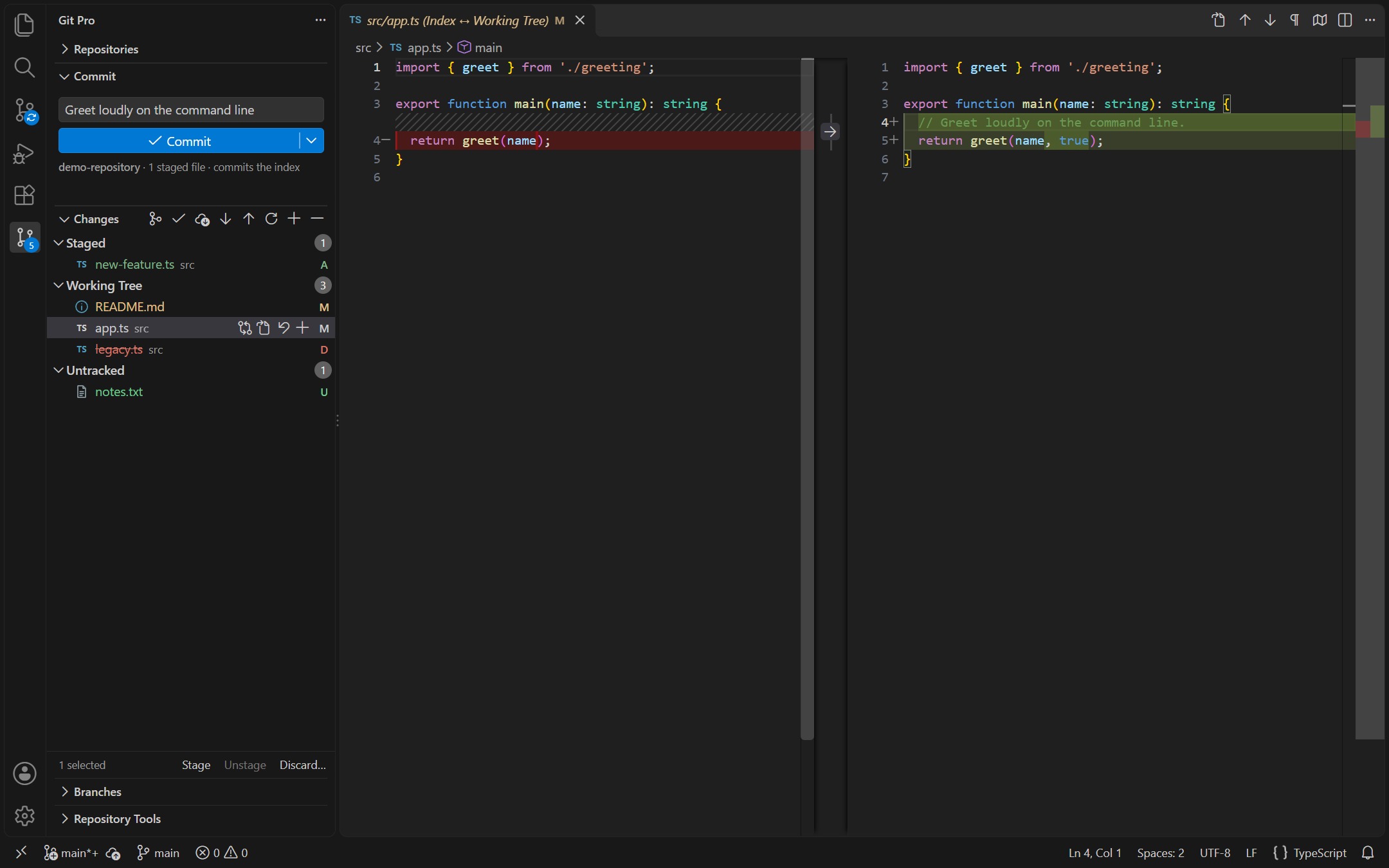
Review, stage and commit

See staged, modified and untracked files at a glance. Type a message in the Commit box above Changes and press Ctrl+Enter or Commit; the menu beside Commit offers Commit & Push, Amend, Sign-off, Skip hooks and message history.

Git Pro Changes sidebar with right-aligned file status labels and the commit composer

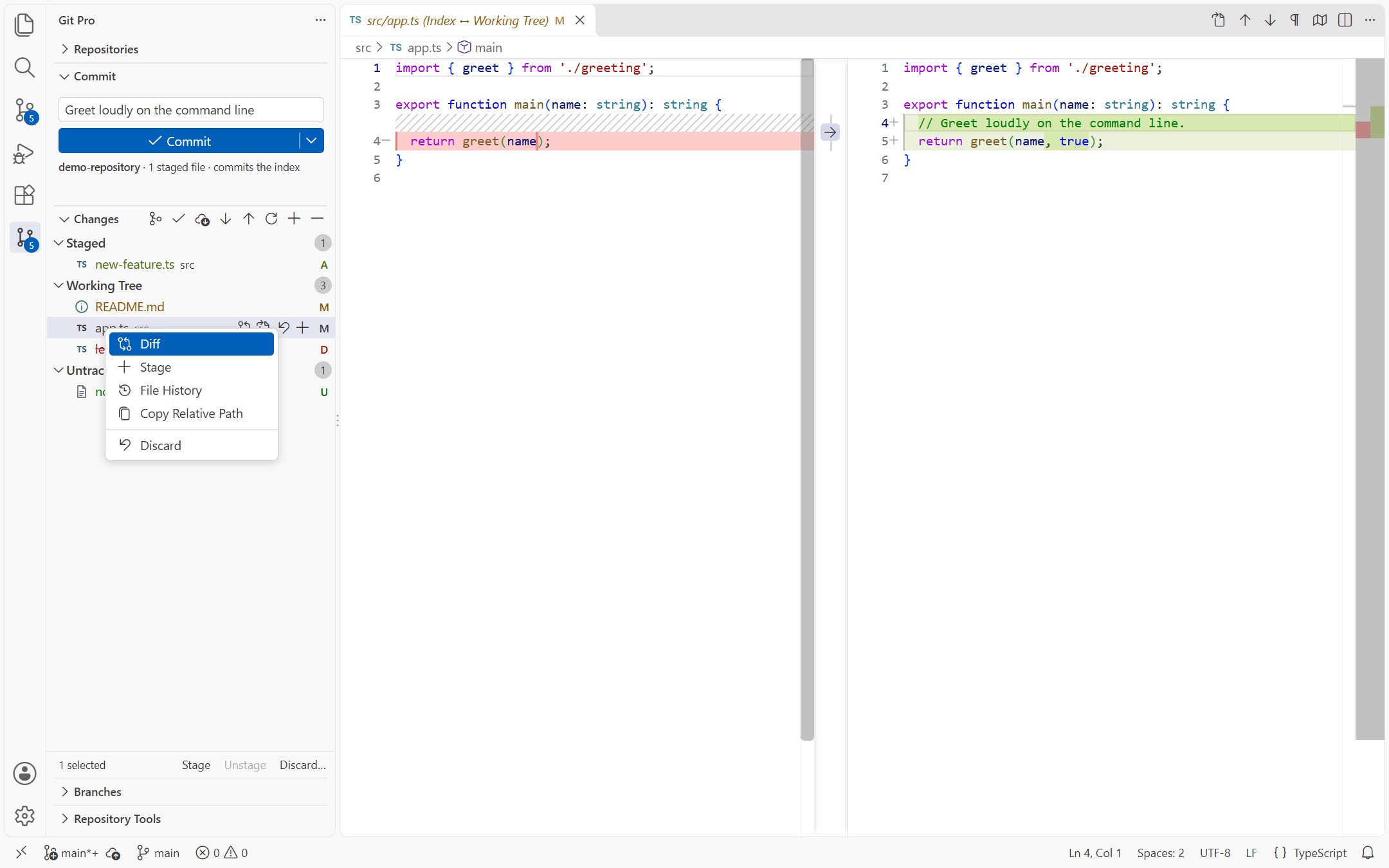
File actions where you need them

Hover or select a file for inline Open Changes, Open File, Discard and Stage buttons, or right-click it for its diff, history, staging, relative path and a reviewed discard. Available actions follow the file's state.

Git Pro file context menu showing diff, staging, file history, copy path and discard actions

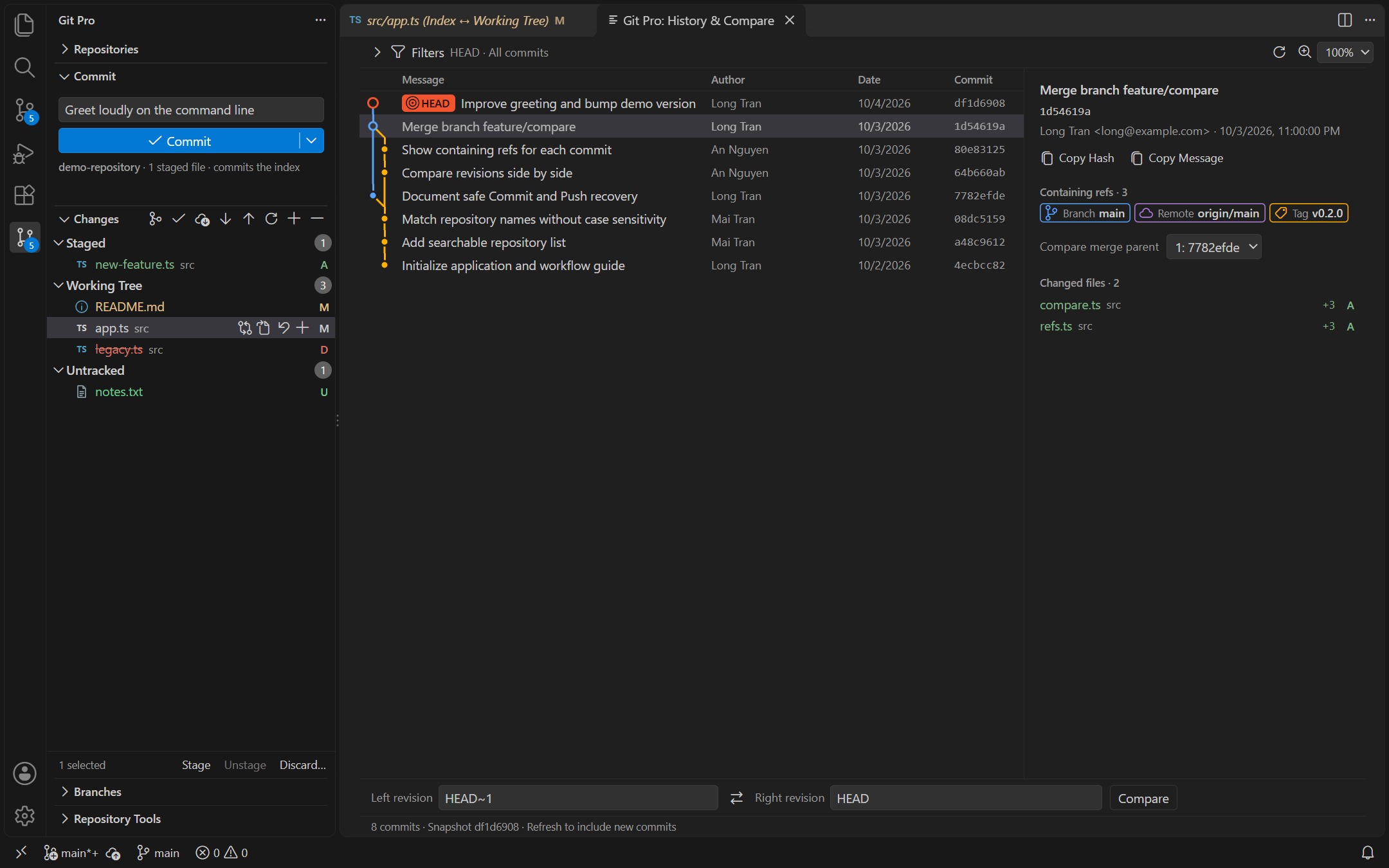
Browse History and compare revisions

Follow the commit graph, select a commit for details and changed files, or compare revisions without leaving VS Code.

Git Pro History panel with a commit graph and selected commit details

Get started

Requires VS Code 1.100.0 or newer, Git and VS Code's built-in Git extension.

  1. Install Git Pro from the Extensions view, or run Extensions: Install from VSIX... for a downloaded package.
  2. Open a trusted repository folder, then select Git Pro in the Activity Bar.
  3. Review changes, stage the files you want, type a message in the Commit box and press Ctrl+Enter.

Selecting a file does not stage it. The composer commits the current index, including partial staging performed in native Source Control.

Features

Area Workflows
Changes and commits File and folder staging, native diffs, reviewed discard, commit, amend and signoff
Branches and sync Branch and upstream actions, fetch, explicit pull strategy, push, init and clone
History Commit graph, filters, details, merge-parent selection, comparison and rename-aware File History
File review Text hunk actions, saved-file commits and optional active-line blame and CodeLens
Conflicts Conflicts tab with Yours/Theirs by branch, bulk Accept Yours/Theirs, Merge… in VS Code's merge editor, Continue/Abort banner
Branch compare Compare with Current, two-branch and working-tree comparisons, commits on each side, Open All Changes, Get from Branch
Advanced operations Merge, rebase, cherry-pick, revert, reset and operation recovery; interactive linear rebase
Repository tools Stashes, tags, remotes and worktrees

Hover a row for inline actions or right-click it for all of them. Icons, theme colors and right-aligned status labels distinguish changes. Auto-fetch, blame and CodeLens are off by default.

Read getting started, workflows and recovery and settings.

License

MIT, copyright 2026 longtd. See LICENSE in the source repository or LICENSE.txt in the installed package. Third-party attribution is retained in THIRD_PARTY_NOTICES.txt.

  • Contact us
  • Jobs
  • Privacy
  • Manage cookies
  • Terms of use
  • Trademarks
  • Your Privacy Choices
  • Consumer Health Privacy
© 2026 Microsoft