vscode-binsleuth
Binary analysis — section map, entropy heatmap, and security flags right inside VS Code.
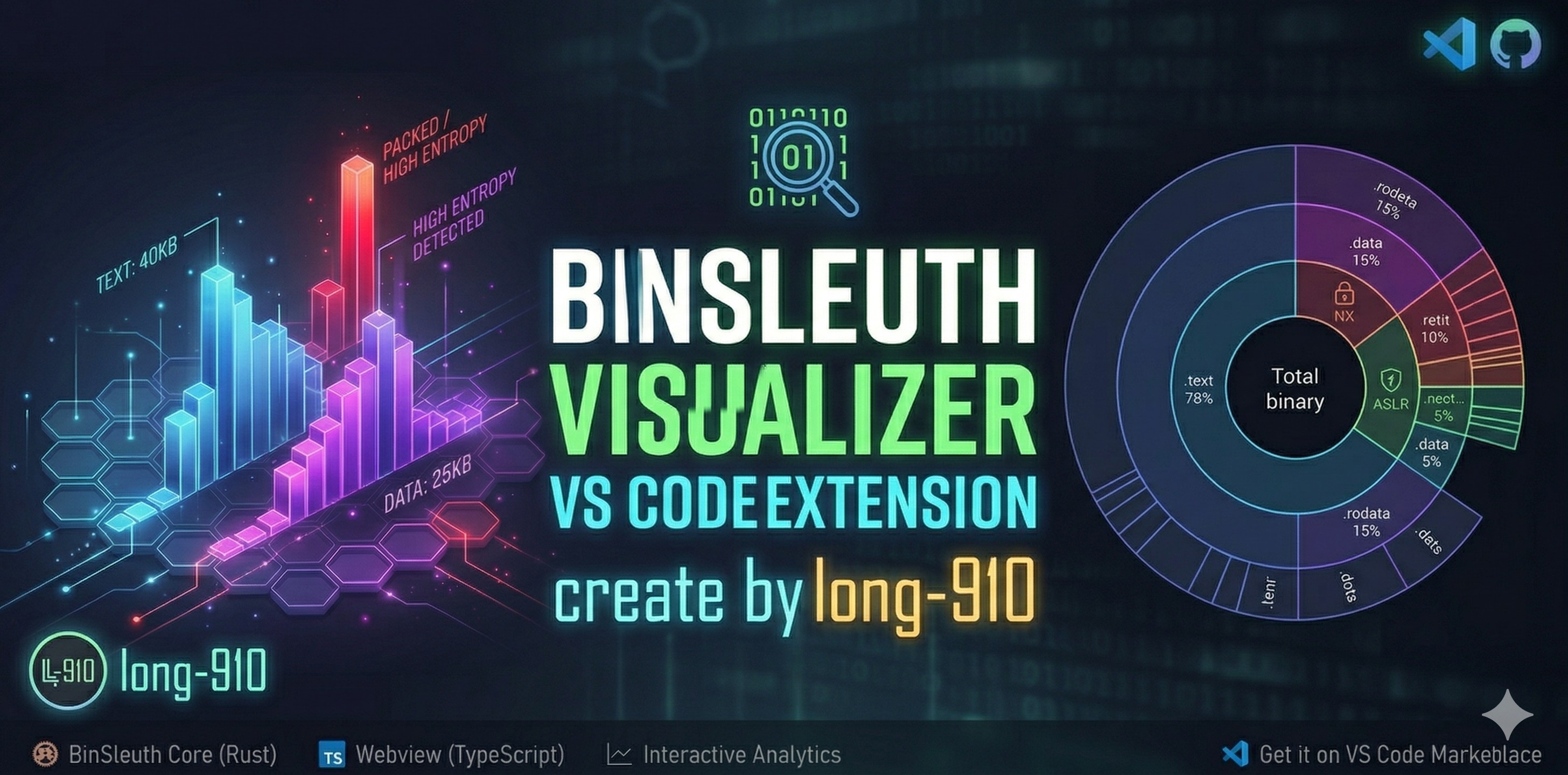
What It Shows
Binary file  ──►  binsleuth-bridge (Rust)  ──►  JSON  ──►  Webview sidebar
                  · section info                           · Section Map
                  · Shannon entropy                        · Section Heatmap
                  · security flags                         · Security Score
                  · dangerous symbols                      · Dangerous Symbols
                                                      click any chart → jump to offset
The Rust bridge runs as a subprocess — no network calls, no telemetry.
Features
Section Map
A doughnut chart that shows how each section contributes to the binary's on-disk size.
- Neon-coloured arcs keyed by section type (
.text green, .data cyan, .bss purple, …)
- Centre label: total file size and section count
- Hover tooltip: name · size · file offset · entropy · permissions (
RWX)
- Click any slice → jumps to that section's offset in the Hex Editor (falls back to
vscode.open)
Section Heatmap
A horizontal bar chart that visualises both size and entropy of every section at once.
| Visual element |
What it encodes |
| Bar length |
Section size (x-axis in bytes) |
| Bar colour |
Shannon entropy — cold blue (0 bits) → hot red (8 bits) |
| Number on bar |
Exact entropy value |
| Neon glow |
Entropy > 6.5 — likely packed or encrypted content |
A gradient colour legend (0–8 bits) is drawn above the chart for reference.
Sort selector (top-right of the panel):
| Option |
Order |
| OFFSET ↑ |
File offset, ascending (default) |
| SIZE ↓ / SIZE ↑ |
Largest / smallest section first |
| ENTROPY ↓ / ENTROPY ↑ |
Highest / lowest entropy first |
| NAME A-Z |
Alphabetical |
Click any bar → jumps to that section's file offset.
Security Flags Panel
At-a-glance hardening badges:
| Badge |
Meaning |
NX |
Non-executable stack / DEP |
PIE |
Position-independent executable |
RELRO |
Relocation read-only (Full / Partial) |
CANARY |
Stack canary (__stack_chk_fail) |
FORTIFY |
FORTIFY_SOURCE |
STRIP |
Debug symbols stripped |
Colour coding: green = Enabled · orange = Partial · red = Disabled · grey = N/A
A Security Score (0–100) is shown in the header — higher is better.
Dangerous Symbol Detection
If the binary imports symbols in high-risk categories (shell execution, network I/O, memory manipulation),
they are listed with their category tag directly in the sidebar.
Auto-Detection
Opening any file with a recognised binary extension triggers analysis automatically.
No command needed.
Usage
Triggering Analysis
| How |
When to use |
| Open a binary file in the editor |
Quickest — analysis starts automatically |
| Right-click file in Explorer → BinSleuth: Analyze Binary |
Analyze without opening the file |
| Ctrl+Shift+P → BinSleuth: Analyze Active File |
Re-analyze the currently focused file |
| Button |
Action |
| OPEN |
Open the analyzed binary in the Hex Editor (or default editor) |
| EXPORT ▾ |
Save a report — choose Markdown, JSON, or CSV |
Navigating to a Section
Click any slice in the Section Map or any bar in the Section Heatmap.
If the Hex Editor extension is installed, the cursor jumps directly to the section's file offset.
Otherwise VS Code opens the file with vscode.open.
Exporting a Report
- Click EXPORT ▾ in the sidebar header.
- Choose the format: Markdown (human-readable), JSON (machine-readable), or CSV (spreadsheet).
- A save dialog opens — pick the destination and save.
The report includes: binary metadata, per-section table (name · size · offset · entropy · permissions), security flags, and dangerous symbols.
WSL / Windows Support
| Scenario |
WSL required? |
| VS Code inside WSL (Remote - WSL) |
No |
Windows VS Code with win32-x64 VSIX |
No |
| Windows VS Code with a locally-built VSIX from WSL |
Yes |
Installation
VS Code Marketplace (Recommended)
- Open Extensions (
Ctrl+Shift+X) in VS Code.
- Search for BinSleuth.
- Click Install.
Or install directly from the VS Code Marketplace page.
Open VSX Registry (VSCodium / Gitpod)
For editors that use the Open VSX Registry (VSCodium, Gitpod, Eclipse Theia, etc.):
- Open the Extensions view in your editor.
- Search for BinSleuth.
- Click Install.
Or install directly from the Open VSX page.
From GitHub Releases
If you need a specific platform build, download the VSIX from the Releases page:
| File |
Platform |
*-linux-x64.vsix |
Linux x64 |
*-darwin-arm64.vsix |
macOS Apple Silicon |
*-darwin-x64.vsix |
macOS Intel |
*-win32-x64.vsix |
Windows x64 |
Install: Extensions (Ctrl+Shift+X) → ⋯ → Install from VSIX…
Windows tip: Save the .vsix to a local Windows drive (e.g. C:\Users\...\Downloads\) before installing — VS Code cannot install from a WSL UNC path.
Requirements
| Dependency |
Version |
Notes |
| VS Code |
≥ 1.85 |
|
| Hex Editor |
any |
Optional — enables click-to-offset navigation |
| WSL (Windows only) |
any |
Only needed when not using the win32-x64 VSIX |
Roadmap
| Feature |
Status |
| Section Map (doughnut chart) |
✅ v0.1.0 |
| Section Heatmap (size + entropy, neon glow) |
✅ v0.1.0 |
| Security flags panel (NX / PIE / RELRO / …) |
✅ v0.1.0 |
| Security Score (0–100) |
✅ v0.1.0 |
| Dangerous symbol detection |
✅ v0.1.0 |
| Click-to-offset navigation |
✅ v0.1.0 |
| Auto-analysis on binary open |
✅ v0.1.0 |
| Export report (Markdown / JSON / CSV) |
✅ v0.1.0 |
| Multi-OS support (Windows native, macOS, Linux) |
✅ v0.1.0 |
| i18n — Japanese & Simplified Chinese |
✅ v0.1.0 |
| VS Code Marketplace publication |
✅ v0.1.0 |
| Open VSX Registry publication |
✅ v0.2.0 |
| CI fix: Open VSX publish workflow |
✅ v0.2.1 |
| Configurable bridge binary path |
🔲 planned |
| PE / Mach-O format badges |
🔲 planned |
| Diff view (compare two binaries) |
🔲 planned |
Contributing
See CONTRIBUTING.md for development setup, build instructions, and project architecture.
License
MIT — © 2026 long-910











