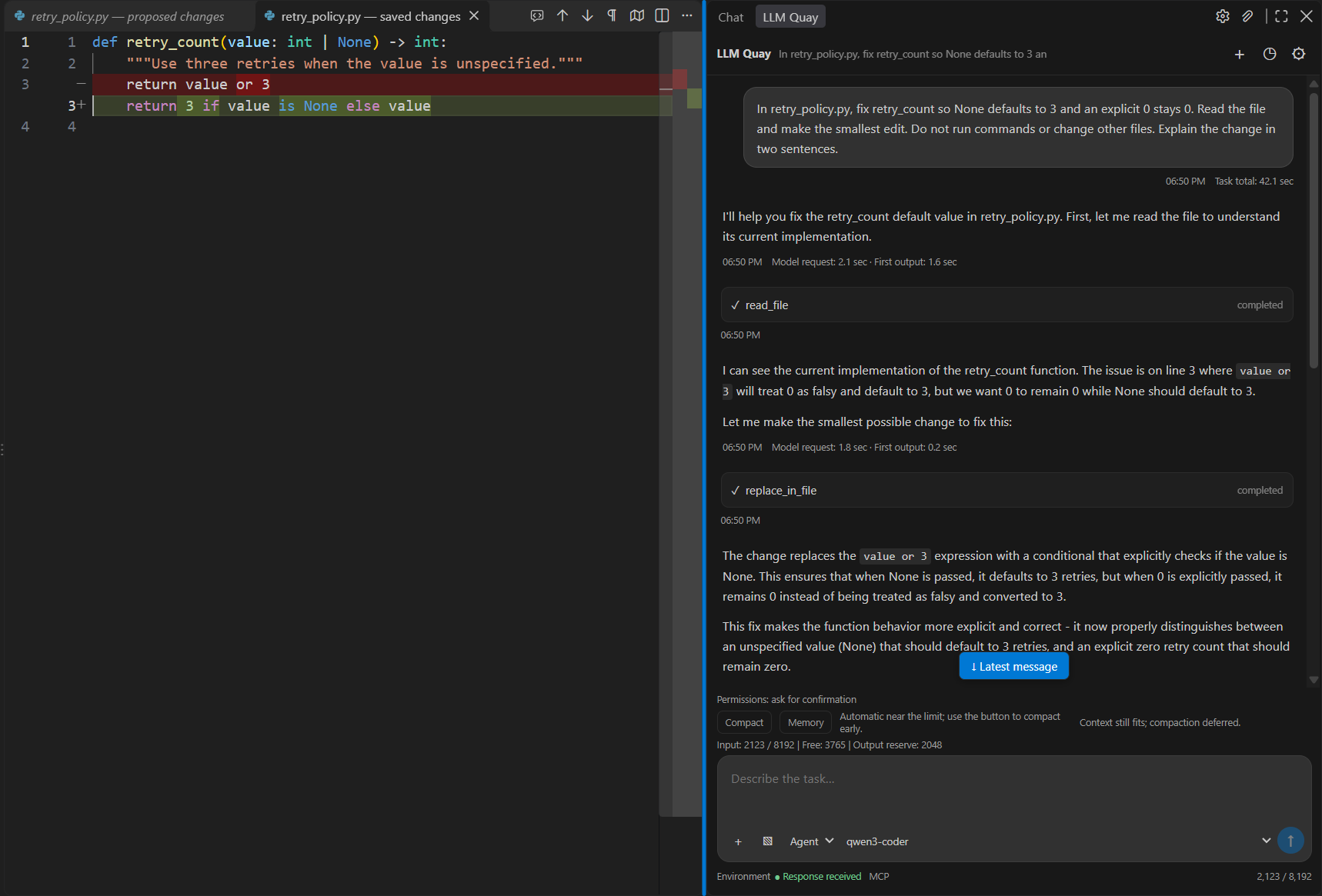
LLM QuayA coding agent for local and OpenAI-compatible models in VS Code. Ask questions about your project, plan a change, or let the agent edit files and run commands. Keep the conversation beside your code in the right sidebar, and review changes in the editor. Work with your codeUse Chat to understand a codebase, Plan to work out an approach, and Agent to carry out a task. The agent can search the project, read files, make edits and run commands using your configured permissions. Try a task such as:
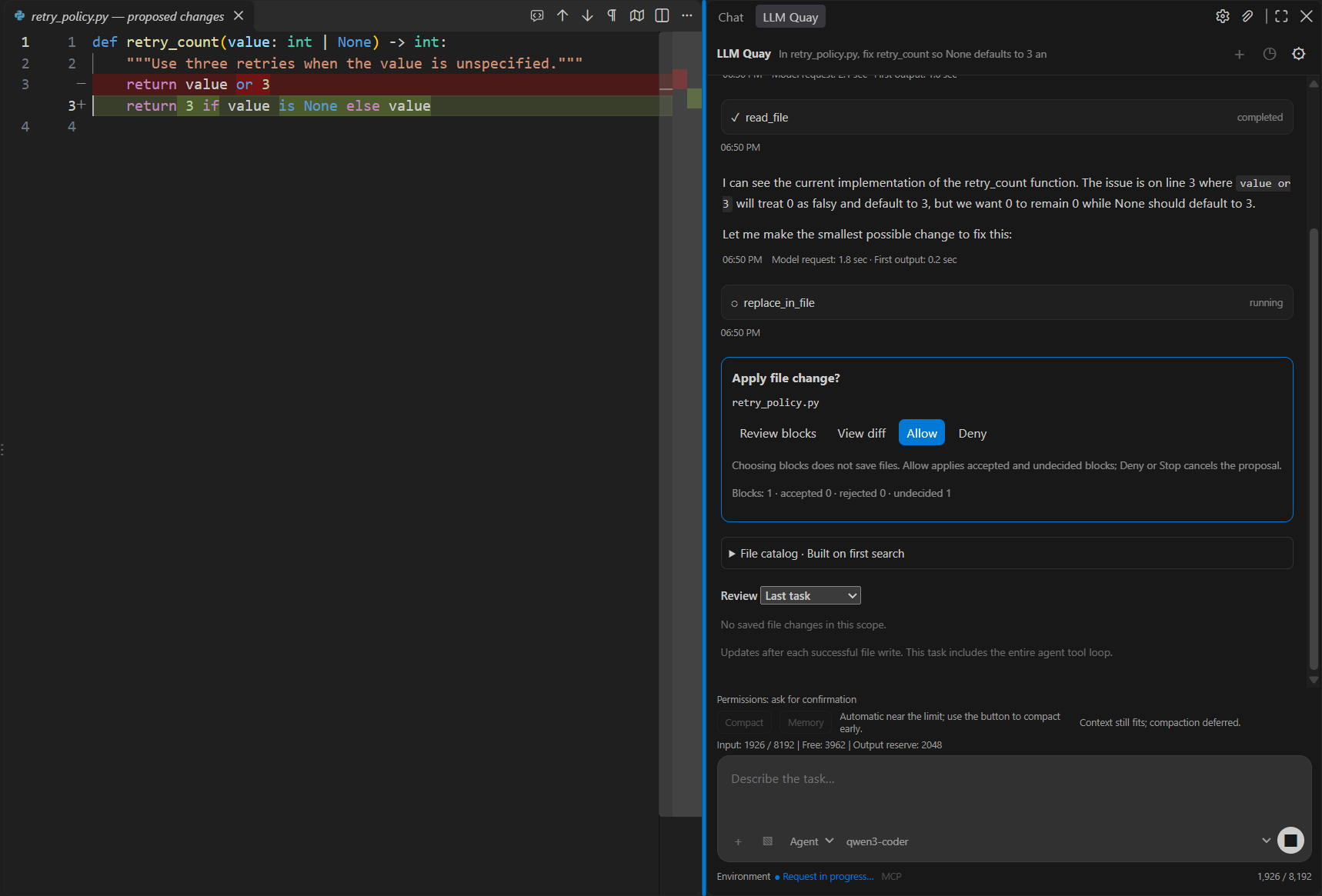
Review changes in the editorOpen a file's before-and-after diff directly in VS Code. Changes are grouped by task, so you can follow what the agent has changed. For proposed edits, accept or reject individual blocks inline. Use Git review to inspect repository changes alongside the task's file changes.
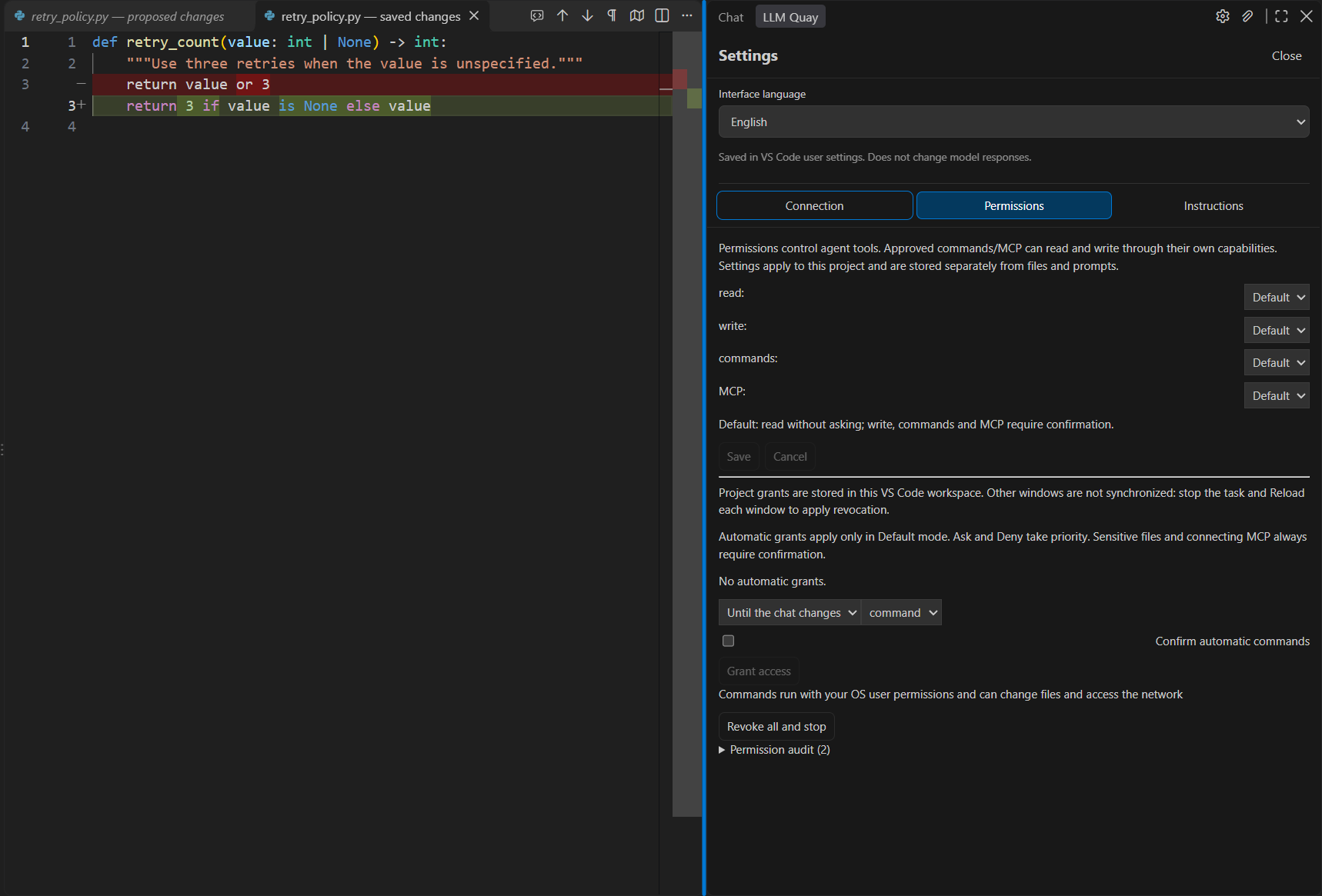
Choose your modelsConnect to llama.cpp, LM Studio, Ollama, or another OpenAI-compatible Chat Completions API. Select a model from the server's list or enter its ID. Save connection profiles and switch between them in chat. Assign separate connections to conversation summaries and change review when you want different models for those tasks. Set permissions for your projectChoose which file operations, commands and MCP tools run automatically, ask for approval, or stay blocked. Manage these permissions from the settings panel.
Add project instructionsManage rules, skills and workflows in the extension's settings. Give the agent your project's conventions, reusable task instructions and preferred development process. Connect MCP servers over stdio or Streamable HTTP to make additional tools available to the agent. Keep working in one conversationAutomatic context compaction makes room as a conversation approaches its configured context budget. Recent requests and a summary of earlier work carry the task forward, while the original conversation stays in local history. You can also compact manually before starting another part of the task. Attach PNG or JPEG images using the file picker, paste, or drag and drop. With a vision-capable model, use screenshots and mockups as part of a coding task. Enable inline completion with a llama.cpp server that supports FIM to get code suggestions as you type. Get started
Requires VS Code 1.116 or later and a running model server. English is the default interface language; Russian is also available. SupportEmail: snjamadojar@gmail.com. For a bug report, include the extension version, model and server, and steps to reproduce the issue. License |