Transify - Visual Studio Code Extension
Streamline your multilingual development workflow with powerful translation management directly in VS Code
English · 中文


🎯 What This Extension Does
Transify helps you manage translations directly in VS Code. With this extension, you can:
- 🔍 Search translations - Find translation keys and content instantly
- ➕ Add/Update keys - Create or modify translation keys without leaving your editor
- 💡 View translations in code - Hover over translation keys to see their translations
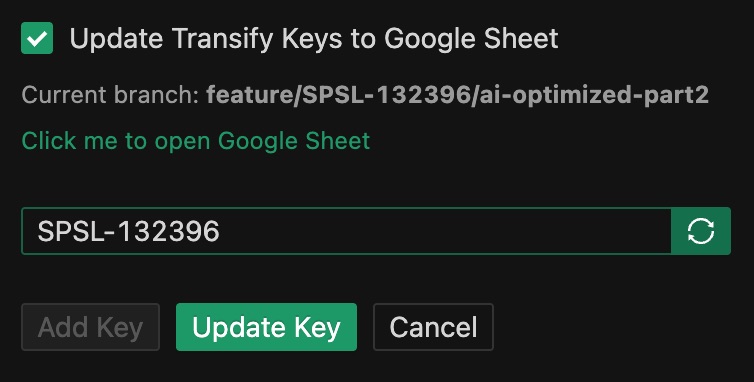
- 📊 Sync to Google Sheets - Automatically sync translations to Google Sheets for collaboration
⚡ Quick Start (Minimum Configuration)
Step 1: Get Your Token
- Visit Transify Platform
- Generate your API token
- Open User Settings
- Search for "Transify"
- Set
transify.token to your API token (e.g., Token xxxxxx)
- Set
transify.resourceProjectMap to map your resource IDs to project IDs
Example configuration:
{
  "transify.token": "Token your-transify-api-token-here",
  "transify.resourceProjectMap": {
    "Your Resource ID": "Your Project ID" // e.g. For https://transify.sea.com/projects/11/resources/996, can config "transify.resourceProjectMap":{ "996": "11" }
  }
}
That's it! You can now use the extension. Open the Transify sidebar (click the Transify icon in the Activity Bar) and start searching or adding translations.
📚 Advanced Configuration
For more advanced features, you can configure the following optional settings:
| Setting |
Description |
Example |
transify.keyPrefix |
Default key prefix for your team |
sl_ |
transify.spreadsheetId |
Google Sheets ID for syncing translations |
1abc...xyz |
transify.resourceProjectMap |
Map resource IDs to project names |
{"resourceId": "projectName"} |
See the Extension Settings section below for detailed configuration instructions.
🔁 UTM Migration Notes (TSP → UTM)
After migrating to UTM, many projects no longer configure legacy resources/collections in project config. Instead, you may see:
{
  "translator": {
    "utmCollections": [1452, 1466, 1326],
    "utmLazyCollections": []
  }
}
- UTM collections: this extension fetches UTM collection translations from UTM CDN (instead of legacy TSP API).
- Resources (still required for Add/Update keys): creating/updating keys still needs a Transify resource ID.
- Use
transify.resourceProjectMap to provide a resource list and correct Transify links.
- The Add Key form provides a
resourceToAdd dropdown (merged & deduped from project-loaded resources and resourceProjectMap).
Note: for UTM collections, the hover link currently redirects to https://space.shopee.io/webfe/tm because we don't have the project mapping for a collection ID yet.
✨ Key Features
🔍 Intelligent Search
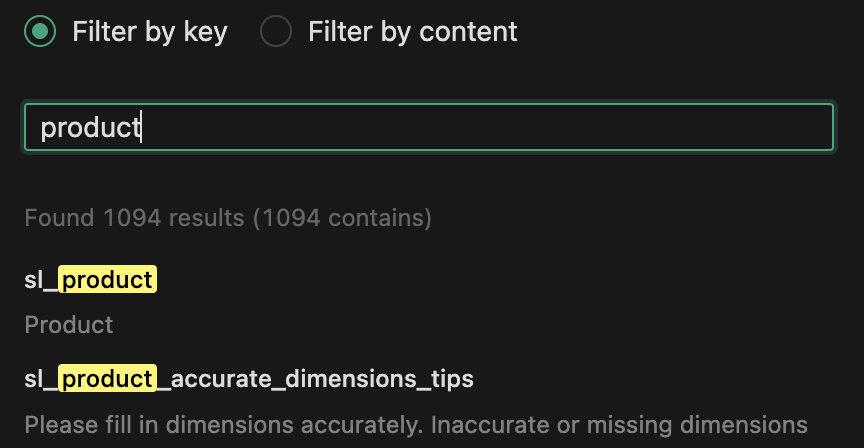
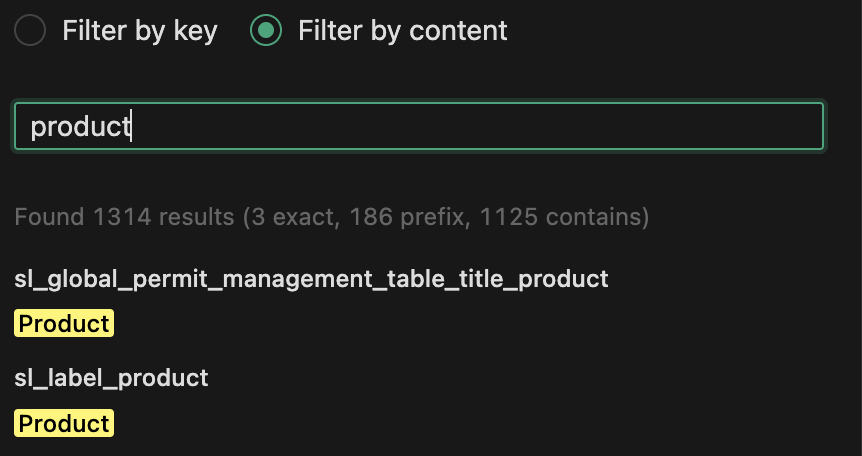
- Multi-criteria filtering: Search by language, resource ID, key name, or content
- Smart matching: Case-insensitive search with intelligent result sorting (exact > prefix > contains)
- Real-time highlighting: Keyword highlighting with visual feedback
- Match statistics: Detailed statistics showing exact, prefix, and contains matches
➕ Flexible Key Management
- Single Key Mode: Add individual translation keys with key-value pairs
- Batch Import: Import up to 50 keys at once using JSON format with real-time validation
- Plural Keys: Automatically generate plural key variants with proper suffixes (
__zero, __one, __two, __few, __many, __other)
- Smart Updates: Auto-detect existing keys for intelligent add/update operations
💡 Code Hover Integration
- Inline translations: Hover over translation keys in your code to see translations instantly
- Quick navigation: Click to open the key in Transify platform
- Multi-language support: View translations in different languages on hover
📊 Google Sheets Integration
- Automatic sync: Sync translation keys to Google Sheets after creation
- Jira integration: Auto-extract Jira ID from git branch for sheet organization
- Smart navigation: Direct links to Google Sheets with proper sheet navigation
🎯 Multi-Project Support
- Project switching: Seamlessly switch between multiple projects/modules
- Resource mapping: Configure resource-to-project mappings for correct URL generation
- Auto-detection: Automatically detect project configurations from workspace
🌍 Multi-Language Support
- Language switching: Switch between different languages on the fly
- Language-specific search: Filter and search translations by target language
🚀 Quick Start
Installation
- Open VS Code
- Go to Extensions view (
Ctrl+Shift+X or Cmd+Shift+X)
- Search for "Transify"
- Click Install
Configuration
Get your Transify Token:
Configure in VS Code:
- Open Settings (
Ctrl+, or Cmd+,)
- Search for "Transify"
- Set the following:
transify.token: Your Transify API token (required)transify.keyPrefix: Default key prefix for your team (optional, e.g., sl_)transify.spreadsheetId: Google Sheets ID for syncing (optional)transify.resourceProjectMap: Map resource IDs to project names (optional)
For detailed installation and configuration instructions, see the official documentation.
📖 Usage Guide
Searching Translations
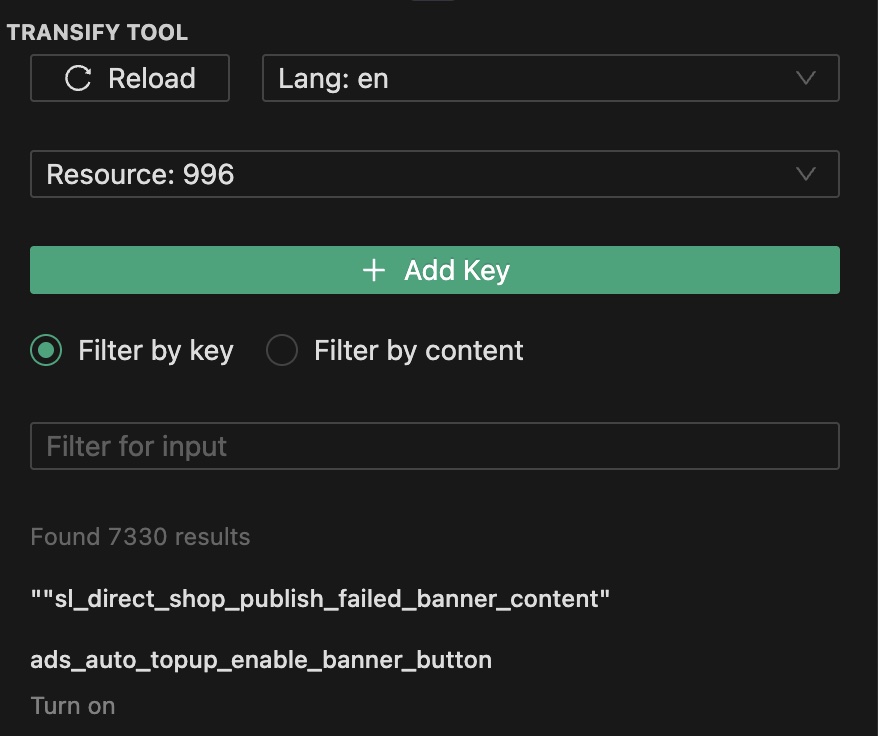
- Open the Transify sidebar (click the Transify icon in the Activity Bar)
- Select your project and resource
- Enter your search term in the search box
- Filter by:
- Key: Search by translation key name
- Content: Search by translation content
- Resource: Filter by specific resource ID
Adding Translation Keys
Single Key
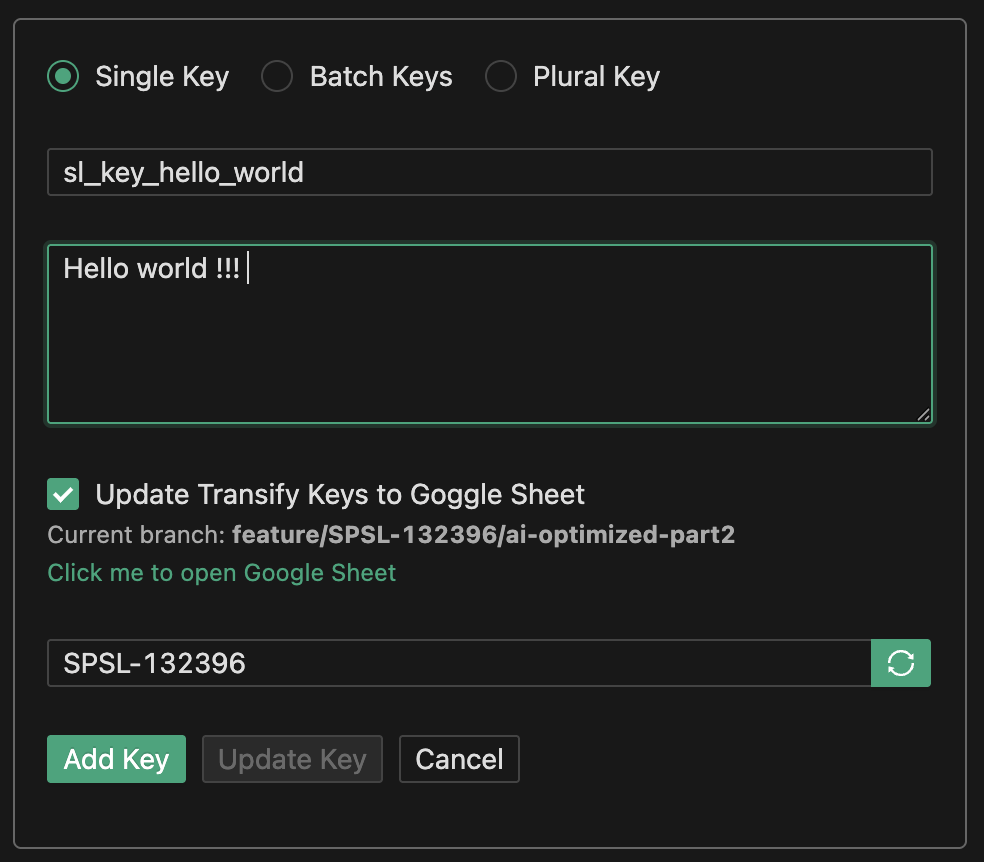
- Click Add Key button in the sidebar
- Select "Single Key" mode
- Enter the key name and translation content
- Click Add Key or Update Key (if key exists)
Batch Import
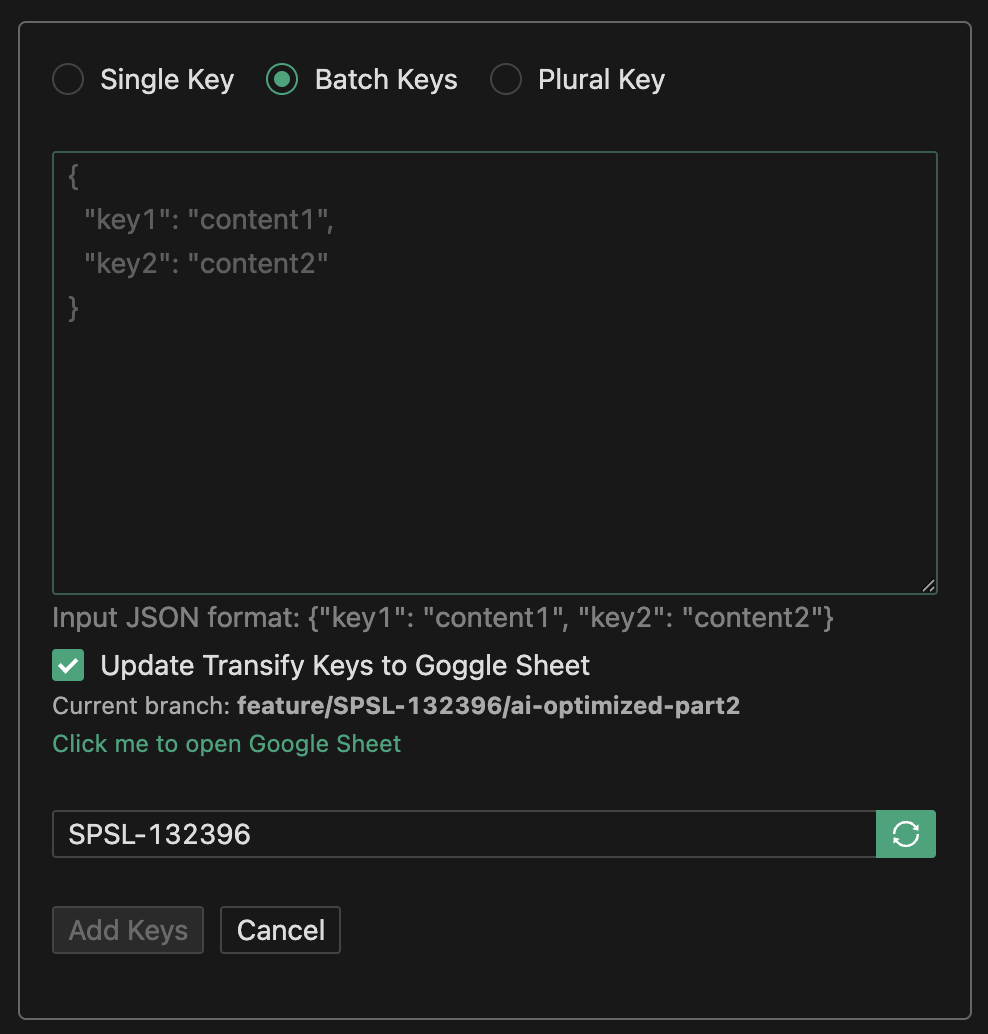
- Click Add Key button
- Select "Batch Keys" mode
- Paste your JSON in the format:
{
  "key1": "translation1",
  "key2": "translation2"
}
- The extension validates your JSON in real-time
- Click Add Keys to import (up to 50 keys per batch)
Plural Keys
- Select "Plural Key" mode
- Enter the base key name
- Fill in translations for each plural form
- The extension automatically generates keys with proper suffixes
Using Hover Feature
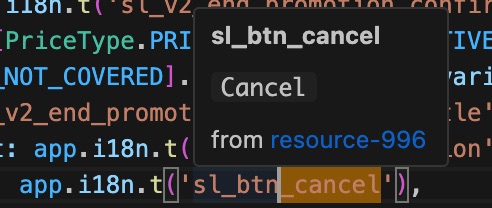
Simply hover over any translation key in your code to see:
- The translation content
- The resource it belongs to
- A link to open it in Transify platform
Syncing to Google Sheets
- Enable "Update Transify Keys to Google Sheet" checkbox when adding keys
- The extension automatically:
- Extracts Jira ID from your git branch
- Creates or updates the corresponding Google Sheet
- Generates direct links for easy access
⚙️ Extension Settings
| Setting |
Type |
Required |
Description |
transify.token |
string |
✅ Yes |
Your Transify API token (format: Token xxxxxx) |
transify.keyPrefix |
string |
❌ No |
Default key prefix for auto-completion (e.g., sl_) |
transify.spreadsheetId |
string |
❌ No |
Google Sheets ID for syncing translations |
transify.resourceProjectMap |
object |
❌ No |
Map resource IDs to project names: {"resourceId": "projectName"} |
🎨 Screenshots
Search Interface
Search by Key
Search by Translation Content
Google Sheets Sync
📚 Documentation
🛠️ Commands
| Command |
Description |
Transify: Add Keys |
Open the add translation keys panel |
Transify: Get Keys |
Refresh and load translation keys |
Transify: Config Google Credentials |
Configure Google API credentials |
Transify: Clear Google Credentials & Token |
Clear stored Google credentials |
🔧 Requirements
- VS Code: Version 1.58.0 or higher
- Node.js: Version 20.0.0 or higher
- Transify Account: Active account with API token
📝 Changelog
See CHANGELOG.md for detailed version history and updates.
Recent Updates (v0.2.3)
Recent Updates (v0.2.6)
- ✅ Added UTM collections support (
translator.utmCollections) and fetch from UTM CDN
- ✅ Added
resourceToAdd selector for UTM-migrated projects (resource list merged from project resources + resourceProjectMap)
- ✅ Split cached collections into legacy
collection and utmCollection to avoid confusion when switching
🤝 Contributing
This extension is maintained by the Shopee development team. For issues, feature requests, or contributions, please refer to the internal documentation or contact the maintainers.
📄 License
See LICENSE file for details.
Transify - Visual Studio Code 扩展
在 VS Code 中高效管理多语言翻译,提升开发效率
🎯 插件功能
Transify 帮助您在 VS Code 中直接管理翻译。使用此扩展,您可以:
- 🔍 搜索翻译 - 即时查找翻译键和内容
- ➕ 添加/更新键 - 无需离开编辑器即可创建或修改翻译键
- 💡 在代码中查看翻译 - 悬停翻译键即可查看翻译内容
- 📊 同步到 Google Sheets - 自动将翻译同步到 Google Sheets 以便协作
⚡ 快速开始(最小配置)
步骤 1:获取 Token
- 访问 Transify 平台
- 生成您的 API token
步骤 2:配置(两个设置)
- 打开用户设置
- 搜索 "Transify"
- 将
transify.token 设置为您的 API token(例如:Token xxxxxx)
- 将
transify.resourceProjectMap 设置为资源 ID 到项目 ID 的映射
配置示例:
{
  "transify.token": "Token your-transify-api-token-here",
  "transify.resourceProjectMap": {
    "Your Resource ID": "Your Project ID" // 示例:对于 https://transify.sea.com/projects/11/resources/996, 可以配置为 "transify.resourceProjectMap":{ "996": "11" }
  }
}
完成! 现在您可以使用扩展了。打开 Transify 侧边栏(点击活动栏中的 Transify 图标)即可开始搜索或添加翻译。
📚 高级配置
如需使用更高级的功能,可以配置以下可选设置:
| 设置项 |
说明 |
示例 |
transify.keyPrefix |
团队的默认键前缀 |
sl_ |
transify.spreadsheetId |
用于同步翻译的 Google Sheets ID |
1abc...xyz |
详细配置说明请参阅下面的 扩展设置 部分。
🔁 UTM 迁移说明(TSP → UTM)
迁移到 UTM 后,很多项目不再在项目配置里配置旧的 resources/collections,而是会变成:
{
  "translator": {
    "utmCollections": [1452, 1466, 1326],
    "utmLazyCollections": []
  }
}
- UTM collections:插件会从 UTM CDN 获取 UTM collection 的翻译数据(不再依赖旧的 TSP API)。
- Resources(仍然是新增/更新 key 的必需项):新增/更新翻译 key 仍需要 Transify 的 resource ID。
- 请配置
transify.resourceProjectMap 来提供可用的 resource 列表并生成正确的 Transify 链接。
- Add Key 表单新增
resourceToAdd 下拉(来自“项目已加载的 resources + resourceProjectMap 合并去重”的列表)。
说明:目前 utm collection 在 hover 的跳转链接会先指向 https://space.shopee.io/webfe/tm(暂时无法从 collectionId 反查 project 映射)。
✨ 核心功能
🔍 智能搜索
- 多条件筛选:支持按语言、资源ID、键名或内容搜索
- 智能匹配:不区分大小写的搜索,结果智能排序(精确匹配 > 前缀匹配 > 包含匹配)
- 实时高亮:关键词高亮显示,提供视觉反馈
- 匹配统计:显示精确、前缀和包含匹配的详细统计信息
➕ 灵活的键管理
- 单个键模式:添加单个翻译键值对
- 批量导入:使用 JSON 格式一次性导入最多 50 个键,支持实时验证
- 复数键:自动生成复数键变体,包含正确的后缀(
__zero、__one、__two、__few、__many、__other)
- 智能更新:自动检测已存在的键,智能执行添加或更新操作
💡 代码悬停集成
- 内联翻译:在代码中悬停翻译键即可即时查看翻译内容
- 快速导航:点击即可在 Transify 平台中打开该键
- 多语言支持:在悬停时查看不同语言的翻译
📊 Google Sheets 集成
- 自动同步:创建翻译键后自动同步到 Google Sheets
- Jira 集成:从 git 分支自动提取 Jira ID 用于表格组织
- 智能导航:直接链接到 Google Sheets,支持正确的表格导航
🎯 多项目支持
- 项目切换:在多个项目/模块之间无缝切换
- 资源映射:配置资源到项目的映射,生成正确的 URL
- 自动检测:从工作区自动检测项目配置
🌍 多语言支持
- 语言切换:随时切换不同语言
- 按语言搜索:按目标语言筛选和搜索翻译
📖 使用指南
搜索翻译
- 打开 Transify 侧边栏(点击活动栏中的 Transify 图标)
- 选择您的项目和资源
- 在搜索框中输入搜索词
- 按以下方式筛选:
- 键:按翻译键名搜索
- 内容:按翻译内容搜索
- 资源:按特定资源 ID 筛选
添加翻译键
单个键
- 点击侧边栏中的 Add Key 按钮
- 选择 "Single Key" 模式
- 输入键名和翻译内容
- 点击 Add Key 或 Update Key(如果键已存在)
批量导入
- 点击 Add Key 按钮
- 选择 "Batch Keys" 模式
- 粘贴 JSON 格式的数据:
{
  "key1": "translation1",
  "key2": "translation2"
}
- 扩展会实时验证您的 JSON
- 点击 Add Keys 导入(每批最多 50 个键)
复数键
- 选择 "Plural Key" 模式
- 输入基础键名
- 填写每个复数形式的翻译
- 扩展会自动生成带有正确后缀的键
使用悬停功能
只需在代码中悬停任何翻译键即可查看:
- 翻译内容
- 所属资源
- 在 Transify 平台中打开的链接
同步到 Google Sheets
- 添加键时勾选 "Update Transify Keys to Google Sheet"
- 扩展会自动:
- 从 git 分支提取 Jira ID
- 创建或更新相应的 Google Sheet
- 生成直接链接以便访问
⚙️ 扩展设置
| 设置项 |
类型 |
必填 |
说明 |
transify.token |
string |
✅ 是 |
您的 Transify API token(格式:Token xxxxxx) |
transify.keyPrefix |
string |
❌ 否 |
自动补全的默认键前缀(例如:sl_) |
transify.spreadsheetId |
string |
❌ 否 |
用于同步翻译的 Google Sheets ID |
transify.resourceProjectMap |
object |
❌ 否 |
将资源 ID 映射到项目名称:{"resourceId": "projectName"} |
🎨 截图
搜索界面
按键名搜索
按翻译内容搜索
Google Sheets 同步
📚 文档
🛠️ 命令
| 命令 |
说明 |
Transify: Add Keys |
打开添加翻译键面板 |
Transify: Get Keys |
刷新并加载翻译键 |
Transify: Config Google Credentials |
配置 Google API 凭据 |
Transify: Clear Google Credentials & Token |
清除存储的 Google 凭据 |
🔧 系统要求
- VS Code:版本 1.58.0 或更高
- Node.js:版本 20.0.0 或更高
- Transify 账户:具有 API token 的有效账户
📝 更新日志
查看 CHANGELOG.md 了解详细的版本历史和更新内容。
最近更新 (v0.2.6)
- ✅ 支持 UTM collections(
translator.utmCollections),并从 UTM CDN 拉取翻译数据
- ✅ 新增 Add Key 的
resourceToAdd 下拉(resource 列表来自项目资源 + resourceProjectMap 合并去重)
- ✅ 缓存结构区分 legacy
collection 与 utmCollection,避免切换时混淆
🤝 贡献
本扩展由 Shopee 开发团队维护。如有问题、功能请求或贡献,请参阅内部文档或联系维护者。
📄 许可证
详情请参阅 LICENSE 文件。


