Git Fiction — looks like a Git graph, reads like a novel
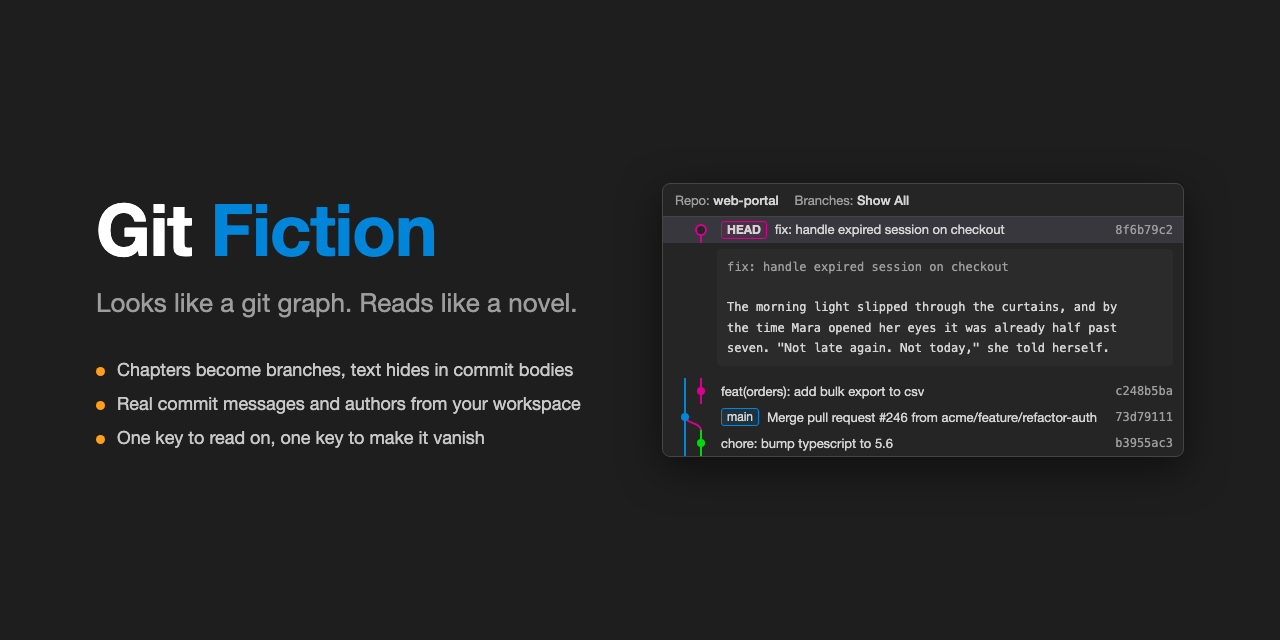
Want to read at work, but your screen faces the hallway?
This extension turns a whole novel into a fake Git repository: chapters become branches, the text hides inside commit bodies, and the panel is an utterly ordinary commit graph.
What it does
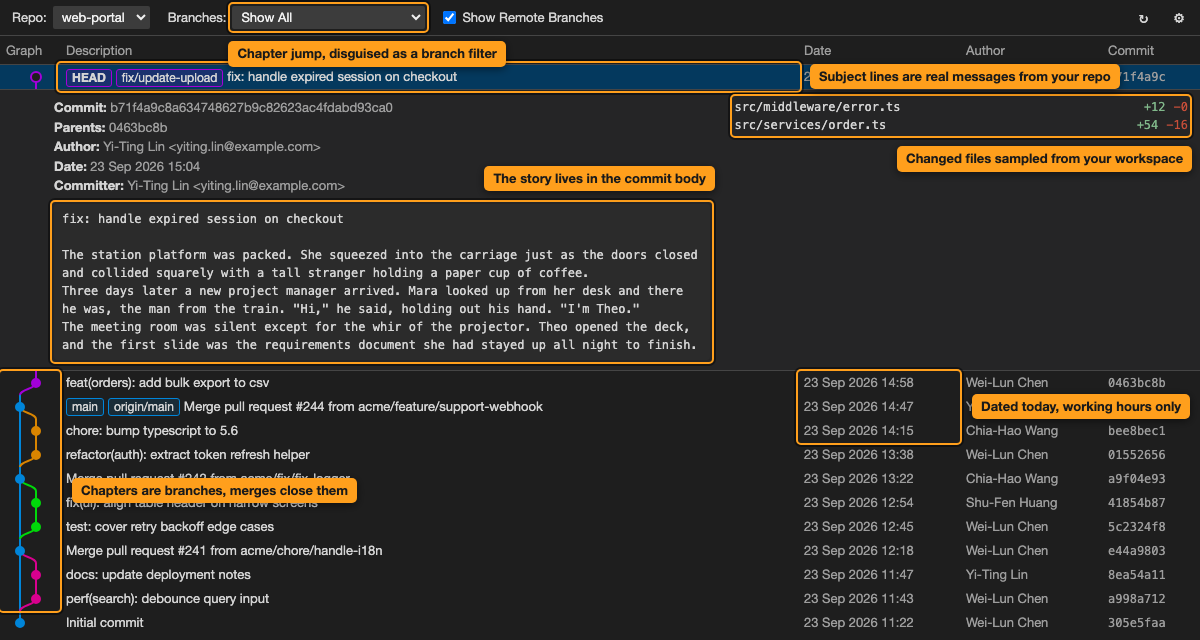
Import a .txt file and you get a "repository" that maps like this:
| In the book |
On screen |
| The book |
A repository, named whatever you like (defaults to your workspace folder name) |
| A chapter |
A feature branch, closed by Merge pull request #123 from org/feature/xxx |
| Every four chapters |
A tag: v1.x.0 |
| A passage (300 characters by default) |
One commit. The subject line is a normal commit message; the text starts on line three of the body |
| Where you are |
HEAD |
The commit list itself never shows a word of the book. It only contains messages like feat(auth): handle 401 on refresh. The text appears when a commit is expanded, and the expanded block looks exactly like real commit details: hash, parents, author, date, changed files with line counts.
Built to pass a glance
- Real commit messages, anchored to HEAD. The top row always carries the workspace's newest real commit message, the row below the second newest, and so on. As you read, the whole column shifts down one, so a glance at the top of the graph always matches the project's recent history. Generated messages only appear further down, once the real ones run out.
- Timestamps anchored to now. HEAD is dated a few minutes ago and older rows step back through working hours, however far into the book you are.
- Real authors. Names and emails come from the
git log of the workspace you have open, so colleagues see familiar names.
- Real file names. Each commit's changed-files list is sampled from files that actually exist in your workspace, and the
feat(order) scopes come from your folder names.
- Plausible timestamps. Every commit lands on a weekday between 09:00 and 19:00, strictly increasing, counting back from the day you imported the book.
- Theme-aware. The panel uses only VS Code theme variables, so it blends into any light or dark theme.
- Realistic paging. 300 commits per page with the familiar
Load More Commits button underneath.
- The tab is titled "Git Graph" with a git branch icon.
Quick start
- Open the panel: click ⎇ Git Graph in the status bar, the commit icon in the Source Control view title, or press
Cmd+Alt+G (Ctrl+Alt+G on Windows / Linux). With no repositories yet, the Repository Settings dialog opens by itself; later you reach it with the gear icon in the top-right corner.
- Click Add books… and pick one or more
.txt or .epub files. EPUB chapters and titles come straight from the book's table of contents. For plain text, UTF-8, Big5 and GB18030 are detected automatically, headings such as Chapter 3, Prologue, Epilogue and the usual numbered chapter headings in Chinese are recognised, and site watermark prefixes are stripped. Fill in a harmless repository name and an optional category first if you like.
- Close the dialog. The top row is where you are, already expanded. Just read.
Managing your library
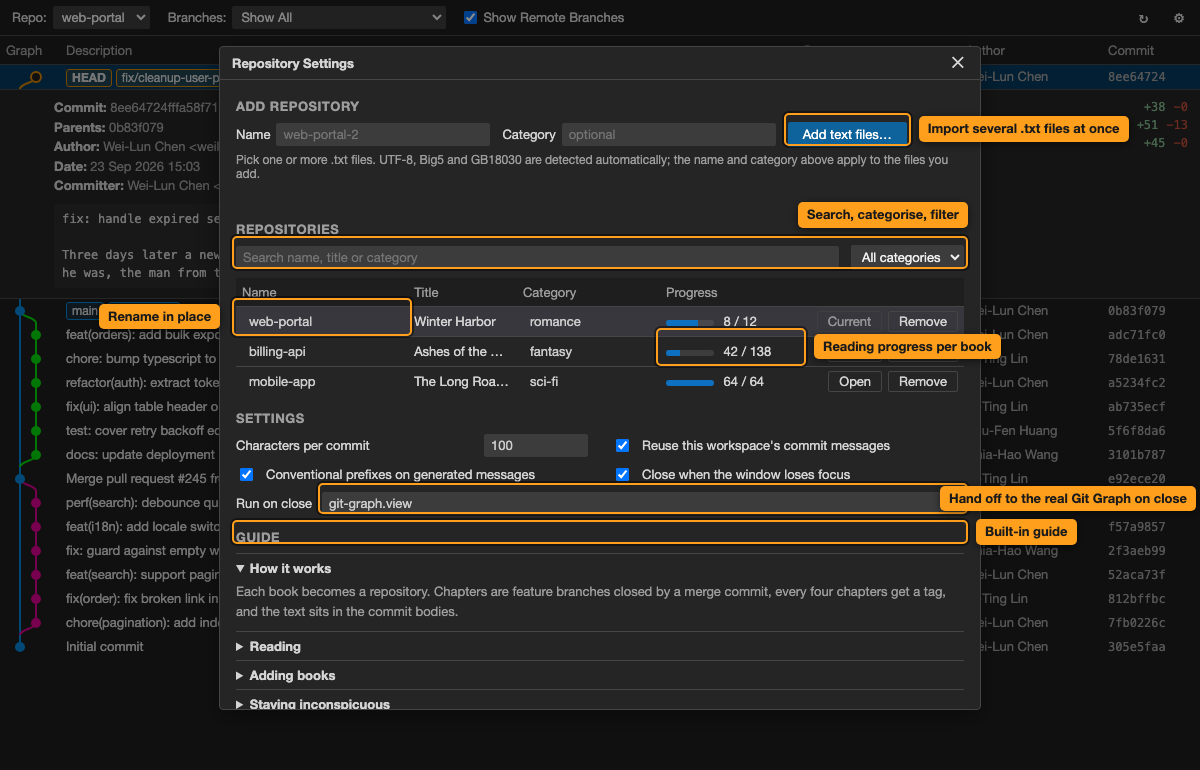
The Repositories section of the dialog lists every imported book with its repository name, original title, category and reading progress. Click a name or category cell to edit it in place, search by name, title or category, filter by category, and open or remove books. The command palette still has Git History: Import Repository (text file)..., Switch Repository and Remove Repository if you prefer keyboard-only flows.
Keys
| Key |
Action |
↑ / k / Space / → |
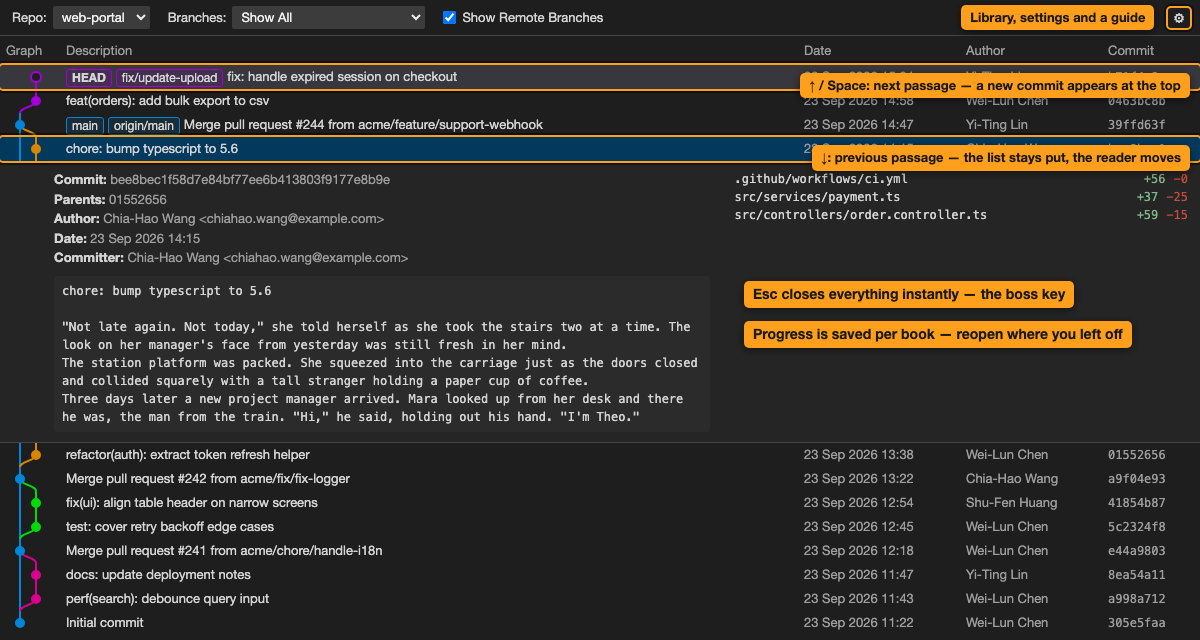
Next passage (one row up). At the newest commit, a new commit "appears" at the top |
↓ / j / ← |
Previous passage (one row down). The list stays put; the expanded block moves |
PageUp / K, PageDown / J |
Jump five passages up or down |
] / n, [ / p |
Next / previous chapter |
c |
Table of contents as a native "Checkout branch" picker: type to search chapter titles, Enter jumps, Esc closes |
Enter or click |
Collapse or expand commit details |
Esc, or Cmd+Alt+G again |
Boss key. Closes the panel instantly |
Merge commits and the initial commit are decoration only and are skipped while navigating. Reading position is saved per book, so closing and reopening lands on the same passage.
Knowing where you are never costs camouflage: each chapter's first commit opens with the chapter title inside the body, hovering the branch pill next to HEAD shows the current chapter and progress, and the Branches dropdown lists the real chapter titles only while it is open.
A meaner boss key
Set gitFiction.onCloseCommand to another command and it runs the moment the panel closes. If you have Git Graph installed, set it to git-graph.view: after Esc, what remains on screen is the real commit graph of your workspace.
gitFiction.hideOnBlur is on by default: the panel closes as soon as the VS Code window loses focus.
Settings
| Setting |
Default |
Description |
gitFiction.chunkSize |
100 |
Max characters per commit, packed by whole paragraphs, up to 3000. Changing it re-chunks every book on the spot |
gitFiction.reuseCommitMessages |
true |
Use the workspace's real commit messages before generated ones |
gitFiction.commitPrefix |
true |
Generated subject lines use feat(scope): message; off gives plain English sentences |
gitFiction.hideOnBlur |
true |
Close the panel when the window loses focus |
gitFiction.statusBar |
true |
Show the ⎇ Git Graph toggle button in the status bar |
gitFiction.scmButton |
true |
Show an open button in the Source Control view title |
gitFiction.onCloseCommand |
empty |
Command to run right after the panel closes, e.g. git-graph.view |
gitFiction.authors |
[] |
Override authors as Name <email>. Empty means read them from the workspace git log |
Other commands: Git History: Open, Git History: Switch Repository, Git History: Remove Repository.
FAQ
Where are the books stored? In the extension's own global storage. They never appear in any workspace and git status never sees them.
Do commit messages get truncated? The subject line is fake, so you never need to read it. The text lives in the expanded body, which wraps and is never cut off.
Which formats? Plain text (.txt) and EPUB. For MOBI, AZW3 or PDF, convert to EPUB with Calibre first. DRM-protected books cannot be read.
Simplified Chinese files? They import fine, but there is no Simplified/Traditional conversion yet. Convert before importing if you need it.
Will I get caught? This only fools eyes and screenshots. Keyloggers, screen recording and DLP tooling see right through it. Use your judgement.
Where do the books come from? Import files you have the right to read. The extension never touches the network and has no fetching features.

