Skip to content
| Marketplace
Sign in
Visual Studio Code>Other>HTML & Static Site DeployNew to Visual Studio Code? Get it now.
HTML & Static Site Deploy

HTML & Static Site Deploy

licc

|
1 install
| (0) | Free
Publish local HTML and static site folders to htmlto.link in one click. Auto-detect entry HTML, deploy as guest or with token, and get a public URL instantly.
Installation
Launch VS Code Quick Open (Ctrl+P), paste the following command, and press enter.
Copied to clipboard
More Info

htmlto.link - Publish Static Sites

中文说明

一键把本地 HTML / 静态网站文件夹发布成可公开访问的链接。

  • 不用手动压缩再上传
  • 自动识别入口 HTML 文件
  • 支持游客发布和 Token 发布
  • 发布后立即获得公开 URL

适合谁用

  • HTML 落地页
  • 前端演示项目和原型
  • 导出的静态文档站点
  • 需要快速分享的项目预览

3 步完成发布

  1. 打开命令面板,执行 Quick Static Site Publish: Open Publish Panel
  2. 选择文件夹,并确认入口 HTML 文件
  3. 发布后直接复制或打开公开链接

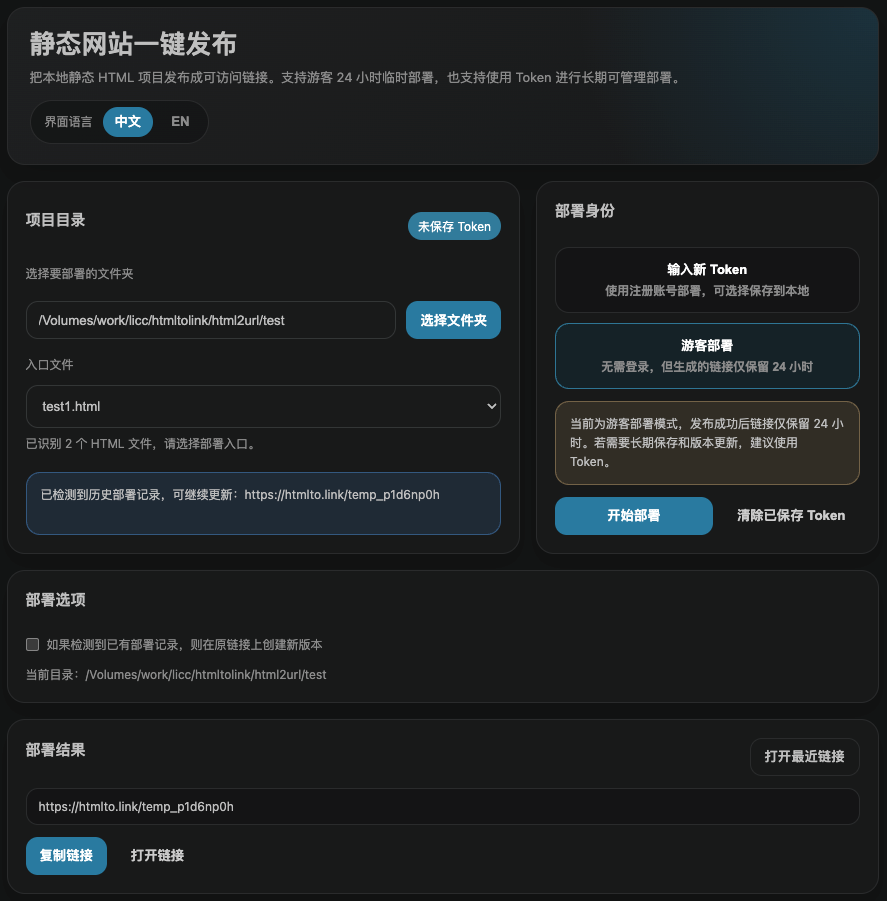
插件界面

Quick Static Site Publish Chinese UI

这个插件做什么

  • 直接发布本地静态网站文件夹,不用手动压缩再上传
  • 自动识别可作为入口的 HTML 文件
  • 支持游客发布,适合快速临时分享
  • 支持 Token 发布,适合重复部署和长期使用
  • 部署完成后立即返回公开访问链接

快速开始

  1. 安装插件。
  2. 打开命令面板,执行 Quick Static Site Publish: Open Publish Panel。
  3. 选择本地文件夹。
  4. 确认自动识别到的入口 HTML 文件。
  5. 选择游客发布,或填写你的 Token。
  6. 复制或打开生成的公开链接。

核心能力

  • 一键发布文件夹
  • 自动识别入口 HTML
  • 支持游客模式
  • 支持保存 Token
  • 支持复制和打开发布结果

入口方式

  • 命令面板:Quick Static Site Publish: Open Publish Panel
  • 资源管理器文件夹右键:Select Folder and Publish
  • 左侧活动栏视图:Publish

命令

  • Quick Static Site Publish: Open Publish Panel
  • Quick Static Site Publish: Select Folder and Publish
  • Quick Static Site Publish: Open Token Settings
  • Quick Static Site Publish: Clear Saved Token
  • Quick Static Site Publish: Open Last Published Link

配置项

  • htmlToLink.apiBaseUrl:部署接口基础地址
  • htmlToLink.autoCopyUrl:发布成功后自动复制链接
  • htmlToLink.defaultEntryFile:自动识别入口文件时优先文件名
  • htmlToLink.excludePatterns:打包上传时排除的目录和文件模式

说明

  • 这个插件只聚焦静态网站发布
  • 不包含页面编辑、模板生成或可视化搭建能力

English

Publish local HTML and static site folders to htmlto.link in one click from VS Code, Cursor, or Trae.

  • No manual zip and upload
  • Automatic entry HTML detection
  • Guest mode and token deployment
  • Instant public URL after publish

Best For

  • HTML landing pages
  • Frontend demos and prototypes
  • Exported static documentation sites
  • Project previews you want to share fast

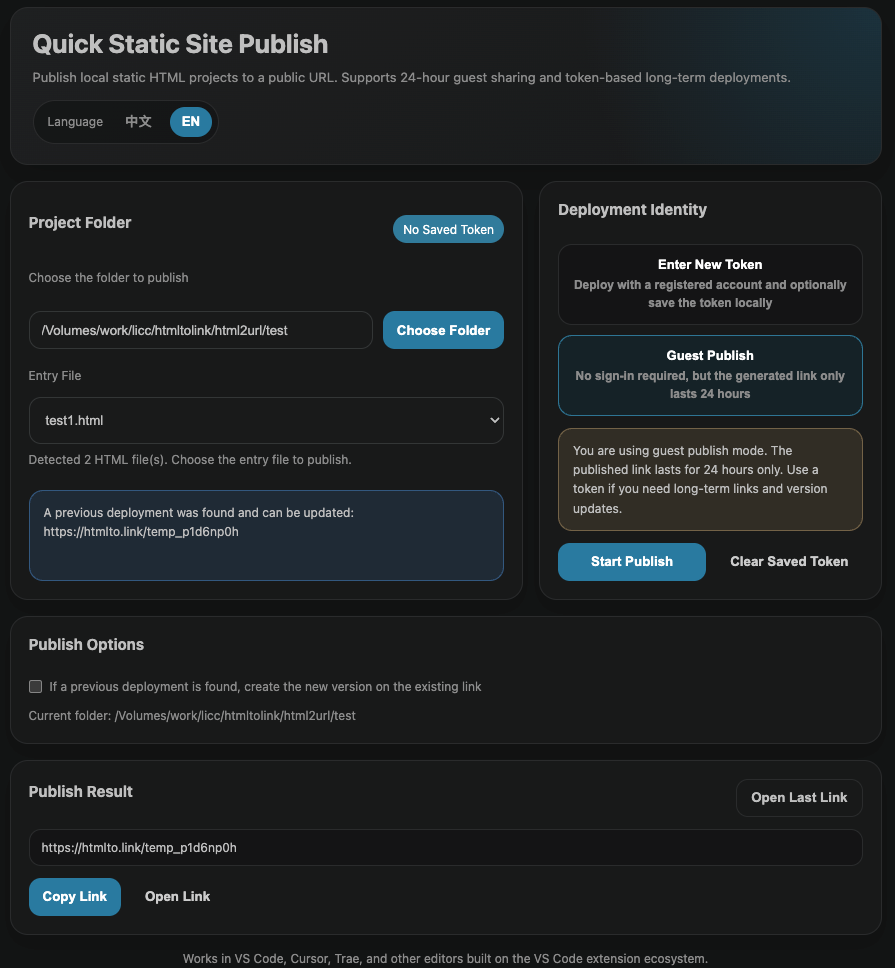
Screenshot

Quick Static Site Publish English UI

What It Does

  • Publish a local static site folder without manually zipping and uploading
  • Detect candidate HTML entry files automatically
  • Support guest publishing for quick temporary sharing
  • Support token-based publishing for repeatable and longer-term use

  • Return a public URL immediately after deployment

Quick Start

  1. Install the extension.
  2. Open the command palette and run Quick Static Site Publish: Open Publish Panel.
  3. Choose a local folder.
  4. Confirm the detected entry HTML file.
  5. Publish as guest or enter your token.
  6. Copy or open the generated public URL.

Main Features

  • One-click folder publishing
  • Automatic entry HTML detection
  • Guest mode support
  • Saved token support
  • Instant copy and open actions after publishing

Entry Points

  • Command palette: Quick Static Site Publish: Open Publish Panel
  • Explorer right click on a folder: Select Folder and Publish
  • Activity Bar view: Publish

Commands

  • Quick Static Site Publish: Open Publish Panel
  • Quick Static Site Publish: Select Folder and Publish
  • Quick Static Site Publish: Open Token Settings
  • Quick Static Site Publish: Clear Saved Token
  • Quick Static Site Publish: Open Last Published Link

Settings

  • htmlToLink.apiBaseUrl: deployment API base URL
  • htmlToLink.autoCopyUrl: automatically copy the public URL after publishing
  • htmlToLink.defaultEntryFile: preferred entry file name when auto-detecting HTML
  • htmlToLink.excludePatterns: file and directory patterns excluded from packaging

Notes

  • This extension focuses only on static site deployment
  • It does not provide page editing, template generation, or visual page building
  • Contact us
  • Jobs
  • Privacy
  • Manage cookies
  • Terms of use
  • Trademarks
© 2026 Microsoft