Skip to content
| Marketplace
Sign in
Visual Studio Code>Other>Librera1.com — Book Reader for VS CodeNew to Visual Studio Code? Get it now.
Librera1.com — Book Reader for VS Code

Librera1.com — Book Reader for VS Code

Librera1.com

| (0) | Free
Opens EPUB, PDF, FB2, MOBI and CBZ books in an editor tab
Installation
Launch VS Code Quick Open (Ctrl+P), paste the following command, and press enter.
Copied to clipboard
More Info

Librera1.com Book Reader for VS Code

Opens EPUB, PDF, FB2, MOBI and CBZ books in an editor tab.

The book is read from where it sits, and where you stopped reading it is kept in VS Code's own storage.

Using it

A book opens by being opened — the extension claims .epub, .pdf, .fb2,.mobi, .azw, .azw3 and .cbz, so double-clicking one in the explorer is enough. Librera: Open Book… in the command palette takes one from anywhere else.

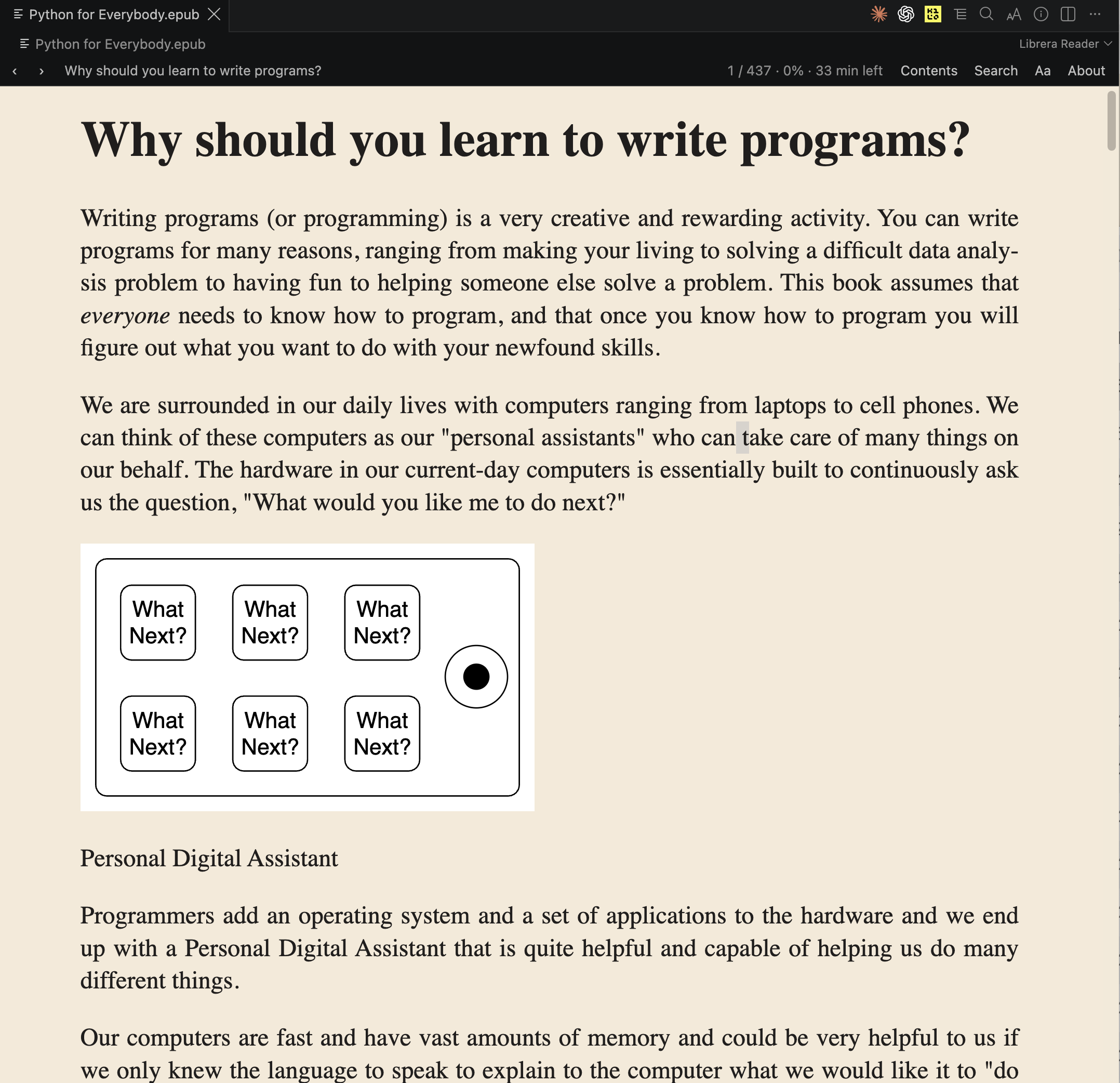
Paper Theme - Scroll Mode

The same book set in Paper, under a dark editor theme

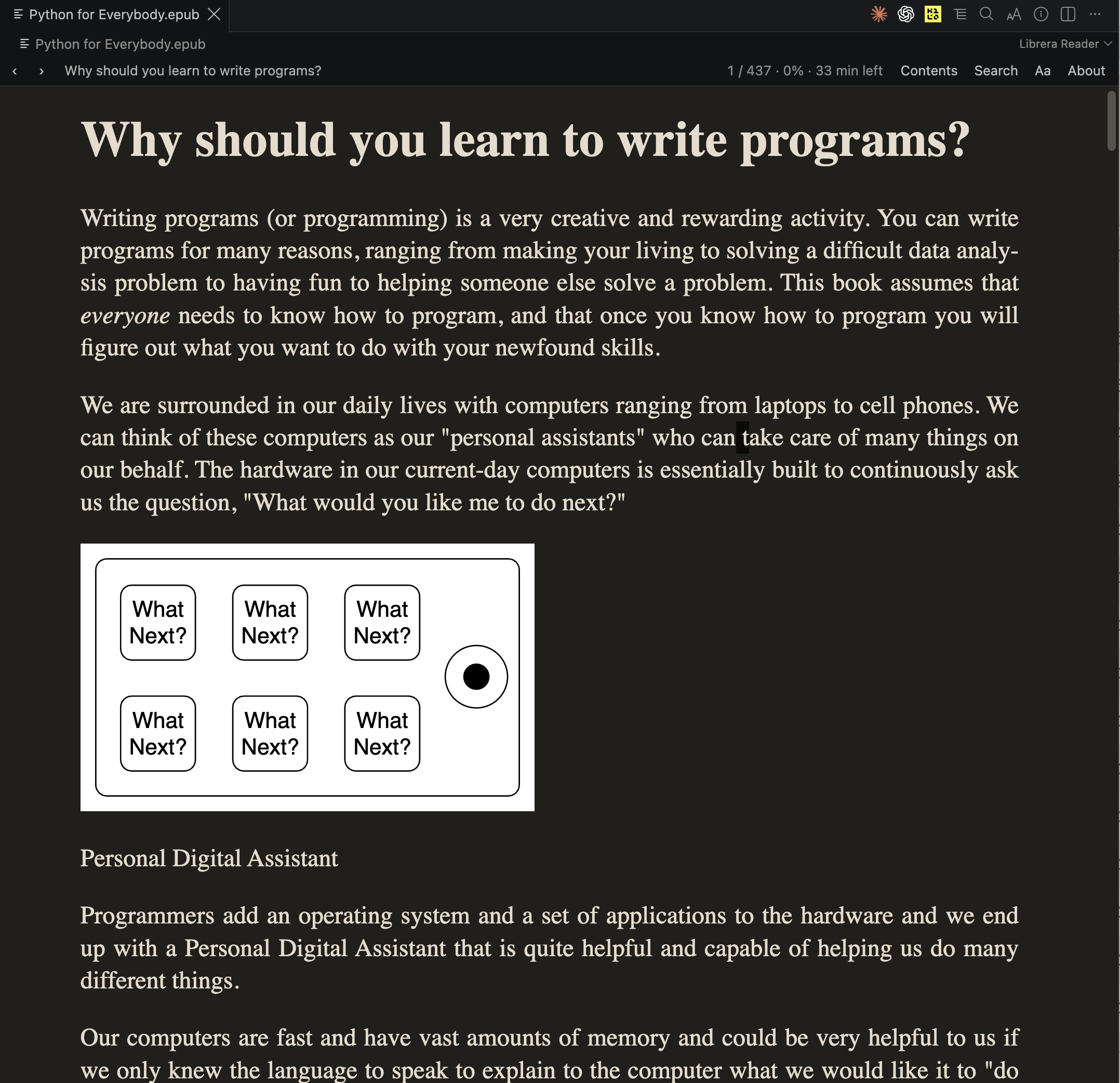
Dusk Theme - Scroll Mode

A book open in an editor tab, set in Dusk

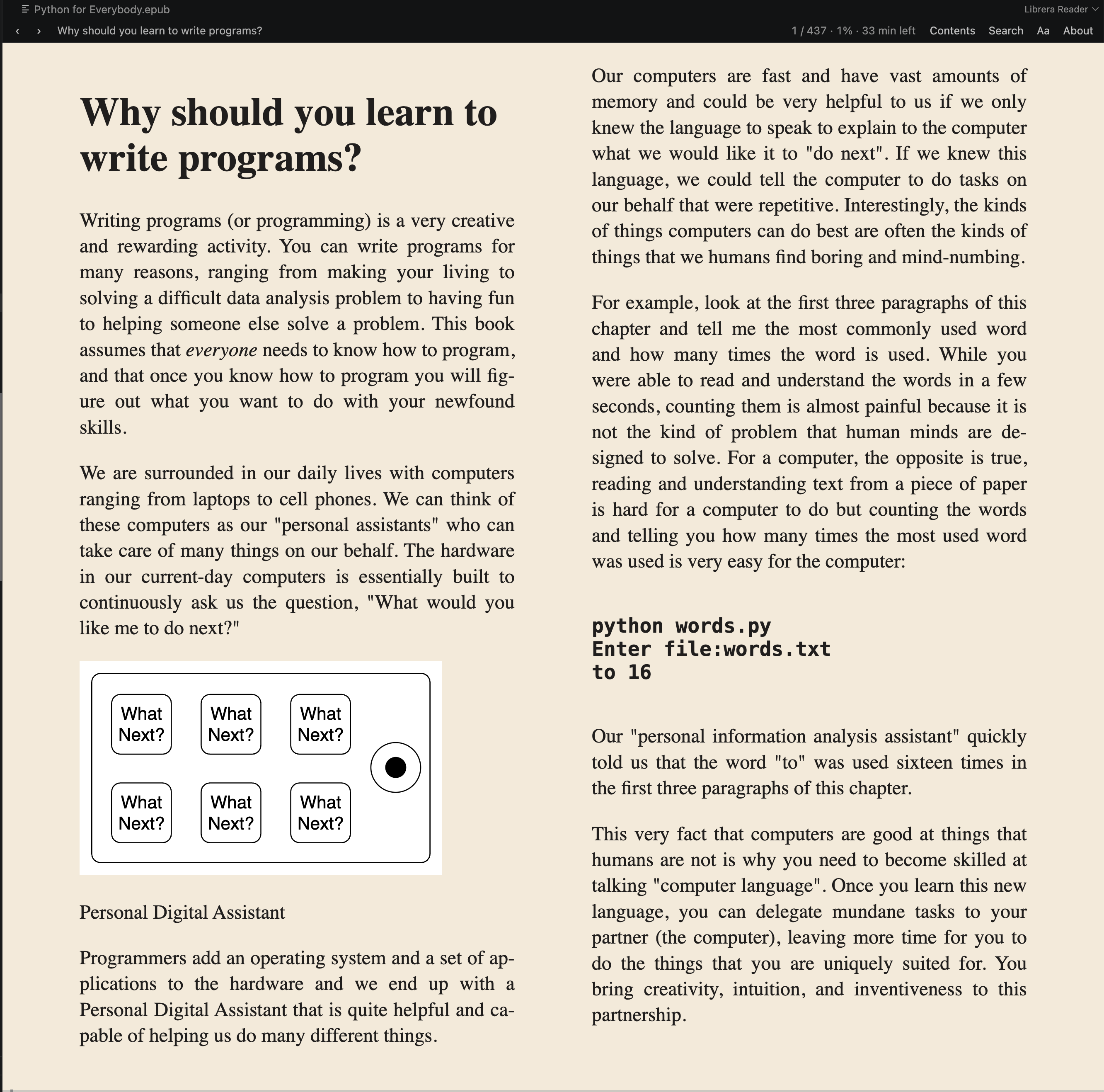
Two columns - Page mode

Two colums mode

The buttons in the tab's toolbar, and the same ones in the bar above the page, are quick picks rather than panels — all but the last, which is a tab:

  • Contents — the table of contents, filterable. Nesting is shown as indent.

  • Marks — every mark in this book, highlights and underlines among the bookmarks, in the book's order rather than the order you found them in. Each says which kind it is, its chapter and how far in it sits. Choosing one goes there; the bin beside it removes one — off the page too, if it was drawn on it — without closing the list. They are kept in VS Code's own storage beside the reading position, so they belong to this machine and to the file they were made in.

  • Search — searches the whole book, filling in as it goes; moving through the results moves the book behind the pick, and dismissing it puts you back.

  • Aa — the face, the page, text size, line spacing, column width, one or two columns, paginated or scrolled, and whether to override the book's own font. One setting for every book, not per tab, and only what you actually change is written down: a setting you leave alone goes on following the default rather than being pinned to whatever it was the day you first opened the picker.

    Override the book's font is off to begin with, and rarely needed: a book's own sizes are restated in rem as it loads, so they already follow your text size while keeping the book's proportions. Turn it on for a book that insists — one that sizes every paragraph in the markup, or embeds a face you would rather not read. Then your face and your size win outright, and the headings take a plain hierarchy instead of the book's numbers.

  • About — what this is, what is kept and where, the policy, the terms and the version. It is the only one of the four that is not about the book being read, and the only one that opens something rather than asking something.

Selecting a passage and right-clicking it opens the editor's own menu, not one drawn over the book: Copy, Search in Book for Selection, then Highlight, Underline and Bookmark. Marks is in it whether or not anything is selected.

Right-clicking a highlight or an underline offers Delete, which takes it off the page and out of the list. A left click on one does nothing — a mark is not a button, and a reader clicking near one is usually reading.

A highlight and an underline are drawn on the page, by the same foliate-js overlay every other version draws them with, and they come back when the book is opened again. They are made in one colour — the blue from the six the phone and the web app offer, so a passage marked here is the same colour when the book is opened there. Marking a passage that is already marked changes it rather than laying a second mark over the first.

Librera: Book Font offers the three faces the reader page carries — Literata, Lora and Atkinson Hyperlegible — and the book's own.
A book that names its own family in its own stylesheet is overruled, which is the point of picking one.

Librera: Reading Theme offers the four the phone and the web app use — Paper, Crisp, Sepia and Dusk — and one this host adds:

Editor Not a palette. The colours of whichever VS Code theme is running, so a book sits on the same surface as the code beside it, and follows a theme change without reloading. The default.
Paper Warm, and easy for a long sitting
Crisp Plain white, for somebody who wants none of this
Sepia Deeper paper
Dusk Dark, and warm with it

The bar stays in the editor's colours whatever the page is set to — a reader may well want a dark shell around a paper page, which is how the other hosts treat it too.

Arrow keys and Page Up/Down move by a screen. Dragging the line at the foot of the tab moves through the book. A wheel turns the page when the book is paginated, and scrolls it when it is not.

Following a link inside a book — a footnote, a cross-reference, an entry in an index — puts a ↩ in the bar, which goes back to the page it was followed from. It appears only when there is somewhere to go back to, and is spent on use: an arrow still lit after the return is a button that does nothing.


Librera1.com — Book Reader for VSCode, Web, Android, iOS, MacOS, Linux, Windows, Chrome

  • Contact us
  • Jobs
  • Privacy
  • Manage cookies
  • Terms of use
  • Trademarks
© 2026 Microsoft