Skip to content
| Marketplace
Sign in
Visual Studio Code>Debuggers>Android Tools for VS CodeNew to Visual Studio Code? Get it now.
Android Tools for VS Code

Android Tools for VS Code

Lev Kosyk

|
282 installs
| (1) | Free
VS Code Android extension for ADB, emulator/device manager, Logcat, Gradle Run/Debug, APK install, and XML live preview
Installation
Launch VS Code Quick Open (Ctrl+P), paste the following command, and press enter.
Copied to clipboard
More Info
Android Sidecar Logo

Android Tools for VS Code

Android extension for VS Code focused on daily Android development: ADB, emulator/device management, Logcat, Gradle run/debug, APK install, and XML/Layout tools.

Android Tools is a lightweight VS Code extension that brings the most used Android Studio workflows into VS Code. It is not a replacement for Android Studio.

Keywords: Android VS Code extension, ADB, Emulator Manager, Device Manager, Logcat, Gradle, Kotlin, Java, APK, XML Preview.

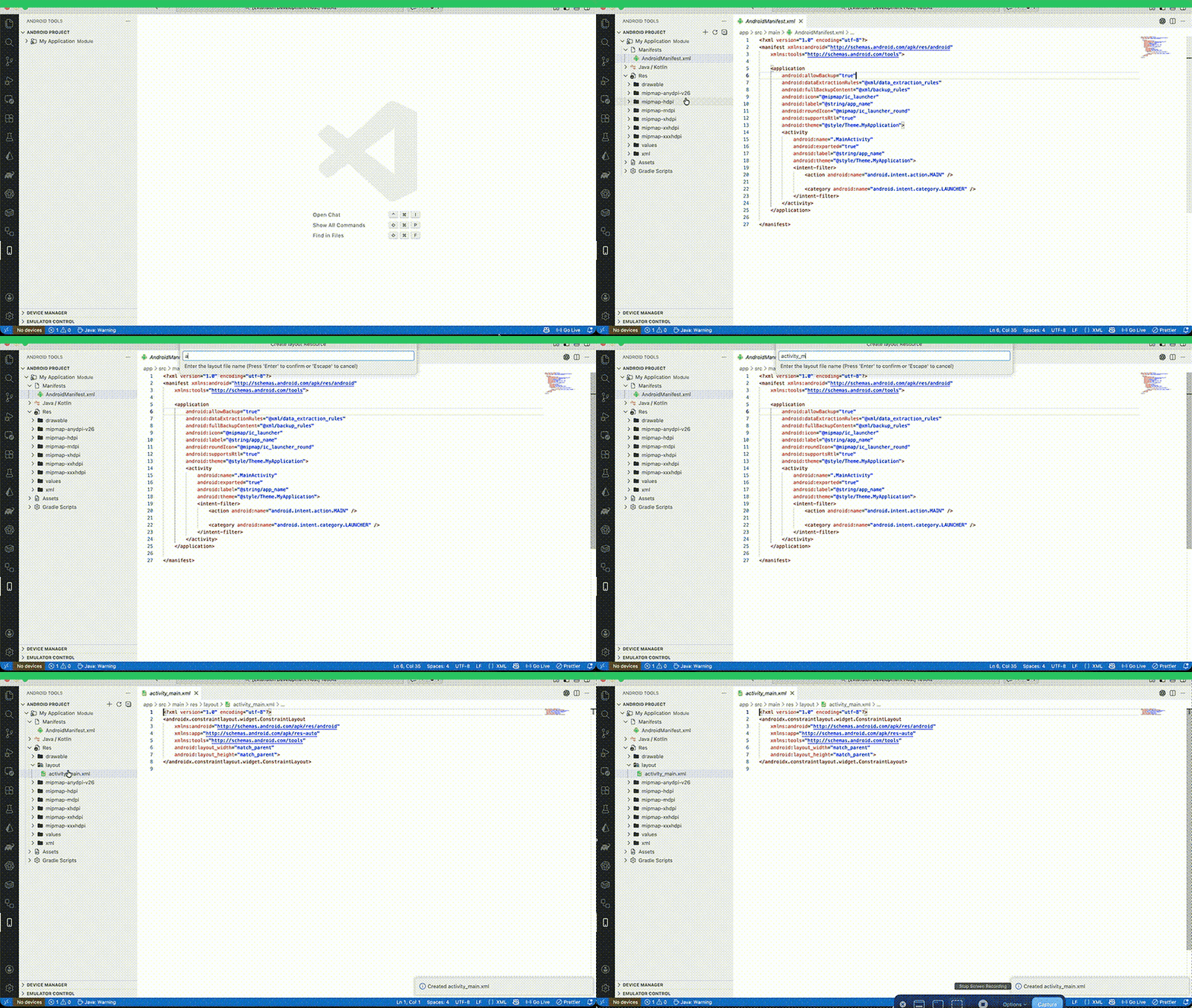
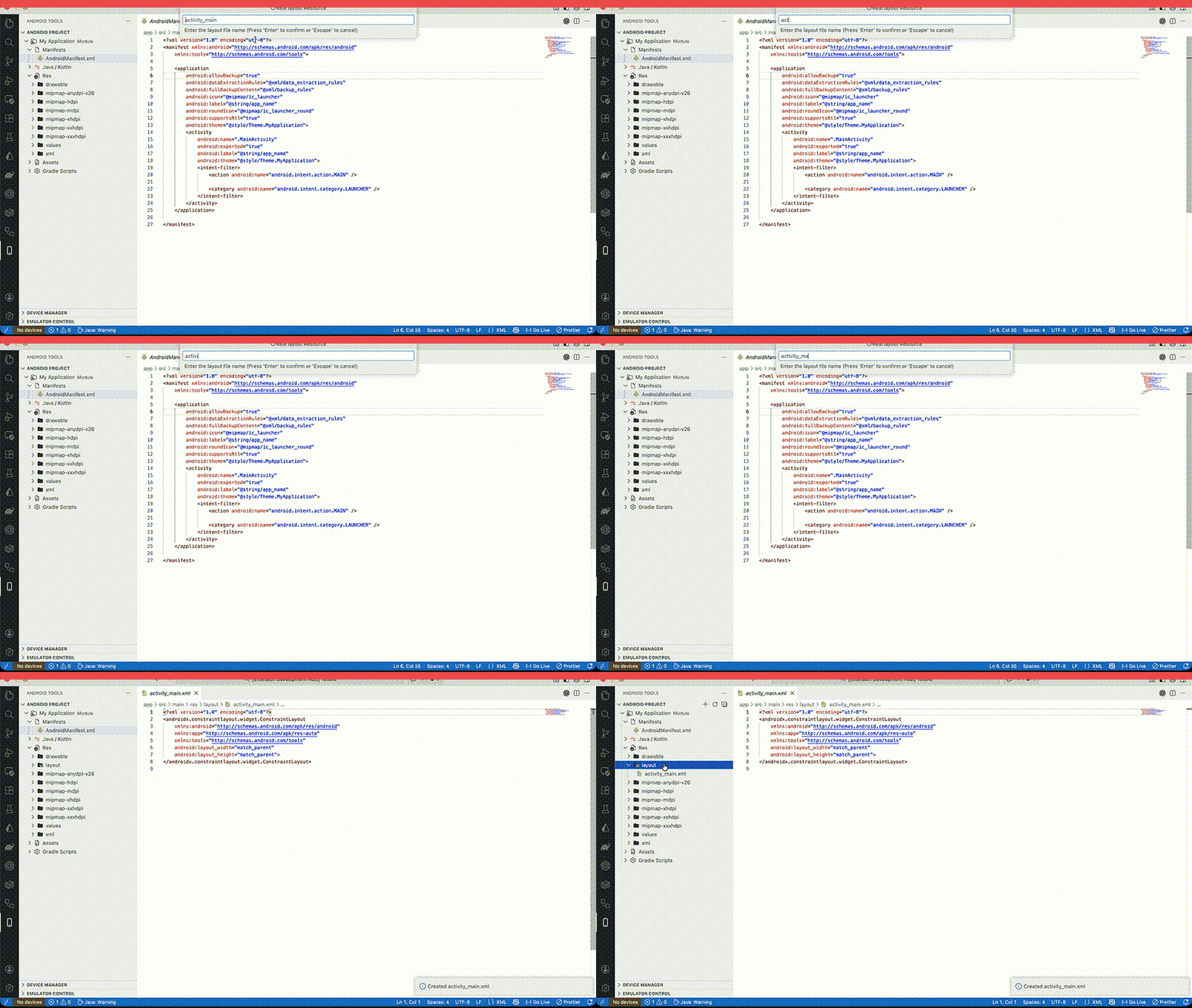
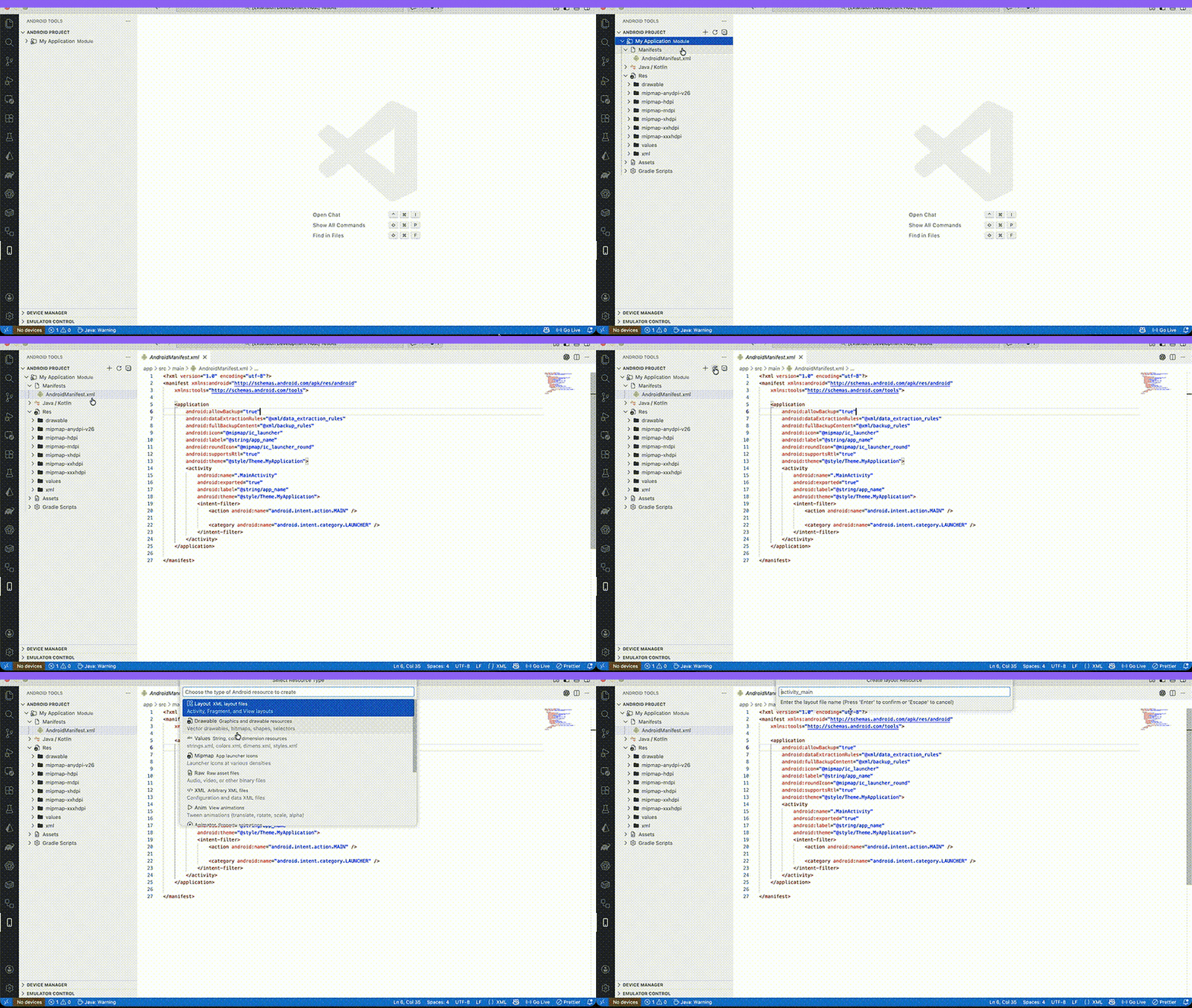
Android Project View

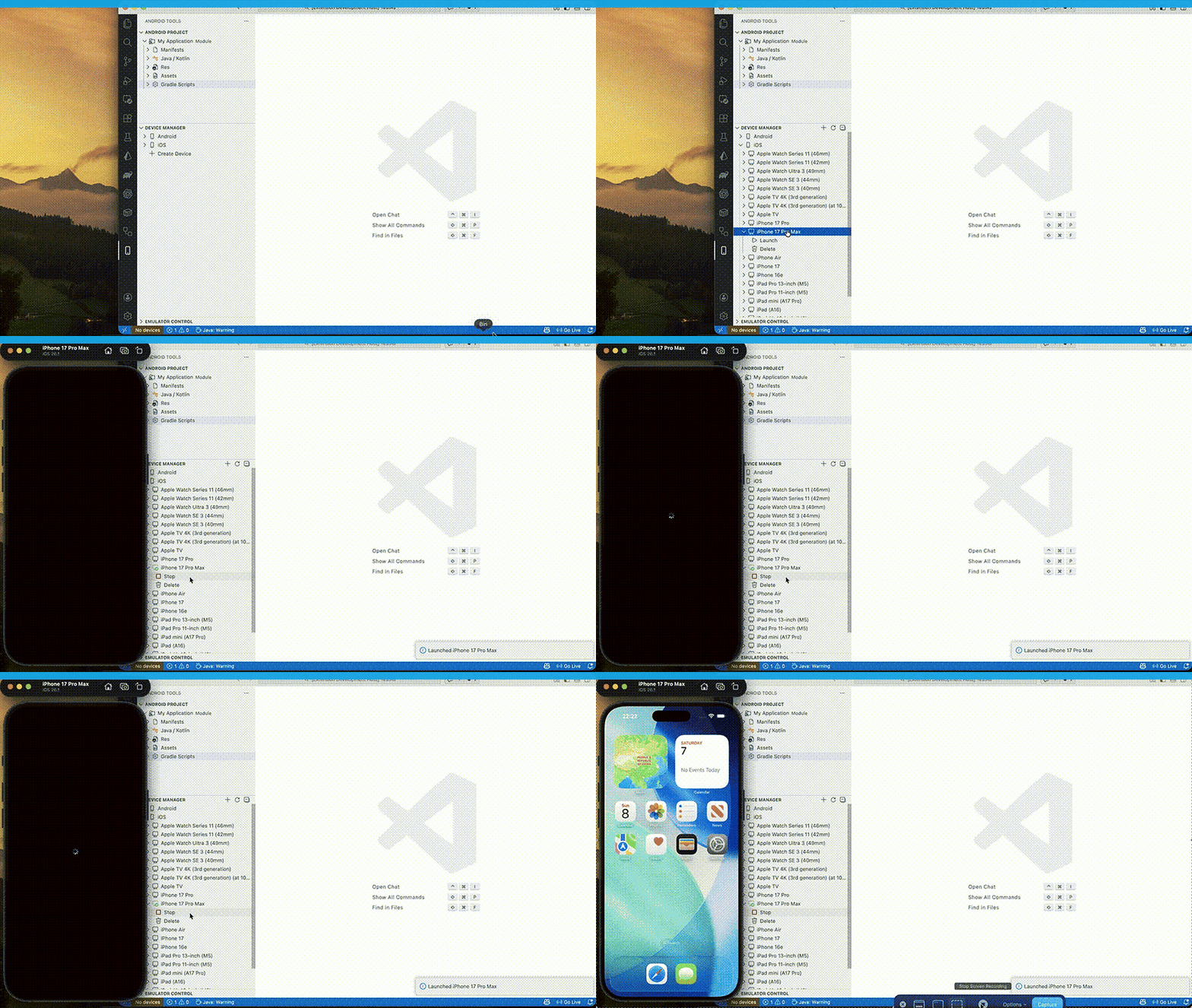
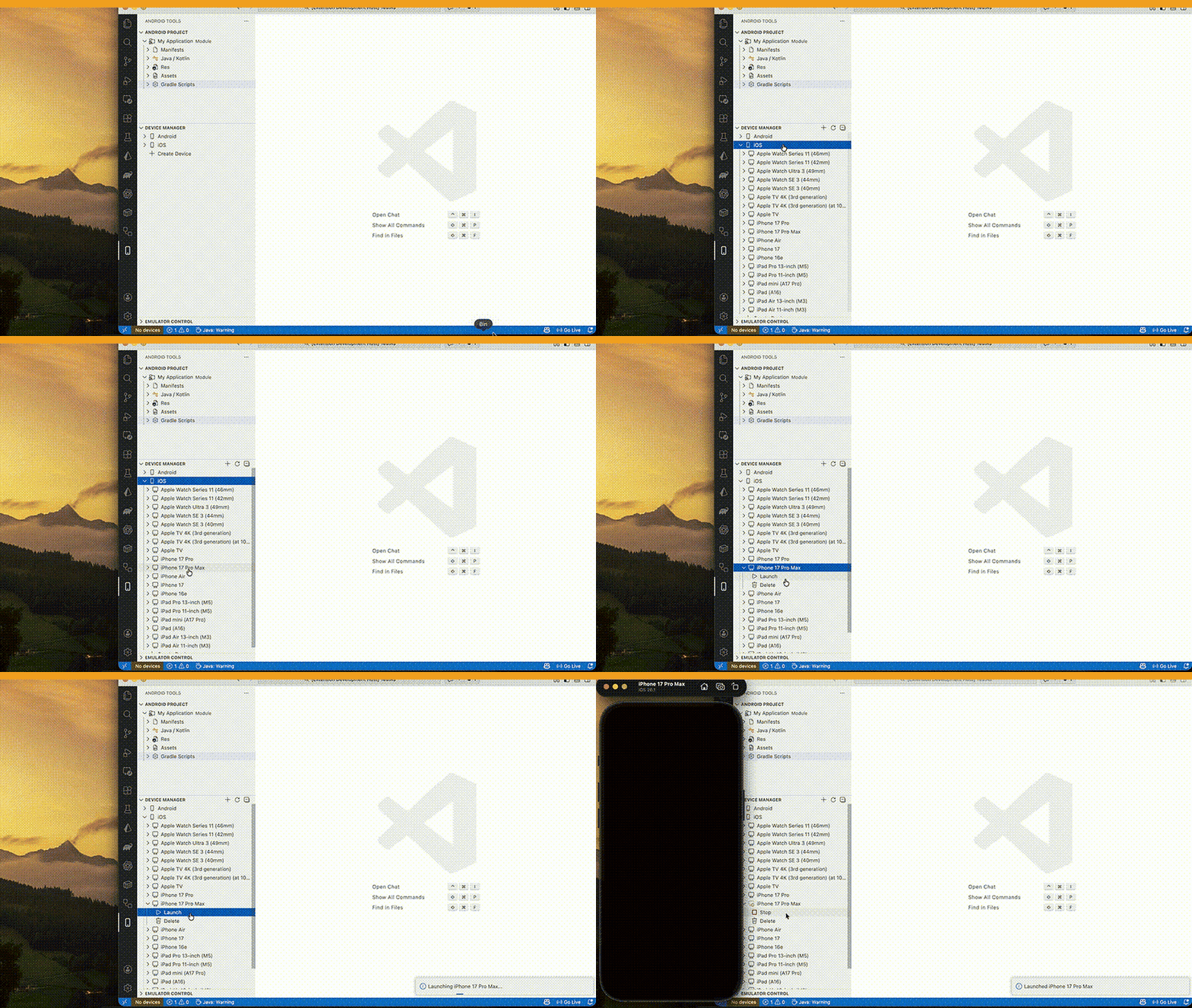
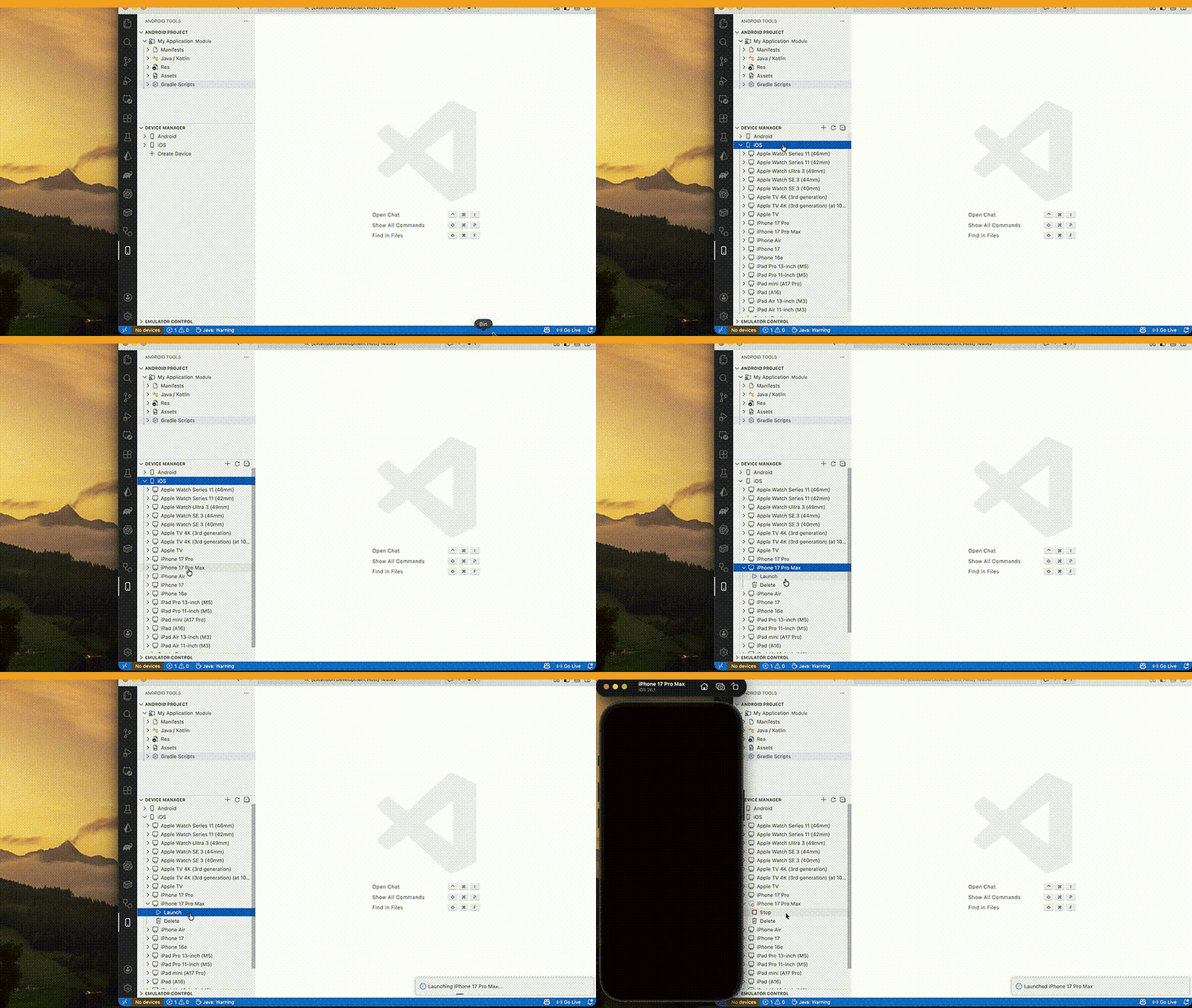
Run On Device

Visual Demos

Run Panel Quick Actions: Run Panel

XML Live Preview: XML Live Preview

ConstraintSet Snippet Generator: ConstraintSet Snippet Generator

Real Scenarios (New)

Run -> Result flow (module/device/variant/run): Run Result Flow

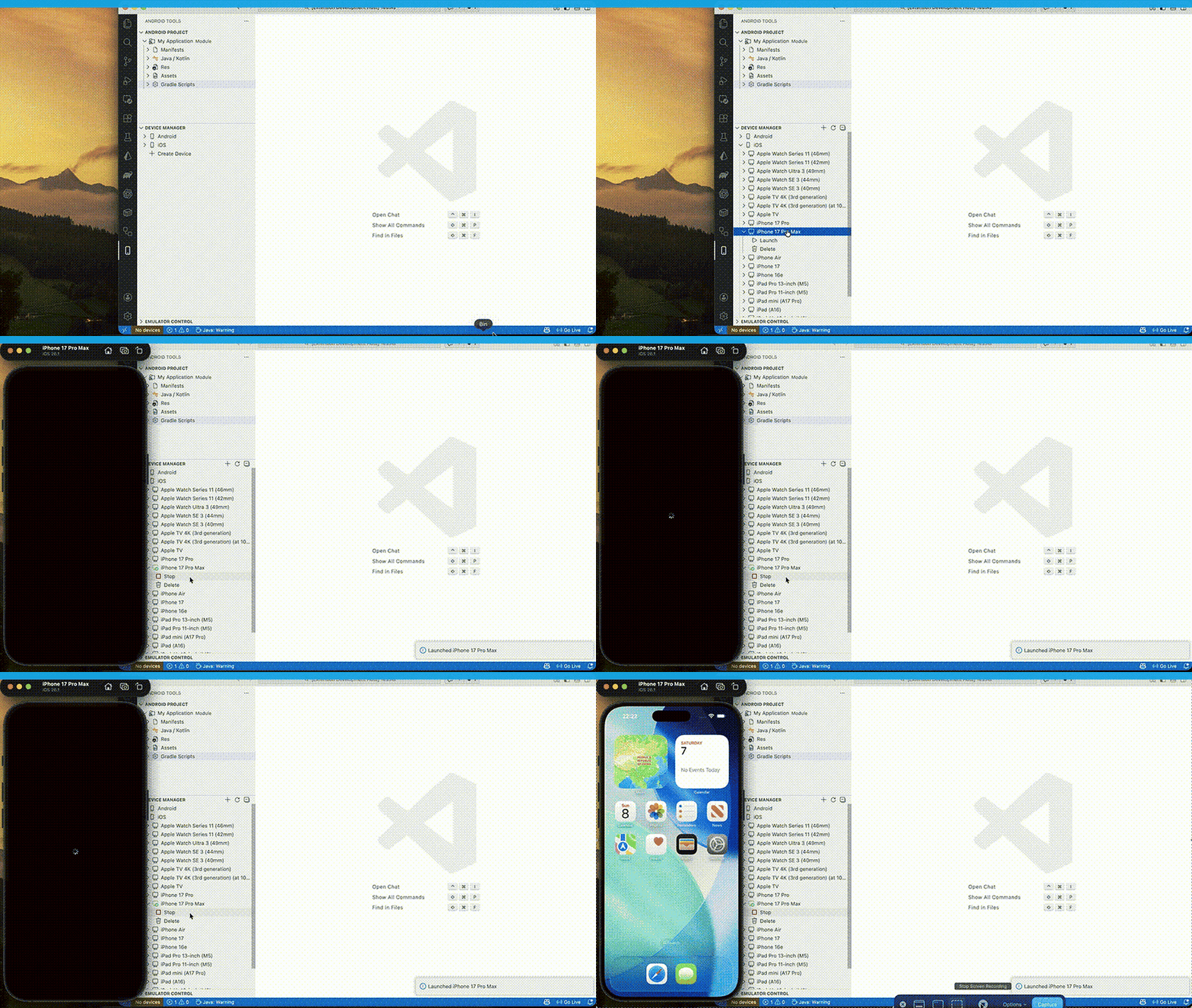
Device launch and install on target: Device Launch

XML live edit with preview feedback: XML Live Edit

Quick Start

  1. Install Android SDK and Emulator tools.
  2. Run Android: Start Emulator.
  3. Run Android: Run App on Emulator.
  4. Open Android: Open Run Panel and use one-screen flow:
  • Module -> Device -> Variant -> Run
  1. If run fails, use:
  • Android: Open Run Failure Report
  • Android: Open SLO Dashboard

Marketplace and Support

  • Install from VS Code Marketplace (search: Android Tools for VS Code).
  • Repository: GitHub
  • Issues / feedback: GitHub Issues

Key Features

Fast Android Runner

  • Automatic Android SDK and ADB detection
  • Start and stop emulators
  • Install APKs or debug builds
  • Run app on a selected emulator or device
  • Device discovery via adb devices

Android Project View

  • Manifests, Java and Kotlin, Res, Assets, Gradle
  • Create Kotlin or Java class
  • Create files and folders
  • Rename and delete items
  • Drag and drop to move files and folders between directories
  • Conflict-safe moves (auto-renames when target name already exists)
  • Move preview before drop with confirm/cancel
  • Undo last move/delete from Android Project view
  • Delete moves items into .android-tools-trash with quick restore

Emulator Control

  • Rotation, screenshots
  • Cold boot, warm boot, wipe data
  • Network on and off
  • Battery simulation with level and charging
  • Screen recording
  • Quick actions: key events, taps, swipes, text input
  • Push/pull clipboard

Logcat Viewer

  • Live stream, filter by tag, level, or search
  • Clear logs
  • Save filter presets
  • Pin favorite presets for one-click use
  • One-click Only this app filter (by app PID)
  • Zero-empty next steps: No device -> Start emulator, No logs -> Start app + filter
  • Export selected log lines or full visible log
  • Render window optimization for long sessions (bounded DOM + dropped counter)

Debugging

  • Attach and detach
  • Breakpoints via VS Code debugger

Profiler (Lite)

  • CPU and memory snapshots
  • ADB performance monitor: CPU, memory, graphics polling
  • Record 10s performance series to JSON trace

Run Panel

  • One-screen primary flow: Module -> Device -> Variant -> Run
  • Secondary actions moved under Advanced Tools
  • Build, install, run, clean, and release-quality gate
  • Stop action near Run
  • Recent run history + quick re-run
  • History search/filter (all / current module / current device)
  • Quick presets: Debug on emulator / Release on device
  • Pinned presets (quick one-click row)
  • Run Panel keyboard: Enter = Run, Cmd/Ctrl + R = Re-run selected history
  • Runtime health status (Java/Kotlin stability)
  • Preflight checks with fix suggestions before run/install/build
  • Auto-recovery for common failures (ADB reconnect, install retry, Gradle daemon retry)
  • Smart device pick from last successful run (module + variant aware)
  • Gradle diagnostics classifier v2 (better top-error reason + targeted quick fixes)
  • Cancel active long-running operation from Command Palette
  • Smart empty-state hints with one-click quick fixes (module/device/workspace/SDK)
  • Zero-empty next steps: No module -> Open project, No device -> Start emulator
  • Built-in Quick Actions row (Run Selected / Stop Selected / Logcat This App / Health Wizard / Release Gate)
  • Unified failure block format: Reason + Why + Suggested + one-click fix actions
  • Unified state status bar across core panels: Idle / Running / Failed / Fixed
  • Customizable primary actions layout (build/install/run/stop/clean/releaseGate)
  • Consistent action naming across primary flows: Run, Install, Stop, Release Gate
  • Visible shortcut hints near action buttons
  • Shortcut profiles: Default, Vim-like, JetBrains-like

Customization & Profiles

  • UI modes: Beginner / Standard / Power User (Beginner default)
  • Beginner mode hides advanced areas (Matrix, Gradle Intelligence, diagnostics dashboards)
  • Config profiles: Solo, Team, CI-heavy, Release, Custom
  • One-click profile apply updates Android Tools settings for workflow style
  • Notification granularity toggles: run, gradle, device, logcat, tips, and errors-only
  • Theme tokens for webviews (success/warn/error/info) with contrast-safe accents
  • Keyboard-first customization: remap Run Panel shortcuts from UI command
  • Keyboard profile switch command: Android: Set Keyboard Shortcut Profile
  • Density/font controls: Compact/Comfortable, panel font size, table/log row height
  • Saved panel layouts: Debug layout, Release layout, QA layout + custom save/apply
  • Quick Settings Center: searchable settings UI with live workspace updates

First-Run Health Wizard

  • Success-driven setup check (SDK, Java/Kotlin, modules, devices)
  • Health score feedback and focused quick fixes for failed checks
  • Fix All Detected Issues option before first run

Onboarding v2

  • 3-step UX flow: validate environment -> apply fixes -> test run
  • Checklist UI for SDK, JDK, modules, and devices
  • One-click per-item fixes + Fix All Detected Issues
  • Built-in Test Run action at the end of onboarding
  • Direct handoff to Run Panel
  • Progress bar + health score
  • Explicit completion state: Environment ready
  • Send UX Feedback action with auto-generated diagnostics snapshot

Device Selector Bar

  • Persistent status bar controls for device, module, and variant
  • Run, Debug, Stop buttons

Gradle Sync + Project Health

  • Gradle sync command with output channel
  • SDK/Build Tools/NDK checks

Gradle Task Explorer

  • Browse tasks by group
  • One click run
  • Stale-cache return with background refresh for faster open

Gradle Build Output Panel

  • Dedicated Gradle output channel
  • Error parsing with file/line links

Gradle Intelligence

  • Dependency conflict detector with safe force-version suggestions
  • Build scan-lite with slow task ranking (from Gradle timing output)

Problems View

  • Collects failed Run/Build/Install/Clean actions
  • One-click fix actions from failure context
  • Jump to source location when file/line is available
  • Run Failure Report command with top-10 grouped failure reasons
  • Crash/Failure Insights panel: top errors for last 7 days, frequency, and auto-fix hit rate
  • Error Knowledge Base: top errors with root cause, auto-fix/manual-fix, and direct file links
  • Error taxonomy v2: unified normalized reason IDs across diagnostics/reporting/panels
  • Actionable error prompts in extension flows (quick fix actions + suggestion sheet)

Team Features

  • Export/import project config via .vscode/android-tools.json
  • Share launch profiles, matrix presets, logcat presets, and key androidToolkit settings
  • Versioned project config schema with auto-migration (schemaVersion: 2)

Matrix Runs

  • Install matrix retries failed devices automatically for recoverable ADB failures
  • Matrix output includes attempt counts
  • Device Lab mode: matrix Install / Run / Smoke / Tests
  • Flaky test history by device and runner (dashboard summary)

Stability SLO Dashboard

  • Run success rate
  • Median build/install duration
  • Crash-free sessions (session health tracking)
  • Command budget (median/p95/breach count for key command latency SLOs)
  • Startup Profiler panel for activation breakdown (top slow init phases)

Performance Pass

  • Lazy open for heavy UI panels (on-demand import)
  • Debounced auto-sync tick to avoid overlap
  • Cached read-only Gradle scans for faster repeated analysis
  • Unified throttled background scheduler for polling tasks
  • Smart cache invalidation on Gradle/project file changes and device topology changes
  • Crash-safe lightweight panel state snapshots (restores after extension host restart)
  • Progressive webview rendering (loading skeletons before heavy lists/tables)
  • Action replay diagnostics report for reproduce-bug bundles

Build Variants

  • Pick debug, release, and product flavors

Launch Profiles

  • Save module, variant, device type, and optional task
  • Run profiles from the command palette

Run Configurations

  • Per module and variant configs
  • Pre-run tasks, env vars, and Gradle arguments
  • Run/Debug Profiles v2 panel with create/run/debug/duplicate/delete
  • Inline profile edit directly in panel (without reopening dialogs)

APK Analyzer (Lite)

  • Total APK size
  • Top largest files

APK Analyzer (Lite+)

  • Compare two APKs
  • Top classes and resources

Mapping Viewer

  • Open mapping.txt
  • Search classes
  • Deobfuscate stacktraces

App Inspection (Lite)

  • Running processes
  • Package version and install info
  • Live network log stream (OkHttp/HTTP via Logcat pattern)
  • Kill + Restart + Clear Data quick action

Database Inspector (Lite)

  • List app databases
  • Pull database files for local inspection
  • Simple queries and CSV export
  • Snapshot and diff between database states

APK Install Matrix

  • Install the same APK on multiple devices
  • Per-device report output

Device File Explorer

  • Browse /sdcard
  • Pull and push files

ADB Shell

  • Open an interactive shell per device

Layout Preview (Lite)

  • Static preview for layout XML
  • XML Live Preview beside editor (updates while typing)
  • Layout Editor (Lite): drag-and-drop components, properties, constraint handles, snap-to-grid, alignment guides
  • Multi-select with Cmd/Ctrl-click, align/distribute actions, and delete selected
  • Undo/Redo support for layout edits
  • Expanded palette: TextView, Button, EditText, ImageView, CheckBox, Switch, ProgressBar
  • Constraint type selectors: toStartOf / toEndOf / toTopOf / toBottomOf
  • Component Tree panel for quick selection and multi-select
  • Properties grouped by categories: common, text, layout, visibility
  • Visual constraint arrows with different styles for each link type
  • Resize handles on selected component (corner resize)
  • Constraint diagnostics panel: missing constraints, overlap, off-screen + badges in Component Tree
  • Diagnostics auto-fix actions: per-issue Fix, Focus, and global Auto-Fix All
  • Safe Auto-Fix mode: preview fixes before apply, with Apply Preview / Discard Preview
  • Safe Auto-Fix diff preview: per-component before/after field changes before apply
  • Diagnostics undo: Undo Last Fix restores previous layout state for diagnostics actions
  • UX polish: disabled button states, cleaner empty/loading states, and reduced noisy notifications
  • Live write modes: onType (debounced auto-write) or onSave (manual Apply XML)
  • Live device preview loop (optional) with gfx hotspot hints

Layout Inspector (Lite)

  • View tree with bounds
  • Screenshot overlay
  • Live filter by id/class/text

Compose Tooling (Lite)

  • Static compose preview list from @Preview
  • Live preview via emulator screenshot
  • Parameter set input and recomposition hotspot hints (gfx framestats)

Test Runner

  • Unit and instrumentation launch from panel
  • Tree view from JUnit XML reports
  • Re-run failed tests quickly
  • Device matrix run for instrumentation

Gradle Doctor

  • Auto-fix helpers for SDK components and daemon JVM args
  • Offline mode toggle
  • Cache cleaner for common Gradle cache groups
  • Auto-detect sdkmanager from Android cmdline-tools

Signing and Release

  • Play App Signing helper
  • Bundletool integration (build-apks, install-apks)
  • VersionCode bump wizard
  • Auto-detect bundletool.jar from project/home common locations
  • Release Flow Wizard: Select Variant -> Build -> Sign -> Install/Test
  • Release checklist (versionCode/signing/manifest flags)

Manifest and Resource Tools

  • Insert templates
  • Basic validation
  • Resource inspector (values)
  • Go to resource by R.string/R.color/R.dimen
  • Manifest editor for activity/service/permission
  • Navigation graph helpers (destination/argument jump + SVG preview)
  • Graph layout with action arrows in SVG preview

XML Authoring (New)

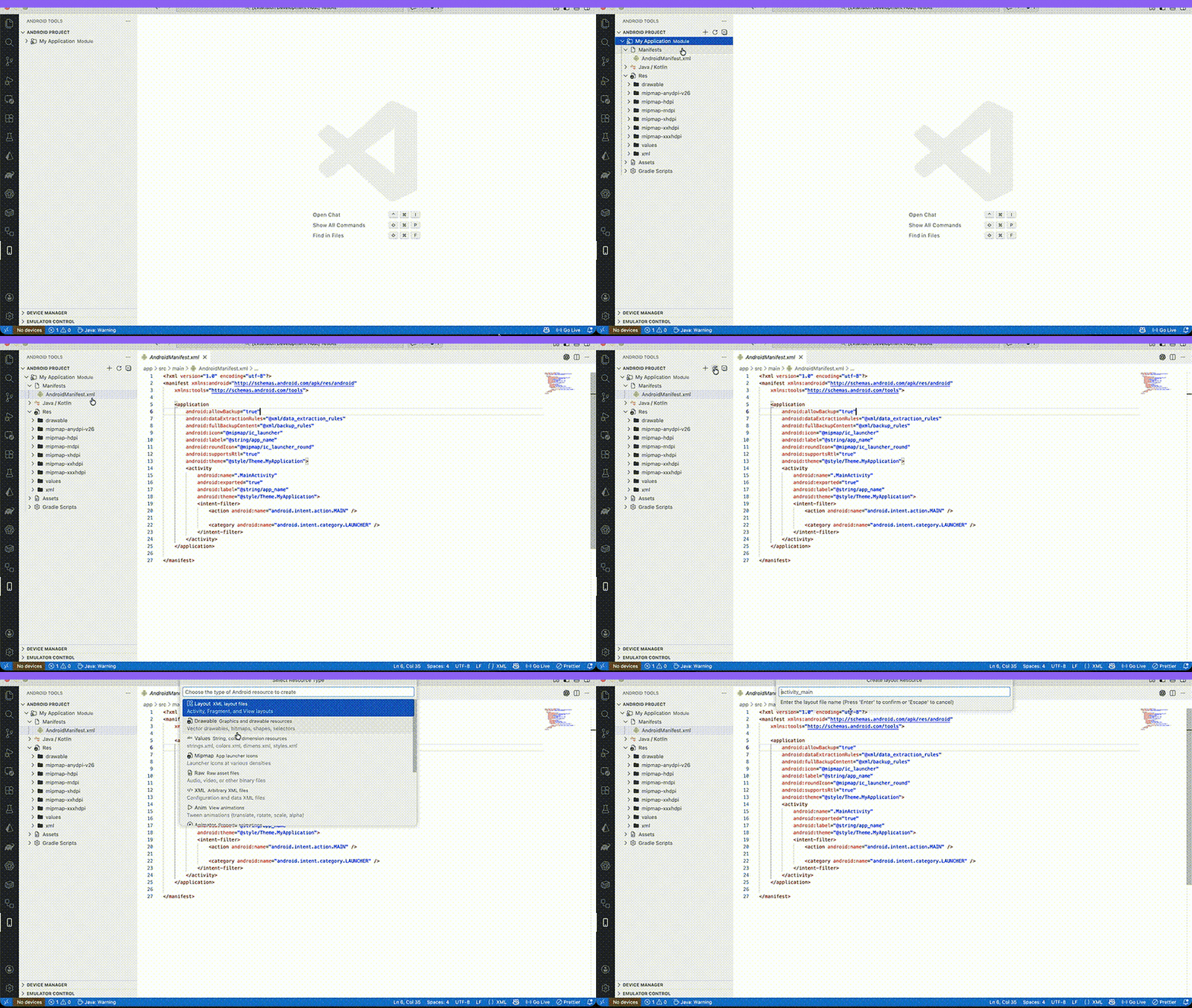
  • Snippet completions for common Android layout views/attrs in res/layout/*.xml
  • Faster writing for ConstraintLayout child blocks and base attributes
  • tools:* authoring helpers (tools:text, tools:visibility, tools:src, tools:ignore)
  • Generate Kotlin ConstraintSet snippet directly from selected XML views
  • Layout XML lint on save (hardcoded text, missing contentDescription, missing constraints)
  • Quick Fix actions for XML warnings
  • Extract selected XML text into res/values/strings.xml

New Project Wizard

  • App name, package, language
  • Template selection:
    • Views: Empty Activity
    • Views: Bottom Navigation
    • Compose: Empty Activity (Kotlin)
  • Activity, manifest, resources
  • Gradle files and wrapper when available

Template Gallery

  • Visual template picker for Android project starters
  • Quick create flow for Views and Compose templates
  • Preview cards + capability summary per template

How To Use (New Features)

1) First Launch Setup

  1. Run Android: First-Run Health Wizard.
  2. If SDK is missing, click SDK Setup Guide in wizard and install command-line tools.
  3. If Java 25 is detected, run Android: Use JDK 21 Path.
  4. Open Android: Open Run Panel when checks are green.

2) Fast Run / Stop Flow

  1. Open Android: Open Run Panel.
  2. Select Module, Device, Variant.
  3. Use core actions: Build, Install, Run, Stop, Clean.
  4. Use presets for speed:
  • Debug on Emulator
  • Release on Device
  1. Use built-in quick actions:
  • Run Selected
  • Stop Selected
  • Logcat This App
  • Health Wizard

3) XML Live Preview Workflow

  1. Open any file in res/layout/*.xml.
  2. Run Android: Open XML Live Preview to open preview beside code.
  3. Optional: run Android: Toggle XML Live Preview for auto-updates while typing.
  4. Write XML and observe updates in preview.

Shortcuts:

  • Ctrl/Cmd + Alt + P => open XML live preview
  • Ctrl/Cmd + Alt + Shift + P => toggle live preview

4) Faster XML Authoring

In res/layout/*.xml, use completion for:

  • View snippets: TextView (android), Button (android), Constraint Item
  • Attributes: android:id, android:text, android:layout_width, android:layout_height
  • Design-time helpers: tools:text, tools:visibility, tools:src, tools:ignore

Also available:

  • Save layout XML to run lint checks automatically.
  • Use lightbulb quick fixes for common issues.
  • Run Android: Extract String Resource from XML (or Ctrl/Cmd + Alt + E) to move hardcoded text into strings.xml.
  • Run Android: Extract All Hardcoded Strings (Layout) for batch extraction in one pass.
  • Run Android: Fix All Layout Warnings for one-click bulk fixes in current file.
  • In Layout Editor (Lite), use the new Fix All (Android Lint) button in Constraint Diagnostics.
  • Golden snapshot tests cover before/after XML auto-fix behavior.

5) ConstraintSet Generator

  1. Select one or more views in layout XML that have android:id.
  2. Run Android: Generate ConstraintSet Snippet from Selection.
  3. Extension opens Kotlin ConstraintSet boilerplate in new editor.

Shortcut:

  • Ctrl/Cmd + Alt + Shift + C

6) Quick Commands + Hotkeys

  • Ctrl/Cmd + Alt + R => Android: Run Selected (Quick)
  • Ctrl/Cmd + Alt + Shift + R => Android: Stop Selected (Quick)
  • Ctrl/Cmd + Alt + L => Android: Logcat This App (Quick)

7) If Something Fails

  1. Run Android: Cancel Active Operation.
  2. Run Android: Collect Diagnostics Snapshot.
  3. In Run Panel error block, click Open Gradle Output.
  4. Re-run from Run Panel.

Commands

Command Description
Android: List Devices Show connected devices
Refresh Refresh current Android Tools view
Open in Explorer Reveal selected item in VS Code explorer
Android: Start Emulator Start an AVD
Android: Stop Emulator Stop an AVD
Android: Create Emulator Create a new AVD
Android: Run App on Emulator Build, install, run on emulator
Android: Run App on Device Build, install, run on device
Android: Open Run Panel Build, install, run, clean in one panel
Android: First-Run Health Wizard Guided setup checks + quick fixes
Android: Open Onboarding v2 Visual onboarding checklist with one-click fixes
Android: Open Template Gallery Open visual starter template gallery
Android: Run Selected (Quick) Alias for running selected target
Android: Stop Selected (Quick) Alias for stopping selected app
Android: Logcat This App (Quick) Open Logcat and jump to app-focused flow
Android: Cancel Active Operation Request cancellation for current long action
Android: Collect Diagnostics Snapshot Export environment/device/module diagnostics to markdown
Android: Open Run Failure Report Show top grouped run/build/install failure reasons
Android: Open Startup Profiler Show activation phase breakdown and top startup costs
Android: Open Action Replay Report Export recent actions with args and latency for repro
Android: Run Release Quality Gate Run compile/lint/tests/release checks before publish
Android: Set UI Mode Switch Beginner / Standard / Power User UI mode
Android: Apply Config Profile Apply Solo / Team / CI-heavy / Release defaults
Android: Configure Run Layout Select and order visible Run Panel primary actions
Android: Configure Keyboard Shortcuts Remap Run Panel keyboard actions
Android: Set Keyboard Shortcut Profile Apply Default / Vim-like / JetBrains-like shortcut profile
Android: Save Current Panel Layout Save current UI/run layout as named preset
Android: Apply Saved Panel Layout Apply Debug/Release/QA/custom saved layout
Android: Open Settings Center Search + live-edit Android Tools UI/behavior settings
Android: Open Failure Insights Panel Weekly top failures + auto-fix hit rate dashboard
Android: Open Stability SLO Dashboard Data-driven stability metrics (run success, medians, session health)
Android: Open Error Knowledge Base Top errors with why/fixes/docs/file hints
Android: Export Team Project Config Save shared project config to .vscode/android-tools.json
Android: Import Team Project Config Apply shared project config from .vscode/android-tools.json
Android: Select Build Variant Choose debug/release/flavor
Android: Gradle Assemble Debug Assemble debug variant
Android: Gradle Install Debug Install debug via Gradle
Android: Gradle Clean Clean project
Android: Run Gradle Task Run a Gradle task
Android: Refresh Gradle Tasks Refresh task list
Android: Clear Problems Clear Android Problems view
Android: Apply Problem Fix Execute selected fix action from Problems view
Android: Open Problem Location Open source location from Problems view
Android: Create Launch Profile Save a launch profile
Android: Run Launch Profile Run a launch profile
Android: Delete Launch Profile Delete a launch profile
Android: Rename Rename selected file/folder in Android project view
Android: Delete Delete selected file/folder in Android project view
Android: Undo Last Project Action Undo last move/delete in project view
Android: Create Run Configuration Create a run configuration
Android: Run Run Configuration Run a saved configuration
Android: Debug Run Configuration Run saved configuration and attach debugger
Android: Duplicate Run Configuration Duplicate an existing run configuration
Android: Delete Run Configuration Delete a configuration
Android: Open Run/Debug Profiles v2 Open panel to manage run/debug profiles
Android: APK Analyzer Analyze APK size
Android: Compare APKs Compare two APKs
Android: App Inspection Inspect running apps
Android: Kill+Restart with Clear Data Reset and restart selected app
Android: Database Inspector Inspect app databases
Android: Debug Panel Open integrated debug panel
Android: Build Cache Inspector Show build cache stats and issues
Android: Dependency Insight Run Gradle dependency insight
Android: Open Gradle Intelligence Conflict detector + build scan-lite slow task view
Android: Signing Wizard Generate keystore and setup signing
Android: Release Flow Wizard Guided variant/build/sign/install release flow
Android: Build Signed APK Build release APK
Android: Build Signed AAB Build release bundle
Android: Refresh Device Explorer Refresh device files
Android: Pull From Device Download file or folder
Android: Push To Device Upload files to device
Android: Delete From Device Delete device files
Android: Open ADB Shell Open shell terminal
Android: Preview Layout Show layout preview
Android: Open XML Live Preview Open side-by-side live XML preview
Android: Toggle XML Live Preview Turn on/off auto-update preview while typing
Android: Generate ConstraintSet Snippet from Selection Build Kotlin ConstraintSet boilerplate from selected view ids
Android: Lint Current Layout XML Run layout XML lint checks immediately
Android: Extract String Resource from XML Extract selected XML value to strings.xml and replace with @string/...
Android: Extract All Hardcoded Strings (Layout) Batch-extract hardcoded android:text/android:hint/android:contentDescription from current layout
Android: Fix All Layout Warnings One-click fix for missing constraints/contentDescription + bulk hardcoded string extraction
Android: Open Layout Editor (Lite) Drag-drop layout editor with properties and XML sync
Android: Layout Inspector View bounds and overlay
Android: Compose Preview (Lite) List and open @Preview composables
Android: Validate Manifest Basic manifest checks
Android: Insert Manifest Template Insert manifest snippets
Android: Add Manifest Entry Add activity/service/permission
Android: Open Manifest Editor Open manifest editor
Android: Validate Resources Basic res checks
Android: Insert Values Template Insert values snippets
Android: Resource Inspector Search resources
Android: Go To Resource (R.) Jump to values resource
Android: Jump To Navigation Destination Jump to destination in navigation graph
Android: Jump To Navigation Argument Jump to argument in navigation graph
Android: Preview Navigation Graph (SVG) Render navigation graph overview
Android: Device Quick Actions Send keys, taps, swipes, text, clipboard
Android: Mapping Viewer (Proguard/R8) Open mapping.txt and deobfuscate stacktraces
Android: Performance Monitor Live CPU/memory/graphics polling
Android: Compose Live Preview Live screenshot-based preview with params
Android: Select Device Set device for status bar
Android: Select Module Set module for status bar
Android: Run (Selected Target) Run using status bar selection
Android: Stop App Force stop selected app
Android: Install APK Install an APK
Android: Install APK on Multiple Devices Install APK on multiple devices
Android: Device Matrix Run Run app/tests on selected devices
Android: Matrix Dashboard Unified matrix UI with saved presets + flaky history view
Android: Gradle Doctor Check and auto-fix Gradle environment issues
Android: Save Emulator Snapshot Save current emulator snapshot
Android: Load Emulator Snapshot Load emulator snapshot
Android: Gradle Sync Run Gradle sync task
Android: Project Health Check Check SDK/NDK/build-tools/project setup
Android: Uninstall App Uninstall package
Android: Restart App Force stop and launch
Android: Open Logcat Viewer Open Logcat panel
Android: Clear Logcat Clear Logcat
Android: Open Emulator Control Open emulator control panel
Android: Rotate Screen Rotate emulator
Android: Take Screenshot Capture screenshot
Android: Cold Boot Cold boot AVD
Android: Warm Boot Warm boot AVD
Android: Wipe Data Factory reset AVD
Android: Toggle Network Toggle emulator network
Android: Set Location Set emulator location
Android: Start Screen Recording Start recording
Android: Stop Screen Recording Stop recording
Android: Set Battery Level Set battery level and state
Android: Attach Debugger Attach Java debugger
Android: Detach Debugger Detach debugger
Android: Toggle Breakpoint Toggle breakpoint
Android: Debug Status Show debug status
Android: Create Resource Create resource file
Android: Create Class Create Kotlin or Java class
Android: Create File Create file
Android: Create Folder Create folder
Android: Create Asset Create asset file
Android: Create Language/Locale Create locale resources
Android: New Project Create new Android project
Android: Use JDK 21 Path Set JDK path for Java/Kotlin extension reliability
Mobile: Create Device Create a simulator/device profile
Mobile: Refresh Device Manager Refresh device manager view
Launch Device Launch selected managed device
Stop Device Stop selected managed device
Delete Device Delete selected managed device
Android: Open Test Runner Run tests, view tree, rerun failed, matrix
Android: Open Performance Profiler Open profiler panel
Android: Play App Signing Helper Guide for upload key vs app signing key
Android: Bundletool Build APKS Build .apks from .aab
Android: Bundletool Install APKS Install .apks to device
Android: Bump Version Code Wizard Increment versionCode in Gradle file

Requirements

  • Android SDK
  • ADB
  • Android Emulator
  • VS Code (latest stable)
  • JDK 17+ (JDK 21 recommended for Kotlin language server)

Optional:

  • Debugger for Java extension for debugging
  • Kotlin Language extension for Kotlin support
    • If Kotlin server crashes, use JDK 21 and set JAVA_HOME

Troubleshooting

SDK not found:

  • Set ANDROID_SDK_ROOT or install SDK via Android command line tools

Kotlin language server crashes:

  • Install JDK 21 and set JAVA_HOME, then restart VS Code

No devices detected:

  • Run adb devices in a terminal and check USB authorization
  • Too many popups: set androidToolkit.notifications.mode to quiet in VS Code Settings

Performance tips:

  • Keep androidToolkit.performance.deferBackgroundMonitoring = true (default).
  • Use Android: Cancel Active Operation if a long action blocks your workflow.
  • Use Android: Open Run Panel quick actions instead of opening many separate panels.

Known Limitations

  • This extension is not a full Android Studio replacement (no full visual layout designer parity).
  • Some advanced profiler/app-inspection capabilities are lite mode and ADB-dependent.
  • Kotlin language tooling quality depends on local Java/Kotlin extension runtime compatibility.
  • Real device/emulator state can be flaky; use preflight + auto-fix suggestions in Run Panel.

License

MIT

CI Quality Gates

  • GitHub Actions CI runs on every push/PR.
  • Deterministic runtime:
  • pinned Node version in CI
  • pinned VS Code test runtime version
  • OS matrix for runtime confidence: Linux + macOS.
  • Compile + lint + unit/smoke + P0 tests.
  • VS Code Extension Host runtime smoke:
  • open run panel
  • select device (if available)
  • matrix dashboard dry-run readiness
  • export/import team config
  • Flake guard:
  • runtime smoke retries only known flaky failures (network/xvfb transient)
  • writes .artifacts/runtime-flaky-report.json
  • uploads flaky report as CI artifact
  • Release validation:
  • semver check
  • changelog version section check
  • README local links and screenshots check
  • license file check
  • extension bundle size check
  • VSIX package dry-run (vsce package --no-yarn)
  • Performance budgets:
  • Gradle variant parser hot-path latency budget.
  • Extension bundle size budget.

Local prepublish gate:

  • npm run -s prepublish:gate

Real-project reliability pass (10-15 projects):

  • npm run -s qa:real-projects -- qa/real-projects/projects.local.json
  • Output: .artifacts/real-project-report.json, .artifacts/real-project-report.md
  • Guide: qa/real-projects/README.md

Release automation:

  • npm run -s release:automate (patch)
  • npm run -s release:automate:minor
  • npm run -s release:automate:major
  • npm run -s release:publish:dry-run

Manual feedback loop (no telemetry):

  • Bug report template: .github/ISSUE_TEMPLATE/bug_report.yml
  • Include environment, repro steps, and logs for triage.

Release Artifacts

  • Hard release checklist: RELEASE_CHECKLIST.md
  • Changelog: CHANGELOG.md
  • Release notes template: RELEASE_NOTES_TEMPLATE.md
  • UI release QA checklist: docs/UI_RELEASE_QA.md
  • Top failure triage map: docs/TOP_10_CRASH_FIXES.md
  • Contact us
  • Jobs
  • Privacy
  • Manage cookies
  • Terms of use
  • Trademarks
© 2026 Microsoft