MD 批阅工具
一款 VSCode / CodeBuddy IDE 扩展,像导师批改论文一样批阅 Markdown 文件 —— 支持评论、标记删除、插入内容、所见即所得编辑,并可一键生成 AI 修改指令。
English
📺 视频介绍
✨ 功能特性
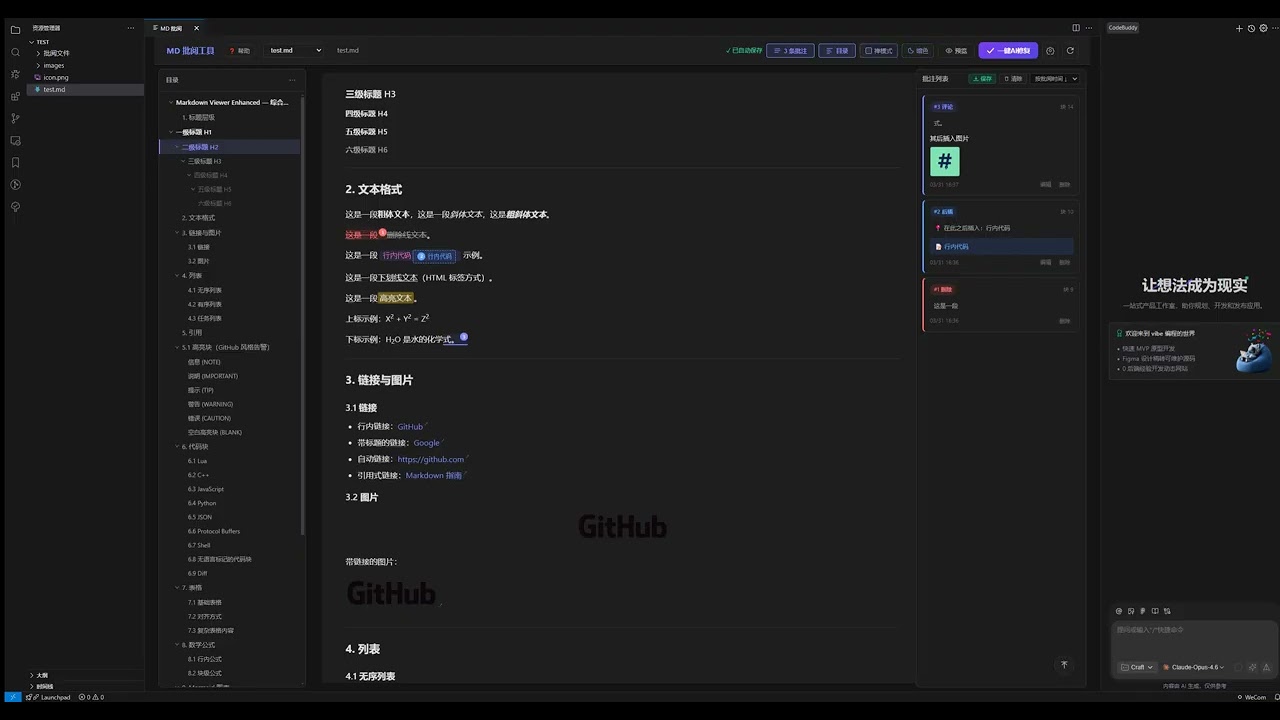
📝 批阅模式
- 💬 添加评论 — 选中文字后添加评论,支持在评论中插入图片(点击、拖拽或 Ctrl+V 粘贴)
- 🗑️ 标记删除 — 选中文字标记为待删除,以删除线样式展示
- ➕ 插入内容 — 选中锚点文字后插入新内容(支持 Markdown 格式),可选择在锚点之前或之后插入
- ✏️ 所见即所得编辑 — 切换编辑模式,直接在渲染后的文档上修改内容,支持 WYSIWYG 工具栏(加粗、斜体、删除线、标题、列表、引用、分隔线、撤销/重做)
- 📊 表格编辑 — 编辑模式下右键表格可插入/删除行列
🤖 AI 集成
- 一键 AI 修复 — 将所有批注生成结构化 AI 修改指令文件,一键发送到 CodeBuddy 或工蜂 Copilot 对话窗口执行
- 📋 一键复制指令 — 复制 AI 指令到剪贴板,方便手动粘贴到任意 AI 工具
🎨 Markdown 渲染
- 完整的 GFM(GitHub Flavored Markdown)语法支持
- 代码高亮 — 15 种代码主题(GitHub、Monokai、Dracula、Nord、Tokyo Night、One Dark Pro 等)
- Mermaid 图表 — 流程图、时序图、甘特图、饼图、Git 图等,点击可放大查看(支持缩放控制条)
- 数学公式 — 基于 KaTeX 的行内公式与块级公式渲染
- 任务列表 — 编辑模式下可直接勾选切换
- 表格、脚注、定义列表、Emoji、上下标、折叠内容、GFM 告警块等
📤 导出与存储
- 导出批阅记录 — 生成 AI 可读的结构化 Markdown 修改指令(
Ctrl+E),指令按从后往前排列确保执行安全
- 自动保存 — 批注记录自动保存到工作区
批阅文件/ 目录,批注清空时自动删除记录文件
- 版本管理 — 源文件内容变更时自动归档旧版本,创建新批阅版本
- 图片支持 — 评论中的 Base64 图片会额外导出为 JSON 数据文件,路径引用的图片直接保存到文件系统
🖥️ 界面与体验
- 目录导航 — 自动生成文档目录,支持折叠/展开全部、快速跳转、滚动高亮当前章节
- 批注面板 — 侧边批注列表,支持按时间或文本位置排序、定位、编辑、删除
- 图片灯箱 — 点击文档中的图片放大预览,支持滚轮缩放、拖拽平移、双击还原
- 禅模式 — 隐藏侧栏,专注阅读(
Alt+Z),同时隐藏 IDE 侧边栏
- 亮色/暗色主题 — 工具栏一键切换或跟随系统
- 丰富的排版设置 — 字体大小、行高、内容宽度、字体风格均可自定义,实时预览
- 侧边栏布局 — 目录与批注面板位置可互换(目录在左/右)
- 面板拖拽 — 目录和批注面板宽度可拖拽调整
- 文件选择器 — 工作区内 Markdown 文件下拉框快速切换
- 文件变更检测 — 源文件修改后显示「文件已更新」徽章,点击刷新按钮重载
- 回到顶部 — 悬浮按钮快速回到文档顶部
⌨️ 快捷键
| 快捷键 |
功能 |
Alt+Z |
切换禅模式 |
Ctrl+E |
导出批阅记录 |
Ctrl+S |
保存编辑内容到源文件 |
Ctrl+Shift+E |
切换预览/编辑模式 |
ESC |
关闭弹窗 / 退出禅模式 |
🚀 快速开始
安装
方式一:从插件市场安装(推荐)
- 打开 VSCode 或 CodeBuddy IDE,进入扩展面板(
Ctrl+Shift+X)
- 搜索 「MD 批阅工具」
- 点击 安装 即可
方式二:从源码安装(开发者)
克隆仓库并安装依赖:
git clone https://github.com/LetitiaChan/md-review-tool.git
cd md-review-tool
npm install
编译 TypeScript:
npm run compile
在 VSCode / CodeBuddy IDE 中按 F5 启动扩展开发宿主进行调试。
使用
- 在 VSCode / CodeBuddy IDE 中打开任意
.md 或 .mdc 文件
- 通过以下方式打开批阅面板:
- 命令面板:
Ctrl+Shift+P → 搜索「MD批阅: 打开批阅面板」
- 右键菜单:在编辑器或资源管理器中右键选择
- 编辑器标题栏:点击标题栏图标按钮
- 选中文字后使用浮层工具条或右键菜单进行批阅操作
- 批阅完成后点击「🤖 一键AI修复」生成指令,或按
Ctrl+E 导出批阅记录
⚙️ 配置项
| 配置项 |
类型 |
默认值 |
说明 |
mdReview.fontSize |
number |
16 |
文档正文字体大小(12-24 px) |
mdReview.lineHeight |
number |
1.6 |
文档正文行高(1.2-2) |
mdReview.contentMaxWidth |
number |
1200 |
文档内容区最大宽度(600-1400 px) |
mdReview.fontFamily |
string |
"" |
字体风格(系统默认 / 衬线体 / 等宽字体) |
mdReview.theme |
string |
"light" |
界面主题(light / dark / auto) |
mdReview.showToc |
boolean |
true |
默认显示目录导航栏 |
mdReview.showAnnotations |
boolean |
true |
默认显示批注列表面板 |
mdReview.sidebarLayout |
string |
"toc-left" |
侧边栏布局(toc-left / toc-right) |
mdReview.autoSave |
boolean |
true |
启用批注自动保存 |
mdReview.autoSaveDelay |
number |
1500 |
自动保存延迟(500-10000 毫秒) |
mdReview.enableMermaid |
boolean |
true |
启用 Mermaid 图表渲染 |
mdReview.enableMath |
boolean |
true |
启用数学公式渲染 |
mdReview.showLineNumbers |
boolean |
false |
代码块中显示行号 |
mdReview.codeTheme |
string |
"default-dark-modern" |
代码高亮主题(15 种可选) |
📁 项目结构
md-review-tool/
├── src/                        # 扩展后端(TypeScript)
│   ├── extension.ts            # 扩展入口,注册命令
│   ├── reviewPanel.ts          # WebView 面板管理、消息处理
│   ├── fileService.ts          # 文件读写、批阅记录管理
│   └── stateService.ts         # 状态管理
├── webview/                    # 前端界面
│   ├── index.html              # 主页面(工具栏、弹窗、设置面板)
│   ├── css/
│   │   ├── style.css           # 主样式(布局、工具栏、面板)
│   │   ├── markdown.css        # Markdown 渲染样式、图片灯箱
│   │   ├── annotations.css     # 批注高亮与卡片样式
│   │   ├── settings.css        # 设置面板样式
│   │   ├── highlight-themes.css # 代码高亮主题集合
│   │   ├── katex.min.css       # KaTeX 数学公式样式
│   │   └── fonts/              # KaTeX 字体文件
│   └── js/
│       ├── app.js              # 主应用逻辑(初始化、事件、模式切换)
│       ├── renderer.js         # Markdown 渲染引擎(解析、Mermaid、KaTeX)
│       ├── annotations.js      # 批注系统(高亮、卡片、交互)
│       ├── export.js           # 导出模块(批阅记录生成、自动保存)
│       ├── store.js            # 数据存储(批注数据、版本管理)
│       └── settings.js         # 设置管理(读取、应用、同步)
├── syntaxes/                   # .mdc 语法高亮定义
├── package.json                # 扩展清单
└── tsconfig.json               # TypeScript 配置
🔧 开发
# 安装依赖
npm install

# 编译
npm run compile

# 监听模式(开发时推荐)
npm run watch
🙏 致谢
本项目的批阅工具原型来源于 MDReviewTool(一个基于 Web 的 Markdown 批阅工具)。在此基础上,我将其重构为 VSCode 插件版本,并进行了大量增强:完善了 Markdown 渲染支持(Mermaid 图表、数学公式、代码高亮等)、新增一键 AI 修改功能、丰富了自定义设置项,以及优化了整体交互体验。感谢原作者的创意与开源贡献!
📄 许可证
MIT
A VSCode / CodeBuddy IDE extension for reviewing Markdown files like a mentor grading papers — supports comments, deletion marks, content insertion, WYSIWYG editing, and one-click AI instruction generation.
中文
📺 Video Introduction
✨ Features
📝 Review Mode
- 💬 Add Comments — Select text to add comments with image attachments (click, drag, or Ctrl+V paste)
- 🗑️ Mark Deletion — Select text to mark as pending deletion, displayed with strikethrough
- ➕ Insert Content — Select anchor text to insert new content (supports Markdown), with before/after insertion options
- ✏️ WYSIWYG Editing — Switch to edit mode to modify content directly on the rendered document, with a toolbar (bold, italic, strikethrough, headings, lists, blockquote, horizontal rule, undo/redo)
- 📊 Table Editing — Right-click tables in edit mode to insert/delete rows and columns
🤖 AI Integration
- One-click AI Fix — Generate structured AI modification instruction files from all annotations, send directly to CodeBuddy or Gongfeng Copilot chat
- 📋 Copy Instructions — Copy AI instructions to clipboard for manual use with any AI tool
🎨 Markdown Rendering
- Full GFM (GitHub Flavored Markdown) syntax support
- Code Highlighting — 15 code themes (GitHub, Monokai, Dracula, Nord, Tokyo Night, One Dark Pro, etc.)
- Mermaid Diagrams — Flowcharts, sequence diagrams, Gantt charts, pie charts, Git graphs, etc. Click to enlarge with zoom controls
- Math Formulas — KaTeX-based inline and block formula rendering
- Task Lists — Directly toggle checkboxes in edit mode
- Tables, footnotes, definition lists, Emoji, superscript/subscript, collapsible content, GFM alert blocks, and more
📤 Export & Storage
- Export Review Records — Generate AI-readable structured Markdown modification instructions (
Ctrl+E), ordered back-to-front for safe execution
- Auto-save — Annotation records automatically saved to workspace
批阅文件/ directory; empty annotations auto-delete the record file
- Version Management — Automatically archives old versions when source file content changes, creating new review versions
- Image Support — Base64 images in comments are additionally exported as JSON data files; path-referenced images are stored in the file system
🖥️ Interface & Experience
- Table of Contents — Auto-generated document TOC with collapse/expand all, quick navigation, and scroll-synced active section highlighting
- Annotations Panel — Side annotation list with sorting by time or text position, navigation, editing, and deletion
- Image Lightbox — Click images to enlarge with scroll-wheel zoom, drag-to-pan, and double-click to reset
- Zen Mode — Hide sidebars for focused reading (
Alt+Z), also hides IDE sidebars
- Light/Dark Theme — One-click toolbar toggle or follow system preference
- Rich Typography Settings — Customizable font size, line height, content width, and font style with live preview
- Sidebar Layout — Swappable positions for TOC and annotations panels (TOC left/right)
- Panel Resize — Drag to adjust TOC and annotations panel widths
- File Selector — Dropdown to quickly switch between workspace Markdown files
- File Change Detection — Shows "File Updated" badge when source file changes; click refresh to reload
- Back to Top — Floating button to quickly scroll to the top of the document
⌨️ Keyboard Shortcuts
| Shortcut |
Action |
Alt+Z |
Toggle Zen Mode |
Ctrl+E |
Export review records |
Ctrl+S |
Save edits to source file |
Ctrl+Shift+E |
Toggle preview/edit mode |
ESC |
Close modals / Exit Zen Mode |
🚀 Quick Start
Installation
Option 1: Install from Marketplace (Recommended)
- Open VSCode or CodeBuddy IDE, go to Extensions panel (
Ctrl+Shift+X)
- Search for "MD 批阅工具"
- Click Install
Option 2: Install from Source (Developers)
Clone the repository and install dependencies:
git clone https://github.com/LetitiaChan/md-review-tool.git
cd md-review-tool
npm install
Compile TypeScript:
npm run compile
Press F5 in VSCode / CodeBuddy IDE to launch the Extension Development Host for debugging.
Usage
- Open any
.md or .mdc file in VSCode / CodeBuddy IDE
- Open the review panel via:
- Command Palette:
Ctrl+Shift+P → Search "MD批阅: 打开批阅面板"
- Context Menu: Right-click in the editor or file explorer
- Editor Title Bar: Click the icon button in the title bar
- Select text and use the floating toolbar or right-click context menu for review operations
- When done, click "🤖 One-click AI Fix" to generate instructions, or press
Ctrl+E to export review records
⚙️ Configuration
| Setting |
Type |
Default |
Description |
mdReview.fontSize |
number |
16 |
Document body font size (12-24 px) |
mdReview.lineHeight |
number |
1.6 |
Document body line height (1.2-2) |
mdReview.contentMaxWidth |
number |
1200 |
Max width of document content area (600-1400 px) |
mdReview.fontFamily |
string |
"" |
Font style (default / serif / monospace) |
mdReview.theme |
string |
"light" |
UI theme (light / dark / auto) |
mdReview.showToc |
boolean |
true |
Show TOC navigation by default |
mdReview.showAnnotations |
boolean |
true |
Show annotations panel by default |
mdReview.sidebarLayout |
string |
"toc-left" |
Sidebar layout (toc-left / toc-right) |
mdReview.autoSave |
boolean |
true |
Enable auto-save for annotations |
mdReview.autoSaveDelay |
number |
1500 |
Auto-save delay (500-10000 ms) |
mdReview.enableMermaid |
boolean |
true |
Enable Mermaid diagram rendering |
mdReview.enableMath |
boolean |
true |
Enable math formula rendering |
mdReview.showLineNumbers |
boolean |
false |
Show line numbers in code blocks |
mdReview.codeTheme |
string |
"default-dark-modern" |
Code highlighting theme (15 options) |
📁 Project Structure
md-review-tool/
├── src/                        # Extension backend (TypeScript)
│   ├── extension.ts            # Extension entry, command registration
│   ├── reviewPanel.ts          # WebView panel management, message handling
│   ├── fileService.ts          # File read/write, review record management
│   └── stateService.ts         # State management
├── webview/                    # Frontend UI
│   ├── index.html              # Main page (toolbar, modals, settings panel)
│   ├── css/
│   │   ├── style.css           # Main styles (layout, toolbar, panels)
│   │   ├── markdown.css        # Markdown rendering styles, image lightbox
│   │   ├── annotations.css     # Annotation highlight & card styles
│   │   ├── settings.css        # Settings panel styles
│   │   ├── highlight-themes.css # Code highlighting theme collection
│   │   ├── katex.min.css       # KaTeX math formula styles
│   │   └── fonts/              # KaTeX font files
│   └── js/
│       ├── app.js              # Main app logic (init, events, mode switching)
│       ├── renderer.js         # Markdown rendering engine (parsing, Mermaid, KaTeX)
│       ├── annotations.js      # Annotation system (highlights, cards, interactions)
│       ├── export.js           # Export module (review doc generation, auto-save)
│       ├── store.js            # Data store (annotation data, version management)
│       └── settings.js         # Settings management (read, apply, sync)
├── syntaxes/                   # .mdc syntax highlighting definitions
├── package.json                # Extension manifest
└── tsconfig.json               # TypeScript configuration
🔧 Development
# Install dependencies
npm install

# Compile
npm run compile

# Watch mode (recommended for development)
npm run watch
🙏 Acknowledgements
This project is inspired by MDReviewTool, a web-based Markdown review tool. Building on that foundation, I rebuilt it as a VSCode extension with significant enhancements: comprehensive Markdown rendering support (Mermaid diagrams, math formulas, code highlighting, etc.), one-click AI-powered editing, extensive customization settings, and an improved overall user experience. Thanks to the original author for the creative idea and open-source contribution!
📄 License
MIT
| |

