
LazyCodet File Marker
Mark and organize files with custom labels directly in VS Code Explorer
🚀 Overview
LazyCodet File Marker is a VS Code extension that allows you to mark files with custom labels and organize them in a visual sidebar view.
Perfect for developers who:
- Need to mark important files for quick access
- Want to categorize files by status (Done, In Review, Testing, etc.)
- Work on large projects and need visual file organization
- Want to track files across refactoring sessions
✨ Features
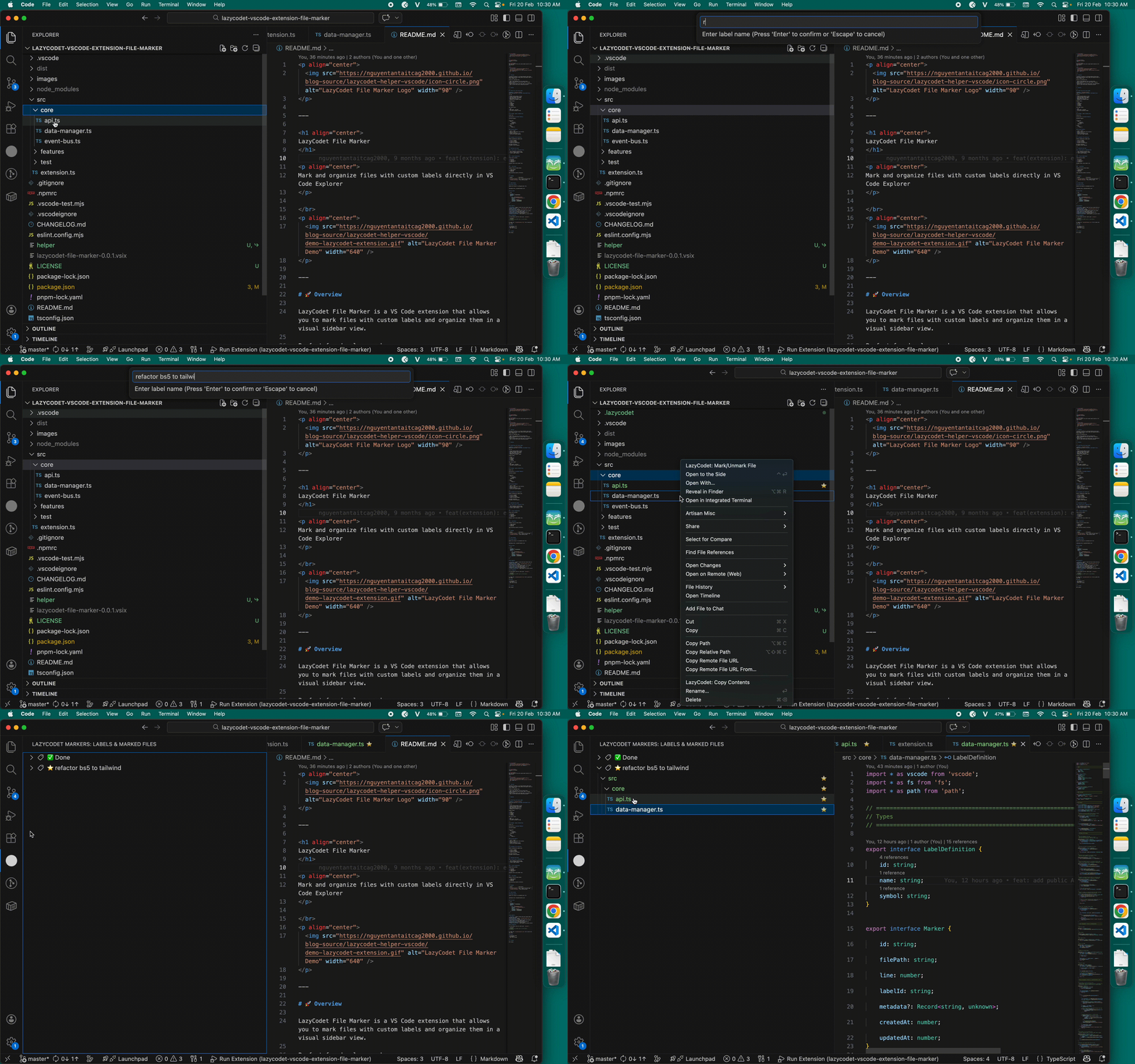
🏷 Mark Files with Custom Labels
Command: lazycodet.markFile
Right-click any file → LazyCodet: Mark/Unmark File
You can:
- Assign existing labels to files
- Create unlimited custom labels
- Edit label name & icon (emoji)
- Remove marks from files
- Reassign files between labels
Example labels:
- ✅ Done
- ⭐ Important
- 🔥 Urgent
- 📌 Review
- 🧪 Testing
Each label stores:
- Name
- Icon (emoji / Unicode)
- Persistent workspace storage
Access via:
Activity Bar → LazyCodet Markers
Structure example:
⭐ Important
   src/
      components/
         Button.ts
   README.md

✅ Done
   utils/
      helper.ts
Structure behavior
- Level 1: Labels
- Level 2+: Full folder tree structure
- Explorer-like UI
- Folders sorted before files
- Click file to open instantly
🔄 Automatic File System Sync
Markers automatically update when:
- A file is renamed
- A file is deleted
- A folder is renamed
- Project structure changes
No broken references.
No manual refresh required.
🎯 Real-World Use Cases
📌 Quick Access to Important Files
- Mark frequently accessed files
- View all marked files in sidebar
- Click to open instantly
🛠 Project Organization
Group files by status:
- 🔥 Critical
- 🧪 Testing
- 📌 Needs Review
- ✅ Completed
Navigate faster using sidebar view.
👀 Code Review
Organize files by review status:
- ❌ Needs Changes
- ⭐ Important
- ✅ Approved
Keep everything visually structured.
⚙ Commands
| Command |
Description |
lazycodet.markFile |
Mark / unmark file with label |
lazycodet.editLabels |
Edit existing labels |
💾 Data Storage
Storage Location
Markers are stored in a workspace-local file:
<workspace-root>/.lazycodet/markers.json
{
  "version": 1,
  "updatedAt": 1708400000000,
  "markers": [
    {
      "id": "1708400000000-abc123",
      "filePath": "src/features/main.ts",
      "line": 0,
      "labelId": "default",
      "createdAt": 1708400000000,
      "updatedAt": 1708400000000
    }
  ]
}
Key Benefits
- Portable - Markers travel with your project when you copy/move the folder
- Git-friendly - Commit
.lazycodet/markers.json to share markers with your team
- Cross-platform - Uses relative paths with forward slashes (works on Windows, macOS, Linux)
- Auto-migration - Existing absolute paths are automatically converted to relative paths
- Team collaboration - Share markers via version control
Git Integration
To track markers with Git, add to your .gitignore:
# Uncomment if you DON'T want to track markers
# .lazycodet/
Or commit the .lazycodet/markers.json file to share with your team.
Privacy
- No external server
- No telemetry
- 100% local storage
⚠️ Explorer Icon Limitation (Important)
Due to how VS Code handles built-in file decorations (such as Git changes, Problems, Testing, or emphasized items), the custom file icon from LazyCodet File Marker may not always be visible.
When does this happen?
If a file is currently:
- Modified (uncommitted Git changes)
- Marked by VS Code with higher-priority decorations
- In a special emphasized state
VS Code may temporarily override the extension’s icon decoration.
What to expect
- Your markers are not lost
- The sidebar view remains fully accurate
- The icon will reappear after the file returns to a normal state (for example, after committing changes)
This is a limitation of the VS Code FileDecoration API priority system and cannot be overridden by extensions.
📜 License
MIT License

