
Vectra AI for VS Code
An AI coding agent with local CPU/GPU and cloud model support.





Vectra AI is a repository-aware coding agent inside VS Code. It can investigate a codebase, plan work, edit files with reviewable changes, inspect diagnostics, run approved commands, test its work, research current information, and work with documents and images.
Use a GGUF model directly through llama.cpp, connect a running local API, use Ollama, or select OpenAI, Anthropic, or Gemini.
Published on the Visual Studio Marketplace as Vectra AI (laudarisd.vectra-ai).
Current extension release: 1.1.8.
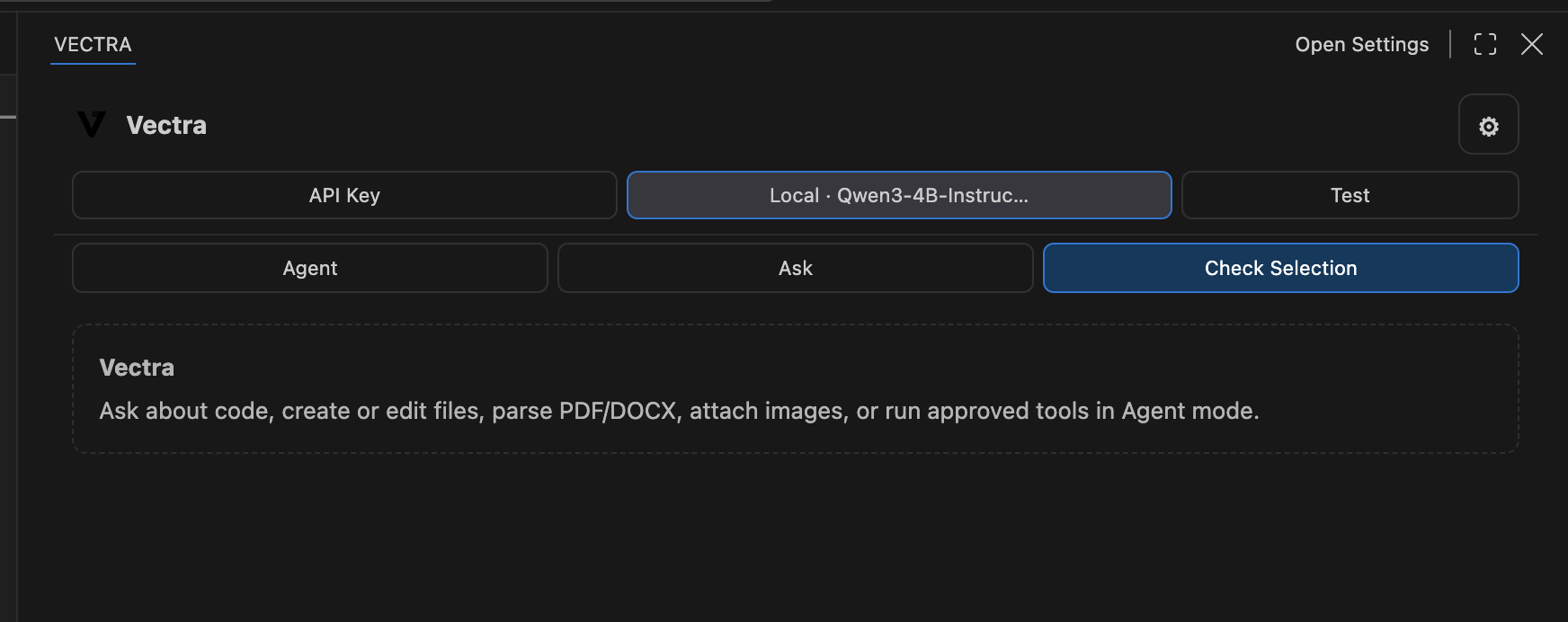
What it can do
- Read, search, and understand files across your workspace.
- Explain code, investigate errors, and inspect VS Code diagnostics.
- Plan and complete multi-step coding tasks instead of stopping after one answer.
- Create, update, rename, and organize files with reviewable edits.
- Run builds, scripts, tests, and terminal commands after approval.
- Review changes for correctness, regressions, maintainability, and security.
- Search the web for current information, technical sources, markets, and research papers.
- Read PDF, DOCX, PPTX, XLSX, RTF, Markdown, source code, text, and images.
- Use OCR and vision-capable models for screenshots, scans, diagrams, and visual documents.
- Generate PDF, DOCX, Markdown, JSON, CSV, HTML, and source-code files.
- Delegate focused work to planner, researcher, coder, tester, reviewer, security, and documentation roles.
- Continue long tool-driven work until it is complete, cancelled, or genuinely blocked.
Install from the Marketplace
Install Vectra AI, then select the Vectra icon in the VS Code Activity Bar.
You can also install it from VS Code:
- Open Extensions.
- Search for Vectra AI.
- Confirm the publisher is laudarisd.
- Select Install.
Choose how your model runs
| Mode |
Use it when |
Requirements |
| Local GGUF |
You want Vectra to load and manage a model directly |
A .gguf model and llama-server |
| Local API |
LM Studio, LocalAI, vLLM, Jan, or another server already hosts the model |
An OpenAI-compatible endpoint |
| Ollama |
You already manage models with Ollama |
A running Ollama installation |
| Cloud API |
You want a hosted OpenAI, Anthropic, or Gemini model |
Provider API key |
Local GGUF inference supports:
- Auto: detects available acceleration and selects practical defaults.
- GPU: prefers GPU offloading and can distribute layers across multiple GPUs.
- CPU: forces CPU-only execution.
- Hybrid: keeps part of the model in system memory when the entire model does not fit in VRAM.
Quick start with a GGUF model
- Open the Vectra sidebar.
- Select Local Model.
- Choose an installed
.gguf model or download a recommended model.
- Let Vectra locate
llama-server, or select the executable manually.
- Choose Auto, GPU, or CPU and test the connection.
- Send a message about the current workspace.
Vectra searches common model folders, Hugging Face caches, mounted storage, application model directories, and previously selected locations. It also detects Ollama models and running local inference servers.
A quantized instruction-tuned 3B–4B model is a practical starting point. Larger models often improve reasoning but require more RAM or VRAM.
Connect a local API
Custom inference servers must provide an OpenAI-compatible API. Vectra uses:
GET  /v1/models
POST /v1/chat/completions
For example, start llama.cpp yourself:
llama-server \
  --model /absolute/path/to/model.gguf \
  --host 127.0.0.1 \
  --port 8080 \
  --ctx-size 16384
Then configure:
Provider: Local API
Base URL: http://127.0.0.1:8080/v1
API key: local
Use a real token instead of local when the server requires authentication. Tool calling works best when the selected model and server both support OpenAI-style tool calls.
Vision models
Vision-capable GGUF models normally require a matching mmproj*.gguf file. Keep it beside the main model for automatic detection, or run Vectra: Select Local Vision Projector (mmproj).
The projector must match the model family and release. An unrelated projector can cause load failures or incorrect visual results.
Working safely
- File modifications are presented as reviewed changes.
- Commands and tests require approval before execution.
- Sensitive files are excluded by default.
- Common generated and dependency directories are excluded from repository search.
- Local prompts remain on your computer while a local provider is active.
- A cloud provider receives context only when you select that provider and send a request.
See PRIVACY.md and SECURITY.md.
Useful commands
Open the Command Palette and run:
| Command |
Purpose |
| Vectra: Open Vectra |
Focus the Vectra sidebar |
| Vectra: Check Selection with Vectra |
Ask about selected editor text |
| Vectra: Select Local GGUF Model |
Find or choose a GGUF model |
| Vectra: Download Model |
Find and download a compatible model |
| Vectra: Configure API Key |
Configure local or cloud access |
| Vectra: Select AI Model |
Change the active model |
| Vectra: Test Model Connection |
Validate the current provider |
| Vectra: Attach Files |
Add documents or images to the chat |
| Vectra: Show Vectra Logs |
Inspect model and runtime diagnostics |
You can also select code in the editor, right-click it, and choose Check Selection with Vectra.
Troubleshooting
Vectra cannot find llama-server
Install llama.cpp, add llama-server to your PATH, or set Vectra › Llama Cpp: Server Path in Settings.
A model is not discovered
Run Select Local GGUF Model and choose the file or its folder manually. Confirm the main model ends in .gguf; projector-only mmproj files are not selectable as chat models.
The model is slow or the computer gets hot
Use the Auto CPU thread profile, reduce context size, select a smaller quantization, or increase GPU offloading when enough VRAM is available.
Local API model discovery fails
Verify the base URL includes /v1 when required and test it directly:
curl http://127.0.0.1:8080/v1/models
Where are the logs?
Run Vectra: Show Vectra Logs and inspect the Vectra · llama.cpp output channel for runtime startup details.
Requirements
- VS Code 1.90 or newer
- macOS, Windows, or Linux
- Enough RAM or VRAM for the selected model
llama-server only for directly loaded GGUF models- An API key only when the selected provider requires one
Development
npm install
npm run build
npm test
Press F5 in VS Code to launch an Extension Development Host.
Create a Marketplace-ready VSIX:
npm run package
The production bundle is minified and checked against a size budget during the build.
Links
Created by Sudip Laudari. Vectra is proprietary software; see LICENSE.txt.

