

Recent by Remote
English | 日本語 A VS Code extension that groups your "Open Recent" history by remote route and lets you triage and delete unwanted entries from within a Tree View. OverviewVS Code's official Quick Pick ( This extension consumes the official Recently Opened list as-is and adds a route-grouped Tree View to the Activity Bar. It does not maintain its own history — it only provides display and delete operations on top of the official data. Because the tree is split per route, it's also useful for finding and bulk-cleaning entries from routes you no longer use (decommissioned tunnel hosts, stopped SSH machines, leftover How is this different from the built-in Remote Explorer?VS Code ships a Remote Explorer view that lists targets you can connect to (SSH hosts, Dev Containers, Tunnels). Recent by Remote complements it from the other direction — it lists what you've opened, grouped by route:
Remote Explorer is great when you know which host you want to attach to. Recent by Remote is great when you want to revisit (or clean up) something you actually opened recently. Supported PlatformsWorks on Windows / macOS / Linux. The WSL route group only appears on Windows (WSL is a Windows-only feature). Dev Containers on macOS / Linux record their Before / AfterBefore — VS Code's stock Open Recent
When several After — Recent by Remote
The tree is split per route, with the FeaturesRoute grouping
Dev Container handling
Opening & cleanup
Entry types in one view
Tooltip on hoverTheme-aware badges show entry kind / route / parent route (for Dev Containers), plus the full View modes
Quick Pick
Tree structureEach route group is laid out as "direct entries → Dev Container sub-group at the end". The InstallFrom the MarketplaceSearch for From a
|



| Command | Description |
|---|---|
Recent by Remote: Refresh |
Reloads the Tree View |
Recent by Remote: Open... |
Picks an entry from a Quick Pick of all entries |
Recent by Remote: Group by Type (Workspaces / Files) |
Switches to two-tier (type → route) grouping |
Recent by Remote: Group by Remote Only |
Switches to single-tier (route only) grouping |
Recent by Remote: Toggle Group Mode |
Toggles the two modes (intended for keybinding) |
Recent by Remote: Dump Recently Opened (raw JSON) |
Opens a new editor with the raw _workbench.getRecentlyOpened result, with Dev Container authority hex decoded inline. Intended for debugging and support tickets |
Keybindings
| Keys | Action | When |
|---|---|---|
Ctrl+Enter (Cmd+Enter on macOS) |
Open the selected entry in a new window | The Recent by Remote tree is focused |
Settings
| Setting | Default | Description |
|---|---|---|
recentByRemote.clickAction |
openHere |
What happens when you click a row. See values below. |
recentByRemote.clickAction values:
openHere— Use VS Code's native window routing. Focuses an existing window with a matching authority, otherwise spawns a new one. Same behaviour as the stock Open Recent.openInNewWindow— Always open the clicked entry in a new window. Useful if you prefer the inverse default.
The right-click "Open" menu item always uses native routing regardless of this setting.
Classification logic
Each entry is classified using the remoteAuthority field returned by the internal API _workbench.getRecentlyOpened.
| Group | Match |
|---|---|
| Local | no remoteAuthority |
| WSL | starts with wsl+<distro> |
| Tunnel | starts with tunnel+<host> |
| SSH | starts with ssh-remote+<host> |
| Dev Container | dev-container+<hex> or attached-container+<hex> |
| Other | anything else |
Dev Container parent route detection
Dev Container entries (authorities starting with dev-container+<hex> or attached-container+<hex>) are placed under a Dev Container sub-group inside their parent host route. The extension decodes the authority hex payload (see Dev Container authority forms below) and the trailing @<auth> suffix to determine the parent:
| hostPath / suffix | Parent group |
|---|---|
Suffix @tunnel+myhost |
Tunnel (myhost) |
Suffix @wsl+ubuntu |
WSL (Ubuntu) |
Suffix @ssh-remote+myserver |
SSH (myserver) |
hostPath = \\wsl.localhost\Ubuntu\... (no suffix) |
WSL (Ubuntu) *1 |
hostPath = C:\... (no suffix) |
Local |
hostPath = /home/... (no suffix) |
Local |
*1 The official Dev Containers extension is fixed at extensionKind: ["ui"], so even Dev Containers opened from a WSL session record hostPath in Windows-side UNC form (see next section). This extension extracts the WSL distro name from the UNC and nests the entry under the matching WSL (<distro>) group.
Inside the Dev Container sub-group, entries are further sub-grouped by hostPath (host-side project folder). Even when the same devcontainer definition has multiple histories from root and subfolder opens, they're collapsed into a single node (package icon). The sub-group label uses the basename of the host-side folder, so multiple Dev Containers that collide at in-container path /workspace are still distinguishable by the host-side project name.
Dev Container authority forms
The hex part of a dev-container+<hex> authority decodes into one of two payload shapes, both produced by the current Dev Containers extension:
| Form | Hex decoded to | Generated when |
|---|---|---|
| JSON payload | { "hostPath": ..., "configFile": ..., "localDocker": ..., "settings": ... } |
The extension records a configFile (and/or settings) for the open. This is the common case for "Reopen in Container" with a devcontainer.json |
| Raw host path | Just the host path as a plain string (e.g. /home/user/project) |
The same authority builder is called without a configFile or settings. The resulting label is just [Dev Container] with no devcontainer name |
These two forms can coexist for the same project, producing two seemingly-identical history entries that point at the same hostPath but have different underlying authorities. The built-in Remote Explorer renders them as visually identical rows.
Recent by Remote tells them apart:
- The JSON form entry shows the
devcontainer.jsonpath (relative to the project folder when possible) in the row description, and the tooltip showsdev container config: /path/to/devcontainer.json. - The raw form entry shows
(no config recorded)in the description and tooltip. - Within the same
hostPathsub-group, entries that carry a config payload are sorted above entries that don't, so the more informative row is easier to click.
When in doubt, prefer the entry that has the devcontainer.json path attached — the raw form may be a stale history record from an open that didn't capture the config payload.
For deeper debugging, run Recent by Remote: Dump Recently Opened (raw JSON) from the command palette. It opens a new editor with the raw _workbench.getRecentlyOpened result plus the decoded authority payload inline.
Dev Containers extension always runs on the Windows VS Code side (UI extension)
Note: The following section describes Windows + WSL specific behavior. On macOS / Linux, the Dev Containers extension also runs on the UI side, but
hostPathis recorded in POSIX form (/Users/...or/home/...), so entries fall underLocal > Dev Containerdirectly. The UNC\\wsl.localhost\...discussion anddev.containers.executeInWSLsetting below are safe to skip for non-Windows users.
The official Dev Containers extension (ms-vscode-remote.remote-containers) is implemented with extensionKind: ["ui"], meaning even from a WSL session, the extension itself always executes on the Windows-side VS Code. This affects how Recents are recorded:
- When you open a WSL session via
code .from a WSL terminal and then run "Reopen in Container", the authority's hex JSONhostPathis written as a Windows-side path (UNC\\wsl.localhost\...). This is because the Dev Containers extension runs on the UI (Windows) side and references the host folder from a Windows perspective - As a result, "Dev Container opened from native Windows VS Code" and "Dev Container opened from a WSL session" are indistinguishable at the authority level (both are
dev-container+<hex>, andhostPathis UNC in both cases) - This extension nests UNC
hostPathentries underWSL (<distro>) > Dev Containerto reflect the fact that the files live on WSL, not to identify the launch route (where the container was opened from)
Relationship with dev.containers.executeInWSL
Which Docker daemon is actually used is governed by the Windows-only setting dev.containers.executeInWSL:
| Setting | Workspace folder on WSL | Workspace folder on Windows |
|---|---|---|
| Default (OFF) | docker runs in WSL |
Windows Docker (Docker Desktop) |
| ON | docker runs in WSL |
docker runs in WSL |
Even at the default, if the workspace folder is on WSL, WSL Docker is used. The setting only matters if you want WSL Docker to be used for Windows-located folders too.
Important: Toggling this setting does not change the hostPath form (UNC vs POSIX) recorded in Recent entries. The hostPath notation is determined at the point where the Dev Containers extension represents the host folder, regardless of where the CLI actually runs. This extension cannot infer the Docker engine choice from a Recent entry.
This extension only assists with displaying and deleting Recents, so it does not interact with these settings directly.
Known limitations
- This extension uses two VS Code internal commands (underscore prefix). There is no public API equivalent for either, but Microsoft's first-party Remote extensions depend on the same commands, so in practice they're stable. They could still change or be removed in future versions:
_workbench.getRecentlyOpened— Retrieves the Recently Opened list. The public-API request microsoft/vscode#124577 has been open since 2021-05. Maintainers agree it could be promoted, but no action has been taken_files.windowOpen— Provides the same window routing as the official Open Recent (focus the matching-authority window and open the file/folder, or spawn a new window). The public-API request microsoft/vscode#123615 is also open.vscode.openFolder(folders only) andvscode.open(current window only) cannot correctly open cross-authority files; maintainer bpasero recommends this command as the official workaround in [a comment on #122071](https://github.com/microsoft/vscode/issues/122071#issuecomment-826279707). When internal commands are unavailable (e.g. on the vscode.dev web client), the extension falls back tovscode.open/vscode.openFolder
- Dev Container authorities come in two payload forms (JSON / raw host path) — both are supported, see Dev Container authority forms. If neither the
hostPathnor the@<auth>suffix can be parsed (e.g. a future encoding the extension hasn't seen), the parent route cannot be determined and the entry falls underLocal > Dev Container - Folder entries use the
folder-openedcodicon. The idsfolder/fileare special-cased internally by VS Code as sentinels — whenresourceUriis unresolved on a remote, nothing is drawn (microsoft/vscode#146479). Usingfolder-openedavoids that. The trade-off is that file-icon-theme folder-name specializations (.git/node_modulesetc.) don't apply - The
$(empty-window)inline button only appears on hover. VS Code's TreeView API has no way to make inline buttons permanently visible from the extension side (microsoft/vscode#78829). Workarounds: useCtrl+Enter/Cmd+Enterwith the tree focused, the right-click "Open in New Window" menu item, or setrecentByRemote.clickActiontoopenInNewWindowto invert the default click behavior
Release flow (for maintainers)
A tag push triggers a GitHub Actions workflow that builds the .vsix and attaches it to a GitHub Release. Maintainer steps:
pnpm version patch # patch / minor / major. Updates package.json and creates a git tag
git push --follow-tags
When a v* tag is pushed, .github/workflows/release.yml runs:
- Verifies the tag version matches
package.json - Builds the
.vsixviapnpm run vsix - Creates a GitHub Release with the
.vsixattached (release notes auto-generated from commits since the previous tag)
Marketplace publishing is currently done manually with vsce publish.
License
MIT
日本語
English | 日本語
VS Code の「Open Recent」履歴を接続経路ごとに分類表示し、不要なエントリを選択削除できるようにする拡張機能です。
概要
VS Code 公式の Quick Pick(Ctrl+R)では、Remote 経由のエントリが全て同じような表記で並び、Tunnel / WSL / Dev Container / SSH の区別がつきにくい場面があります。特に同じフォルダを複数経路で開いていると、どれがどの経路か判別できずに整理が困難になります。
本拡張は公式の Recently Opened リストをそのまま利用し、接続経路ごとにグループ化した TreeView を Activity Bar に追加します。自前の履歴データは持たず、公式データに対する表示と削除操作のみを提供します。
経路ごとにツリーが分かれているので、もう使わなくなった経路のエントリだけをまとめて見つけて整理する用途にも便利です(撤去した tunnel host、停止中の SSH ホスト、消した dev container 由来の \\wsl.localhost\<distro>\... 履歴 等)。各行のゴミ箱アイコンから公式 Recently Opened に対してそのまま削除を反映できます。
組み込みの Remote Explorer との違い
VS Code には組み込みの Remote Explorer ビューがあり、こちらは「接続先(Targets)」の管理が主目的です。Recent by Remote はその逆方向 — 「実際に開いたもの」を経路別に並べるビューを補完します。
| Remote Explorer (組み込み) | Recent by Remote | |
|---|---|---|
| 主目的 | 接続管理 (Targets) | Recently Opened の整理・掃除 |
| データソース | プロバイダごと(実装依存) | _workbench.getRecentlyOpened 一本 |
| UI 形態 | プロバイダ別の個別ビューをドロップダウンで切替 | SSH / WSL / Tunnel / Local / Dev Container を 1 ツリーで統合 |
| Dev Container の親経路 | 平坦なリスト。どの経路で開いた container か判別不可 | Tunnel (host) > Dev Container や WSL (distro) > Dev Container 配下にネスト |
| 同一プロジェクトの複数履歴 | 同じ表示の行が並ぶだけで区別不能 | 裏側の authority が違うことを認識し、devcontainer.json のパスを surface して区別可能(Dev Container authority の 2 形式 参照) |
| 個別の最近ファイル | 表示対象外 | フォルダ/ワークスペースと並べて表示 |
| 使わなくなった経路の掃除 | 接続先自体を削除する必要があり面倒 | 各エントリにゴミ箱、経路別にまとめて掃除しやすい |
Remote Explorer は「どこに接続するか」を選ぶ場面で便利、Recent by Remote は「最近開いたものを見つけ直す/掃除する」場面で便利、という関係です。
対応プラットフォーム
Windows / macOS / Linux すべてで動作します。経路分類のうち WSL グループは Windows でのみ出現します(WSL 自体が Windows の機能のため)。macOS / Linux 上の Dev Container は hostPath が POSIX 形式(/Users/... や /home/...)で書き込まれるため、Local > Dev Container 配下に分類されます。
Before / After
Before — VS Code 標準の Open Recent
![Standard VS Code Open Recent menu, where multiple entries labeled "[Dev Container]" provide no clue as to which underlying route they were reached via](https://raw.githubusercontent.com/kyanet/vscode-recent-by-remote/main/resources/screenshots/before-open-recent.png)
複数の [Dev Container] エントリが並んでも、それぞれが WSL 経由 / Tunnel 経由 / SSH 経由 のどれなのか判別できない。経路情報が抜け落ちているため、同じ devcontainer 名のエントリが何個も並ぶと取り違えやすい。[WSL: distro] [SSH: ip] のような直エントリは経路こそ分かるものの、フォルダ名と経路情報が同じ行に詰め込まれていて視線の移動が煩雑になる。
After — Recent by Remote
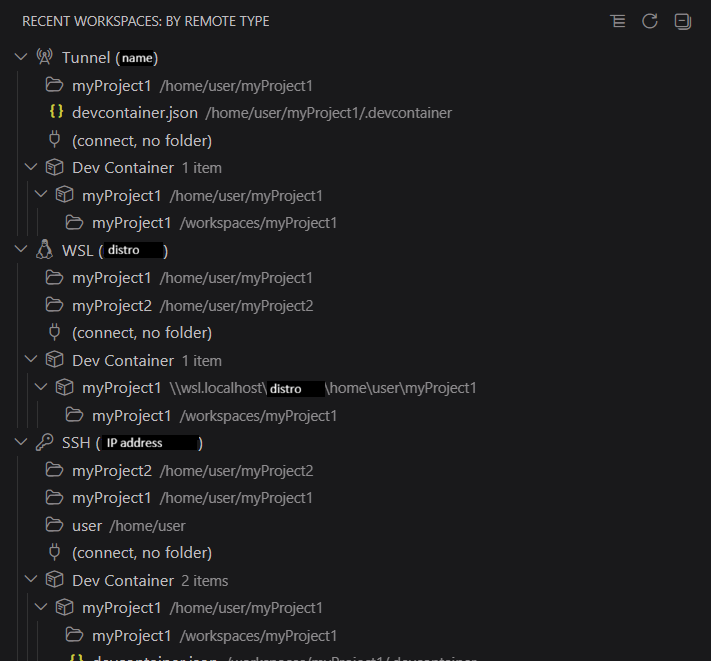
経路ごとにツリーが分割され、Dev Container サブグループが親経路の末尾に配置されるので「Tunnel 経由の dev container」「WSL 経由の dev container」「SSH 経由の dev container」が一目で区別できる。コンテナ内パスが同じ /workspaces/myProject1 であっても、どの経路上の container かをツリー構造から判別できる。(connect, no folder) も各経路に自動付与されるので、フォルダを開かずにそのリモートへ接続し直す導線も常に確保されている。
主な機能
経路別グループ化
- Tunnel / WSL / SSH / Local / Other に自動分類。各見出しに経路アイコン(
radio-tower/terminal-linux/key/device-desktop/question)。 - ホスト単位でさらに分割:
Tunnel (myhost)、WSL (Ubuntu)、SSH (myserver)。 - 全プロバイダを 1 ツリーに統合(ドロップダウン切替なし)。
Dev Container の扱い
- 親経路の配下にネスト — Dev Container は単独経路として並べず、ホスト経路の配下に
Dev Containerサブグループ(packageアイコン、3 itemsのような件数 description)として配置。直開きとコンテナ内開きが視覚的に分離される。 hostPath単位でサブグループ化 — 同じ devcontainer をルート/サブフォルダで開いた履歴も 1 ノードに集約。コンテナ内パスが/workspaceで衝突しても、ホスト側プロジェクト名で区別可能。- 各エントリの
devcontainer.jsonパスを表示 — Dev Container authority の 2 形式 参照。同じ hostPath を指す履歴が複数並んでも、どちらがどの設定で開かれたか判別できる。
開く・削除
- ワンクリックでネイティブルーティング — 該当 authority のウィンドウが既に開いていればフォーカス、無ければ新規ウィンドウで authority を解決。標準 Open Recent と同じ挙動。
- 別ウィンドウで開く — 行ホバー時の
$(empty-window)ボタン、右クリック「Open in New Window」、Quick Pick のアイテムボタン。 - 個別削除 — 各行のゴミ箱から公式 Recently Opened に直接反映。
- 接続のみエントリ — Tunnel / WSL / SSH 各経路に
(connect, no folder)を自動追加。dev container 履歴しか残っていない経路でも、authority から親経路を逆算して表示するため、その distro へプレーン接続する導線が常に確保される。
1 ビューに全タイプを表示
- フォルダ・ワークスペース・ファイルもまとめて表示(アイコンで識別)。
- プロジェクトルート相対のファイル表示 — コンテナ内
fullPathがhostPath配下なら description を相対パスに短縮。マウントパスがずれる構成では in-container の絶対パスを表示。
ホバー時のツールチップ
エントリ種別 / 経路 / 親経路(Dev Container の場合)をテーマ追従カラーのバッジで表示。Dev Container では devcontainer.json のパス(または (not recorded))も併記。Dark / Light どちらでも視認可能で、uri / host / path のフル情報も載せる(テーマカラーは --vscode-charts-* / --vscode-badge-* に追従)。
表示モード
- グループモード切り替え — タイトルバーのアイコンで以下を切替(選択はグローバルに保存):
- 経路だけでグループ化 — フォルダ/ワークスペース/ファイルが経路内で混在表示
- 二段(タイプ → 経路) —
Workspaces & FoldersとFilesを分離して、それぞれ経路別に配置
Quick Pick
コマンドパレットから Recent by Remote: Open... で全エントリを経路プレフィックス付きで検索・選択。各アイテム右端の $(empty-window) で別ウィンドウ起動。
ツリー構造のイメージ
各経路グループの中身は「直エントリ → 末尾に Dev Container サブグループ」の順に並びます。
Recent by Remote: Recently Opened
├─ Tunnel (name) ← 経路グループ (radio-tower)
│ ├─ myProject1 /home/user/myProject1 ← 直開きエントリ (folder-opened)
│ ├─ devcontainer.json /home/user/myProject1/.devcontainer
│ ├─ (connect, no folder) ← 接続のみエントリ (plug)
│ └─ Dev Container 1 item ← サブグループ末尾に集約 (package)
│ └─ myProject1 /home/user/myProject1 ← hostPath サブグループ (package)
│ └─ myProject1 /workspaces/myProject1
├─ WSL (distro) (terminal-linux)
│ ├─ myProject1 /home/user/myProject1 ← WSL 直下のフォルダ
│ ├─ myProject2 /home/user/myProject2
│ ├─ (connect, no folder)
│ └─ Dev Container 1 item
│ └─ myProject1 \\wsl.localhost\distro\home\user\myProject1
│ └─ myProject1 /workspaces/myProject1
├─ SSH (IP address) (key)
│ ├─ myProject2 /home/user/myProject2
│ ├─ myProject1 /home/user/myProject1
│ ├─ user /home/user
│ ├─ (connect, no folder)
│ └─ Dev Container 2 items
│ └─ myProject1 /home/user/myProject1
│ ├─ myProject1 /workspaces/myProject1
│ └─ devcontainer.json /workspaces/myProject1/.devcontainer
└─ Local (device-desktop)
└─ ...
凡例: Dev Container 行右側の 1 item / 2 items 部分は TreeItem の description(薄色)として描画されます。HostPathGroupNode は本拡張で扱う hostPath が現状 Dev Container authority 由来のみのため、実運用ではほぼ全て package アイコン側になります(repo アイコンは将来 dev container 以外で hostPath が付与されるケース用に予約されています)。
インストール
Marketplace から
Extensions ビューで Recent by Remote を検索してインストールします。Marketplace ID は kyanet.recent-by-remote です。
VSIX からインストール
リリースページから .vsix ファイルをダウンロードし、VS Code の Extensions ビューで右上メニュー → 「Install from VSIX...」を選択してインストールします。
ソースからビルド
pnpm install
pnpm run vsix
pnpm run vsix は production ビルド(型チェック + lint + esbuild)を実行した上で recent-by-remote-<version>.vsix を生成します。生成された .vsix ファイルを上記の手順でインストールしてください。
使い方
- 拡張機能を有効化すると、Activity Bar に履歴アイコン(
$(history))が追加されます - アイコンをクリックすると「Recent by Remote: Recently Opened」ビューが開きます
- 経路別にグループ化された Recently Opened エントリが一覧表示されます
- 各エントリに対して以下の操作が可能です:
- 行クリック: VS Code 標準の Open Recent と同じルーティングで開く。同一 authority のウィンドウが既にあればそれにフォーカス + open、無ければ新規ウィンドウで authority を解決
- Open in New Window ボタン (
$(empty-window)): 別ウィンドウで開く(Ctrl+Click 相当) - Remove ボタン (
$(trash)): 公式 Recently Opened から削除 - 右クリックメニュー: 「Open」「Open in New Window」「Remove from Recent」を提供
(connect, no folder)エントリ: 該当 authority に接続だけする空ウィンドウを開く(フォルダ未指定)
Recent by Remote: Open...の Quick Pick でも、各アイテム右側の$(empty-window)ボタンから別ウィンドウで開けます- タイトルバーの Refresh ボタンまたは
Recent by Remote: Refreshコマンドでビューを更新できます
コマンド一覧
| コマンド | 説明 |
|---|---|
Recent by Remote: Refresh |
TreeView を再読込 |
Recent by Remote: Open... |
全エントリの Quick Pick から 1 つ選んで開く |
Recent by Remote: Group by Type (Workspaces / Files) |
タイプ→経路の二段グループ化に切り替え |
Recent by Remote: Group by Remote Only |
経路だけのグループ化(混在表示)に切り替え |
Recent by Remote: Toggle Group Mode |
上記 2 モードをトグル(キーバインド向け) |
Recent by Remote: Dump Recently Opened (raw JSON) |
_workbench.getRecentlyOpened の生 JSON と Dev Container authority のデコード結果を新規エディタに開く。デバッグ・サポート用 |
VS Code を日本語ロケールで使っている場合、コマンドパレット上のコマンド title は自動的に日本語表記(例: 「Recent by Remote: 更新」)に切り替わります。
キーバインド
| キー | 動作 | 条件 |
|---|---|---|
Ctrl+Enter(macOS は Cmd+Enter) |
選択中エントリを新規ウィンドウで開く | Recent by Remote のツリーにフォーカス |
設定
| 設定 | デフォルト | 説明 |
|---|---|---|
recentByRemote.clickAction |
openHere |
行クリック時の動作。値は以下を参照。 |
recentByRemote.clickAction の値:
openHere— VS Code 標準のウィンドウルーティング。authority が一致するウィンドウがあればフォーカス、無ければ新規ウィンドウ起動。標準 Open Recent と同じ挙動。openInNewWindow— クリック時は常に新規ウィンドウで開く(クリックの既定動作を逆にしたい場合)。
右クリックメニューの「Open」はこの設定に関わらず常に標準ルーティングです。
経路分類のロジック
各エントリは VS Code 内部 API _workbench.getRecentlyOpened から取得した remoteAuthority フィールドを元に分類されます。
| 分類 | 判定条件 |
|---|---|
| Local | remoteAuthority なし |
| WSL | wsl+<distro> で始まる |
| Tunnel | tunnel+<host> で始まる |
| SSH | ssh-remote+<host> で始まる |
| Dev Container | dev-container+<hex> または attached-container+<hex> |
| Other | 上記以外 |
Dev Container の親経路判別
Dev Container エントリ(dev-container+<hex> または attached-container+<hex> で始まる authority)は、ファイルが置かれているホスト経路に応じて、親グループの直下に Dev Container サブグループとして配置されます。本拡張は authority hex 部分のペイロード(後述の Dev Container authority の 2 形式 参照)と末尾の @<auth> 接尾辞をデコードして親経路を判別します:
| ホストパス / 接尾辞 | 親グループ |
|---|---|
接尾辞 @tunnel+myhost |
Tunnel (myhost) |
接尾辞 @wsl+ubuntu |
WSL (Ubuntu) |
接尾辞 @ssh-remote+myserver |
SSH (myserver) |
hostPath = \\wsl.localhost\Ubuntu\...(接尾辞なし) |
WSL (Ubuntu) ※1 |
hostPath = C:\...(接尾辞なし) |
Local |
hostPath = /home/...(接尾辞なし) |
Local |
※1 公式 Dev Containers 拡張は extensionKind: ["ui"] 固定のため、WSL session で開いた dev container でも hostPath は Windows から見た UNC 形式で書き込まれます(次節参照)。本拡張は UNC 形式から WSL distro 名を抽出し、対応する WSL (<distro>) グループ配下にぶら下げます。
さらに、Dev Container サブグループ内のエントリは hostPath(ホスト側プロジェクトフォルダ)単位でサブグループ化されます。同じ devcontainer 定義に対してルートで開いた履歴とサブフォルダで開いた履歴が複数残っていても、1 つのノード配下に集約されて一覧できます(package アイコン)。サブグループのラベルにはホスト側フォルダの basename を使うので、コンテナ内パスが /workspace で衝突する複数の Dev Container もホスト側プロジェクト名で見分けられます。
Dev Container authority の 2 形式
dev-container+<hex> の hex 部分は、現行版 Dev Containers 拡張内で 2 通りのペイロード形式として生成されます:
| 形式 | hex をデコードした中身 | 生成条件 |
|---|---|---|
| JSON ペイロード | { "hostPath": ..., "configFile": ..., "localDocker": ..., "settings": ... } |
拡張が configFile(または settings)を伴って authority を組み立てたとき。devcontainer.json を伴う「Reopen in Container」の典型ケース |
| 生のホストパス | ホストパスがそのまま文字列で入る(例: /home/user/project) |
同じ authority ビルダーが configFile も settings も渡されずに呼ばれたとき。ラベルは [Dev Container] のみで devcontainer 名が空になる |
これらは同じプロジェクトで併存し得ます — hostPath が同じだが authority が異なる 見た目そっくりの履歴が 2 件並ぶ 状態になります。組み込みの Remote Explorer はこの 2 件をどちらも全く同じ行として描画します。
Recent by Remote は両者を区別します:
- JSON 形式 のエントリは、
devcontainer.jsonのパス(可能ならプロジェクトフォルダからの相対)を description に表示し、ツールチップにもdev container config: /path/to/devcontainer.jsonを載せる。 - 生パス形式 のエントリは description とツールチップに
(no config recorded)と表示。 - 同じ
hostPathサブグループ内では、config ペイロード付きのエントリを上位にソートするので、情報量の多い行に当たりやすい。
迷ったら devcontainer.json のパスが付いている方を選ぶのが無難です。生パス形式は config 情報を捕捉しなかった古い履歴の残骸である可能性があります。
詳細な調査が必要な場合は、コマンドパレットから Recent by Remote: Dump Recently Opened (raw JSON) を実行してください。_workbench.getRecentlyOpened の生 JSON と、デコード済みの authority ペイロードを新規エディタに開きます。
Dev Containers 拡張は常に Windows VS Code 側で動く(UI extension)
注意: 以下のセクションは Windows + WSL 環境特有の挙動の説明です。macOS / Linux でも Dev Containers 拡張は同じく UI 側で動きますが、
hostPathは POSIX 形式(/Users/...や/home/...)で書き込まれるため、本拡張上ではLocal > Dev Container配下にそのまま分類されます。以下の UNC\\wsl.localhost\...関連の説明とdev.containers.executeInWSL設定は読み飛ばして構いません。
公式 Dev Containers 拡張(ms-vscode-remote.remote-containers)は extensionKind: ["ui"] で実装されており、WSL session の VS Code でも実行は常に Windows 側 VS Code 上です。このため、Recent への記録のされ方には以下の制約があります:
- WSL ターミナルから
code .で開いた WSL session 上で「Reopen in Container」を実行した場合でも、authority hex JSON のhostPathは Windows から見たパス(UNC\\wsl.localhost\...) として書き込まれます。これは Dev Containers 拡張が UI(Windows) 側で動作し、ホストフォルダを Windows 視点で参照するためです - 結果として、Recent エントリ上は「Windows ネイティブの VS Code から開いた dev container」と「WSL session から開いた dev container」が authority レベルでは見分けられません(どちらも
dev-container+<hex>、hostPathは UNC で揃ってしまう) - 本拡張が UNC hostPath を
WSL (<distro>) > Dev Container配下にぶら下げているのは、あくまで 「ファイルが WSL 上にある」という事実を反映するためであり、起動経路(どこから開いたか)を識別しているわけではありません
dev.containers.executeInWSL 設定との関係
実際にどの Docker daemon が使われるかは、dev.containers.executeInWSL という Windows 専用設定で決まります。
| 設定 | workspace folder が WSL 上 | workspace folder が Windows 上 |
|---|---|---|
| デフォルト(OFF) | WSL 内で docker を実行 |
Windows Docker (Docker Desktop) |
| ON | WSL 内で docker を実行 |
WSL 内で docker を実行 |
つまりデフォルト挙動でも、workspace folder が WSL 上にあれば WSL 内 Docker が使われます。Windows 上のフォルダでも WSL 内 Docker を使いたい場合のみ ON にする設定です。
重要: この設定を切り替えても、Recent エントリの hostPath 形式(UNC か POSIX か)は変わりません。hostPath の表記は Dev Containers 拡張がホストフォルダを表現する段階で確定するもので、CLI が実際に実行される場所とは独立しています。したがって、本拡張から Docker engine の選択を逆算することはできません。
本拡張は Recent の表示と削除の補助だけを行うので、これらの設定に直接干渉することはありません。
既知の制約
- 本拡張は以下の VS Code 内部コマンド(underscore prefix)を 2 つ使用しています。いずれも公開 API では同等の機能が提供されておらず、Microsoft の Remote 系 first-party 拡張も同じコマンドに依存しているため、実用上の安定性は十分にあります。ただし将来のバージョンで変更・削除される可能性はあります
_workbench.getRecentlyOpened— Recently Opened 一覧を取得。公開 API 化要望は microsoft/vscode#124577 で 2021-05 から OPEN のまま。メンテナ間で「昇格してもよい」と合意済みだが未実装_files.windowOpen— 標準 Open Recent と同じウィンドウルーティング(authority が一致するウィンドウへフォーカスしてファイル/フォルダを開く)を行うコマンド。公開 API 化要望は microsoft/vscode#123615 で OPEN のまま。vscode.openFolder(フォルダ専用)とvscode.open(現在ウィンドウのみ)では cross-authority のファイルを正しく開けないため、メンテナ bpasero が #122071 のコメント で本コマンドを公式の回避策として推奨しています。本拡張は内部コマンドが利用できない環境(Web 版 vscode.dev など)ではvscode.open/vscode.openFolderにフォールバックします
- Dev Container authority のペイロードは 2 形式(JSON / 生パス)があり、両方とも対応しています(詳細は Dev Container authority の 2 形式 参照)。将来未知の形式が登場し、
hostPathも@<auth>接尾辞も読み取れない場合は、親経路を判定できずLocal > Dev Container配下に分類されます - フォルダエントリのアイコンには
folder-openedcodicon を採用しています。folder/fileという id は VS Code 内部で sentinel として特別扱いされており、resourceUriがリモートで未解決の場合に何も描画されない既知の挙動(microsoft/vscode#146479)があるため、それを避ける目的での選択です。トレードオフとして、ファイルアイコンテーマによるフォルダ名別の特殊アイコン(.git/node_modules等)は適用されません - 行ホバー時に出る
$(empty-window)のインラインボタンは hover 時のみ表示されます。VS Code の TreeView API には拡張機能側からインラインボタンを常時表示にする手段がありません(microsoft/vscode#78829)。代替手段として、ツリーフォーカス状態のCtrl+Enter/Cmd+Enter、右クリックメニューの「Open in New Window」、または設定recentByRemote.clickActionをopenInNewWindowに変更することでクリックの既定動作を反転できます
リリース手順 (メンテナ向け)
タグ push を起点に GitHub Actions が .vsix をビルドして GitHub Release に添付します。メンテナの操作は以下の 2 行のみです。
pnpm version patch    # patch / minor / major のいずれか。package.json と git tag を更新
git push --follow-tags
v* 形式のタグが push されると .github/workflows/release.yml が起動し、
- tag のバージョンと
package.jsonの version の整合性を検証 pnpm run vsixで.vsixを生成- GitHub Release を作成し、
.vsixを添付(リリースノートは前回タグからのコミットを元に自動生成)
を行います。マーケットプレイス公開は vsce publish で手動。
ライセンス
MIT