Skip to content
| Marketplace
Sign in
Visual Studio Code>Themes>NovemberNew to Visual Studio Code? Get it now.
November

November

kud

| (1) | Free
A dark theme with warm amber accents
Installation
Launch VS Code Quick Open (Ctrl+P), paste the following command, and press enter.
Copied to clipboard
More Info
November icon

November

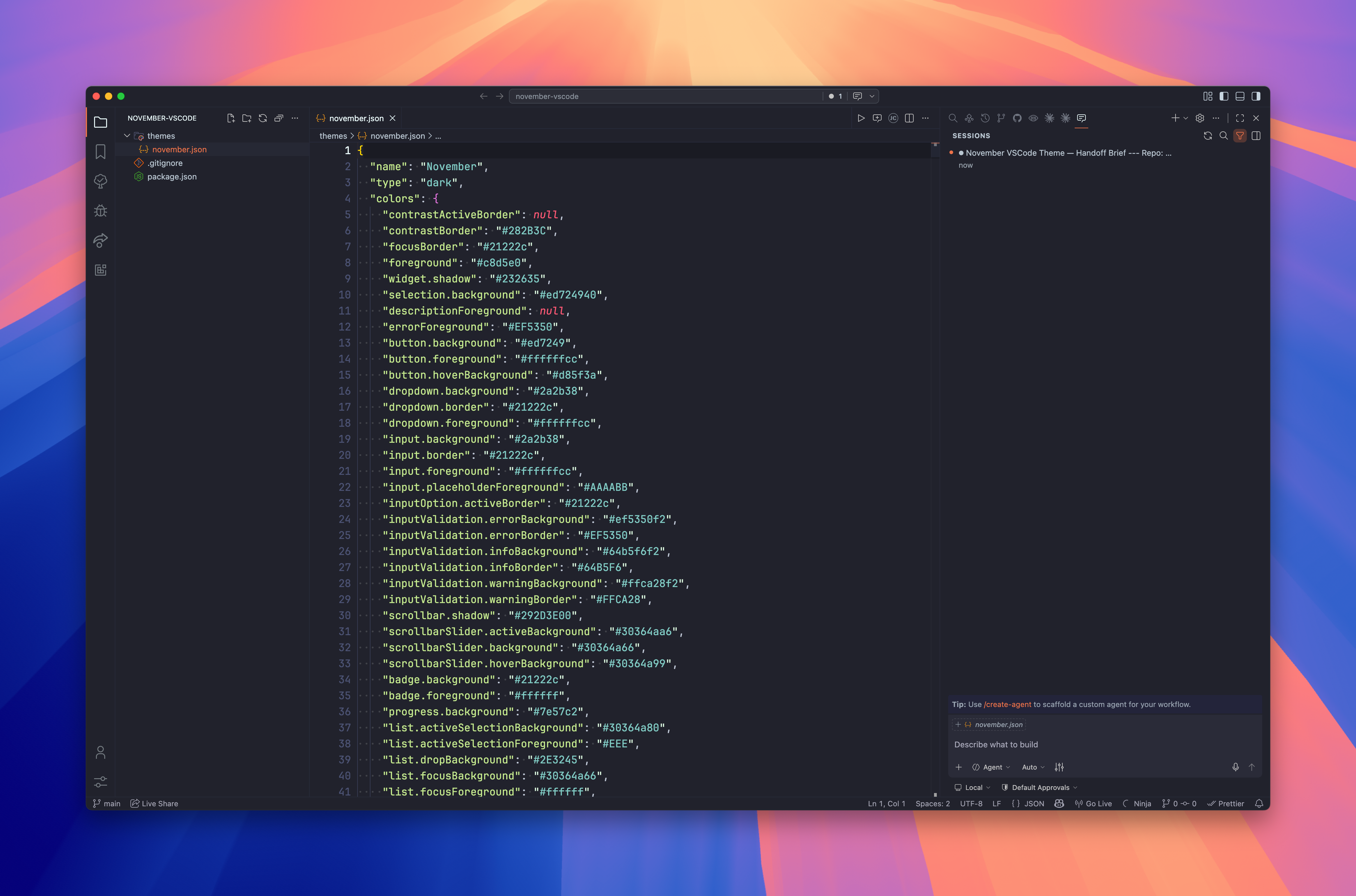
A dark VS Code theme with warm amber accents — calm, focused, and easy on the eyes.

Version Installs Rating

November theme screenshot


Palette

Role Colour Hex
Background #21222c #21222c
Selection #30364a #30364a
Borders #272a38 #272a38
Accent #ed7249 #ed7249
Foreground #c8d5e0 #c8d5e0
Muted #b8c5d0 #b8c5d0

Installation

Via Marketplace

  1. Open VS Code
  2. Cmd+Shift+X → search November
  3. Install → Cmd+Shift+P → Preferences: Color Theme → November

Via CLI

code --install-extension kud.november-vscode

Recommended Settings

{
  "workbench.colorTheme": "November",
  "editor.fontFamily": "'JetBrains Mono', monospace",
  "editor.fontLigatures": true,
  "editor.cursorBlinking": "smooth"
}

Development

# Install tooling
npm install

Hello!

# Preview — symlink the repo into your VS Code extensions folder, then reload the window
ln -s "$(pwd)" ~/.vscode/extensions/november-vscode

# Package a .vsix for local testing
npm run package

# Check what will be bundled
npm run ls

Publishing

# Bump version, commit, tag, and push
npm run release:patch   # bumps patch (x.x.N)
npm run release:minor   # bumps minor (x.N.0)
npm run release:major   # bumps major (N.0.0)

# Package and open the marketplace upload page
npm run marketplace

License

MIT © kud

  • Contact us
  • Jobs
  • Privacy
  • Manage cookies
  • Terms of use
  • Trademarks
© 2026 Microsoft