OpenCodeGUI
An unofficial VS Code sidebar chat interface for OpenCode.
OpenCode の非公式 VS Code サイドバーチャットインターフェース。
Table of Contents / 目次
English
OpenCodeGUI
Use all OpenCode features from a familiar sidebar chat UI.
This is an unofficial, community-developed extension. It is not affiliated with or endorsed by the OpenCode project.
[!CAUTION]
Disclaimer:
This project is experimental and developed primarily through AI-assisted coding. It is provided "as-is" without warranty of any kind. It may contain unexpected behavior, unconventional implementations, or undiscovered defects. Use at your own risk. The authors assume no liability for any damages arising from the use of this software.
Demo
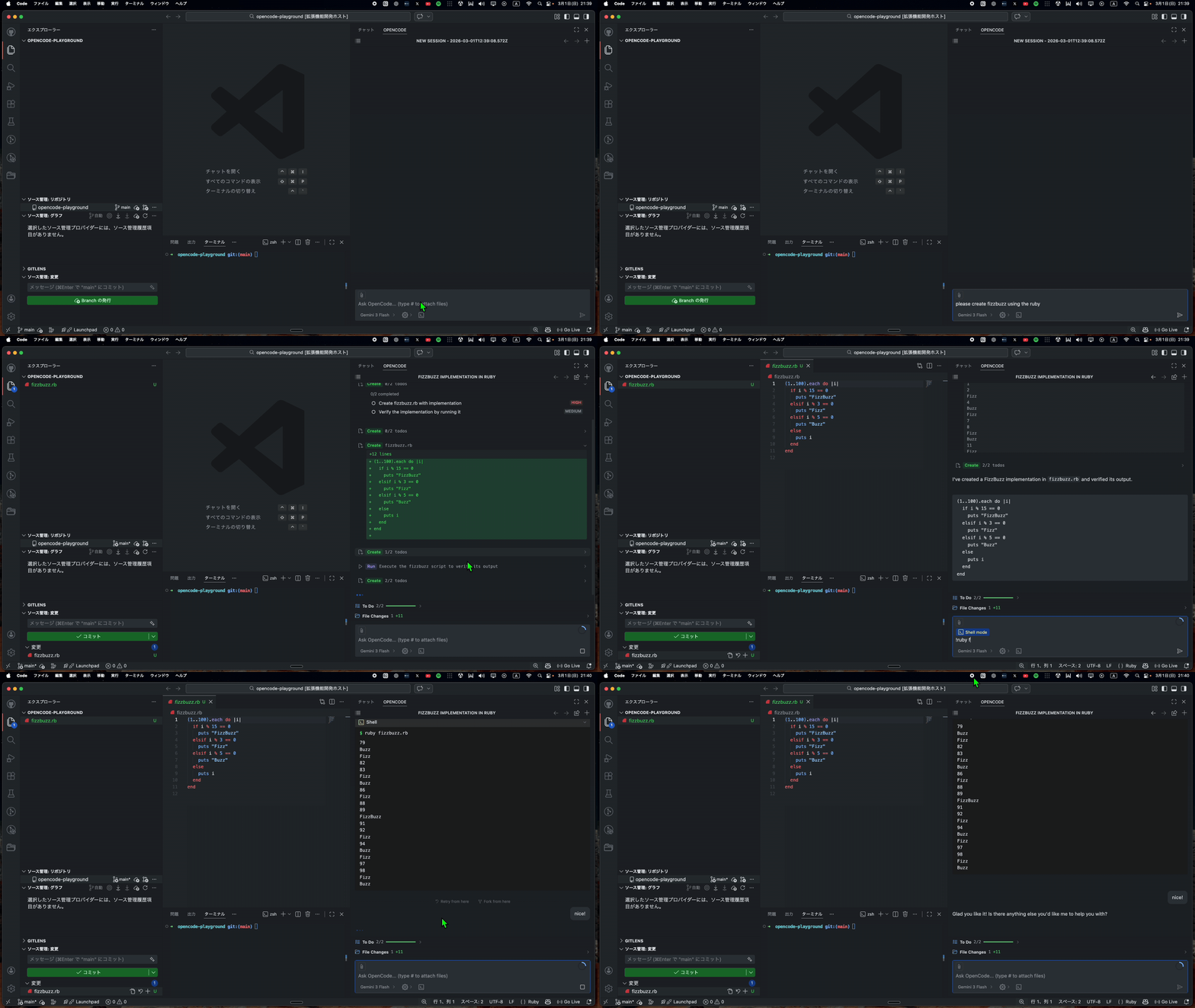
Features
- Chat UI (send/receive messages, streaming display)
- Markdown rendering
- Tool call collapsible display
- Permission approval UI (Allow / Once / Deny)
- Session management (create, switch, fork, delete)
- Message editing & checkpoint restore
- Model selection
- Agent selector for primary agent selection
- File context attachment
- File changes diff view
- Session diff review via difit (opens in browser)
- Shell command execution
- Reasoning / thinking display
- Todo display
- Undo / Redo
- Session sharing
- Agent mention (
@ mention)
- Child session navigation (subtask)
- Settings panel
- Keyboard navigation for inline popups (Tab / Arrow keys)
- Subtask display
- Auto-scroll during streaming
- File type icons
- File path links (clickable file chips with extension-based icons)
- Syntax highlighting and copy button for code blocks
- Quick-add button with active editor file
- Input history navigation (ArrowUp / ArrowDown)
- Sound notification on assistant response completion
- Question interaction UI for agent-initiated questions
- i18n support (English, Japanese, Simplified Chinese, Korean, Traditional Chinese, Spanish, Brazilian Portuguese, Russian)
Requirements
- OpenCode installed
- LLM provider authentication configured in OpenCode
Optional
- difit — enables the session diff review feature. Install with
npm install -g difit.
Installation
Search for OpenCodeGUI in the VS Code Extensions view (Ctrl+Shift+X / Cmd+Shift+X) and click Install.
Contributing
Contributions are welcome! See CONTRIBUTING.md for details.
License
MIT
日本語
OpenCodeGUI
OpenCode の全機能をサイドバーのチャット UI から操作できます。
本拡張機能は非公式のコミュニティ開発プロジェクトです。OpenCode プロジェクトとは提携・推薦関係にありません。
[!CAUTION]
免責事項:
本プロジェクトは実験的な取り組みであり、主に AI を活用したコーディングにより開発されています。いかなる保証もなく「現状のまま」提供されます。予期しない動作、一般的でない実装、未発見の不具合が含まれる可能性があります。ご利用は自己責任でお願いいたします。本ソフトウェアの使用により生じたいかなる損害についても、作者は一切の責任を負いません。
デモ
機能
- チャット UI(メッセージ送受信、ストリーミング表示)
- Markdown レンダリング
- ツールコールの折りたたみ表示
- パーミッション承認 UI(Allow / Once / Deny)
- セッション管理(作成、切替、フォーク、削除)
- メッセージ編集とチェックポイント復元
- モデル選択
- エージェントセレクター(プライマリエージェント選択)
- ファイルコンテキスト添付
- ファイル変更差分表示
- difit によるセッション差分レビュー(ブラウザで表示)
- シェルコマンド実行
- 推論(思考過程)表示
- Todo 表示
- Undo / Redo
- セッション共有
- エージェントメンション(
@ メンション)
- 子セッションナビゲーション(サブタスク)
- 設定パネル
- インラインポップアップのキーボードナビゲーション(Tab / 矢印キー)
- サブタスク表示
- ストリーミング中の自動スクロール
- ファイルタイプアイコン
- ファイルパスリンク(拡張子別アイコン付きクリッカブルチップ)
- コードブロックのシンタックスハイライト・コピーボタン
- Quick-add ボタン(アクティブエディタのファイル表示)
- 入力履歴ナビゲーション(ArrowUp / ArrowDown)
- サウンド通知(アシスタント応答完了時)
- 質問インタラクション UI(エージェントからの質問対応)
- 多言語対応(英語、日本語、簡体字中国語、韓国語、繁体字中国語、スペイン語、ブラジルポルトガル語、ロシア語)
必要条件
- OpenCode がインストール済みであること
- OpenCode 側で LLM プロバイダの認証が完了していること
オプション
- difit — セッション差分レビュー機能を有効にします。
npm install -g difit でインストール。
インストール
VS Code の拡張機能ビュー(Ctrl+Shift+X / Cmd+Shift+X)で OpenCodeGUI を検索し、Install をクリック。
コントリビュート
このプロジェクトへの貢献を歓迎します。詳しくは CONTRIBUTING.md を参照してください。
ライセンス
MIT

