KryptonLab Dark
The official KryptonLab dark theme for Visual Studio Code. Built from the
same indigo/violet palette used across the KryptonLab product, so your workbench
matches the dashboard.

Brand personality: sharp, disciplined, transparent — data-dense, hairlines
keep the hierarchy, no decorative purple-blue gradients, no glassmorphism.
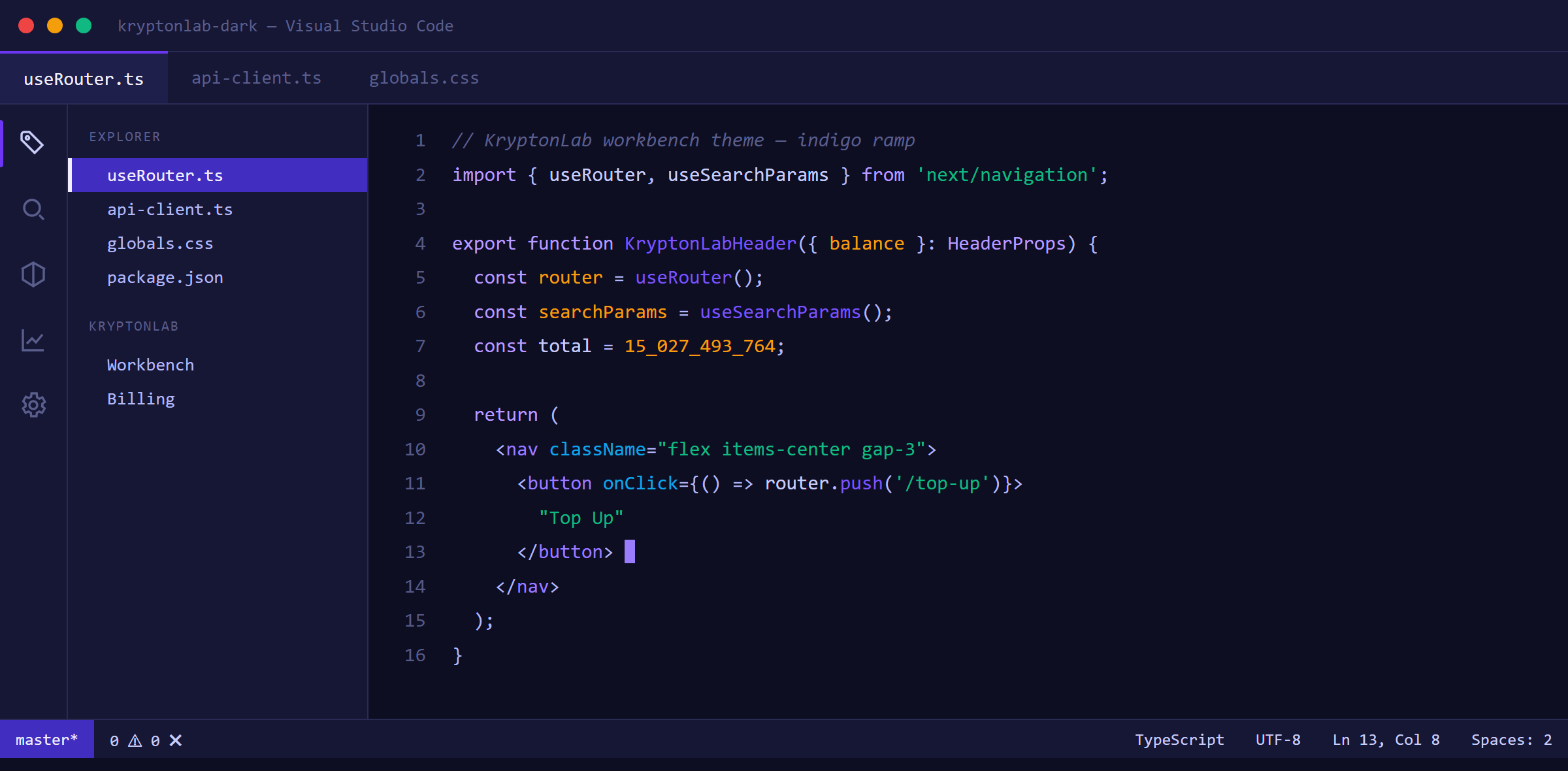
Palette
The KryptonLab indigo ramp:
| Role |
Hex |
Used for |
| Canvas |
#0D0E22 |
editor.background, panel, terminal |
| Chrome / panel |
#161735 |
sidebar, activity bar, status bar, panel |
| Nested / hover |
#1E1F4A |
active tab, selection, widgets |
| Brand strong |
#412DC0 |
buttons, badges, active list, brand fills |
| Brand (hover) |
#6C36F4 |
focus ring, cursor, active accents |
| Brand light |
#9A7CFF |
links, symbols, bright accents |
| Bright lavender |
#B99CFF |
keywords, types, markdown headings |
| Primary text |
#C9CDF9 |
body / editor foreground |
| Muted text |
#B2B8F6 |
secondary, operators, muted borders |
| Dim text |
#5A5E8C |
comments, line numbers, inactive items |
| Border |
#2A2B55 |
hairline separators |
Semantic colors:
| Status |
Hex |
| Success |
#10B981 |
| Warning |
#F59E0B |
| Error |
#EF4444 |
| Info |
#0EA5E9 |
Primary text #C9CDF9 on the #0D0E22 canvas is roughly 12:1 — passes WCAG
AA/AAA.
Features
- 346 workbench colors — surfaces, tabs, sidebar, status bar, terminal
(16 ANSI), git decorations, notebook, diff, debug, input/button/badge,
scrollbar.
- Semantic highlighting for TypeScript, JavaScript, Rust, Go, Python and
more.
- 35 TextMate rules for languages without semantic tokens.
- Calibrated text contrast (AA) across every surface.
Installation
- Open Extensions (
Ctrl+Shift+X).
- Search for KryptonLab Dark.
- Click Install.
- Select the theme: Ctrl+K Ctrl+T → KryptonLab Dark.
Or from the command line:
code --install-extension kryptonlab.kryptonlab-dark
Customization
Override any color without editing the theme file. Add this to your
settings.json:
{
  "workbench.colorCustomizations": {
    "[KryptonLab Dark]": {
      "editor.background": "#0D0E22",
      "editorCursor.foreground": "#6C36F4"
    }
  },
  "editor.tokenColorCustomizations": {
    "[KryptonLab Dark]": {
      "comments": "#5A5E8C"
    }
  }
}
Development
npm install -g @vscode/vsce   # packaging CLI
vsce package                  # build kryptonlab-dark-<version>.vsix
vsce publish                  # publish to the Marketplace
License
MIT © KryptonLab. See LICENSE.
| |

