DBML Studio
A DBML workbench for VS Code: read a schema as an entity-relationship diagram, import one from a live PostgreSQL, MySQL or SQL Server database, and diff a .dbml file against the database it describes.
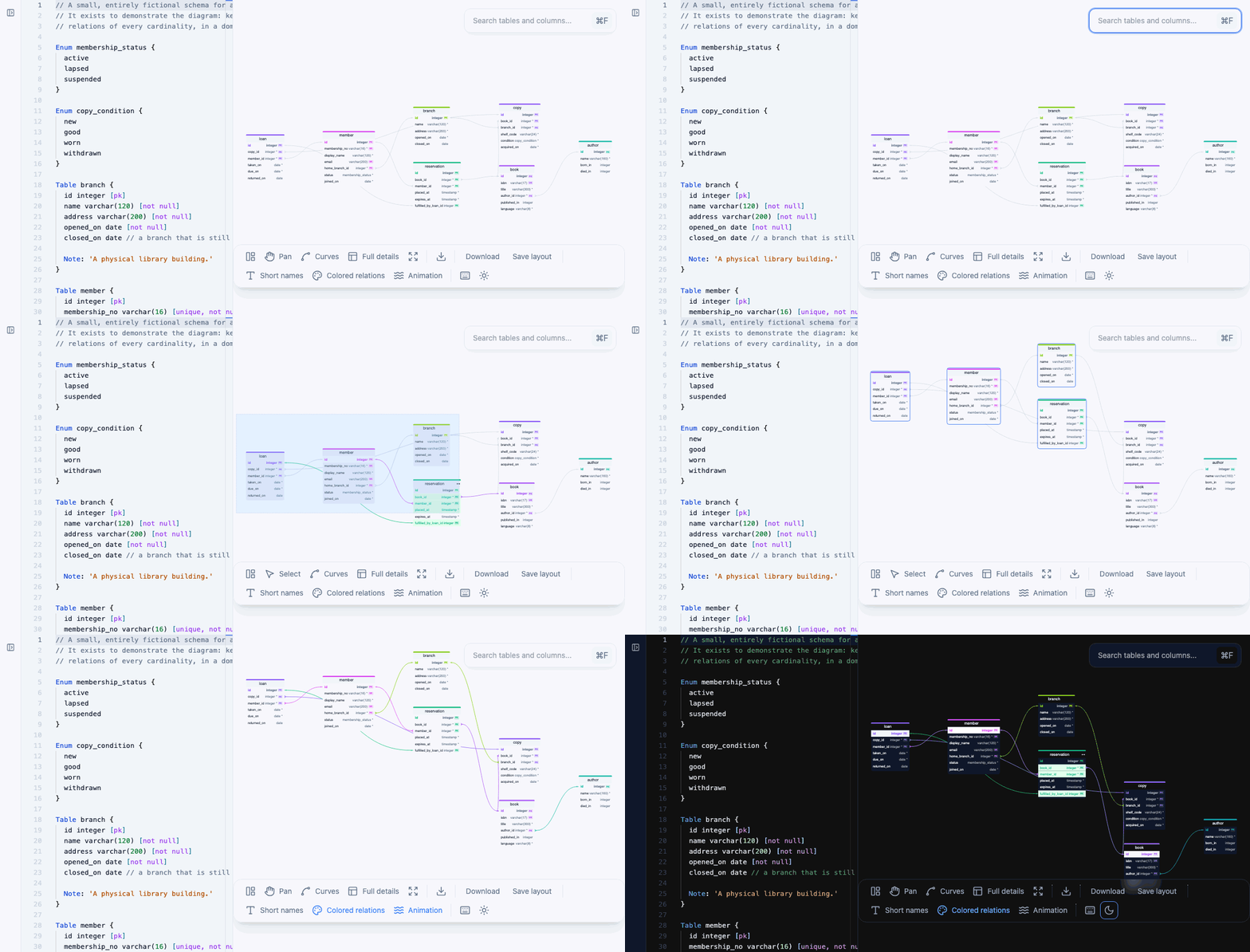
A fictional library schema — the model is in examples/library.dbml.
Unofficial fork. Not affiliated with, or endorsed by, the authors of the original project. Based on BOCOVO/db-schema-visualizer (MIT License); maintained independently by AKonyshev. This is a separate extension with its own identifier, commands, and settings — installing it leaves the original alone.
What this fork adds
- Import from a database — command palette → DBML: Import from database. A saved connection stands for a whole server: the side bar opens it into its databases and their schemas, and one import can take several databases at once, writing one
.dbml file per database with every schema you picked inside it. Connections live in the DBML side bar and are stored, passwords included, in the VS Code secret store.
- Compare with a live database — open a
.dbml file, then DBML: Compare with database, and see where the file and the database have drifted apart.
- A layout that lives in the file — drag tables about and the positions are written into a
MetaInfo block in the DBML itself, one arrangement per detail level, so the diagram opens as you left it on any machine.
- Export the diagram as PNG, SVG, AsciiDoc, or Markdown.
- Interface in English, Russian, and Simplified Chinese, following your VS Code display language.
- Keyboard shortcuts for every view action, with a built-in legend (
?).
Connecting to a database
Connections are made in a form that opens in an editor tab: the + button in the DBML side bar, or DBML: Add database connection in the command palette. Import and compare use the same form when you choose New connection in their picker. The form works for PostgreSQL, MySQL (MariaDB counts as MySQL) and SQL Server, and has these fields:
- Name — what the connection is called in the side bar and to AI agents.
- Database kind — PostgreSQL, MySQL / MariaDB or SQL Server. Changing it fills in that database's default port, unless you have typed a port yourself.
- Host and Port.
- Instance — SQL Server only: a named instance, used instead of a port.
- User and Password.
- Database — the database to start from (see below).
- Encrypt connection and Trust server certificate — SQL Server only. Tick the second one when the server uses a self-signed certificate.
- Additional parameters — anything in a connection string that has no field of its own, kept as it was written.
Test connects with what is in the form and reports how many databases the server has, or why it could not connect, without saving anything. Save stores the connection and closes the tab.
If you already have a connection string, paste it into the box at the top of the form and the fields fill in. These are the forms it reads, one example per database:
| Database |
Form |
| PostgreSQL |
postgres://user:password@host:5432/database (or postgresql://) |
| MySQL |
mysql://user:password@host:3306/database (or mariadb://) |
| SQL Server |
sqlserver://user:password@host:1433/database (or mssql://) |
| SQL Server |
Server=host;Database=database;User Id=user;Password=password |
To change a connection later, use the pencil button next to it in the side bar, or DBML: Edit connection in the command palette, which asks which connection to edit. The form shows the saved fields but never the password: leave it empty to keep the current one, or type a new one to replace it. Renaming a connection works the same way. Deleting a connection closes its form.
The database in the connection is only the entry point: the side bar lists every database on the server. In MySQL a database is a schema, so a connection opens straight into its databases, without a schema level. Comparison has a few caveats per database; see Known limitations in the dbml-mcp README.
Diagram
- Entity-relationship diagram from your DBML file
- Light and dark themes
- Display modes: all columns, relational columns only, or table headers only
- Hide/show relations per table via the icon in the table header, or H for the table under the pointer; it is a view preference and nothing is written to the file
- Bring every hidden relation back at once, from the toolbar button or R
- Colored relations: either one neutral colour for all of them, or each relation painted in its source table's colour
- Relation animation: the relations of the table under the cursor animate to show their direction
Keyboard shortcuts
Every view action is a command, so the keys below are defaults rather than fixtures: rebind any of them in Preferences: Open Keyboard Shortcuts by searching for DBML, and run any of them from the command palette. They apply while the diagram has focus and nowhere else.
| Key |
Command |
C |
Colored relations |
A |
Relation animation |
S |
Short table names |
D |
Cycle detail level |
V |
Switch between pan and select |
L |
Auto-arrange |
F |
Fit to view |
H |
Hide/show the hovered table's relations |
R |
Show all hidden relations |
T |
Cycle the hovered table's detail level |
U |
Give every table the shared level back |
? |
Show the shortcuts legend |
Two keys belong to the diagram itself and are not commands: Esc closes the legend, and Ctrl/Cmd+F opens the table search.
None of these keys fires while you are typing, in the diagram's own search box or anywhere else in the editor.
? is where a US layout puts it. On a layout that puts it elsewhere, use the keyboard button in the toolbar or rebind the command.
Every command is also in the palette, with one exception: hiding the hovered table's relations acts on whatever the pointer is over, and opening the palette takes the pointer away, so it would always find nothing. Use the key for that one, or rebind it.
The same list is available in the app: press ? or use the keyboard button in the toolbar. It shows the defaults, not a key you have rebound.
Languages
The interface follows your VS Code display language: English, Russian (ru) and Simplified Chinese (zh-cn). Any other display language falls back to English — including Traditional Chinese (zh-tw), because mainland and Taiwan terminology differ enough that showing Simplified would be misleading.
The Chinese translation is a community contribution and has not been reviewed by a native speaker. Corrections are welcome — the catalogs live in packages/json-table-schema-visualizer/src/i18n/locales/ and packages/dbml-vs-code-extension/l10n/.
Extension settings
dbmlStudio.preferredTheme — light or dark (default: dark)dbmlStudio.scrollDirection — up-out or up-in (default: up-out)dbmlStudio.mcp.enabled — offer DBML Studio's tools to AI agents (default: off; user settings only). See below.
AI agents (MCP)
DBML Studio can offer its tools to AI agents in VS Code (Copilot agent mode) as an MCP server: import a database schema as DBML, compare a DBML file with a database, validate DBML, and convert between DBML and SQL. It needs VS Code 1.101 or later.
It is off by default. Turn on dbmlStudio.mcp.enabled in your user settings, and a "DBML Studio" server appears in VS Code's list of MCP servers. It is a user setting only, so a repository's .vscode/settings.json cannot turn it on for you. The connections saved in DBML Studio are the connections the agent can use, under the names you gave them; save or remove one and the server restarts with the new set. Two connections whose names differ only in letter case are both left out, with a warning. The agent reads only the structure of those databases (never the data), and what it reads is sent to the agent's model.
The server reads and writes files only inside the first folder of the workspace. With no folder open it has none: the agent can still pass DBML and SQL as text, but not as files.
The same server also runs outside VS Code, in Claude Code and Cursor, as the dbml-mcp package; its README has that setup, the tools and the rules they follow.
Release notes
CHANGELOG.md
Attribution
Licensed under the MIT License.

