Fav Launcher
Bookmark files, folders, commands, macros, and workspaces — with groups, notes, drag & drop, and team sharing.
Fav Launcher gives you a persistent Favorites panel in VS Code / Cursor where you can pin anything you open or run repeatedly. No more hunting through menus or re-typing commands.
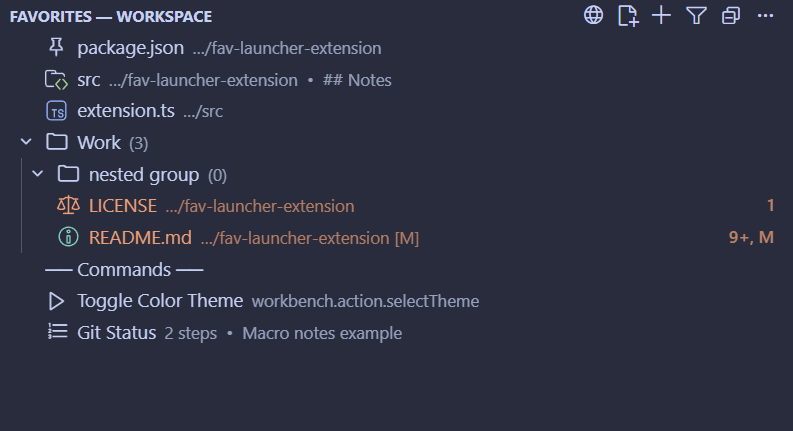
Getting Started
- Open the Favorites panel — click the ⭐ icon in the Activity Bar, or press
Ctrl+Shift+F
- Click the Add File or Folder button (📄) in the toolbar, or pick any file/folder from a system dialog
- Right-click any file in the Explorer or an editor tab → Add to Favorites
- Use the panel to open, run, or organize everything you've saved
Panel Overview
The Favorites panel appears in two places:
- The Activity Bar (left sidebar ⭐ icon) — always visible
- The bottom Panel tab — toggle with
Ctrl+Shift+F
The panel title shows your active scope — e.g. Favorites — Workspace, Favorites — Global, or Favorites — Team — and updates whenever you switch.
The status bar shows ⭐ Fav (12) with a live count. Hover it for a full breakdown. A ⚠ appears when any favorited files are missing from disk.
Adding Items
| Action |
How |
| Add current file |
Click 📄 in panel toolbar |
| Add any file or folder |
Click 📄 → system file picker dialog |
| Add from Explorer sidebar |
Right-click file/folder → Add to Favorites (Ctrl+Alt+A) |
| Add from editor tab |
Right-click tab → Add to Favorites |
| Add a VS Code command |
Click ➕ in panel toolbar → pick from list or type a command ID |
| Add a macro |
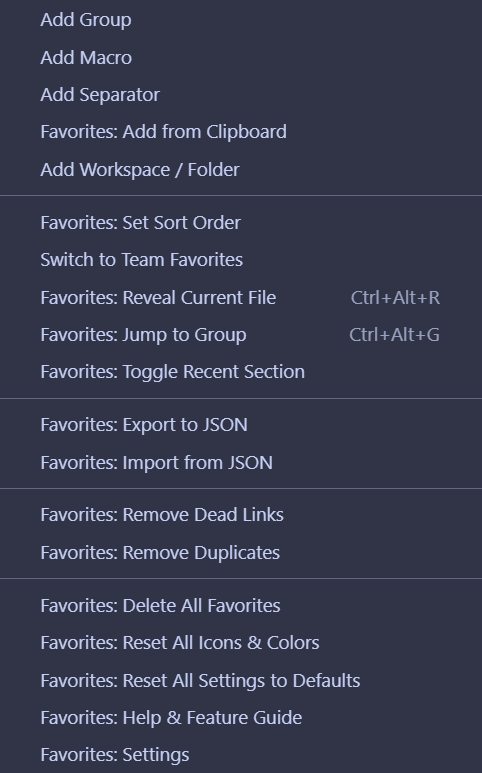
Panel ··· → Add Macro |
| Add a group |
Panel ··· → Add Group |
| Add a separator |
Panel ··· → Add Separator — visual divider with optional label |
| Add a workspace/folder |
Panel ··· → Add Workspace File or Folder — opens in a new window when clicked |
| Add from clipboard |
Panel ··· → Add from Clipboard — auto-detects file path vs command ID |
Organizing
Groups
- Create a group with Add Group, then drag items into it
- Each group shows a count badge:
(3)
- Right-click a group → Open All Files in Group or Close All Editors in Group
- Groups can be nested
Pinning
- Right-click any item → Pin — pinned items always appear at the top
- Pinned items launch via
Ctrl+Alt+1 through Ctrl+Alt+9
Drag & Drop
- Drag items to reorder manually
- Drag into a group to move them inside
- Drag out of a group to move to root
Renaming
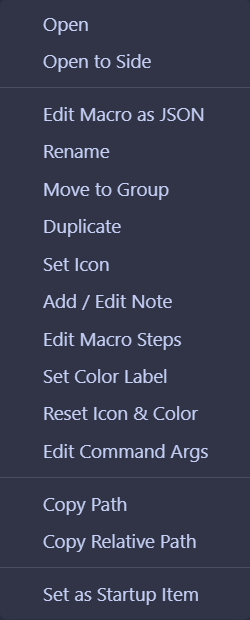
- Right-click any item or group → Rename
Separators
- Right-click a separator → Edit Separator Label to give it a title like
── Work ──
- Right-click → Edit Separator Label again → choose Remove label to clear it
Running Items
| Type |
What happens when clicked |
| File |
Opens in the editor — focuses the existing tab if already open |
| Folder (in workspace) |
Reveals in Explorer sidebar |
| Folder (outside workspace) |
Prompts to open in a new window or add to workspace |
| Command |
Executes the VS Code command |
| Macro |
Runs each step in sequence |
| Workspace |
Opens the folder or .code-workspace file in a new window |
Macros
Each macro step is either:
- A VS Code command — runs any registered command
- A Terminal command — sends text to the integrated terminal
Edit macro steps: right-click a macro → Edit Macro Steps
Edit the entire macro as raw JSON: right-click → Edit Macro as JSON — opens in the editor, save to apply
Keyboard Shortcuts
| Shortcut |
Action |
Ctrl+Shift+F |
Open / focus Favorites panel |
Ctrl+Shift+F (panel focused) |
Filter favorites inline |
Ctrl+Alt+1 – Ctrl+Alt+9 |
Launch pinned item #1–9 |
Ctrl+Alt+R |
Reveal current file in Favorites panel |
Ctrl+Alt+G |
Jump to group (quick pick) |
Ctrl+Alt+A |
Add selected file/folder to Favorites |
Filtering & Search
- Press
Ctrl+Shift+F while the panel is focused, or click the 🔍 button in the toolbar
- Type to filter — matches label, path, command ID, and note
- Group names are searchable — if a group name matches, all its children are shown
- Clear the filter from the toolbar or press Escape
Sorting
Panel ··· → Set Sort Order:
| Mode |
Behavior |
| Manual (default) |
Drag & drop order |
| Alphabetical |
A–Z by label |
| By type |
Files, commands, macros grouped together |
| Last used |
Most recently opened/run first |
Pinned items always appear first regardless of sort order.
Recent Section
Enable in settings (favLauncher.showRecentSection: true) or via Panel ··· → Toggle Recent Section.
Shows the 5 most recently used items at the top of the panel as a virtual "Recent" group.
Customization
Icons
Right-click any item or group → Set Icon — pick from common codicons or type any codicon name.
Colors
Right-click any item or group → Set Color Label — tints the item's icon:
🔴 Red · 🟠 Orange · 🟡 Yellow · 🟢 Green · 🔵 Blue · 🟣 Purple
Notes
Right-click any item → Add / Edit Note — attach a short reminder. Notes appear inline, in the tooltip, or both — configurable in settings.
Compact Mode
Settings → favLauncher.compactMode: true — hides description text for a denser list.
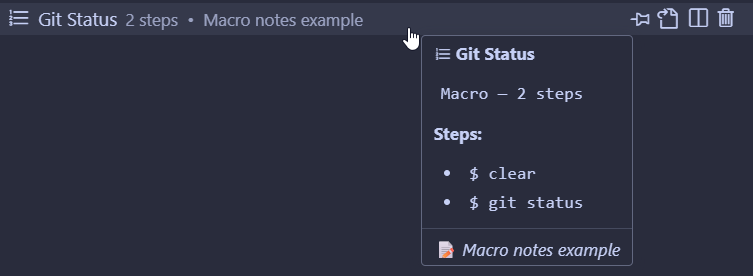
Hover over any item to see a rich hover card:
- File size and last modified date
- Git status (Modified, Added, Deleted, etc.) — live from the built-in Git extension
- Unsaved changes indicator (
● in the label, highlighted in the hover card)
- Note, last-used time, pinned status, macro steps, and args
Copy Path
Right-click a file or folder favorite:
- Copy Path — absolute path to clipboard
- Copy Relative Path — relative to workspace root
Storage Scopes
The active scope is shown in the panel title and the status bar tooltip. Switch scope from the panel toolbar or ··· menu:
| Scope |
Where stored |
Use when |
| Workspace (default) |
VS Code workspaceState |
Per-project favorites |
| Global |
VS Code globalState |
Same favorites in every project |
| Team |
.vscode/favorites.json |
Commit to Git to share with your team |
Team Favorites
When Team scope is active, all changes write to .vscode/favorites.json in your workspace root. Commit and push that file — everyone who clones the repo gets the same favorites automatically.
Import & Export
Export
Panel ··· → Export to JSON
- Saves all favorites from the currently active scope to a
.json file
- The default filename reflects the scope — e.g.
favorites-workspace.json, favorites-global.json
- The success message confirms which scope was exported and how many items
- Resets the backup reminder timer (see
favLauncher.backupReminderDays)
Import
Panel ··· → Import from JSON
Pick a previously exported .json file. If your list is currently empty, items load immediately with no questions asked. If you already have items, you choose:
| Option |
What it does |
| Merge |
Adds only items that don't already exist — skips duplicates automatically |
| Replace all |
Clears your current list and loads everything from the file |
Duplicate detection is by content — same file path, same command ID, or same label + type. All imported items get fresh IDs so there are never conflicts, regardless of which machine the file came from.
Run on Startup
Right-click any file, command, or macro → Set as Startup Item.
That item will automatically open or run every time this workspace loads. Right-click again to toggle it off.
Cleanup Commands
| Command |
Action |
| Remove Dead Links |
Finds file favorites whose paths no longer exist and removes them after confirmation |
| Remove Duplicates |
Finds exact duplicate file paths or command IDs and removes the extras |
Both are in the Panel ··· menu.
Reset & Delete Options
All destructive actions show a modal confirmation dialog with detail before doing anything.
| Command |
What it does |
| Right-click item → Reset Icon & Color |
Clears custom icon and color on one item |
Panel ··· → Reset All Icons & Colors |
Clears all custom styling on every item |
Panel ··· → Reset All Settings to Defaults |
Resets all favLauncher.* settings (favorites are not affected) |
Panel ··· → Delete All Favorites |
Permanently removes all favorites in the current scope |
Remote & Multi-Machine
Fav Launcher is marked extensionKind: ["ui"] — it always runs on the local machine, even when connected to a remote via SSH, WSL, or Dev Containers. This ensures:
- File dialogs, settings, and UI commands always work
- No "command not found" errors on the remote side
- You can install the extension locally or on the remote independently
Settings Reference
| Setting |
Default |
Description |
favLauncher.storageScope |
workspace |
Where to store favorites: workspace, global, or team |
favLauncher.sortOrder |
manual |
Sort order: manual, alpha, type, lastUsed |
favLauncher.noteDisplay |
both |
Where notes appear: both, inline, tooltip |
favLauncher.itemDescription |
both |
Secondary description: both, path, note, none |
favLauncher.compactMode |
false |
Hide descriptions for a denser list |
favLauncher.autoRevealCurrentFile |
false |
Auto-highlight the current editor file in the panel |
favLauncher.showRecentSection |
false |
Show a "Recent" group with the last 5 used items |
favLauncher.startupItemId |
"" |
ID of the favorite to open/run on workspace startup |
favLauncher.backupReminderDays |
0 |
Days between export reminders (0 = off) |
Commands (Command Palette)
Search Favorites: in the Command Palette (Ctrl+Shift+P):
Favorites: OpenFavorites: Add Current FileFavorites: Add CommandFavorites: Add MacroFavorites: Add GroupFavorites: Add SeparatorFavorites: Add Workspace File or FolderFavorites: Add from ClipboardFavorites: FilterFavorites: Reveal Current FileFavorites: Set Sort OrderFavorites: Toggle Recent SectionFavorites: Jump to GroupFavorites: Export to JSONFavorites: Import from JSONFavorites: Remove Dead LinksFavorites: Remove DuplicatesFavorites: Launch Pinned [#1](https://github.com/kohrock/fav-launcher-extension/issues/1) – #9Favorites: Delete All FavoritesFavorites: Reset All Icons & ColorsFavorites: Reset All Settings to DefaultsFavorites: SettingsFavorites: Help & Feature Guide
Tips
- Drag the panel to the Secondary Side Bar (right side) if you prefer it there
- Team favorites are great for onboarding — commit
.vscode/favorites.json with links to key files, run configs, and docs
- Macros can combine opening a file, running a build command, and launching a terminal command in one click
- Pinned +
Ctrl+Alt+1 gives you instant one-key access to your most-used file or command
- Export scope shows in the filename —
favorites-global.json vs favorites-workspace.json so you always know what you're restoring
- Empty panel — right-click the placeholder item to get quick-add options without opening the
··· menu

