Draw.io Auto Labeling
Hold a configurable modifier key while dragging a shape from the drawio sidebar in VSCode to auto-label the placed cell with the shape's display name (e.g. Secrets Manager, Amazon EC2). Optionally remap any title to a custom label via a user dictionary.
Demo
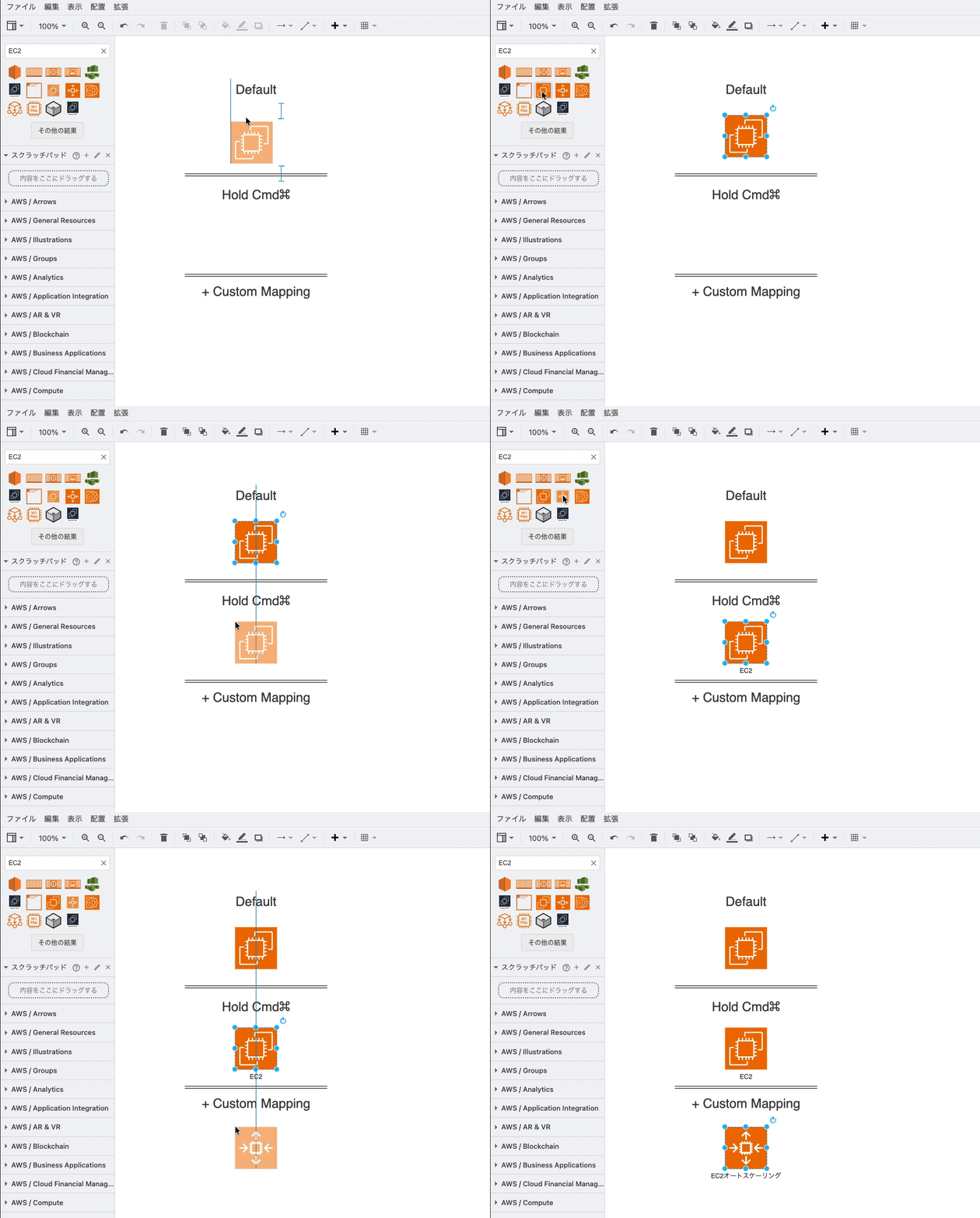
Three drops of the same shape: default drawio behaviour (no label), hold Cmd (sidebar title becomes the label), and + custom mapping (label resolved through the dictionary).
Why
hediet.vscode-drawio ships AWS / GCP / Azure / etc. shape libraries where each entry has a human-readable title shown on hover. By default that title is not applied as the cell label when you drop the shape. This extension adds a one-key shortcut: hold the modifier, the title becomes the label.
Requirements
- VSCode 1.80+
hediet.vscode-drawio (declared as extensionDependencies, so VSCode installs it automatically)
How it works
On activation, this extension generates a copy of its bundled plugin into the extension's global storage with the user's settings inlined, then appends that path to your Global hediet.vscode-drawio.plugins setting. On deactivation, the entry is removed.
The plugin monkey-patches ui.sidebar.createDragSource. When the drop handler fires, it checks the configured modifier key; if held, it reads the sidebar entry's title and either looks it up in your dictionary or applies it as-is, via graph.cellLabelChanged.
The first time hediet.vscode-drawio loads the plugin it shows a fingerprint approval prompt — click Allow. The same prompt reappears whenever the plugin's content changes (i.e. whenever you edit a setting in this extension), since hediet rehashes the file. One click and you're back in business.
Settings
| Setting |
Type |
Default |
Notes |
drawio-auto-labeling.modifierKey |
"cmd" \| "ctrl" \| "alt" \| "shift" |
"cmd" |
cmd = ⌘ on macOS / ⊞ on Windows (metaKey). |
drawio-auto-labeling.dictionary |
{ [title: string]: string } |
{} |
Map a sidebar title to a custom label. Empty string suppresses labeling for that title. Misses fall back to the title verbatim. |
Example settings.json:
{
  "drawio-auto-labeling.modifierKey": "alt",
  "drawio-auto-labeling.dictionary": {
    "Secrets Manager": "シークレットマネージャー",
    "Amazon EC2": "EC2",
    "Lambda": ""
  }
}
After saving settings, VSCode prompts you to reload the window so drawio re-loads the plugin. On reload, hediet.vscode-drawio re-asks for plugin approval — click Allow once more.
Behavior
| Situation |
Result |
| Drag without the modifier |
No label (original drawio behavior) |
| Drag with modifier, title not in dictionary |
Label = title |
| Drag with modifier, title in dictionary (non-empty value) |
Label = mapped value |
| Drag with modifier, title in dictionary (empty value) |
No label (explicit suppression) |
| Drag with modifier, sidebar entry has no title |
No label |
| Drop produces a non-vertex cell |
Skipped |
| Drop produces a vertex with a preset value |
Existing label preserved |
A single drop is wrapped in one beginUpdate / endUpdate, so undo reverts both placement and label in one step.
Develop
npm install
npm run compile
Press F5 in VSCode to launch an Extension Development Host, then open any .drawio file in the dev window.
Package & install
npx vsce package
code --install-extension drawio-auto-labeling-<version>.vsix
License
MIT

