Knoon
Edit your knoon.ai website locally in VS Code, preview changes in your browser, then save or publish them back to Knoon.
What is Knoon.ai?Knoon.ai lets you vibe code a website with agents in a chat box or start a workflow for free, using HTML and the Liquid framework. What You Can Do
Requirements
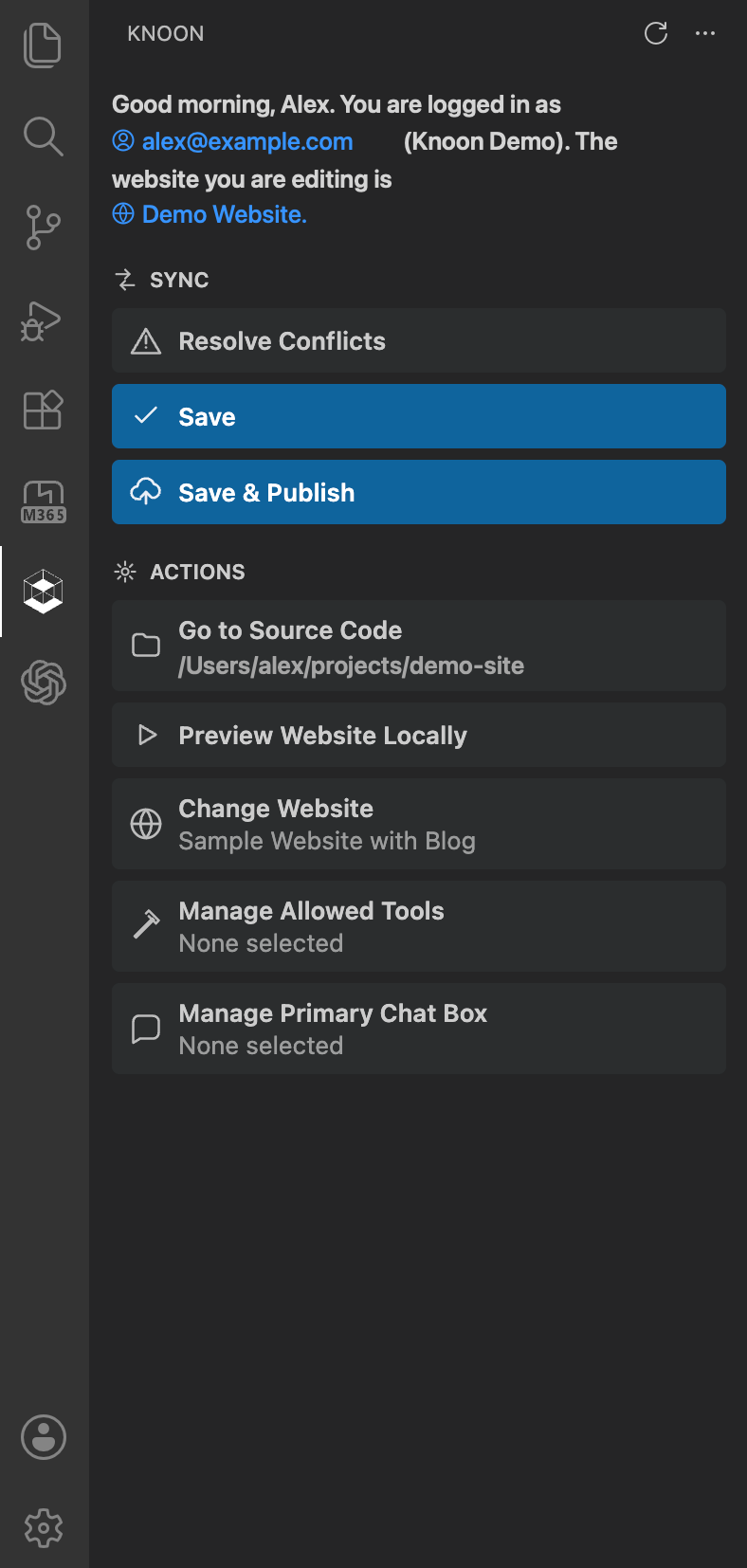
Step-by-Step Guide1. Install Knoon.aiInstall Knoon from the VS Code Marketplace, then reload VS Code if prompted. After installation, the Knoon icon appears in the VS Code Activity Bar. 2. Open a Workspace FolderOpen the folder where you want Knoon to place your website source files. By default, site files are stored in a workspace folder named: You can change this folder in VS Code settings with 3. Sign InOpen the Knoon sidebar from the Activity Bar, then choose Sign In. VS Code opens your browser so you can complete the Knoon.ai login flow. After login, return to VS Code. 4. Open a WebsiteIn the Knoon sidebar, choose Open Site or run Knoon: Open Site from the Command Palette. Select the organization and website you want to edit. Knoon downloads the website source into your workspace. 5. Preview LocallyChoose Preview Website Locally or run Knoon: Start Preview. Knoon starts a local preview server and opens the website in your browser. Keep this preview open while you edit files in VS Code. 6. Edit Your SiteEdit the files in your configured source folder, usually Save files normally in VS Code. Use the local preview to confirm that pages, content, and styles look right before sending changes back to Knoon.ai. 7. Customize Codex with AGENTS.mdKnoon includes site editing instructions for Codex in To customize how Codex works on your website, add your own The generated 8. Save Changes to Knoon.aiChoose Save in the Knoon sidebar or run Knoon: Save. This syncs your local changes to Knoon.ai without publishing the live website. 9. Publish the WebsiteWhen you are ready to update the live site, choose Save & Publish or run Knoon: Save & Publish. Knoon asks for confirmation before publishing. 10. Resolve ConflictsIf Knoon detects that the remote website changed while you were editing locally, choose Resolve Conflicts. Review the conflict details, decide which changes to keep, then save again. 11. Switch WebsitesTo work on another website, choose Change Website in the Knoon sidebar or run Knoon: Open Site again. Knoon updates the local source folder for the selected site. Useful CommandsOpen the Command Palette with TroubleshootingIf the Knoon sidebar does not appear, reload VS Code and confirm that the extension is enabled. If commands ask you to sign in, run Knoon: Sign In again and complete the browser login flow. If preview shows a missing page, confirm your website files are inside the configured source folder. If save or publish is blocked by conflicts, run Knoon: Resolve Conflicts before trying again. SupportVisit knoon.ai to learn more about Knoon. For help, visit support.knoon.ai. |