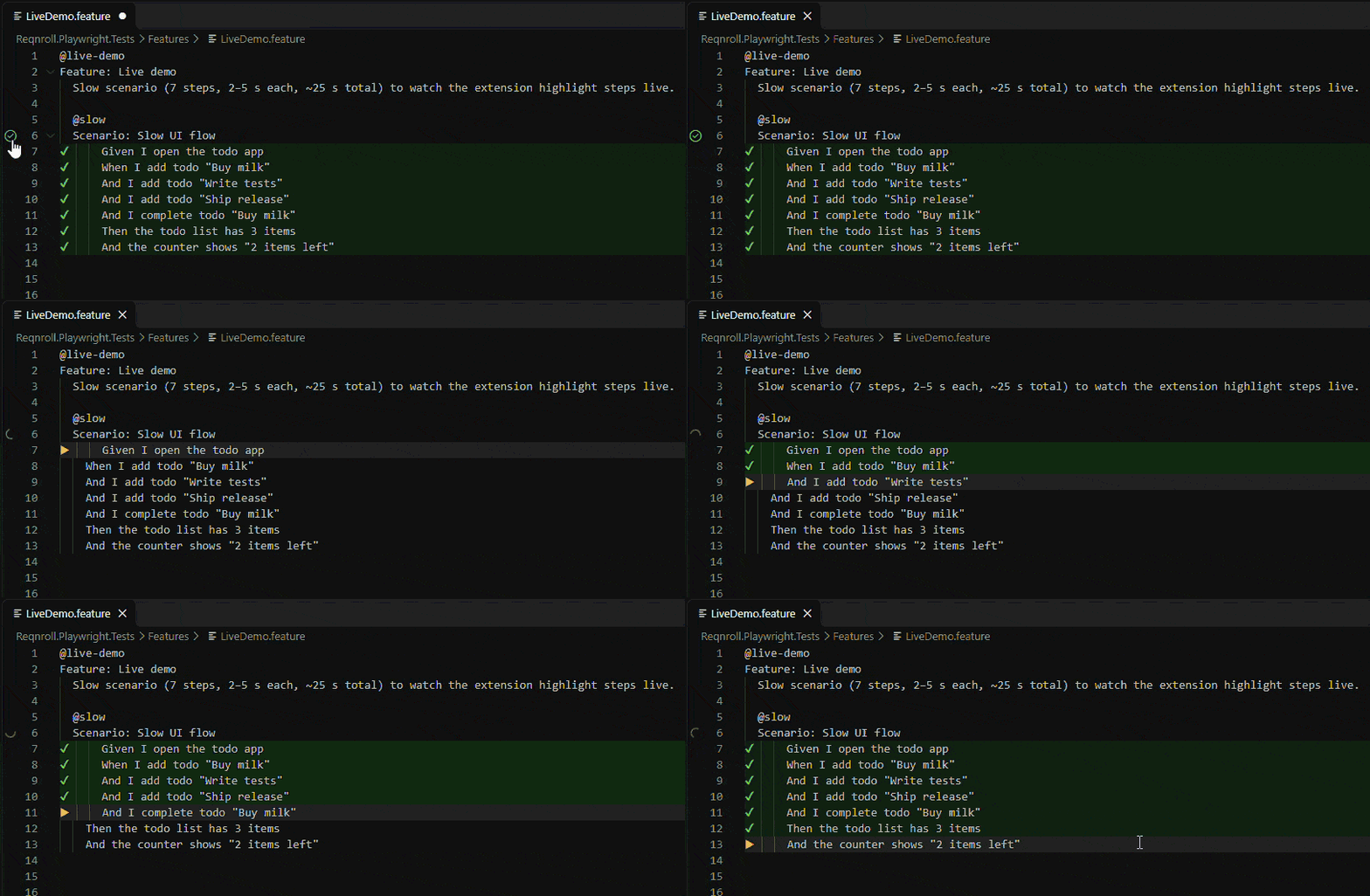
See which steps of your Reqnroll scenarios passed, failed or were skipped –
right in the .feature file, live while the tests run. Like IntelliJ does for Cucumber/Java.
Mark
Meaning
▶
running now
✔
passed
✘
failed (error message on hover)
?
undefined – no matching step definition
…
pending – step definition not implemented yet
○
skipped (an earlier step did not pass)
Hover a step to see its status, duration and error. Scenario Outlines show the worst result across example rows,
with one line per row in the hover.
Why
Reqnroll turns every scenario into one NUnit / xUnit / MSTest test, so the Test Explorer only knows scenarios.
When a 5-minute UI scenario fails you get a stack trace – not the step. This extension shows the step.
Setup
Add the companion Reqnroll plugin to your test project – no code needed:
dotnet add package StepHighlighter.ReqnrollPlugin
Add .reqnroll/ to .gitignore (the plugin writes results there, next to your .sln).
Run tests the way you like – Testing panel (C# Dev Kit), dotnet test, Visual Studio, Rider –
and open a .feature file.
The plugin is disabled on CI servers by default.
See the plugin README
for configuration.
Features
Live updates while tests run; results of other scenarios are kept when you run a single test.
Full Gherkin support via the official Cucumber parser: any # language:, Rule: with its own Background,
Scenario Outlines, doc strings, data tables.
Features with the same title in different folders are told apart.
Two .feature files with the same feature title in the same folder share results.
Results are matched by scenario title and step position – after editing a scenario, re-run it.
A test run killed mid-way leaves ▶ on the last step until the next run.
How it works
The plugin appends step events (JSON Lines) to .reqnroll/step-results.<TestAssembly>.jsonl;
this extension watches the file and decorates editors.
The file format
is documented, so other tools can read it too.