Markdown as Web Page — Outline & Skim Reader
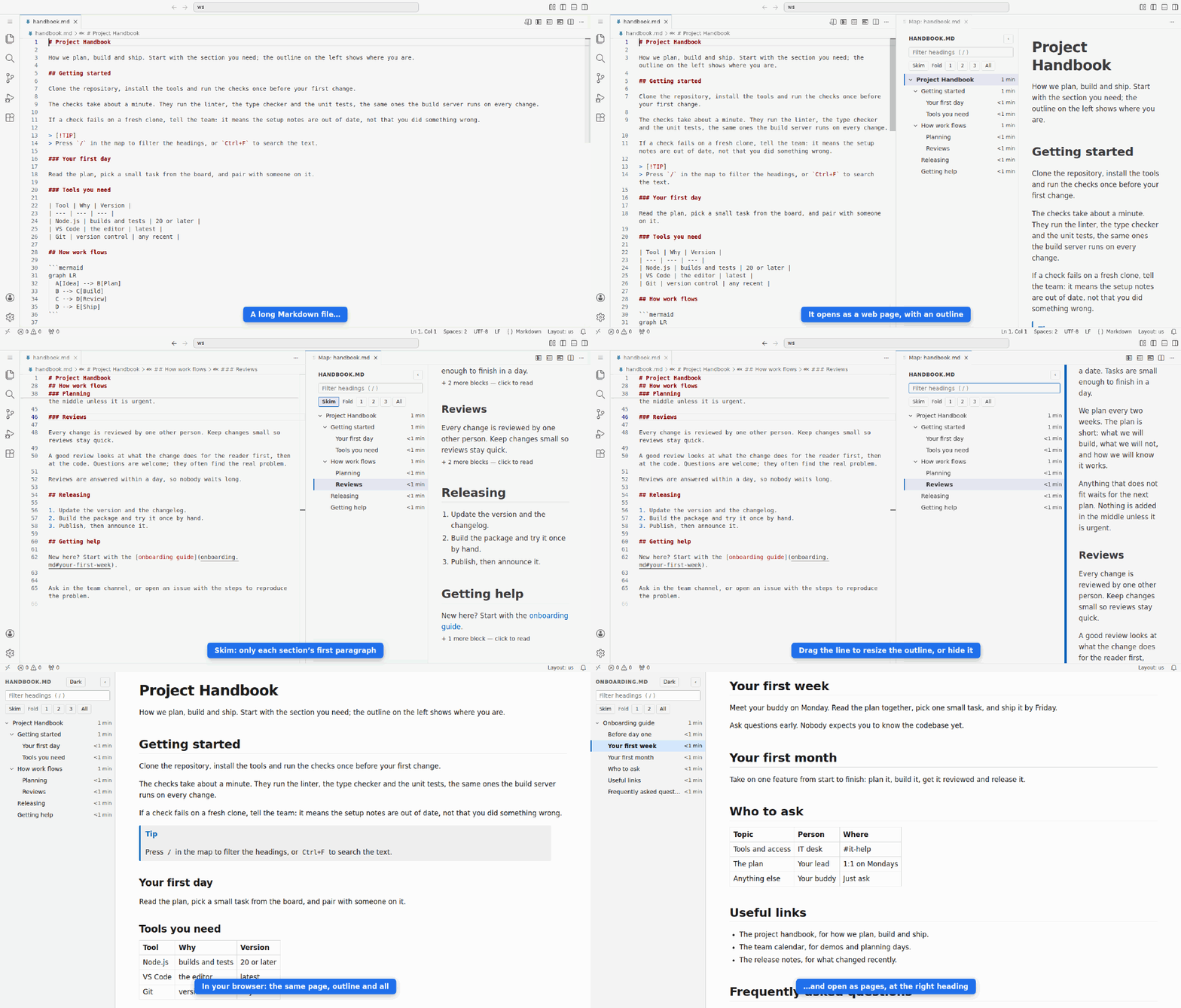
Read long Markdown files in VS Code the way you read a good web page: the text on the right, an outline of every
heading on the left, and a marker that shows where you are.
It only reads your files. It never changes them, and it collects and sends nothing.
How to use it
- Open any Markdown (
.md) file.
- Click one of the three buttons at the top right of the editor:
- Open Map to the Side: the page opens next to your file. Click a heading and the file jumps there.
- Open Map in This Tab: the page takes the whole tab, for reading.
- Open Map in Browser: the page opens in your web browser. You can keep it, share it, or print it. The
Markdown files it links to open as pages too, so its links work in the browser.
- Read. Click any heading in the outline to go to it.
You can close the Markdown file's tab and keep reading: the page stays open.
What you can do
- Find your way: the outline shows every heading, and the one you are reading is highlighted. Fold parts of the
outline, or type
/ to filter it.
- Resize or hide the outline: drag the line between the outline and the text to make the outline wider or
narrower, or drag it all the way left to hide it. The ‹ button hides it too and › brings it back
(Ctrl+B / Cmd+B in the browser). Double-click the line for the normal width. Your choice is remembered.
- Search the text:
Ctrl+F (Cmd+F on a Mac).
- Follow links: a link to another Markdown file opens that file's page, at the right heading.
- Pick up where you left off: open a file's page again, even after restarting VS Code, and it goes back to the
section you were reading.
- See all your docs: Markdown Map in the Explorer sidebar lists every Markdown file in your folder with its
headings. Click one to open it.
- Diagrams:
```mermaid blocks are drawn as diagrams.
- README pictures and HTML: pictures added with HTML (
<picture>, <img>) show, in the light or dark
version that matches your theme. Fold-out sections, keyboard keys and other simple HTML show too.
- Print or save as PDF: open the page in your browser and print it. You get the document alone, dark text on
white, with every section open.
- Themes: the page uses your VS Code colours, light, dark and high contrast. The page opened in your browser has
its own Light / Dark switch.
- Reading time: each outline entry shows how long its section takes to read, for example 4 min. Hover over
it for the word count.
- Skim (key
s): each section shows only its heading and first paragraph. Click to read the rest.
- Fold to a level (keys
1, 2, 3, or 0 for all): show the document down to one heading level.
- Structure hints: in notes with few real headings, lines that act as headings (a line of bold text, or a
numbered line like
2.1 Title) appear in the outline in italics.
- GitHub extras: note boxes (
> [!NOTE]), task lists (- [ ] item) and footnotes show formatted.
Prefer a plain outline? Turn off Reading Tools in Settings.
Settings
To change them: open the Extensions view, click the gear icon on Markdown as Web Page and choose Settings.
Or open File → Preferences → Settings (Mac: Code → Settings) and search for docmap. Each setting shows as
Docmap: ….
| Setting |
What it does |
Default |
| Reading Tools |
Skim, fold to a level, reading times and structure hints. |
On |
| Infer Headings |
When structure hints show up: only in files with few headings, always, or never. |
Only in files with few headings |
| Remember Place |
Go back to the section you were reading when you open a file's page again. |
On |
| Diagrams |
Draw ```mermaid blocks as diagrams. |
On |
| Update Debounce Ms |
How long to wait after you stop typing before the page updates. |
300 ms |
| Large File Bytes |
Files bigger than this ask before they open. |
5 MB |
Keys in the page
| Key |
Does |
/ |
Filter the outline |
Ctrl+F / Cmd+F |
Find text in the document |
↑ ↓ |
Move through the outline |
← → |
Fold or unfold a heading |
Enter |
Go to the heading |
s, 1 2 3 0 |
Skim and fold to a level (with Reading Tools on) |
Ctrl+B / Cmd+B |
Hide or show the outline (in the browser page) |
Privacy
Nothing leaves your computer. No accounts, no tracking. The only thing stored is which section you were reading
in each file (the heading's name, never the text), in VS Code's own storage. Turn it off with Remember Place.
Problems or ideas
Open an issue: https://github.com/kish21/docmap-media/issues
| |

