Skip to content
| Marketplace
Sign in
Visual Studio Code>Programming Languages>SQLite DB ViewerNew to Visual Studio Code? Get it now.
SQLite DB Viewer

SQLite DB Viewer

keyshout

|
905 installs
| (2) | Free
Native-feeling SQLite database viewer for VS Code
Installation
Launch VS Code Quick Open (Ctrl+P), paste the following command, and press enter.
Copied to clipboard
More Info

SQLite DB Viewer

SQLite DB Viewer is a professional, feature-rich database explorer for Visual Studio Code. View, analyze, filter, and edit SQLite databases (.db, .sqlite, .sqlite3) directly within your editor. The interface is meticulously designed to match the native look and feel of VS Code, ensuring a seamless and intuitive workflow.


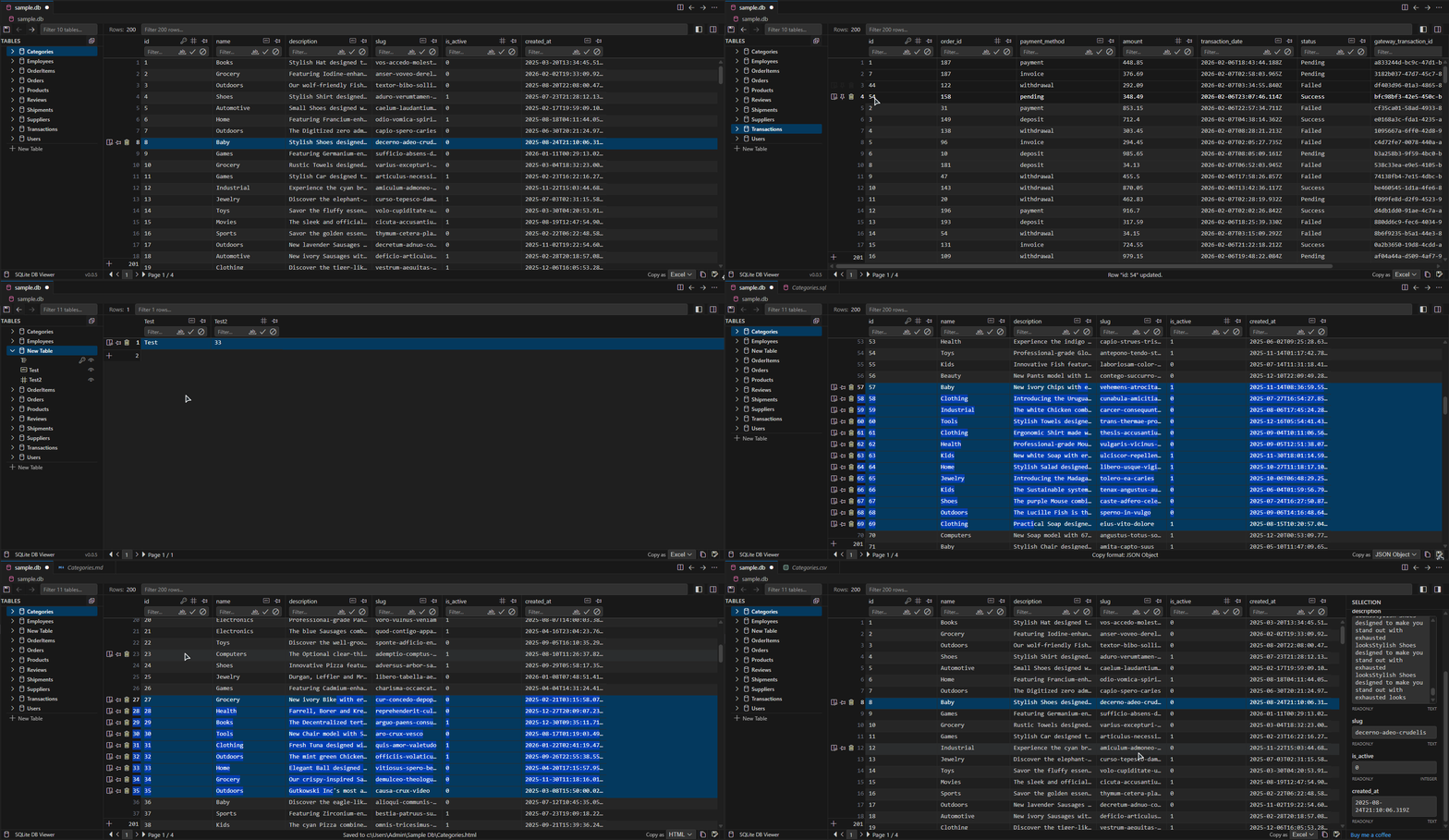
Quick Demo

Main UI


Features at a Glance

Feature Description
Native UI Automatically adapts to your VS Code theme (light, dark, high-contrast).
High Performance Handles large datasets with virtualized scrolling.
Full CRUD Create, Read, Update, and Delete tables and rows.
Advanced Filtering Global search and column-specific filters with operators.
Export CSV, TSV, JSON, HTML, Markdown, SQL, Excel formats.
Undo/Redo Full history tracking with Ctrl+Z / Ctrl+Y support.
Persistent History Close and reopen VS Code — your edit history is preserved.

Detailed Feature Guide

Table Management

Manage your database schema with ease. Create new tables, add columns, or delete tables entirely.

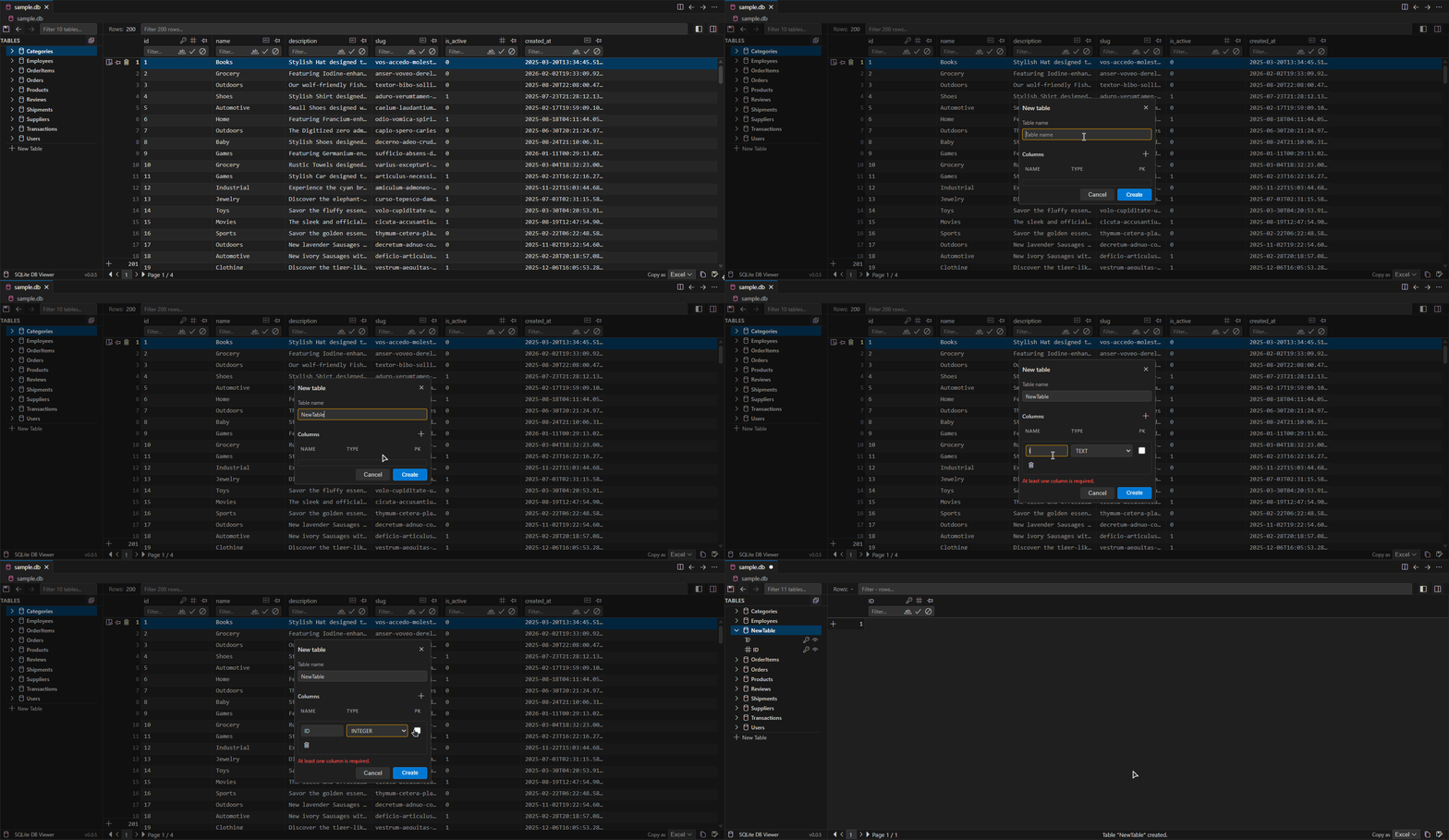
Creating a Table

Use the "Create Table" button in the sidebar to open the table creation modal. Define your table name, add multiple columns (with name and type), and optionally designate a Primary Key.

Create Table

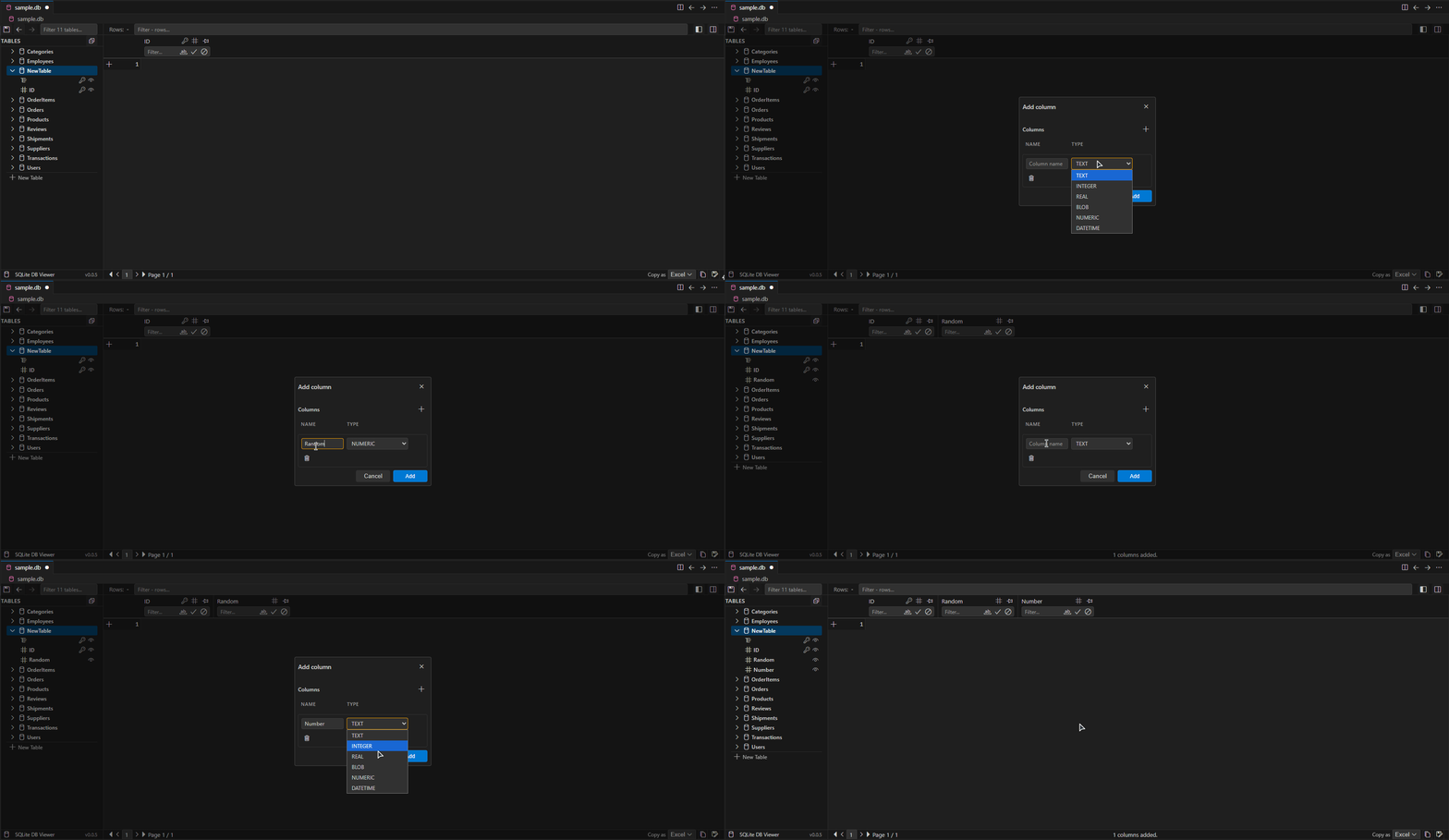
Adding Columns to an Existing Table

Right-click on any table in the sidebar and select "Add Column". The modal allows you to add one or more columns at once, each with a name and data type.

Add Column

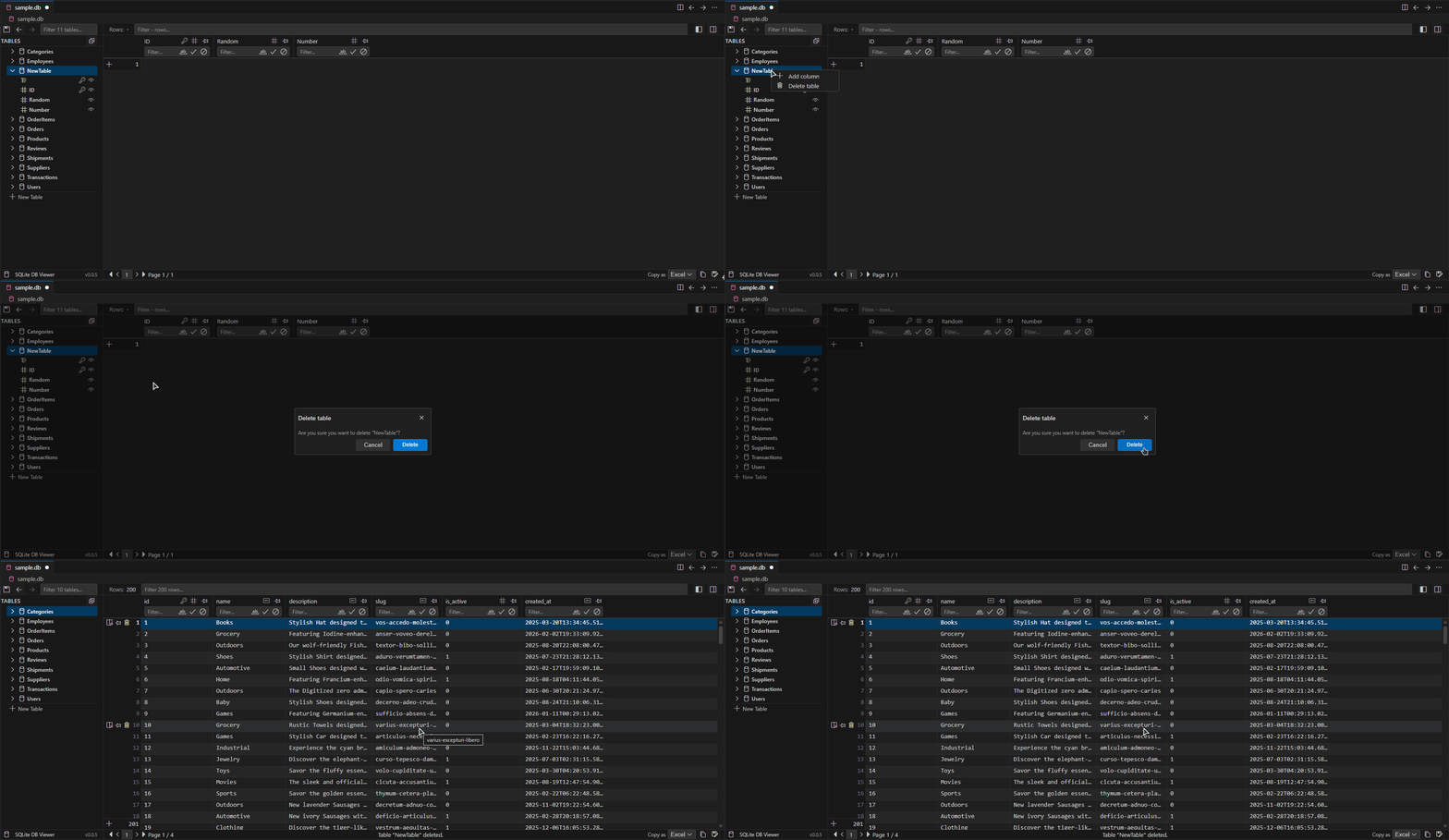
Deleting a Table

Right-click on the table name and select "Delete Table". A confirmation dialog will appear to prevent accidental deletions.

Delete Table


Row Management

Full control over your data rows with intuitive add, edit, and delete operations.

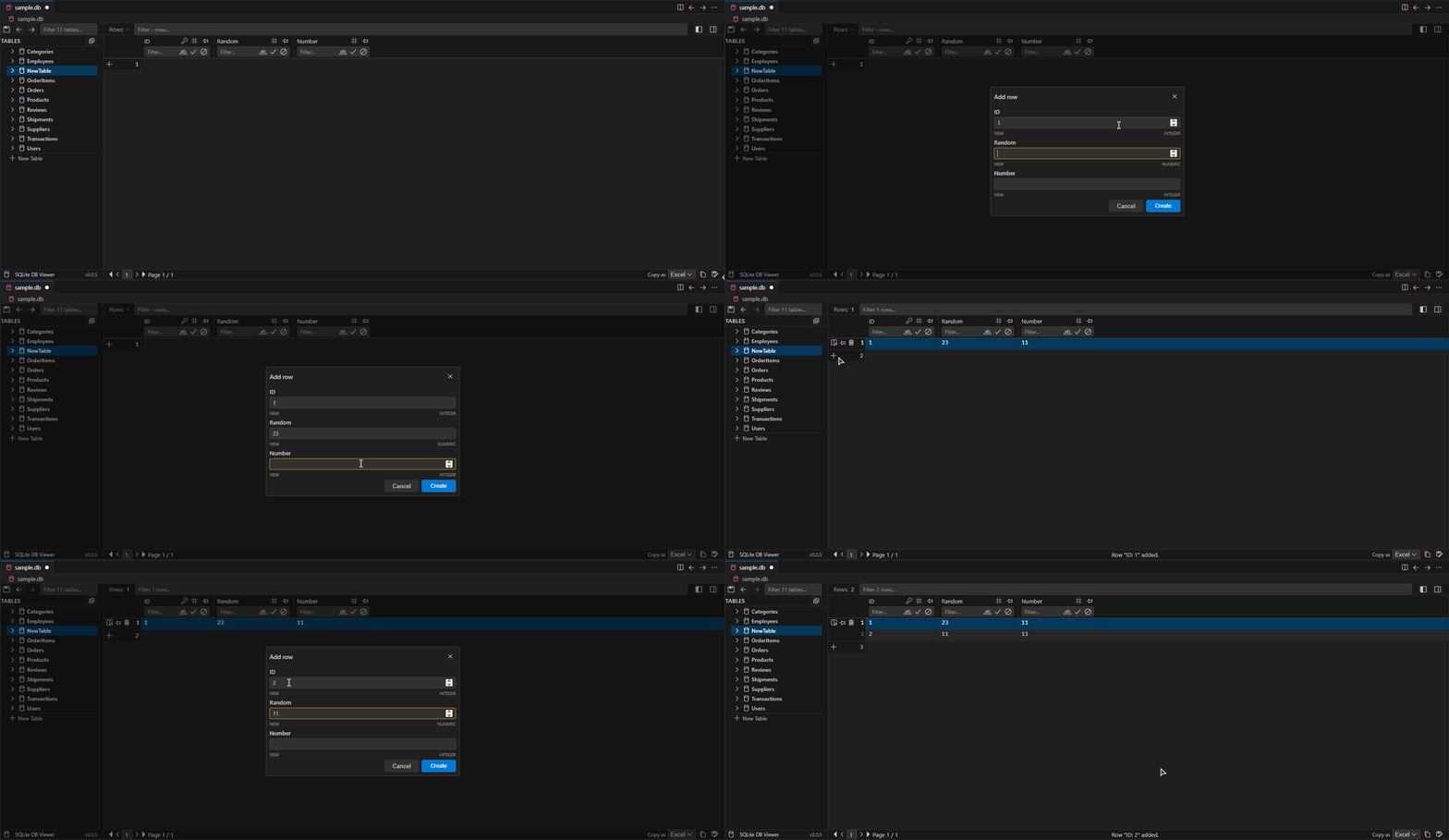
Adding a New Row

Click the "+ Add Row" button at the bottom of the data grid (or in the toolbar). A modal will appear with input fields for each column. Fill in the values and click "Add" to insert the new row.

Add Row

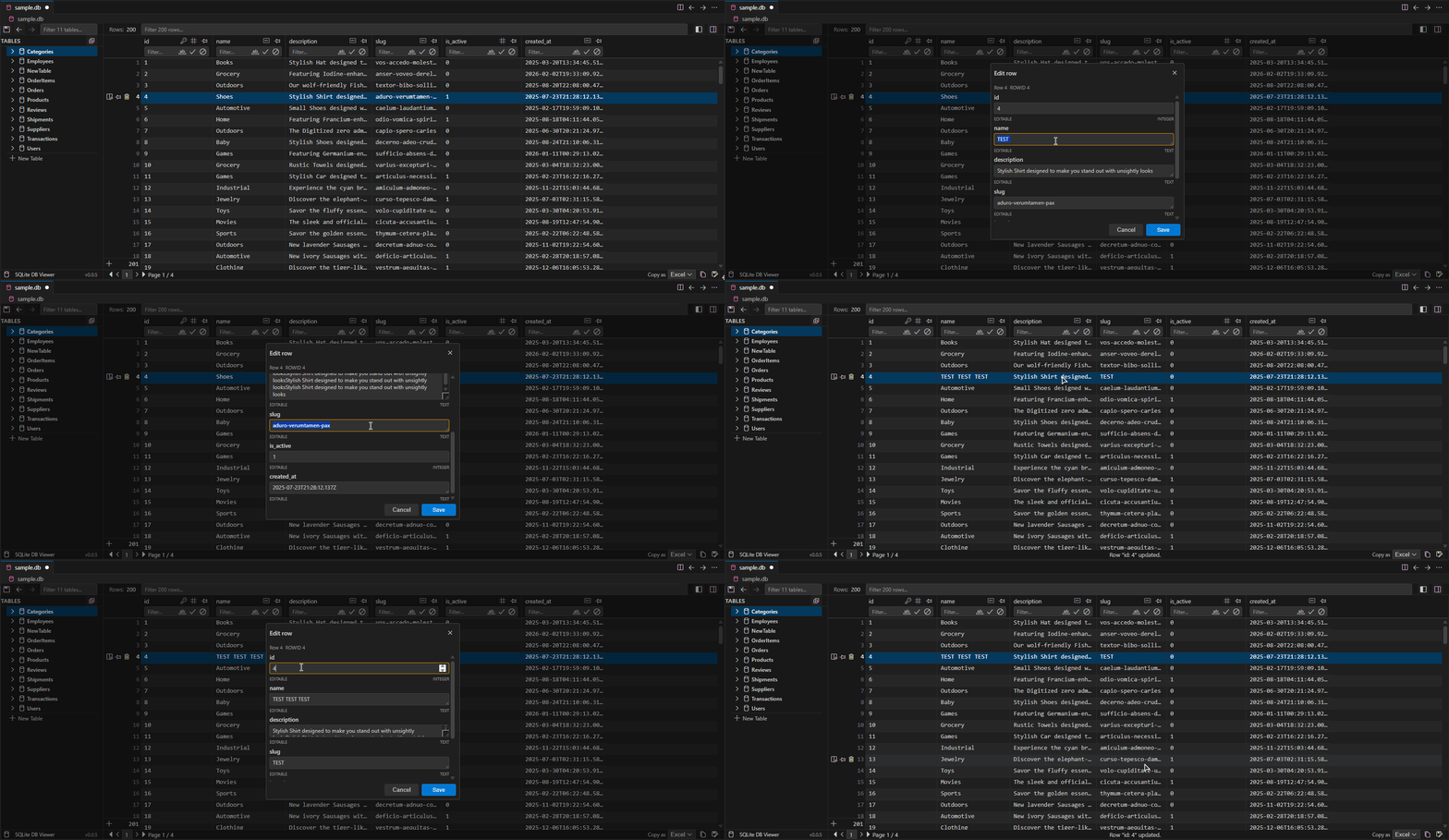
Editing a Row

Double-click on any cell to open the Edit Row modal. All columns are displayed in a form, and you can modify any value. Changes are validated in real-time (e.g., duplicate Primary Key detection).

Edit Row

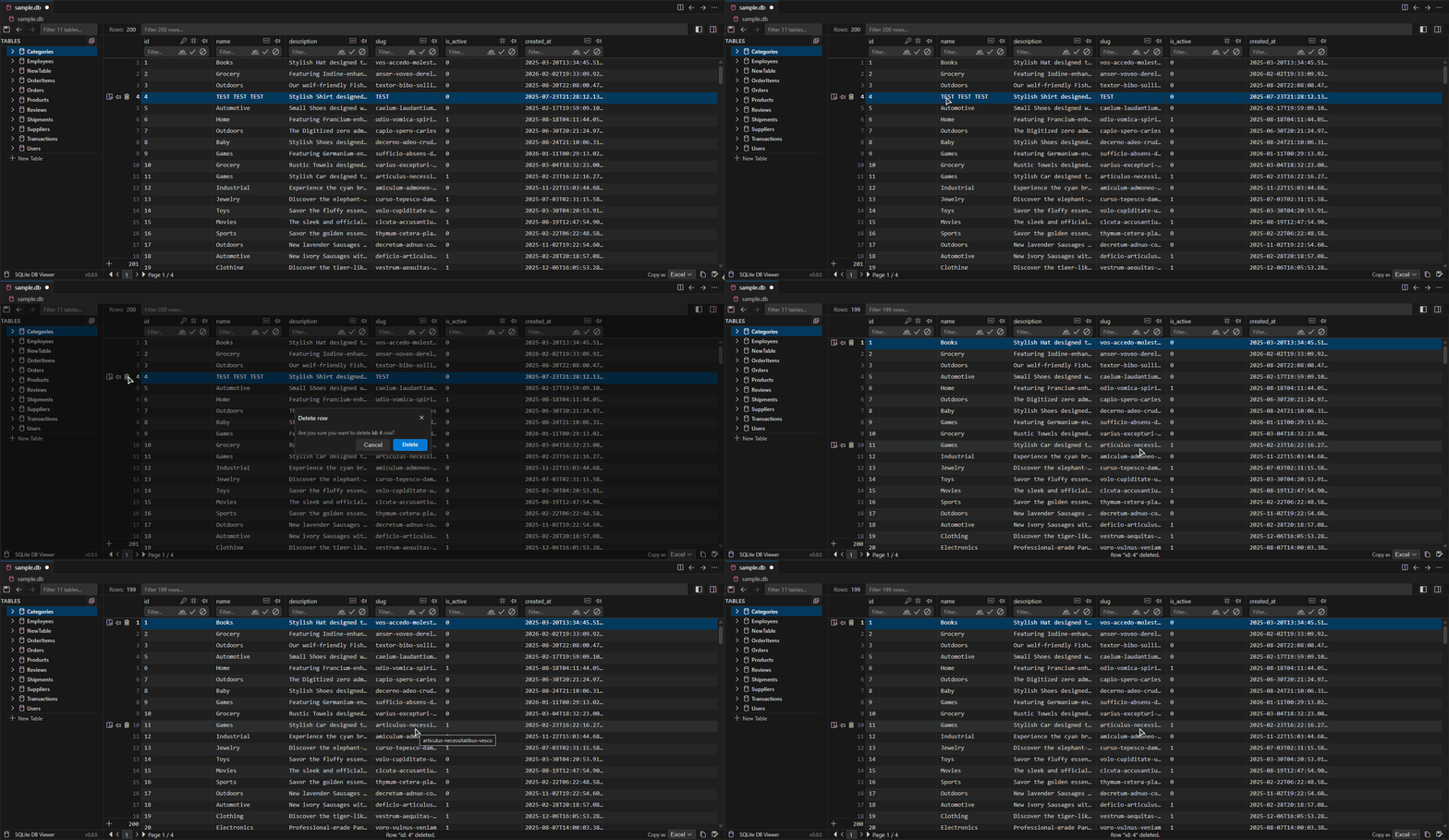
Deleting a Row

Right-click on a row to open the context menu, then select "Delete Row". A confirmation dialog will show the row's Primary Key or RowID for clarity.

Delete Row


Advanced Filtering

Find the data you need quickly with powerful search capabilities.

Global Search

The search bar in the toolbar filters rows across all columns instantly. Simply type your query and watch the grid update in real-time.

Column-Specific Filtering

Click the filter icon on any column header to apply precise filters. Supported operators include:

Operator Example Description
> > 100 Greater than
< < 50 Less than
= = John Exact match
*text *son Ends with
text* John* Starts with
!empty !empty Is not empty
!invert Toggle Invert filter results

Export Options

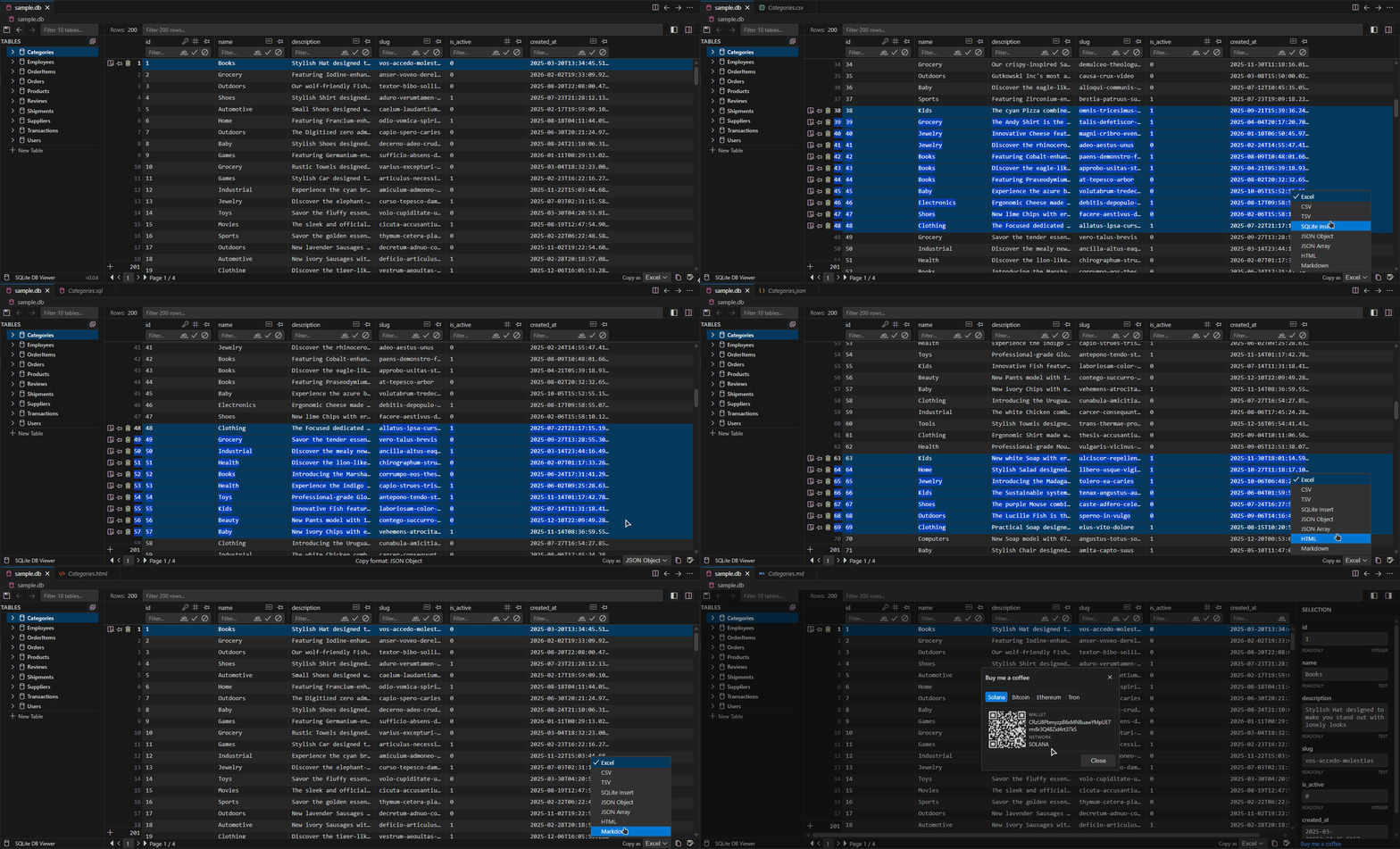
Export your data or query results in industry-standard formats. Right-click on the data grid or use the toolbar to access export options.

Format Use Case
CSV / TSV Spreadsheet analysis (Excel, Google Sheets)
Excel (.xlsx) Direct Excel import with formatting
JSON (Object) API integration, programmatic use
JSON (Array) Simple data structure
HTML Web publishing, documentation
Markdown README files, GitHub wikis
SQL INSERT Recreate data in another database

Export


Undo / Redo

All editing operations (insert, update, delete) are tracked. Use Ctrl+Z to undo and Ctrl+Shift+Z or Ctrl+Y to redo.

  • Persistent History: Your edit history survives VS Code restarts.
  • Smart Shortcuts: Keyboard shortcuts are disabled when history is empty.

Getting Started

  1. Install the extension from the VS Code Marketplace.
  2. Open any .db, .sqlite, or .sqlite3 file from the Explorer.
  3. Navigate tables using the sidebar.
  4. Analyze data with sorting, filtering, and column pinning.
  5. Edit by double-clicking cells or using the context menu.
  6. Export your data in the format you need.

Privacy and Security

Guarantee Description
Offline Runs entirely locally on your machine.
No Telemetry No data is sent to external servers.
Sandboxed Operates within VS Code's secure webview.

Requirements

  • Visual Studio Code 1.85.0 or higher.
  • A valid SQLite database file (.db, .sqlite, .sqlite3).

License

This project is licensed under the MIT License.


Support

If you find this extension useful, consider supporting its development:

  • Star the repository on GitHub.
  • Report bugs or suggest features via Issues.
  • Buy me a coffee (link in the extension's "Support" dialog).
  • Contact us
  • Jobs
  • Privacy
  • Manage cookies
  • Terms of use
  • Trademarks
© 2026 Microsoft