
Scopelet
Search your workspace and preview the matching code inline, without leaving the editor.
English · 简体中文
Find a file, search its contents, inspect a symbol, or follow a reference—then preview the code before opening it.
This page describes the VS Code distribution of Scopelet. Public documentation and issue reports are hosted in a documentation-and-artwork repository; the implementation source is currently private.
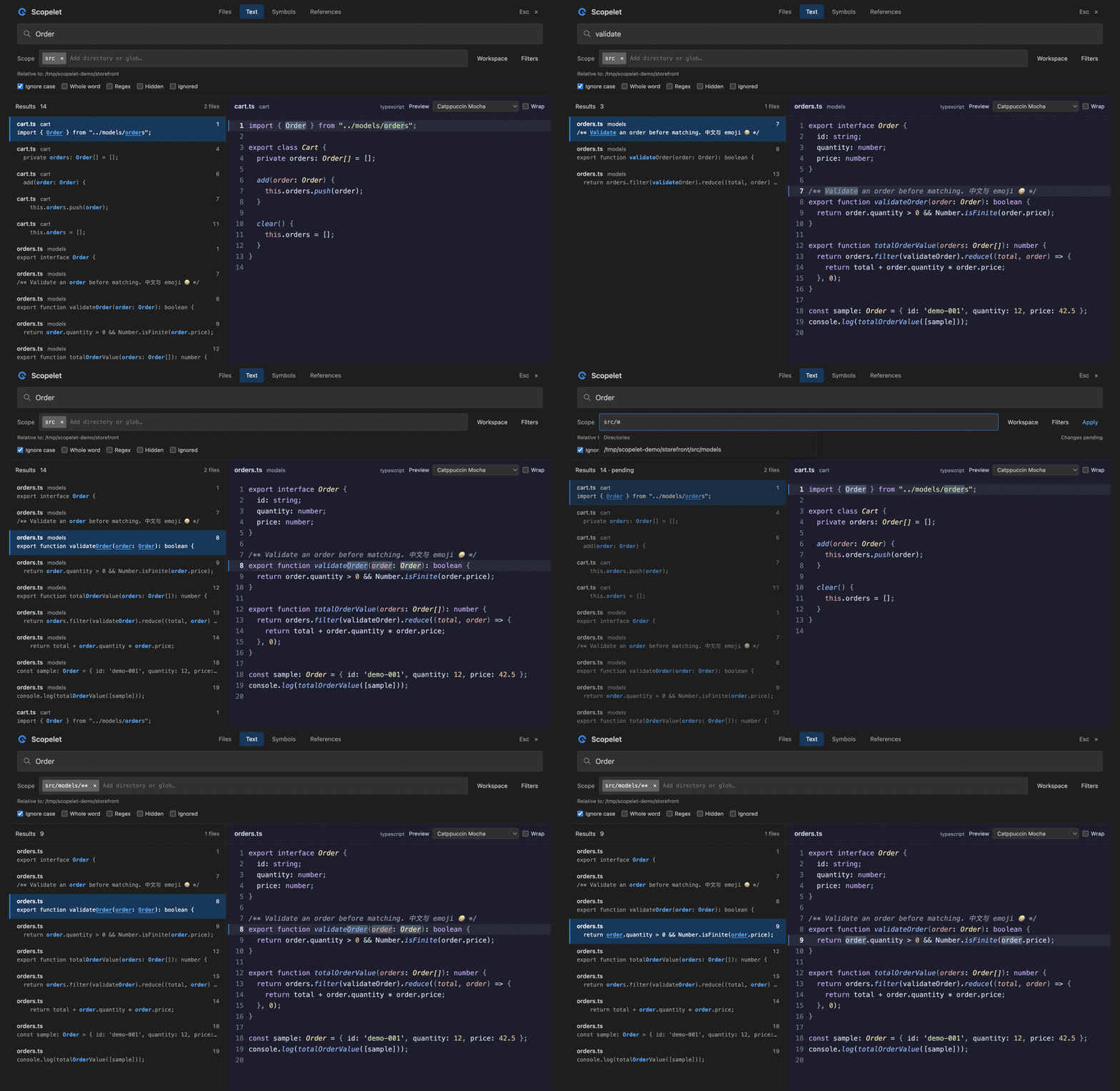
Recorded in VS Code with a small example project: search, keyboard navigation, and Scope/glob filtering. Static overview.
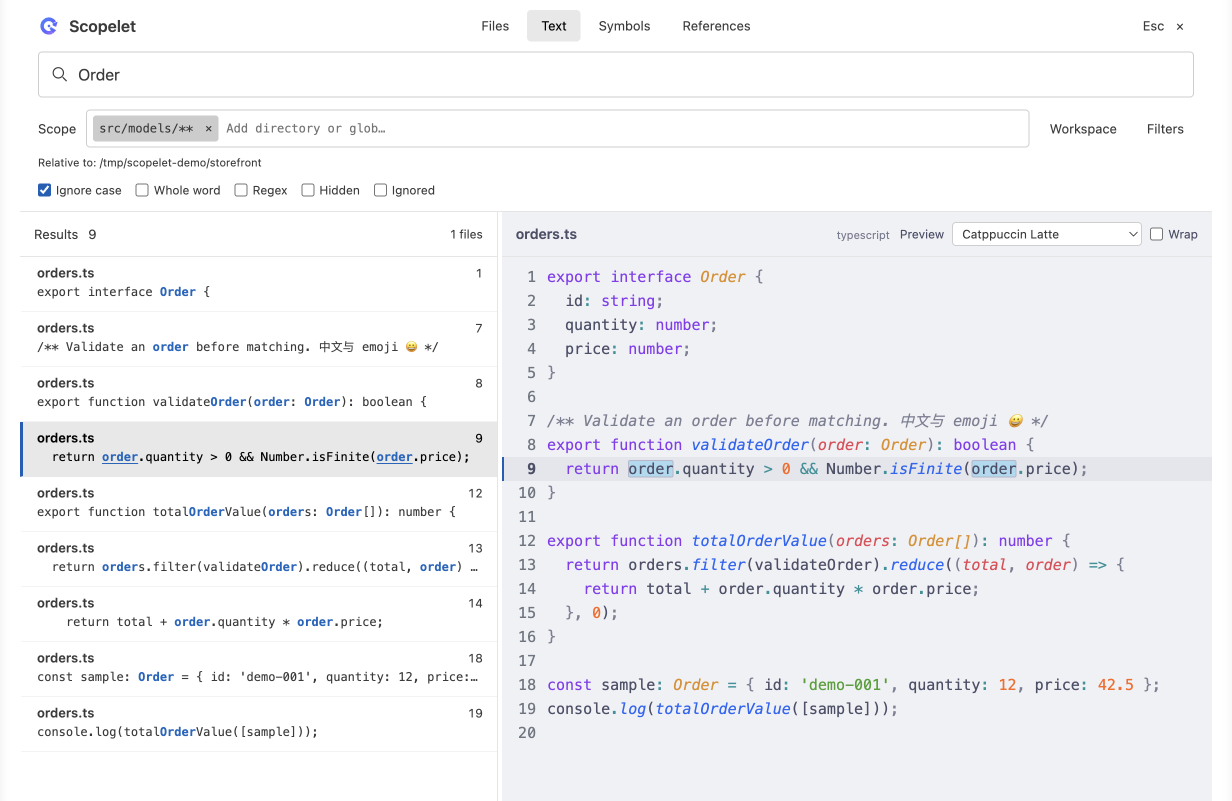
Light theme
Features
- Four search modes: fuzzy file search, text search, document symbols, and references at the cursor.
- Search your scope: multiple directory/glob chips, grouped scope history, path completion, collapsible Include/Exclude chips, case sensitivity, whole-word and regular-expression options, plus multiline literal search.
- Preview before opening: syntax highlighting, match markers, selectable preview themes, line wrapping, and bounded previews for large files and long lines.
- Stay on the keyboard: navigate results, scroll the preview, open a match, or return to the original editor selection. Search history and preview preferences are saved per workspace.
Requirements and installation
Scopelet requires an editor with VS Code API 1.100.0 or later and a trusted filesystem workspace. Symbol and reference search require a language extension that provides those features.
Trae CN with API 1.107.1 passed the isolated extension-host regression suite on macOS. API 1.100.0 is the declared compatibility floor; official VS Code 1.100.0 has not been directly runtime-tested. For editors accepting only universal VSIX files, the universal package includes binaries for macOS ARM64, Windows x64, and WSL/Linux x64.
The tested environments are macOS on Apple Silicon, plus Windows and WSL tested by the maintainer. Recorded macOS validation includes VS Code 1.136.2. Linux outside WSL, Intel Macs, other architectures, SSH and containers still need validation.
The extension identifier is ke-yan.scopelet. Install a matching VSIX through Extensions: Install from VSIX…, or find Scopelet in the VS Code Extensions view when the release is available on the Marketplace. Packages target these extension hosts:
| Extension host |
Package target |
| Windows x64 |
win32-x64 |
| WSL x64 |
linux-x64 (install in the WSL window) |
| Apple Silicon Mac |
darwin-arm64 |
Early trial builds used scopelet-local.scopelet. That is a different extension ID: disable or uninstall the old trial extension when switching to ke-yan.scopelet, to avoid duplicate commands. Saved extension history/preferences are not automatically migrated. Later versions with the same ID can be installed over the existing version; reload the window when prompted.
Quick start
- Open a project and a source file.
- Open the Command Palette and run Scopelet: Search Text or Scopelet: Find Files.
- Enter a query, move through the results, and inspect the preview.
- Press Enter to open the selected result, or Esc to return to your original editor.
Scope accepts multiple directories or glob patterns, such as src and packages/*/src/**. Relative entries and filters use the displayed Relative to base. Use Enter in Scope or Apply to apply changes; Include/Exclude use Enter to add a chip and Ctrl+Enter to apply. Multiline paste preserves brace expressions such as *.{ts,tsx}. Filters stay collapsed until needed, and the existing directory-history clear command also clears saved scope groups.
Recent scopes show full paths, wrapping when needed. Click Remove beside an entry to remove it, or select it with the arrow keys and press Shift+Delete. This removes only the saved scope entry, without changing the current search or deleting files.
| Command |
What it does |
Scopelet: Find Files |
Find files by fuzzy name matching |
Scopelet: Search Text |
Search file contents within a directory or workspace |
Scopelet: Search Selection or Word |
Start a literal search using the selection or word at the cursor |
Scopelet: Document Symbols |
Browse symbols in the source document |
Scopelet: References at Cursor |
Find references to the symbol at the source cursor |
The search panel
- Files / Text / Symbols / References switch the search mode.
- Directory sets the search scope; Workspace searches workspace roots. Filters accepts one include or exclude glob per line, such as
**/*.ts or **/vendor/**.
- Ignore case, Whole word, and Regex control text matching. Multiline queries use literal matching.
- Hidden includes hidden files. Ignored includes files excluded by ignore rules such as
.gitignore. These are independent; .git metadata is always excluded.
- The left pane lists matches. The right pane previews the selected result; drag the divider to resize it. Preview and Wrap affect only the preview, not your editor theme or settings.
- Clear a text query to see recent searches. Use Ctrl+Enter to remember a completed text search, or open a result to remember it.
File and text searches read saved files on disk; Scopelet does not save your edits automatically. The preview can show an already-open document's unsaved contents and labels that state. Results may therefore differ until you save and search again.
Keyboard controls
These shortcuts work inside the Scopelet panel. Ctrl means the Control key, including on macOS.
| Key |
Action |
Ctrl+J / Ctrl+K |
Select the next / previous result; return focus from option controls to the search input so Enter can open it |
Enter |
Open a result, accept a directory, or restore a history entry |
Ctrl+Enter |
Apply pending filters; otherwise remember the completed text search |
Ctrl+U / Ctrl+D |
Scroll the preview up / down by half a page |
Ctrl+Alt+H / Ctrl+Alt+L |
Scroll the preview horizontally |
Tab / Shift+Tab |
Move between controls |
Esc |
Close Scopelet and restore the source editor |
Scopelet does not assign global shortcuts. For example, merge these entries into your editor's keybindings.json:
[
  { "key": "ctrl+alt+f", "command": "scopelet.findFiles", "when": "editorTextFocus" },
  { "key": "ctrl+alt+g", "command": "scopelet.searchText", "when": "editorTextFocus" }
]
Optional VSCodeVim bindings
Merge these into your existing VSCodeVim settings, replacing any conflicting mappings:
{
  "vim.leader": ",",
  "vim.normalModeKeyBindingsNonRecursive": [
    { "before": ["<leader>", "f", "f"], "commands": ["scopelet.findFiles"] },
    { "before": ["<leader>", "f", "g"], "commands": ["scopelet.searchText"] },
    { "before": ["<leader>", "f", "G"], "commands": ["scopelet.searchSelection"] },
    { "before": ["<leader>", "f", "s"], "commands": ["scopelet.documentSymbols"] },
    { "before": ["<leader>", "f", "w"], "commands": ["scopelet.references"] }
  ],
  "vim.visualModeKeyBindingsNonRecursive": [
    { "before": ["<leader>", "f", "G"], "commands": ["scopelet.searchSelection"] }
  ]
}
Configuration
Search for Scopelet in Settings. Common settings, shown with their defaults:
The default layout uses compact spacing similar to 0.1.7, with 12px result names and 11px secondary text.
{
  "scopelet.maxResults": 2000,
  "scopelet.maxFileCandidates": 100000,
  "scopelet.ui.fontSize": 12,
  "scopelet.preview.fontSize": 0,
  "scopelet.preview.theme": "auto",
  "scopelet.preview.wordWrap": false
}
scopelet.ui.fontSize adjusts interface text (11–20px, default 12). scopelet.preview.fontSize adjusts code independently (0 follows editor.fontSize; positive values are clamped to 8–40px). For a compact preview, try 12. Close and reopen Scopelet after changing either setting; your editor font is unchanged.
Choose from 65 bundled preview themes plus Auto, including all four Catppuccin flavors (Latte, Frappé, Macchiato, Mocha), Dracula, Tokyo Night, Gruvbox, Rosé Pine, Kanagawa, Ayu, GitHub, Nord, Monokai, Solarized, Material and more. The preview selector groups themes by dark/light appearance; Scopelet: Select Preview Theme opens a searchable picker.
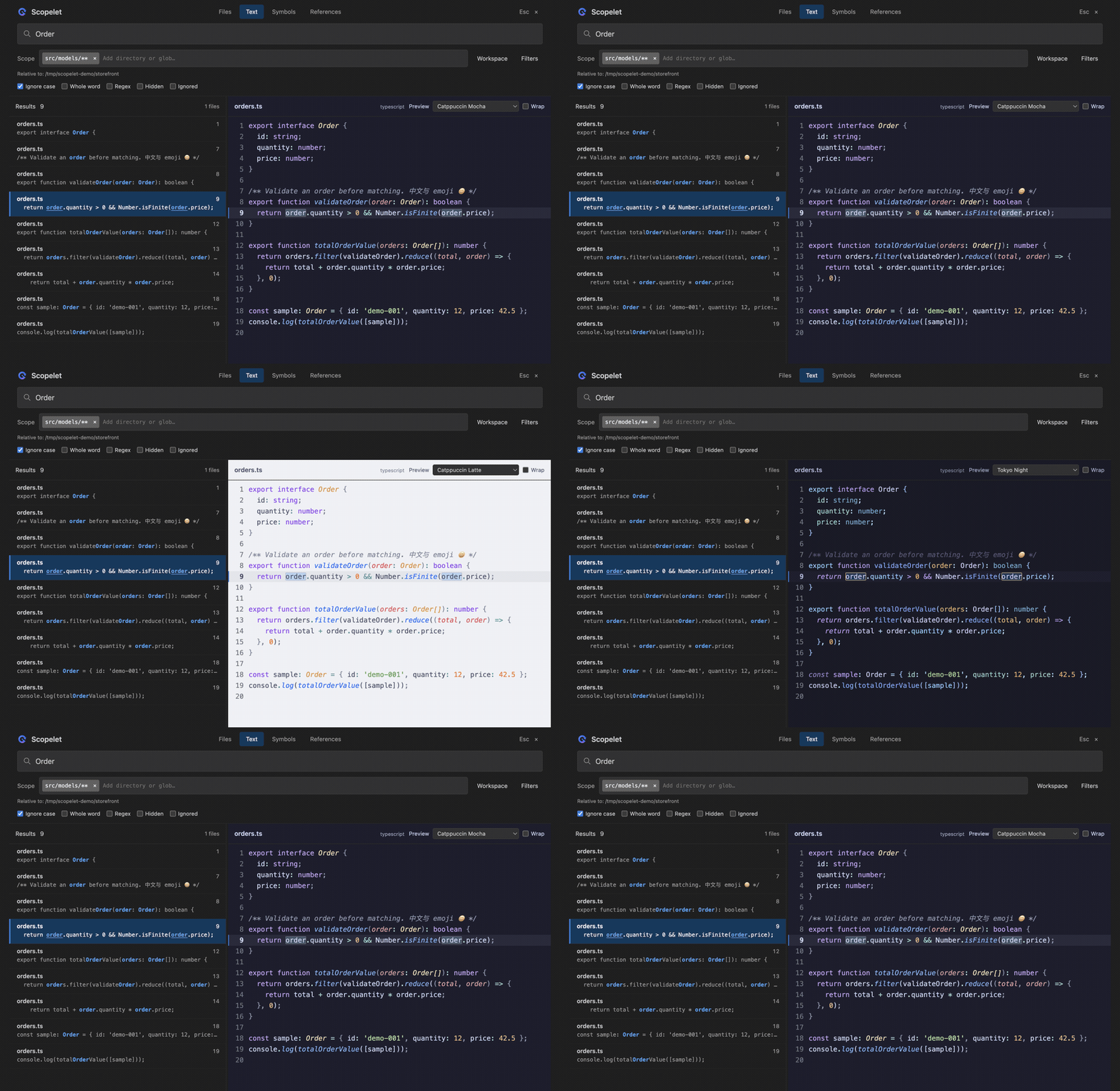
Change the preview palette without changing your editor theme.
Themes are included in the VSIX and loaded individually from local files when selected—no CDN or additional theme extension is required. Auto follows the editor's light/dark appearance; high-contrast mode prioritizes readability. Per-workspace choices made in the panel take precedence over the defaults; use Scopelet: Reset Preview Preferences to reset them. Command Palette actions also clear search history, directory history, or both.
Panel shortcuts can be customized through scopelet.keybindings, for example { "next": "ctrl+n", "previous": "ctrl+p" }. The Settings descriptions list the available actions and optional match colors.
Privacy and data
Scopelet processes your selected files and search queries in the extension host. It saves workspace search/directory history and preview preferences, and provides commands to clear or reset them. Scopelet has no developer-operated upload service or built-in telemetry. Language extensions, remote hosts, GitHub-hosted documentation, and issue submissions have separate data-handling boundaries. See the privacy notice for details and controls.
Support
Report bugs and suggest improvements through GitHub Issues. Include your VS Code version, OS/architecture, reproduction steps, and a small non-sensitive example. Issues are public: remove credentials, personal information, private paths, and proprietary code before posting. The public documentation repository is not a buildable source checkout.
License and acknowledgements
MIT. Third-party components retain their own licenses; builds include dist/THIRD_PARTY_NOTICES.txt.
Scopelet uses ripgrep, Shiki, fuzzysort, and picomatch. The interaction is inspired by Telescope.

