krplot: R Plots pane for VS Code
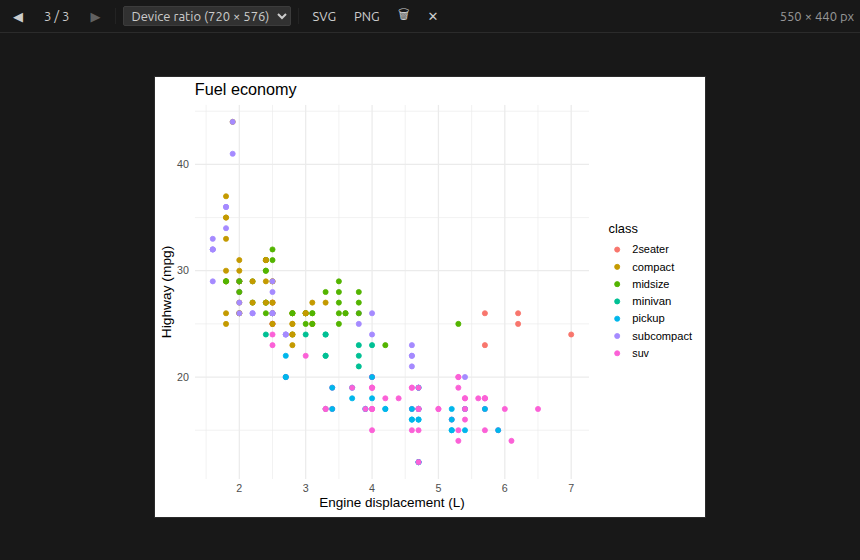
A dedicated R Plots pane for VS Code, like the Plots pane of RStudio or
Positron. Your R plots are displayed in a view of their own (bottom panel
or side bar), never as tabs in the editor area, and keep the aspect ratio
of the R graphics device.
Features
A real Plots pane: a view in the bottom panel that you can drag to
the secondary side bar (or anywhere else); VS Code remembers where you
put it. No more plot tabs mixed with your scripts.
Plot history: browse with the ◀ ▶ buttons or the Left/Right keys.
New plots are shown as soon as they are drawn.
Aspect ratio control, from the toolbar menu:
| Mode |
Behaviour |
| Device ratio (default) |
Keeps the ratio of the R device (720 × 576 px unless set otherwise), fitted to the view |
| Fill |
The plot takes the whole view |
| Keep ratio |
16:9, 4:3, 3:2, 1:1, 3:4, A4 portrait, A4 landscape or a custom ratio, fitted to the view |
| Fixed size |
Rendered at exact pixels (as when saved), scaled down to fit the view |
Plots are re-rendered by R at the displayed size (not stretched), so text
stays sharp and readable. The rendered size is shown on the right of the
toolbar. The choice is remembered and shared by all R Plots views.
Export the current plot as SVG or PNG.
Remove the current plot or clear all plots.
Separate window: open the plots in their own window, for example on
a second screen.
Open in browser: open the httpgd viewer of the session in your
browser.
Remote development: works with Dev Containers, WSL and Remote SSH
(the httpgd port is forwarded automatically).
Cross-platform: Linux, Windows and macOS.
Installation
Install krplot from the Extensions view of VS Code, or build it from
source.
From source
You need Node.js (18 or later) and Git. There is no
dependency to install and nothing to compile:
git clone https://github.com/kbosirany/krplot.vscode.git
cd krplot.vscode
npx @vscode/vsce package
This creates krplot-<version>.vsix in the folder. Install it with:
code --install-extension krplot-<version>.vsix
or from VS Code: Extensions view > ... menu > Install from VSIX....
Then reload the window.
The .vsix of each commit on main is also built by the CI: download the
krplot-vsix artifact from the run in the Actions tab of the
repository.
Requirements
R with the
httpgd package:
install.packages("httpgd")
An R session running in a VS Code terminal (R, radian, or the terminal
of the R extension).
The R extension (vscode-R) is not required, but works well alongside
krplot.
Setup
1. Send R plots to the pane
Add this block to your ~/.Rprofile (open it with
usethis::edit_r_profile() or file.edit("~/.Rprofile")):
# krplot: show R plots in the VS Code R Plots pane
if (
  interactive() &&
    Sys.getenv("TERM_PROGRAM") == "vscode" &&
    Sys.getenv("POSITRON_VERSION") == "" &&
    requireNamespace("httpgd", quietly = TRUE)
) {
  options(device = function(...) {
    httpgd::hgd(silent = TRUE)
    home <- Sys.getenv(
      if (.Platform$OS.type == "windows") "USERPROFILE" else "HOME"
    )
    dir <- file.path(home, ".krplot")
    dir.create(dir, showWarnings = FALSE)
    # URL, then device size: the view keeps this ratio by default
    writeLines(
      c(
        httpgd::hgd_url(),
        getOption("httpgd.width", 720),
        getOption("httpgd.height", 576)
      ),
      file.path(dir, "url")
    )
  })
}
It only applies to interactive R sessions started in a VS Code terminal
(not Positron, not scripts run with Rscript). It makes httpgd the
default graphics device and tells krplot where to find it.
2. If you use the R extension (vscode-R)
vscode-R starts its own plot viewer in the editor area, after your
.Rprofile has run. Make it leave the graphics device to krplot, in your
VS Code settings.json:
"r.plot.backend": "native"
krplot shows a notification to set it for you when vscode-R is installed
and this setting is missing.
3. Draw a plot
Open a new R terminal (the .Rprofile is read at startup) and run:
plot(1:10)
The R Plots view opens in the bottom panel. Drag its tab to the
secondary side bar (View > Appearance > Secondary Side Bar) to get an
RStudio-like layout.
Usage
| Control |
Action |
| ◀ / ▶ (or Left / Right) |
Previous / next plot |
n / N |
Position in the plot history |
| Size menu |
Device ratio, fill, fixed ratio or fixed size (see above) |
W × H fields |
Custom ratio or fixed size, shown when selected |
| SVG / PNG |
Save the current plot |
| 🗑 |
Remove the current plot |
| ✕ |
Remove all plots |
W × H px |
Size at which the plot is rendered |
| Command |
Description |
R Plots: Open in Separate Window |
Show the plots in a separate window |
R Plots: Open in Browser |
Open the httpgd viewer in the browser |
R Plots: Reload |
Reconnect to the latest R session |
Device size
The default Device ratio mode uses the size of the httpgd device,
720 × 576 px (5:4) unless you change it. To use another ratio, set these
options in your .Rprofile, before the krplot block:
options(httpgd.width = 800, httpgd.height = 450) # 16:9
Export
- SVG: vector file, rendered by R at the current rendered size.
- PNG: twice the rendered size for a sharp image, or exactly the given
pixels in Fixed size mode. Use Fixed size to export a plot at a
precise size.
Extension settings
| Setting |
Default |
Description |
krplot.revealOnNewSession |
true |
Reveal the R Plots view when an R session opens its first plot |
krplot.pollInterval |
400 |
Interval (ms) between checks of the R session for new plots |
How it works
- When R opens its first plot, the
.Rprofile block starts an httpgd
device (a local web server, on 127.0.0.1 only, protected by a random
token) and writes its URL and size to ~/.krplot/url.
- krplot watches this file, then polls httpgd for new plots.
- The view asks httpgd to render the current plot as SVG at the exact
size it needs.
Nothing leaves your machine: krplot only talks to the local httpgd
server.
Troubleshooting
- "No R session yet": the R session was started before the
.Rprofile block was added, or httpgd is not installed. Open a new R
terminal and check getOption("device") returns a function.
- Plots still open in an editor tab: set
"r.plot.backend": "native"
(vscode-R), then open a new R terminal. Check that no workspace
setting overrides it.
- Plots open in an X11 or Quartz window: check the
.Rprofile ends
with a newline after the last }; some R consoles (arf) drop a last
line without one.
- "R session not reachable": the R session displayed was closed. Draw
a plot in another session, or run
R Plots: Reload.
- Several R sessions: the pane shows the last session that opened a
plot device. Run
dev.off() then plot again in a session to show it.
- The size menu is not on Device ratio: your last choice is
remembered; select Device ratio again.
Known limitations
- One R session is displayed at a time (the last one to open a device).
- Plots drawn before the
.Rprofile block was loaded, or with another
device (png(), pdf(), ...), are not shown.
- PNG export rasterizes the SVG in the view; fonts missing on your system
are replaced.
Contributing
Issues and pull requests are welcome on
GitHub. See
CONTRIBUTING.md to run the extension from source.
License
MIT

