OpenChoreo for VS Code
Community-maintained by Kavith Lokuhewage, an OpenChoreo contributor. Learn about OpenChoreo at https://openchoreo.dev.
IDE-native tooling for the OpenChoreo developer platform — resource management, CRD editing with intelligent completions, and AI: OpenChoreo MCP servers registered from your login, the official OpenChoreo agent skills, custom agents and chat tools for Copilot, and one-click troubleshooting and fixes (see Copilot Chat Integration).
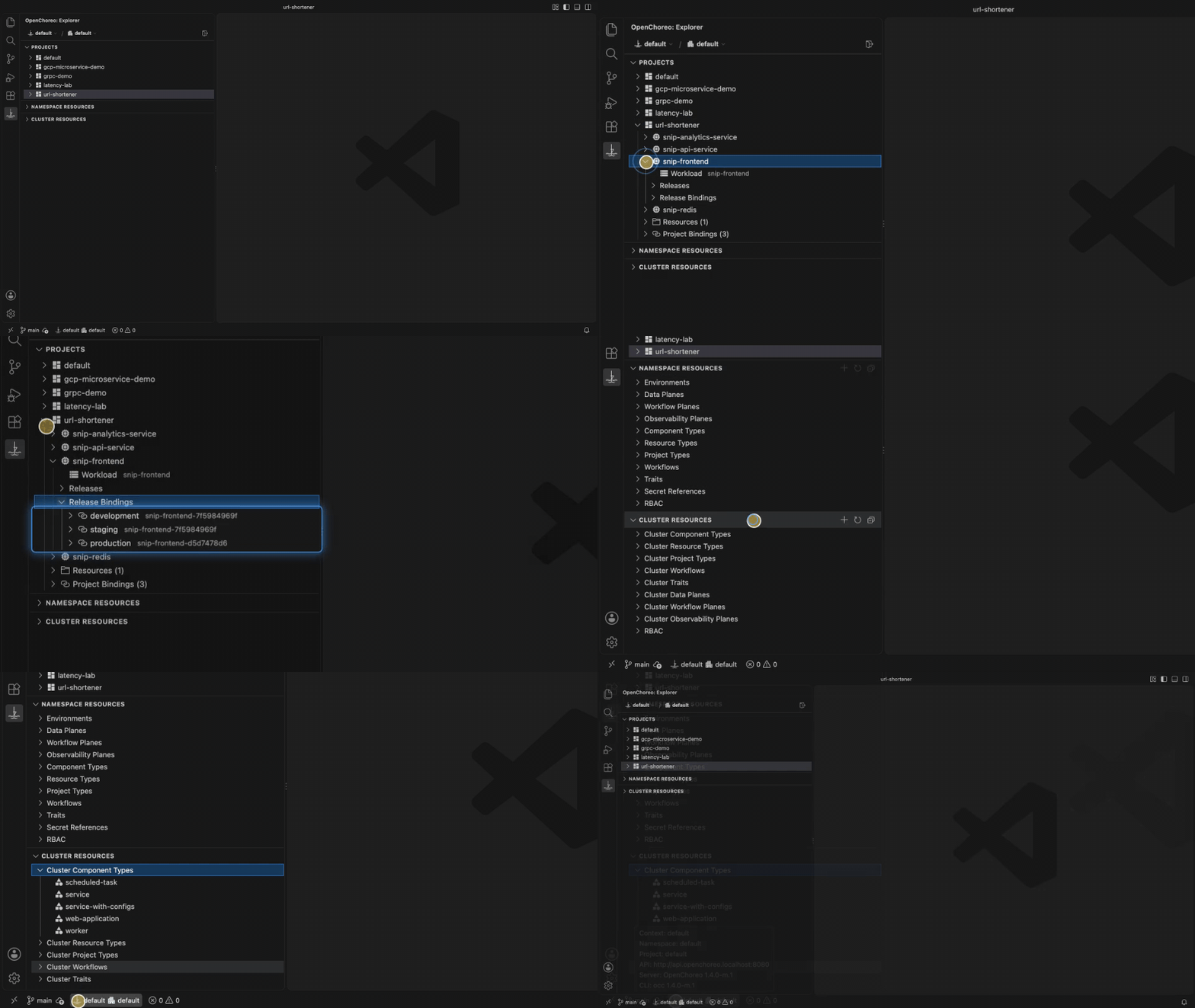
▶ Every feature in six minutes · The 90-second highlights · Each feature in a short video
Prerequisites
- VSCode 1.85+ (1.99+ recommended for MCP/Copilot features)
- occ CLI logged in — the extension reads authentication from the occ CLI config. If
occ isn't installed, the extension offers to download a verified copy (v1.3.3) on first run (macOS and Linux; on Windows, install it manually)
- OpenChoreo 1.3 recommended. Core features work against 1.1 and 1.2; features marked 1.3+ need a 1.3 control plane, and 1.4 milestone clusters are supported (see OpenChoreo version support)
Getting Started
- Install the occ CLI
- Log in to your OpenChoreo cluster:
occ login
- Install this extension
- The OpenChoreo icon appears in the activity bar — click to open
The extension automatically detects your occ CLI session and connects to the configured control plane.
Authentication & Security
The extension integrates directly with the occ CLI for authentication — it does not implement its own login flow or store tokens separately.
How It Works
- Login — handled entirely by the occ CLI (
occ login). The CLI performs a PKCE/browser-based OAuth flow and writes tokens to ~/.openchoreo/config
- Token reading — the extension reads JWT access tokens and refresh tokens directly from the occ CLI config file. No separate token storage.
- Token refresh — when the access token expires (checked via the JWT
exp claim with a 60-second buffer), the extension automatically refreshes it:
- Fetches OAuth metadata from
{controlPlaneUrl}/.well-known/oauth-protected-resource (RFC 9728)
- Discovers the token endpoint via
{authServer}/.well-known/openid-configuration (RFC 8414)
- Exchanges the refresh token for a new access token
- Writes the new tokens back to
~/.openchoreo/config — keeping CLI and extension in sync
- Periodic refresh — a background timer checks token freshness every 4 minutes to ensure tokens stay valid for MCP and API calls
- Config file watching — the extension polls
~/.openchoreo/config every 5 seconds for changes. When the CLI updates tokens (e.g., after occ login), the extension auto-detects the change
Shared Token State
The extension and occ CLI share the same config file (~/.openchoreo/config). This means:
- Both always agree on the current token, namespace, and context
- Switching namespace in the extension updates the CLI config (and vice versa)
- Token refreshes by either the extension or CLI are visible to both
- The config file uses
0600 permissions (owner read-write only)
MCP Authentication
Every OpenChoreo MCP server the extension registers receives the current Bearer token via HTTP headers. The token is refreshed automatically via the periodic refresh timer and session change events — ensuring MCP requests always use a valid token.
For clusters installed with authentication disabled, the extension registers the servers without an Authorization header and adds ?filterByAuthz=false to control-plane URLs so the platform's per-user tool filter doesn't hide the catalog. The OpenChoreo control plane still enforces its own authorization independently.
Enabling the MCP Servers in Copilot Chat
VS Code does not auto-start newly-registered MCP servers — this is a security feature of the MCP API, not something the extension can override. After the OpenChoreo extension activates:
- Open the Command Palette → MCP: List Servers.
- Find openchoreo-cp (and openchoreo-obs, openchoreo-sre, openchoreo-pe if registered) in the list.
- Click Start (you only need to do this once per machine).
- Open Copilot Chat → tools picker — the OpenChoreo tools are now available.
If the servers don't appear in the list at all, check that you are logged in via occ login and that the OpenChoreo Output panel shows a line like MCP servers providing: openchoreo-cp=<url>.
Security Notes
- Tokens are stored in plain text in the occ CLI config file (same model as kubectl/kubeconfig)
- The extension does not implement its own OAuth flow — it delegates to the occ CLI
- No tokens are stored in VSCode settings, extension storage, or keychain
- All API communication uses the control plane URL from the occ CLI config
Features
A unified webview sidebar replaces the traditional tree views, providing a richer experience:
Context Header — shows the current context and namespace as clickable chips with custom icons. Click to switch context or select a namespace.
Projects — Projects, Components, Deployment Pipelines, Workflow Runs, Releases, Release Bindings, Workloads, Resources (with their releases and bindings) and, on 1.3+, Project Bindings (each project's per-environment deployment of its project type)
Namespace Resources — Environments, Data Planes, Workflow Planes, Observability Planes, Component Types, Resource Types, Project Types (1.3+), Workflows, Traits, Secret References, RBAC Roles & Bindings
Cluster Resources — Cluster-scoped variants of infrastructure resources (including Cluster Resource Types and Cluster Project Types) and Cluster RBAC. Kinds the connected control plane doesn't serve yet show a "Requires OpenChoreo 1.3+" hint instead of an empty list
Each section has a title bar with create (+), refresh, and collapse all buttons.
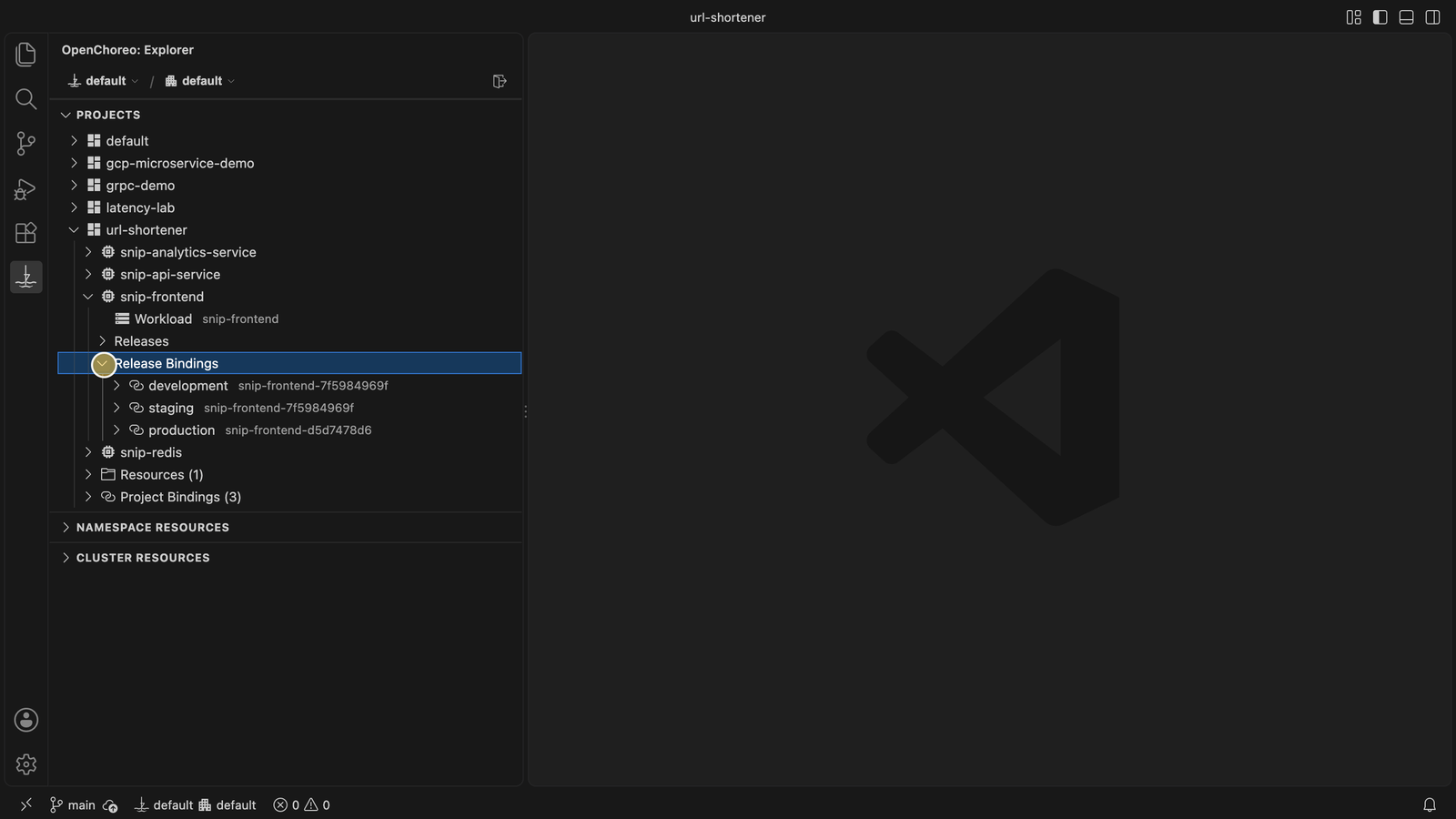
▶ Tour the sidebar · Switch namespaces
Selection & Keyboard Navigation — click to select and activate a node. Use arrow keys to navigate (Up/Down to move, Left/Right to collapse/expand, Enter to open, Space to toggle). Selection persists across view switches.
Indent Guides — vertical guide lines appear on hover at each depth level, with the selected node's guide rendered at full opacity for clarity.
Progress Indicators — section-level loading shows a native-style horizontal progress bar under the section header.
Custom Icons — resource types use Backstage Material UI icons via a custom WOFF2 icon font (openchoreo-icons), ensuring consistent visuals between the VS Code extension and the Backstage portal. Icons inherit the theme foreground color automatically.
Resources with a deletionTimestamp (being deleted) are shown with a (deleting) label and opened as read-only.
Resource Editing
Click any resource in the tree to open it as a YAML file. The extension uses a virtual filesystem (openchoreo://) that maps directly to the OpenChoreo API:
- Open — fetches the resource via GET and displays as clean YAML
- Edit — make changes in the editor, file becomes dirty (dot in tab)
- Save (Cmd+S) — pushes changes to the cluster via PUT with optimistic concurrency
- Last write wins — the OpenChoreo API applies a save to the resource as it is now (no optimistic concurrency), so reopen a resource that someone else may have changed since you opened it
- Read-only resources — Workflow Runs, Component Releases and Project Releases open as read-only (run history and immutable snapshots)
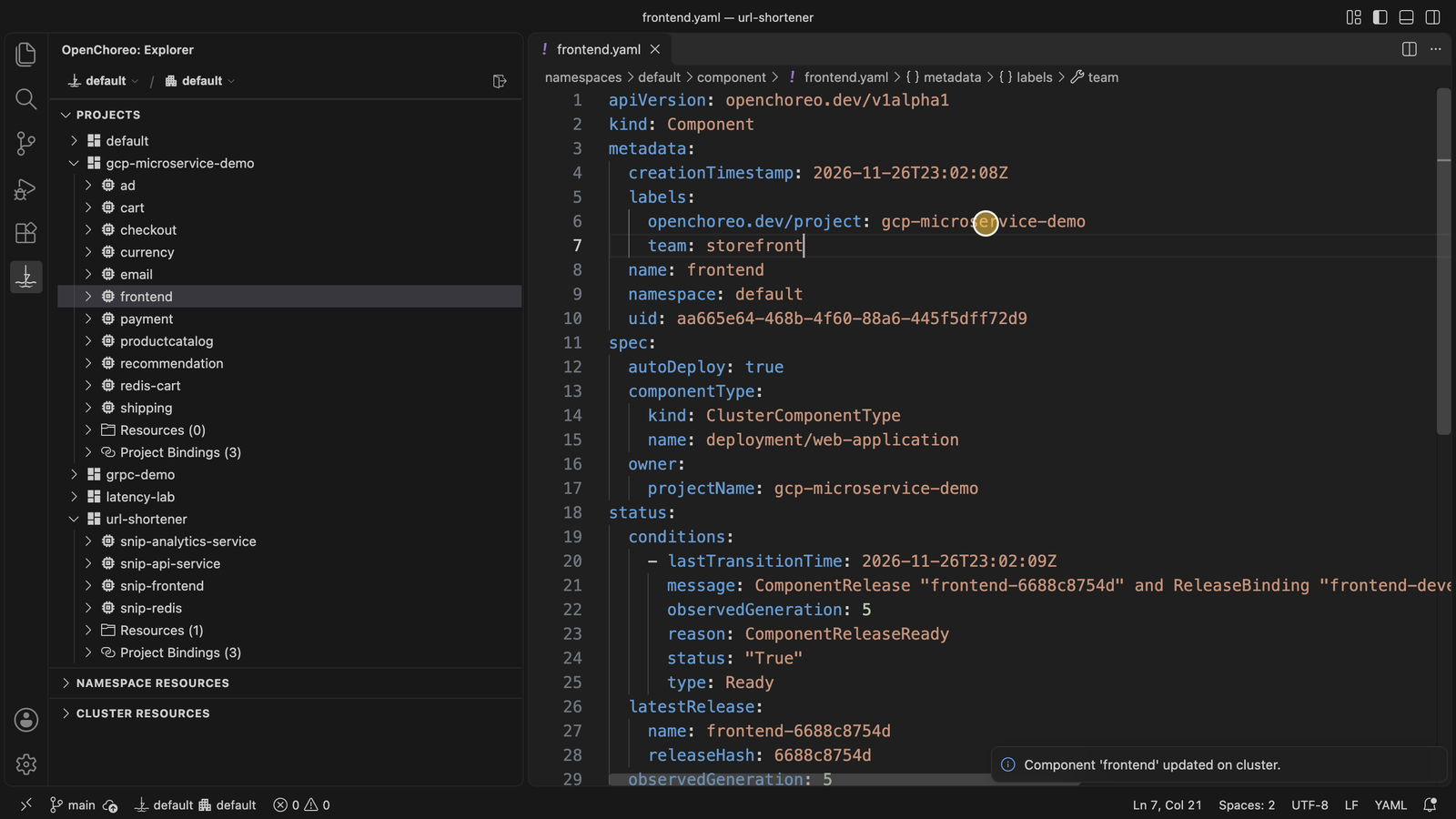
▶ Edit and save · Delete safely
Resource Creation
Click the + button on a tree category or project to create a new resource from a scaffold template:
- The scaffold opens as a dirty virtual file pre-filled with namespace and project context
- Edit the template, then Cmd+S to create the resource on the cluster (uses POST)
- After successful creation, the tab reopens pointing to the actual resource
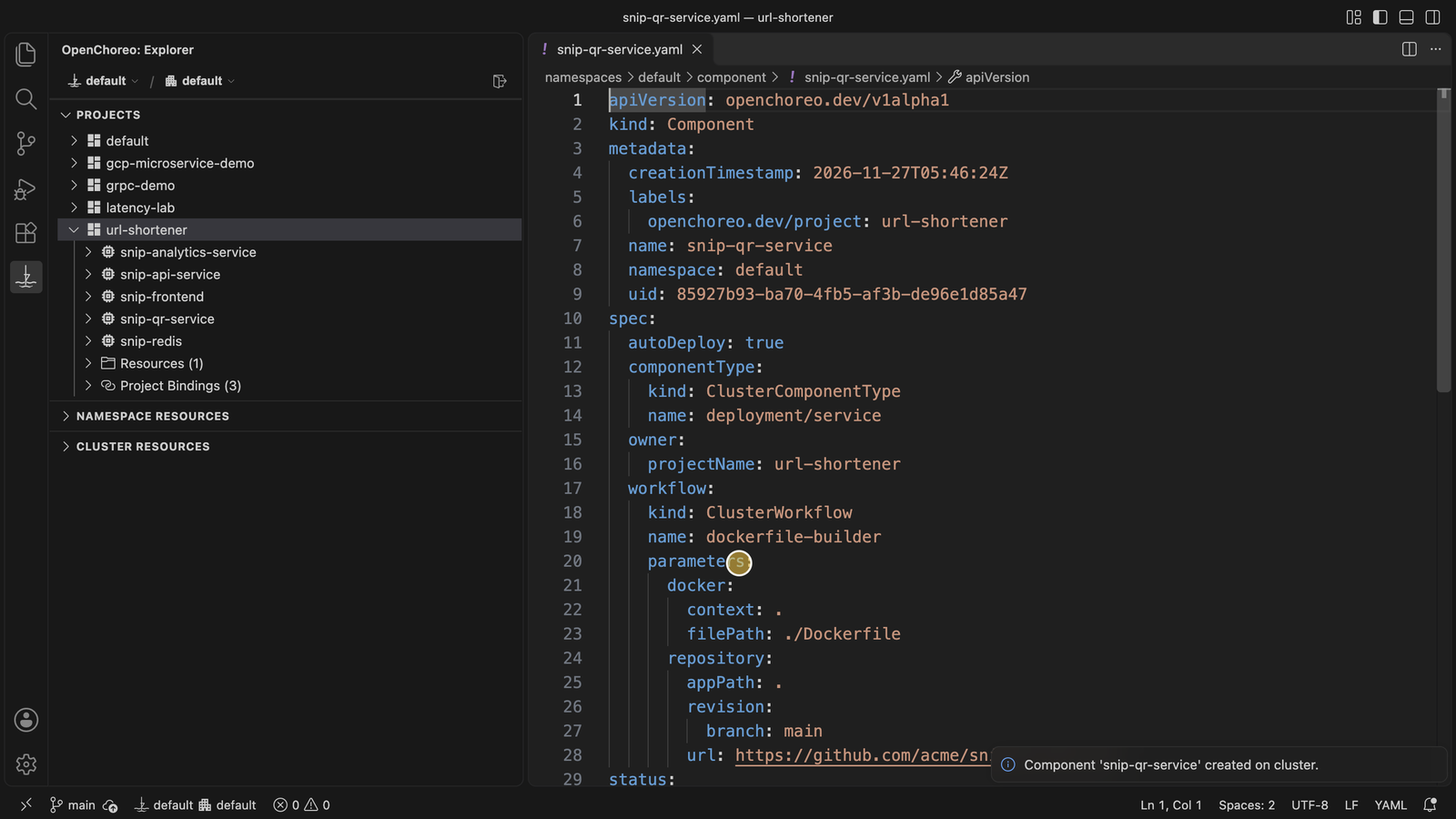
▶ Create a component
Available scaffolds: Project, Component, ComponentType, ProjectType, Trait, Environment, DataPlane, WorkflowPlane, ObservabilityPlane, Workflow, Workload, DeploymentPipeline, SecretReference, AuthzRole, AuthzRoleBinding, ClusterComponentType, ClusterProjectType, ClusterWorkflow, ClusterTrait, ClusterDataPlane, ClusterWorkflowPlane, ClusterObservabilityPlane, ClusterAuthzRole, ClusterAuthzRoleBinding
The Project scaffold includes the spec.type project type reference that OpenChoreo 1.3 requires (ClusterProjectType default), and leaves it out for older control planes.
Scaffold from Your Source Code
OpenChoreo: Scaffold Component from this Project inspects the open folder (Node, Go, JVM, Python, Dockerfile), proposes a Component and Workload, previews both as component.yaml and workload.yaml, and writes them to .openchoreo/component.yaml and .openchoreo/workload.yaml (and offers to commit them). The Component references a ClusterComponentType such as deployment/service and builds with a ClusterWorkflow, with the repository URL, branch and app path taken from the folder's git remote.
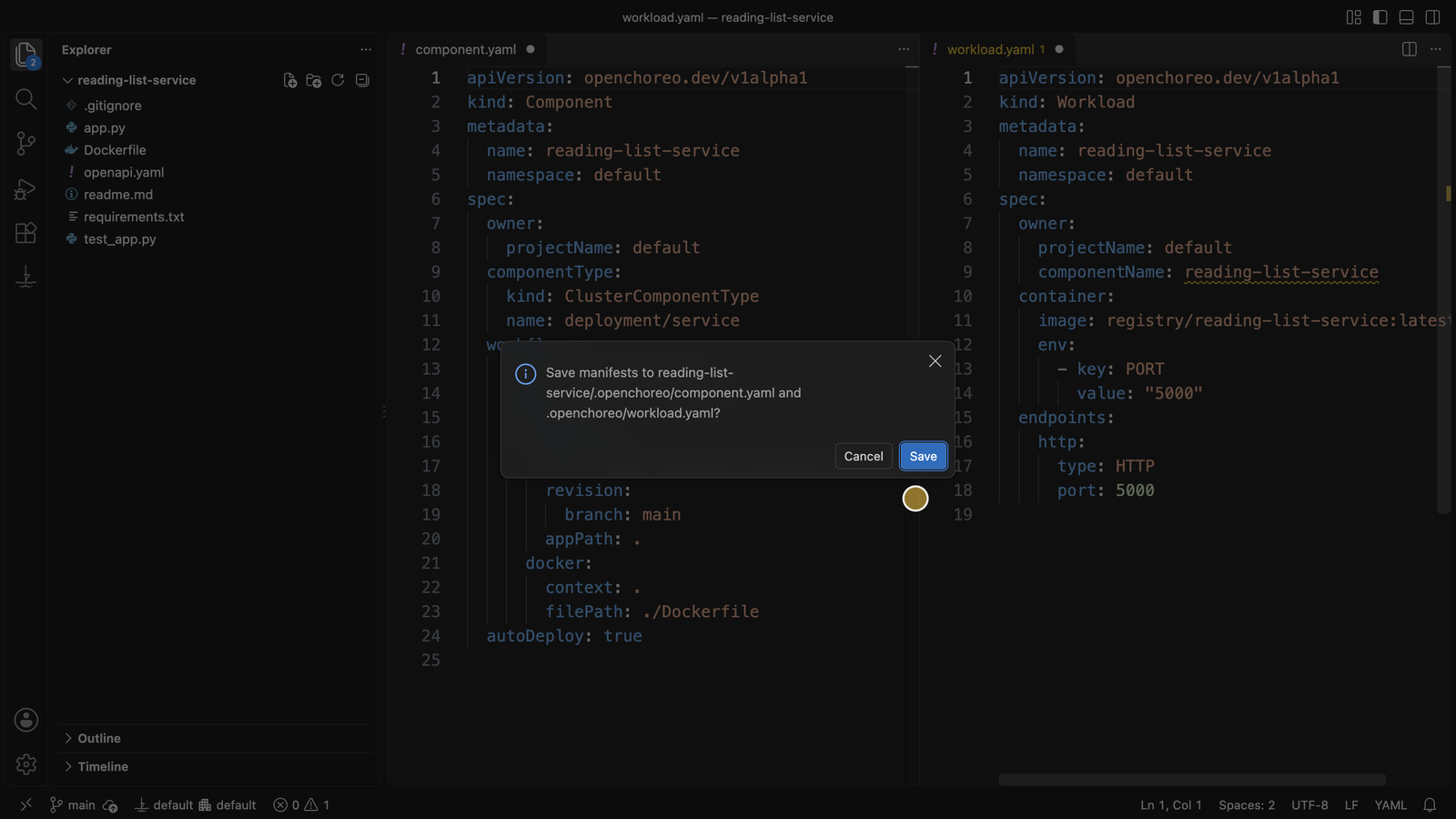
▶ From source to manifests
Create Namespace
The namespace selector includes a "Create New Namespace..." option at the bottom. Enter a name, and it creates the namespace via the API and switches to it automatically.
Create Context
The context switcher includes a "Create New Context..." option. Enter a context name and control plane URL, then authenticate via occ login in a terminal that opens automatically.
Workflow Run Observability
Expand any Workflow Run in the tree to see its step-by-step execution status:
- Colored status icons — green check (Succeeded), red X (Failed), spinning sync (Running), clock (Pending), skip (Skipped), warning (Error)
- Step timing — each step shows its phase and duration (e.g.,
Succeeded (2m30s))
- View Logs — right-click a Workflow Run → "View Logs" to stream all logs into an Output channel. Logs auto-refresh every 3 seconds while the channel is open
- View Events — right-click a Workflow Run → "View Events" to see all Kubernetes events with auto-refresh
- View Step Logs — right-click an individual step → "View Step Logs" to stream logs for that specific step only
- View Step Events — right-click an individual step → "View Step Events" to see events for that step only
- Empty state feedback — if no logs/events are available yet, a message is shown immediately (e.g., "No logs available yet") instead of a blank channel
- Auto-stop — streaming stops automatically after ~30s of no new data or ~9s of consecutive fetch errors
Enable openchoreo.autoRefresh in settings to automatically poll running workflow run status.
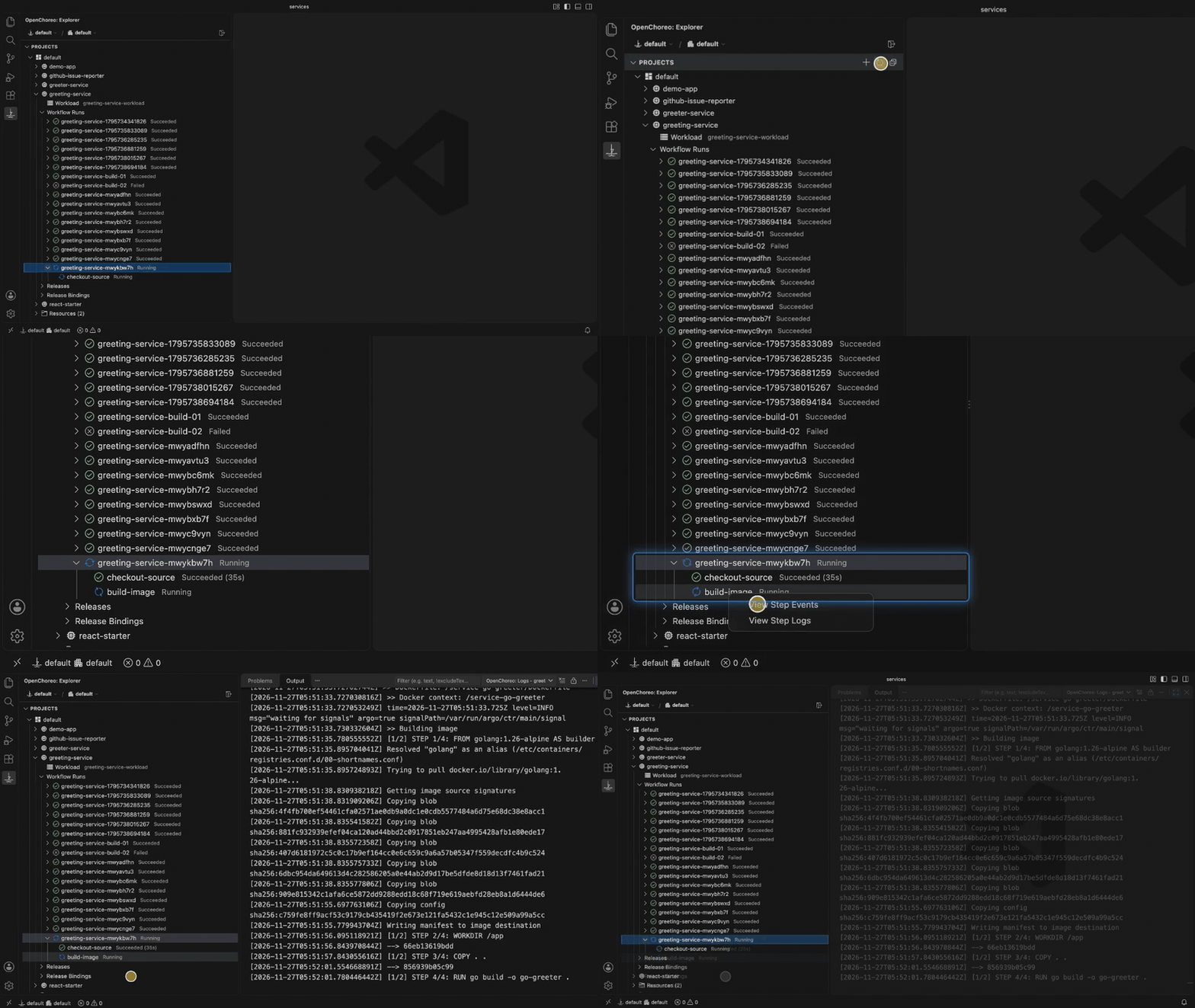
▶ Trigger a build · Live build logs · Find the failing step
Deployed Resource Tree
Expand any Release Binding in the tree to see the Kubernetes resources deployed by that release:
- Hierarchical view — shows the full resource hierarchy (e.g., Deployment → ReplicaSet → Pod)
- Health indicators — colored icons for Healthy (green), Degraded (yellow), Progressing (blue), Missing (red)
- View Definition — click any K8s resource to view its full YAML definition (read-only)
- Pod Logs — right-click a Pod → "View Pod Logs" to stream container output with auto-refresh
- Resource Events — right-click any deployed resource → "View Events" to see Kubernetes events with auto-refresh
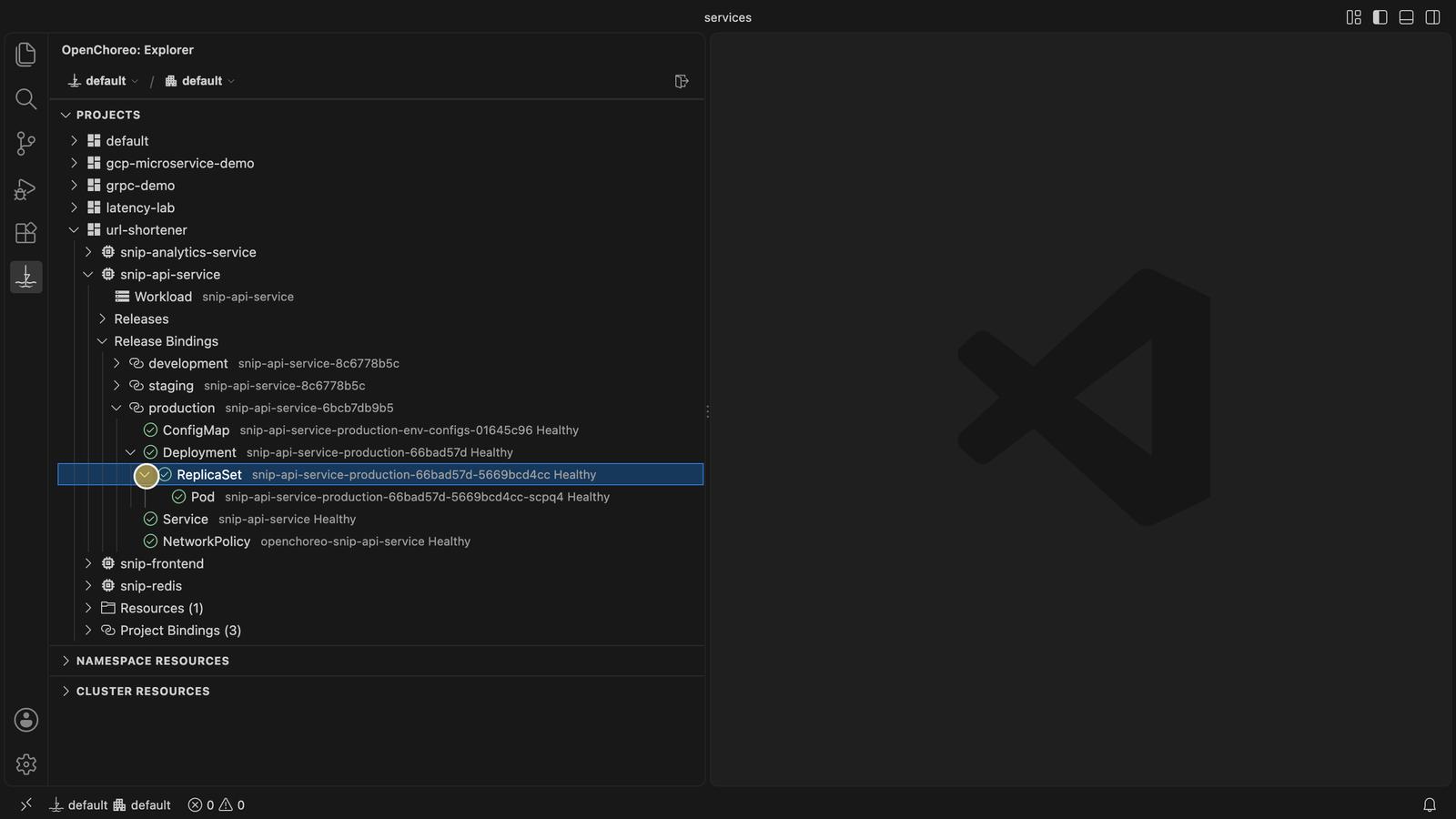
▶ See what's running · Run a scheduled task now
Inner Loop (OpenChoreo 1.3+)
Work against a real environment without leaving the editor:
Run Locally Against Environment — right-click a workload.yaml (or a .openchoreo folder) in the Explorer, or run it from the Command Palette. Pick an environment, then either open a shell whose environment variables point at local tunnels to that environment's real dependencies (run your app from it), or keep the tunnels open and print the resolved variables to copy into a debugger launch configuration. Uses occ remote; dependency secrets stay in the session and are never printed unless you ask
Debug Against Environment — right-click a workload.yaml (or pick it from the linked component's actions), choose an environment and one of your launch configurations: the extension opens occ remote tunnels in the background and starts the debugger with the resolved dependency variables in its env. Offer to save it so F5 does the same; any launch configuration can opt in with:
"openchoreo": {
  "environment": "development",
  "workload": "${workspaceFolder}/workload.yaml",
  // optional: "namespace", "secrets": false (leave Secret/ConfigMap values unresolved),
  // "local": { "other-component": "127.0.0.1:9091" } for a dependency you also run locally
}
Tunnel bindings override the configuration's own env for the same names. Values reach only the debugged process; nothing is printed or written to disk. Tunnels close when the debug session ends (keep them with openchoreo.localDev.keepTunnelsOpen); open tunnels show in the status bar
Open Shell — right-click a Component or one of its deployed environments → an interactive shell in a running pod (occ component exec)
View Runtime Logs — right-click a Component or one of its environments → choose a window (15 minutes to 24 hours) and an optional text filter; logs are read from the environment's observability plane and shown in an Output channel with pod and level. Works wherever the environment's data plane has an observability plane with an observer
Run Now — right-click a deployed environment of a scheduled-task (cronjob) component to start a one-off Job from its schedule
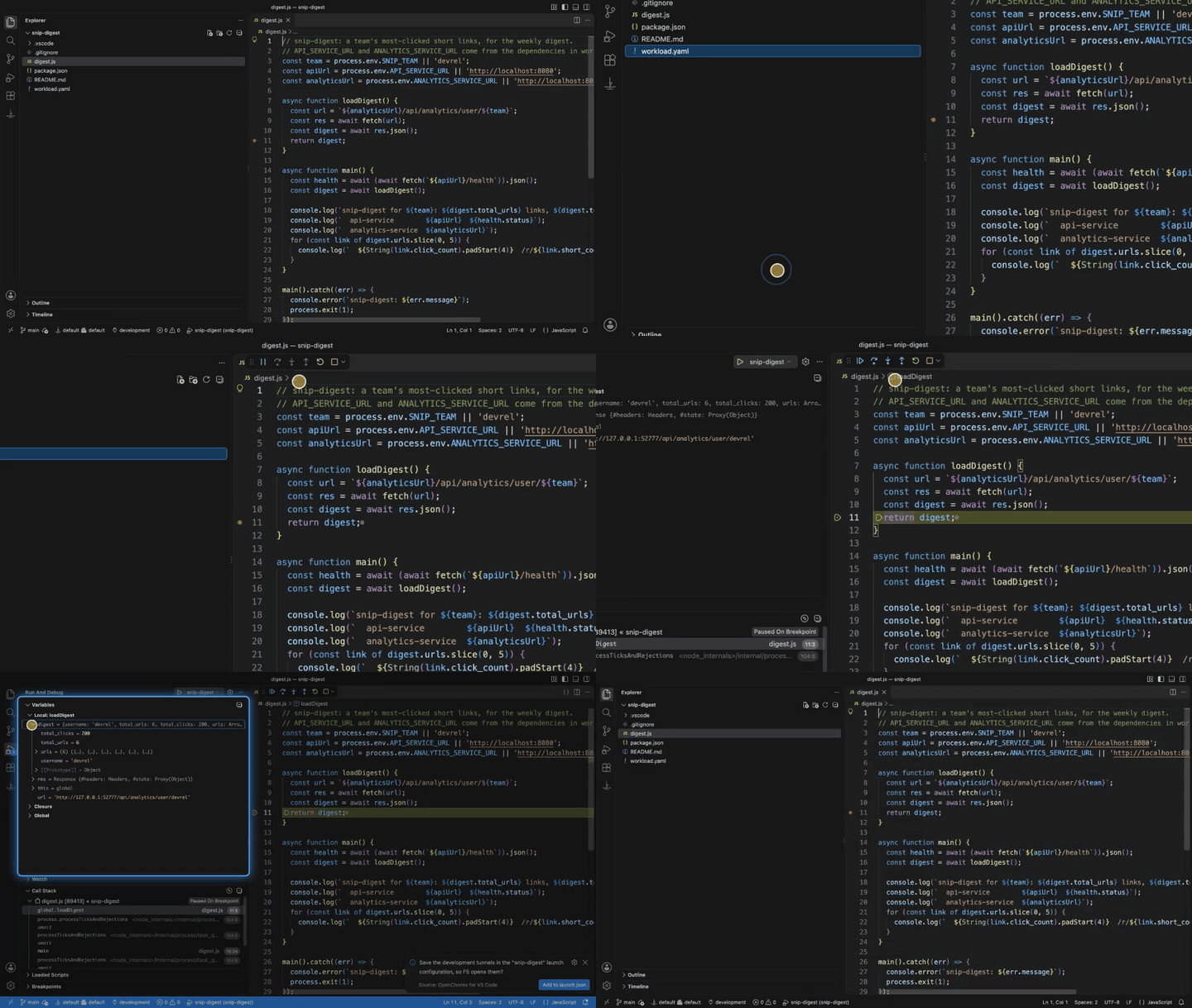
▶ Debug against an environment · Run locally · Open a shell · Runtime logs
Linked Components
Open the source of a component and the extension finds which OpenChoreo components it builds: it matches the folder's git remotes and its path in the repository against each component's repository URL and app path. The workflow marks those parameters with x-openchoreo-component-parameter-repository-* schema keys, the same ones auto-build and the Backstage portal use, so it works whatever the workflow calls them.
A status bar item with a link icon and the component name appears (the component the active file belongs to comes first). Click it to open the Component YAML, build the commit you're on, view runtime logs, open a shell, run its workload locally, or open the repository. Components without a build workflow (external CI or prebuilt images) have no repository to match.
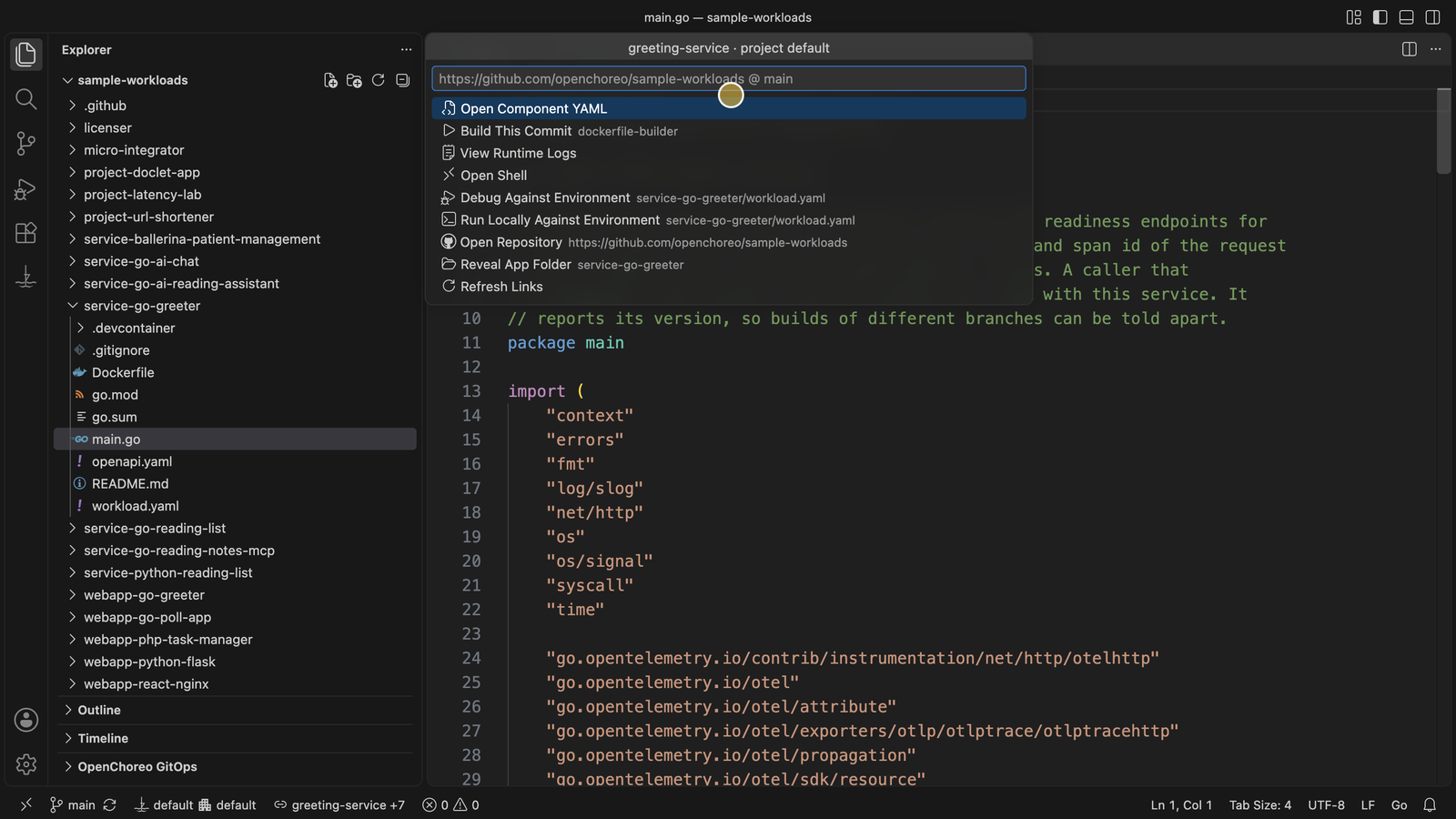
▶ Linked component · Build this commit · Build after a push · Clone source
- Clone Source — right-click a Component with a build workflow to clone its repository at the branch it builds from; the clone opens with the app folder revealed
- Build This Commit — builds the commit checked out in a linked folder by setting the workflow's commit parameter (offers to push it first if the remote doesn't have it)
- Follow the build after a push — push a linked component's branch and, if the component has auto-build, the status bar follows the build started for that commit; failures offer the logs and Troubleshoot with Copilot. Without auto-build you're offered a build of the pushed commit. Turn off with
openchoreo.builds.followAfterPush
GitOps
If you manage OpenChoreo resources from a Git repository synced by Flux, Argo CD or a CI job, open that repository in the window:
- Compare with Cluster — right-click an OpenChoreo YAML file (or use the editor title button in a GitOps repository) to diff it with what the cluster runs. The cluster side leaves out status and server-set metadata and follows the file's key order, so only real differences show. The resource at the cursor is compared in multi-document files
- Compare with Repository — right-click a resource in the sidebar to diff it with the file that declares it
- GitOps-managed resources — resources that carry Flux (
kustomize.toolkit.fluxcd.io/*, helm.toolkit.fluxcd.io/*) or Argo CD (argocd.argoproj.io/*) markers get a merge badge in the sidebar. Saving, applying, promoting, deploying or deleting one through the API asks first, because the next sync reverts the change. Change in Repository makes the change in the GitOps repository instead: it edits the document that declares the resource, keeping its comments and layout, or creates a file next to related resources, and saves it for you to review and commit (a file with unsaved edits of yours is left unsaved). The sidebar copy then shows the cluster again, which changes once the repository syncs
- Set
openchoreo.gitops.mode to all when manifests are applied without such markers (by CI, for example), and turn off openchoreo.gitops.allowDirectChanges to allow changes only through the repository
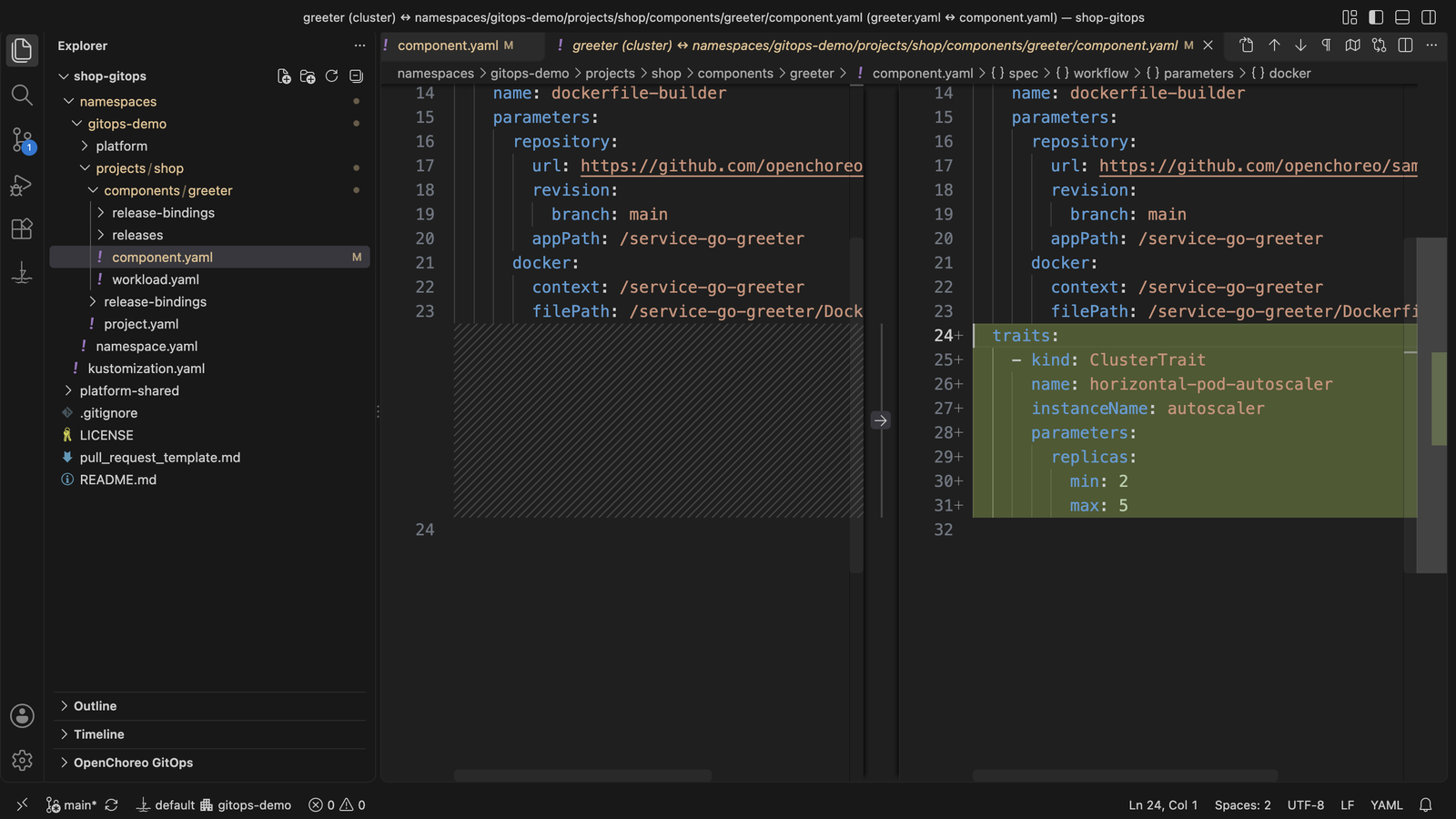
▶ Compare with Cluster · Compare with Repository
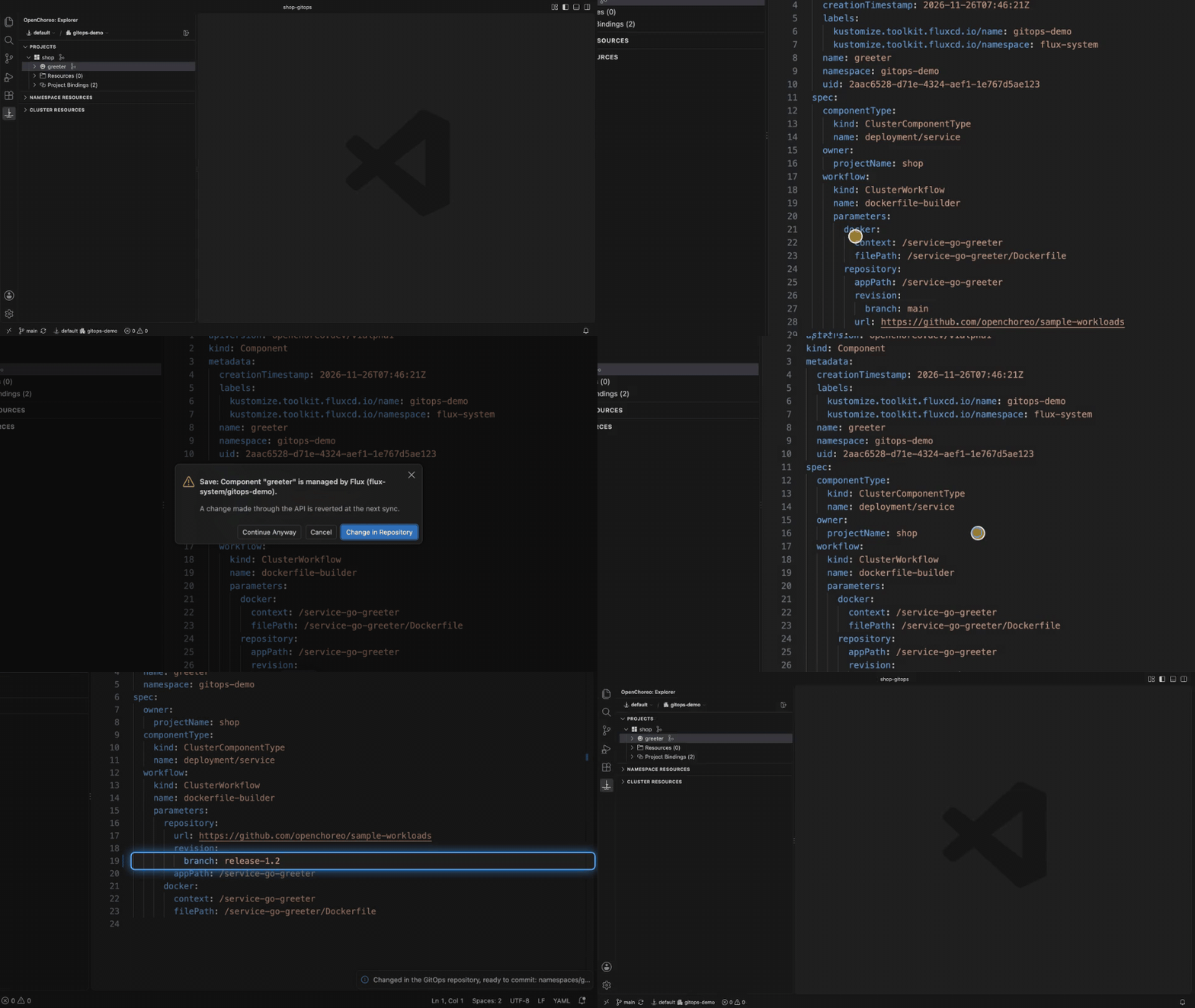
▶ Saves that respect GitOps
- OpenChoreo GitOps view (in the Explorer) — every resource the repository declares, by namespace and kind, marked as matching the cluster, differing, or not on the cluster yet, plus resources of the same kinds that exist only on the cluster. Check Sync with Cluster re-checks; the inline button compares one resource
- Generate Releases in Repository… and Promote in Repository… — run
occ componentrelease generate / occ releasebinding generate in file-system mode for all components, a project or one component, write the ComponentReleases or ReleaseBindings into the repository, then Commit on a New Branch and Push and Open Pull Request (through the GitHub Pull Requests extension when installed, else the host's compare page). Promotion takes each component's release from the previous environment in the pipeline, as the OpenChoreo bulk-promote workflow does
- Go to Definition on references — a Component's
componentType, traits and workflow, owner.projectName/componentName, a binding's environment and releaseName, a Project's deploymentPipelineRef and type, pipeline environments, and plane references jump to the file that declares the target, or open it from the cluster. Reference validation also accepts resources declared in the repository that aren't synced yet
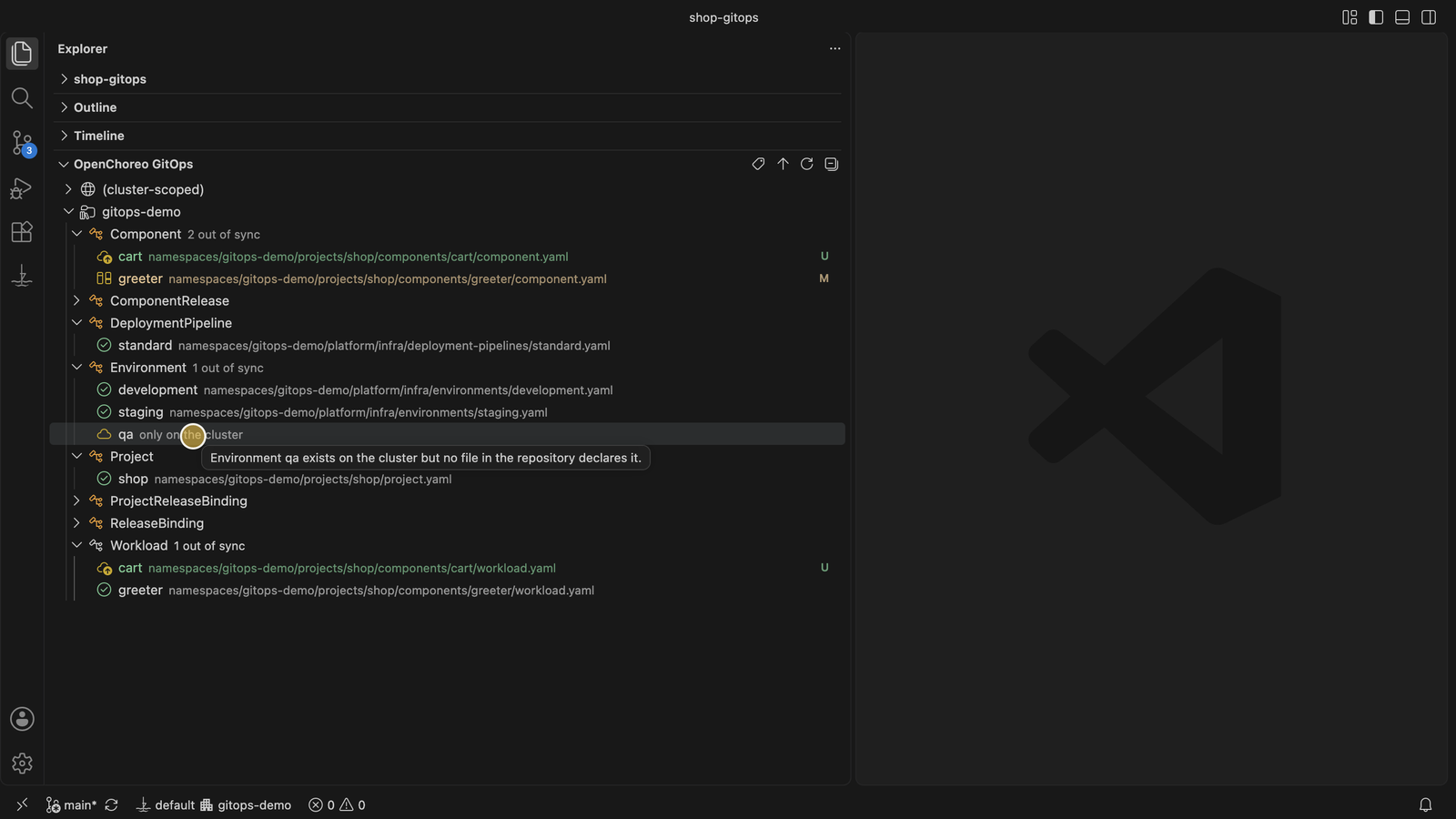
▶ Sync view · Go to Definition
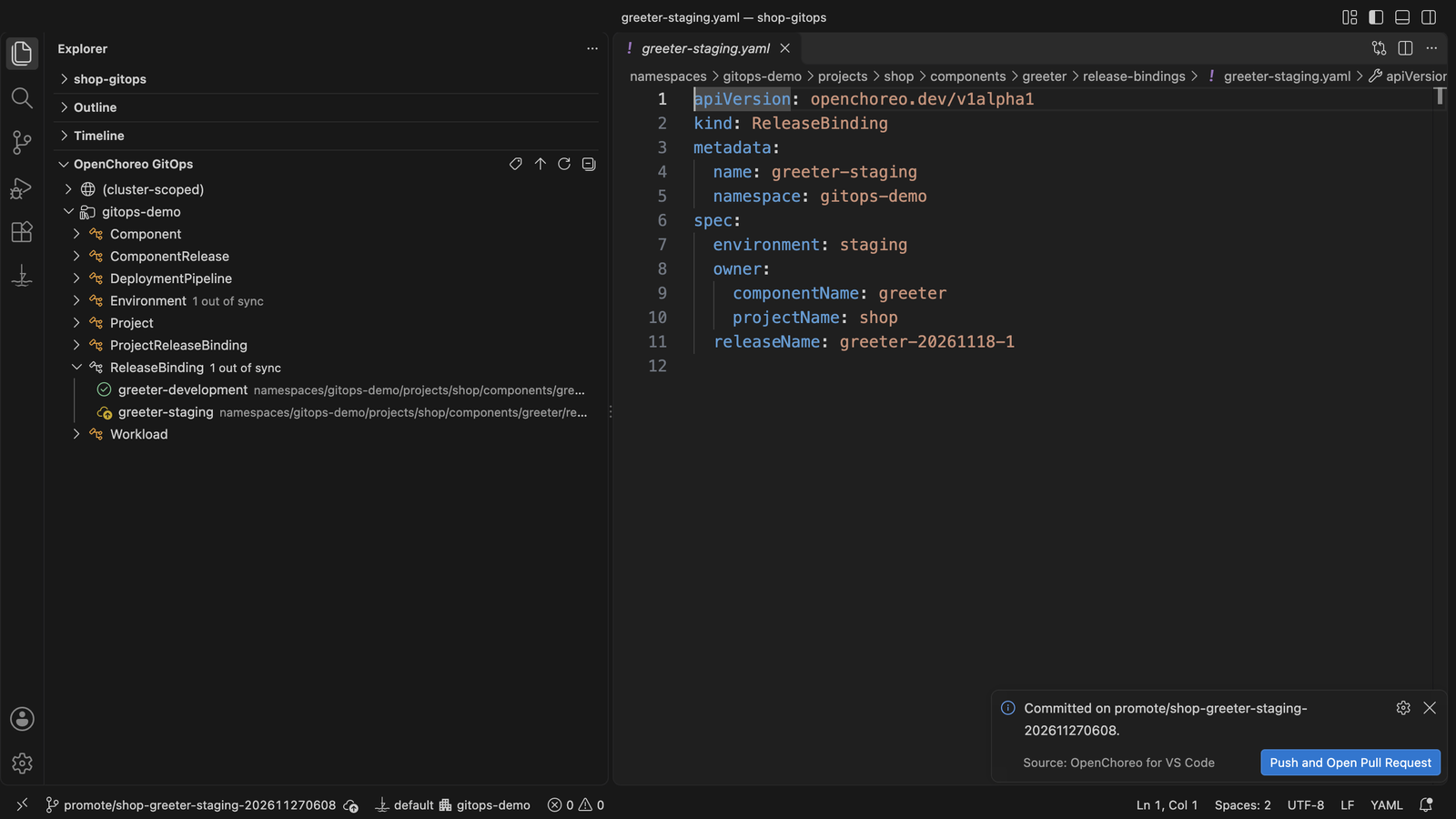
▶ Generate releases in Git · Promote with a pull request
A workspace folder counts as a GitOps repository when it declares OpenChoreo resources other than an app's own workload.yaml and .openchoreo/ files.
Generate Release
Right-click a Component → "Generate Release" to create an immutable release snapshot from the current component state (ComponentType + Traits + Workload configuration). Optionally provide a release name or let the server auto-generate one.
▶ Generate a release
Compare Releases and Roll Back
- Compare Releases… — right-click a release, or a deployed environment, to diff it with another release or with what another environment runs, before you promote
- Roll Back… — right-click a deployed environment and pick an earlier release; the release binding opens for review like Promote (and goes through the GitOps guard)
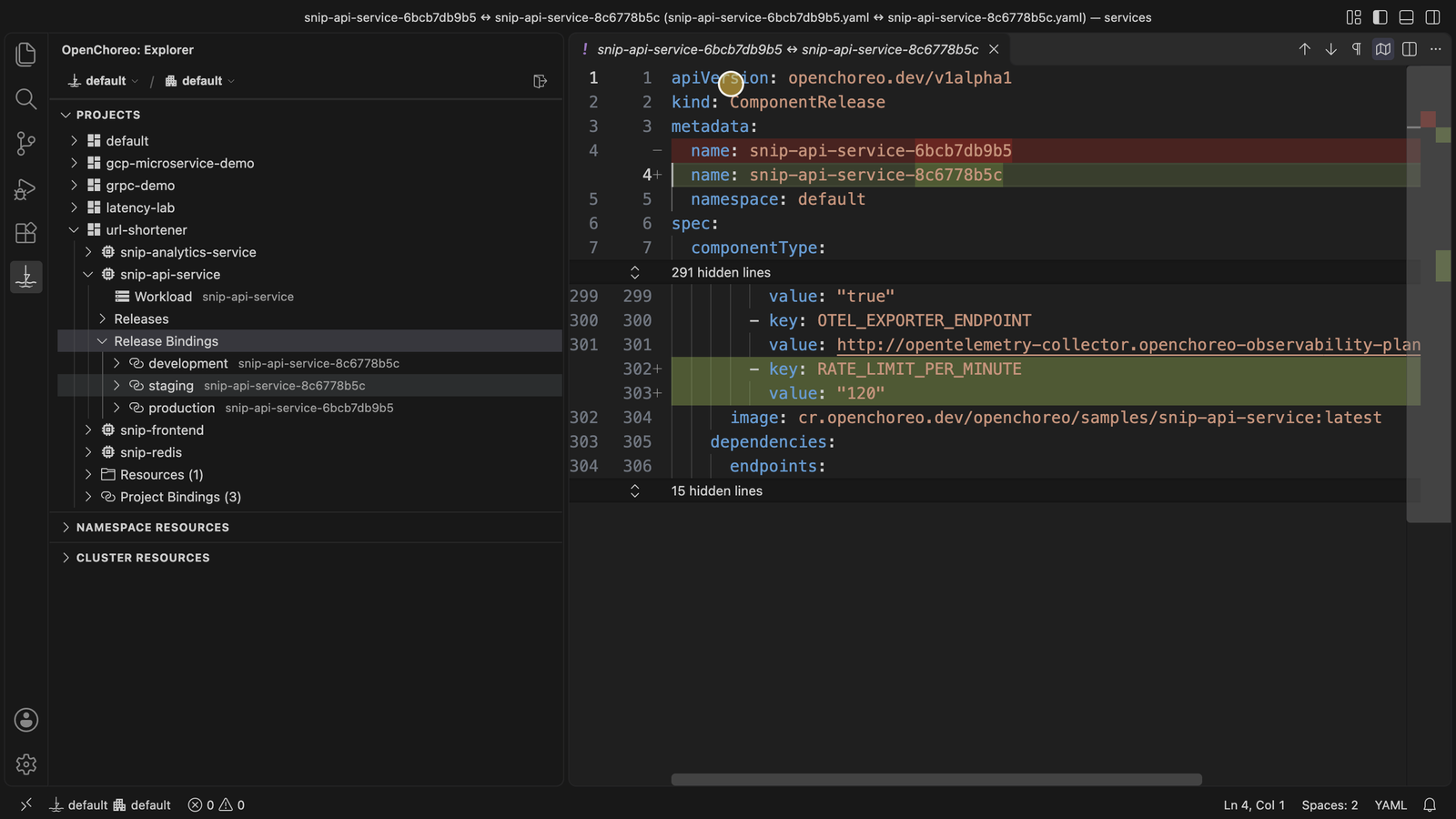
▶ Compare releases · Roll back
Trigger Build
Right-click a Component to trigger its configured workflow:
- Trigger Build — immediately creates a Workflow Run using the component's configured workflow and parameters. No picker needed.
- Trigger Build with Parameters — opens a pre-filled WorkflowRun YAML editor with the component's workflow configuration. Edit parameters, then Cmd+S to create the run.
Run Generic Workflows
Workflows and ClusterWorkflows in Namespace/Cluster Resources can be triggered directly:
- Run Workflow — right-click any Workflow or ClusterWorkflow → opens a WorkflowRun YAML editor pre-filled with that workflow reference. Fill in parameters and Cmd+S to create.
- Namespace-scoped workflows show their runs as expandable children (with step status and timing).
Deployment Pipeline
The Release Bindings section under each component shows the full deployment pipeline:
- Pipeline visualization — all environments from the project's DeploymentPipeline are shown in topological order
- Active bindings — environments with deployed releases show the release name, are expandable to show K8s resources, and have a "Promote" action
- Inactive environments — environments without a deployment show as "(not deployed)" with a "Deploy Release…" action
- Promote — right-click an active binding to promote its release to the next environment(s) in the pipeline. Opens a ReleaseBinding YAML with the release pre-filled for the target environment.
- Deploy to Environment — right-click a ComponentRelease to deploy it to a chosen environment from the pipeline
- Deploy Release — right-click an inactive environment to pick a release and create a new ReleaseBinding
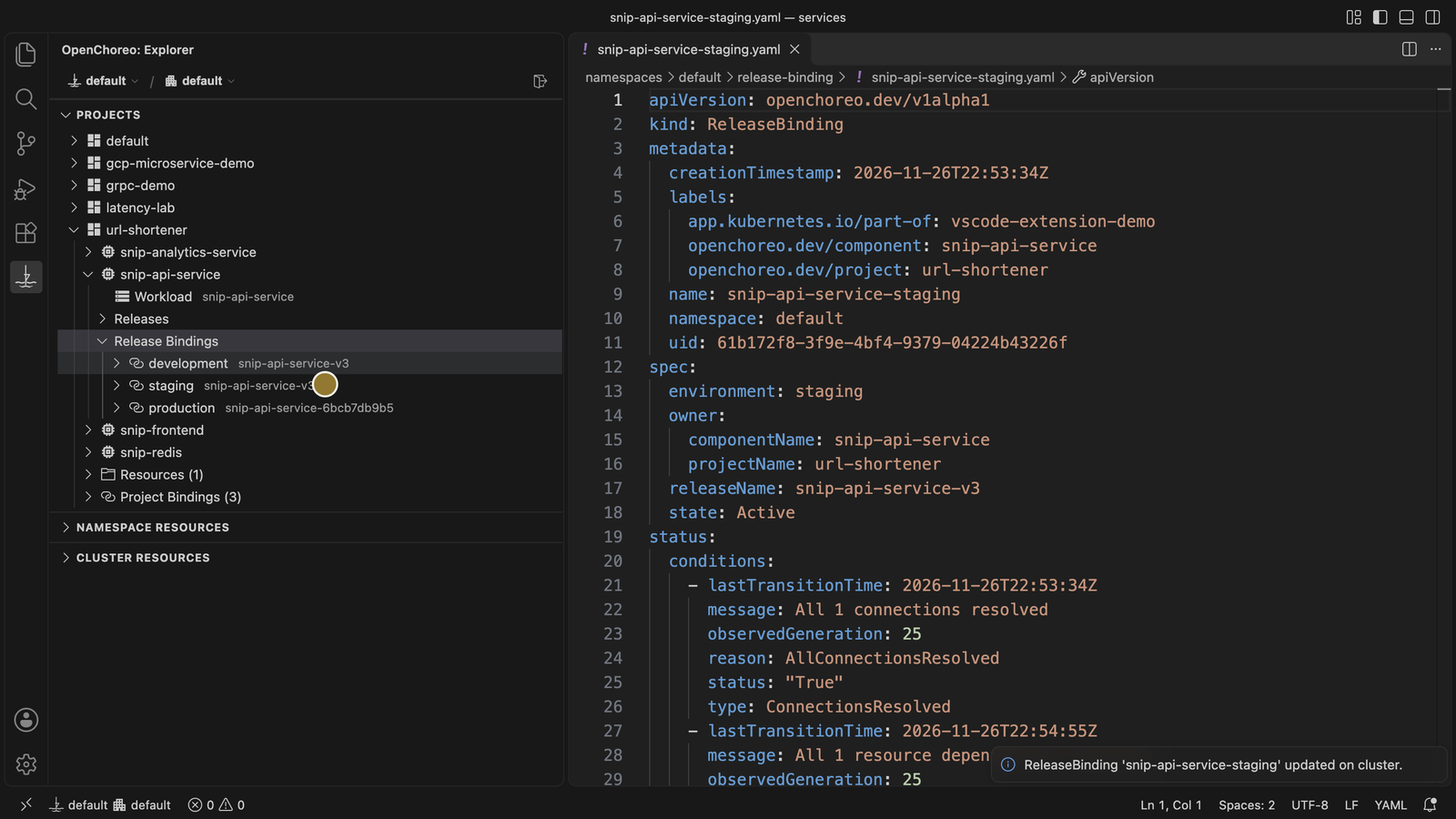
▶ Deploy a release · Promote
Intelligent Completions
The built-in language server provides context-aware completions across multiple dimensions:
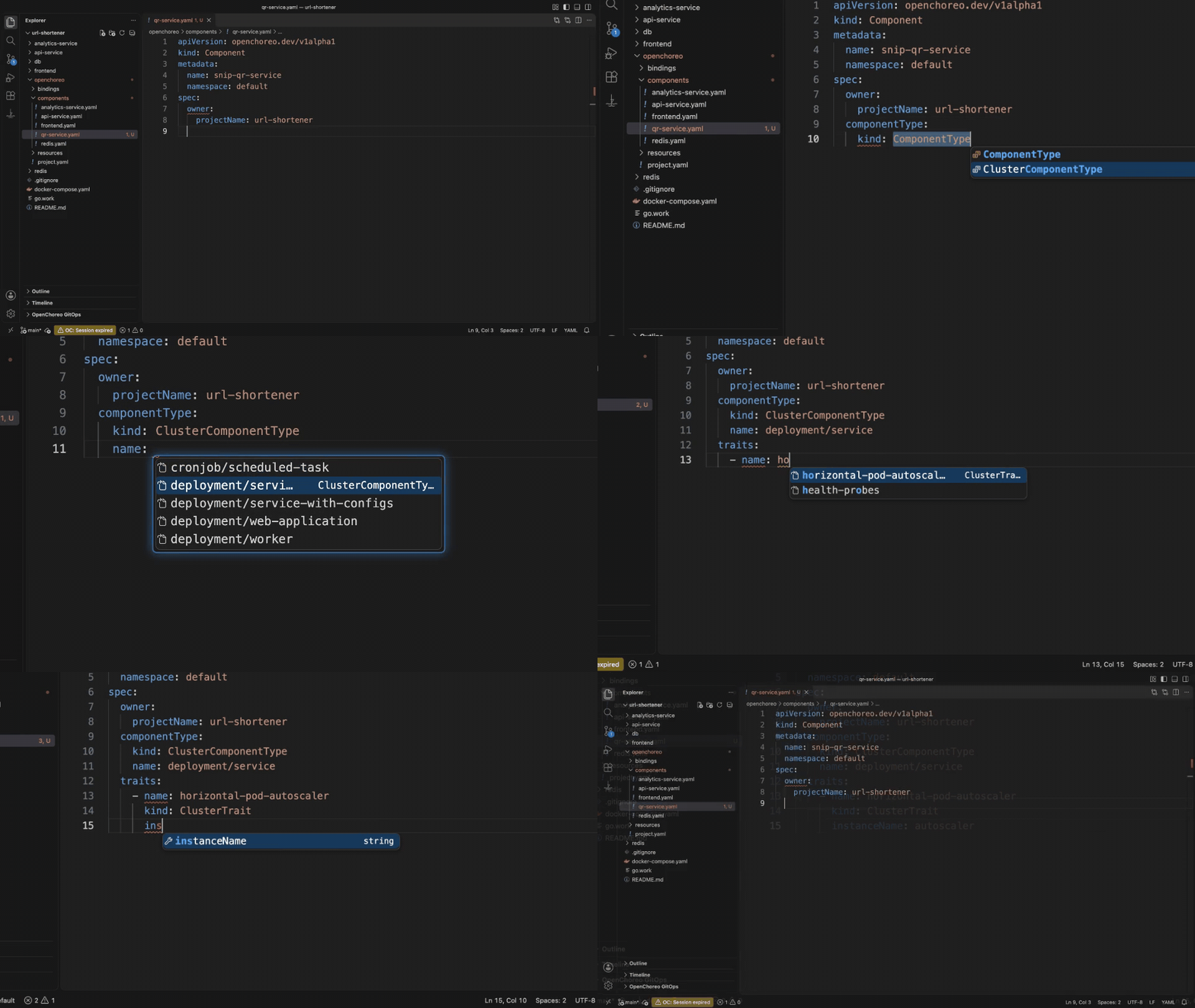
▶ Cluster-aware completions · Parameters from the cluster schema · CEL completions · Scaffold snippets
Schema-Based Completions
- Property keys — offers fields from the CRD schema with smart snippets (objects expand with indentation, booleans offer
true/false, enums offer allowed values)
- Value completions — enum values, const values, boolean literals, defaults
- Already-defined filtering — properties already present at the current level are excluded from suggestions
Dynamic Resource References
Fields that reference other resources (marked with x-openchoreo-ref in schemas) offer names from the cluster:
| Field |
Offers |
metadata.namespace |
Accessible namespaces |
spec.componentType.name |
ComponentTypes + ClusterComponentTypes |
spec.type.name (Project, 1.3+) |
ProjectTypes + ClusterProjectTypes |
spec.type.name (Resource) |
ResourceTypes + ClusterResourceTypes |
spec.workflow.name |
Workflows + ClusterWorkflows |
spec.traits[].name |
Traits + ClusterTraits |
spec.owner.projectName |
Projects |
spec.dataPlaneRef.name |
DataPlanes + ClusterDataPlanes |
spec.observabilityPlaneRef.name |
ObservabilityPlanes + ClusterObservabilityPlanes |
spec.deploymentPipelineRef.name |
DeploymentPipelines |
spec.environment |
Environments |
spec.workflowPlaneRef.name |
WorkflowPlanes + ClusterWorkflowPlanes |
The full list lives in schemas/refs.json.
Cross-Document Schema Completions
When editing a Component, spec.parameters offers property completions from the referenced ComponentType's openAPIV3Schema (named as <workloadType>/<name>, e.g. deployment/service, which is also what componentType.name completion offers) — including types, defaults, and enum values. Project spec.parameters (1.3+) does the same from its ProjectType, and Resource spec.parameters from its ResourceType.
Component spec.traits[].parameters offers the parameters of the trait entry you're editing (falling back to all traits while its name is still empty), and ReleaseBinding componentTypeEnvironmentConfigs offers properties from component type environment config schemas.
CEL Expression Completions
Inside ${...} expressions (used in ComponentType and Trait templates), the extension offers:
Context variables with dot-completion:
metadata. → componentName, projectName, environmentName, name, namespace, labels, podSelectors, ...parameters. → dynamic fields from the document's openAPIV3SchemaenvironmentConfigs. → dynamic fields from the document's openAPIV3Schemaworkload. → container.image, container.command, container.args, endpointsconfigurations. → configs.envs, configs.files, secrets.envs, secrets.filesdependencies. → items, envVarsdataplane. → secretStore, gatewaygateway. → ingress.external, ingress.internaltrait. → name, instanceName (Trait context only)
OpenChoreo functions: oc_omit(), oc_merge(), oc_generate_name(), oc_dns_label(), oc_hash()
Configuration helpers: configurations.toContainerEnvFrom(), configurations.toVolumes(), configurations.toContainerVolumeMounts(), workload.toServicePorts(), dependencies.toContainerEnvs()
CEL builtins: has(), size(), math.greatest(), base64.encode(), and all list/map methods (.map(), .filter(), .exists(), .all(), .flatten(), .sort(), .join(), .transformList(), .transformMap(), etc.)
Bootstrap Completions
- Empty files — scaffold templates (
oc-project, oc-component, etc.)
- New files —
apiVersion and kind field suggestions to get started
kind: field — all 43 OpenChoreo CRD kinds (1.3, plus the 1.4 additions)apiVersion: field — openchoreo.dev/v1alpha1
Schema Validation
Real-time diagnostics as you type, against JSON Schemas generated from the OpenChoreo v1.3.3 CRDs for all 37 kinds (kinds added in 1.4, such as Endpoint and ReleaseLine, have no schema yet). Multi-document files are checked document by document:
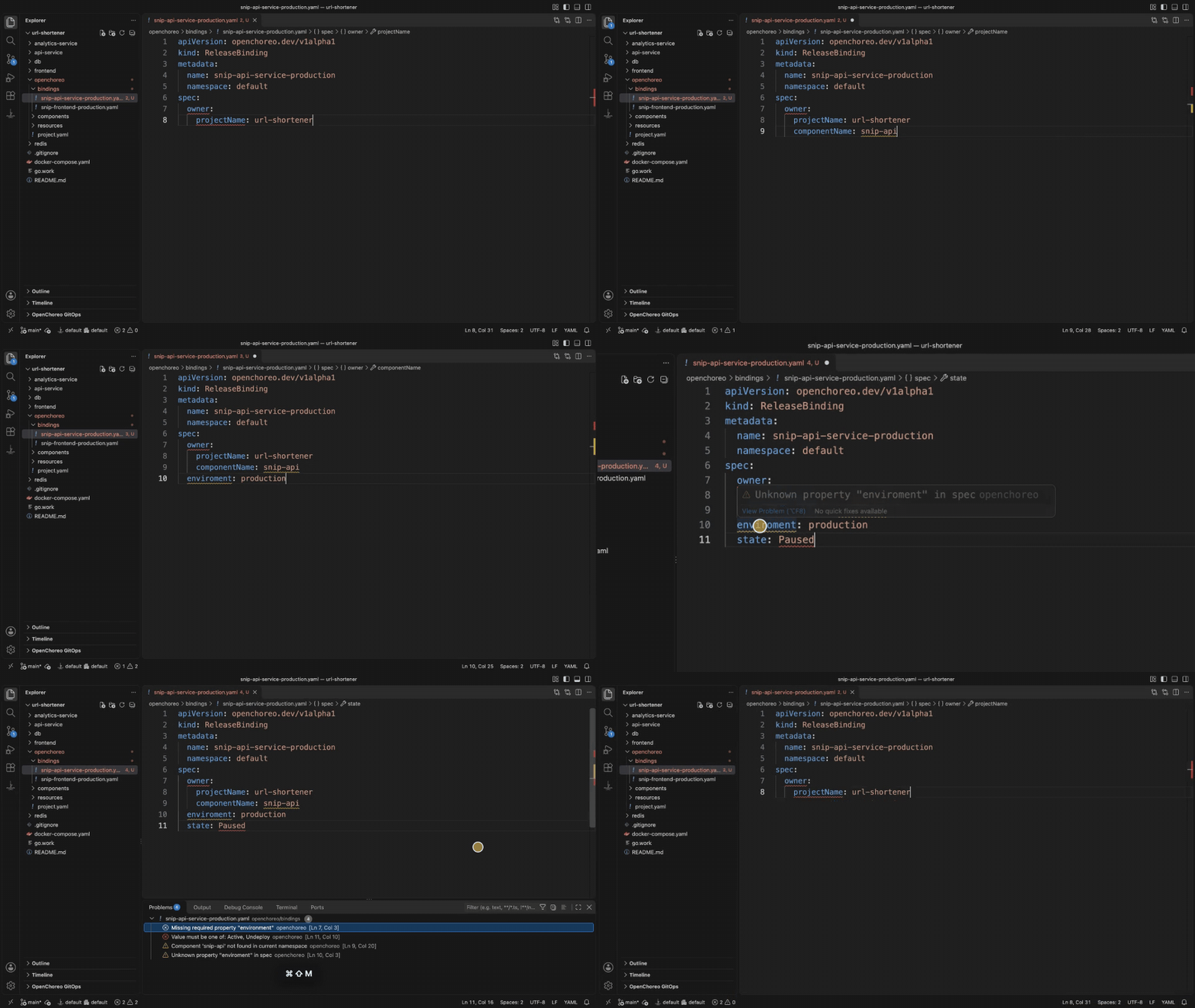
▶ Validation as you type
- Type checking — detects mismatches (string where integer expected, etc.)
- Required fields — errors for missing required properties
- Unknown properties — warnings for fields the CRD doesn't define. The API server silently drops such fields, so this catches typos like
enviroment: before they vanish; free-form fields (parameters, templates) are left open
- Const validation — errors when a field doesn't match its required value
- Enum validation — errors for values not in the allowed set
- String constraints — warnings for
minLength, maxLength, pattern violations
- Number constraints — warnings for
minimum/maximum violations
- Array validation — validates items against the items schema, checks
minItems/maxItems
CEL Expression Validation
Inside ${...} expressions:
- Unclosed expressions — error for missing closing
}
- Empty expressions — warning for
${}
- Unknown variables — warning when the first identifier isn't a known context variable (ComponentType and Trait templates only — other kinds, such as alert notification channels, template with their own variables)
- Type skip — CEL expressions correctly skip type validation (dynamic values are validated at render time, not edit time)
Cross-Resource Reference Validation
Fields referencing other resources show warnings if the referenced resource doesn't exist in the current namespace. Supports merged references (e.g., ComponentType+ClusterComponentType — checks both). A reference is only checked when every kind it may point to could be listed, so missing permissions (e.g. no access to cluster-scoped resources) never produce false warnings.
Hover Documentation
Hover over any YAML key to see:
- Field type and description from the schema
- Constraints (minLength, maxLength, pattern, minimum, maximum)
- Default value
- Allowed enum values
Document Symbols
The Outline view (Cmd+Shift+O) shows the hierarchical structure of OpenChoreo YAML files:
- Maps shown as objects with children
- Arrays show item count and named items (by
name, id, or instanceName)
- Scalar values show their value as detail text
- Enables breadcrumb navigation in the editor
- Multi-document files list one entry per document (e.g.
Component api, Workload api)
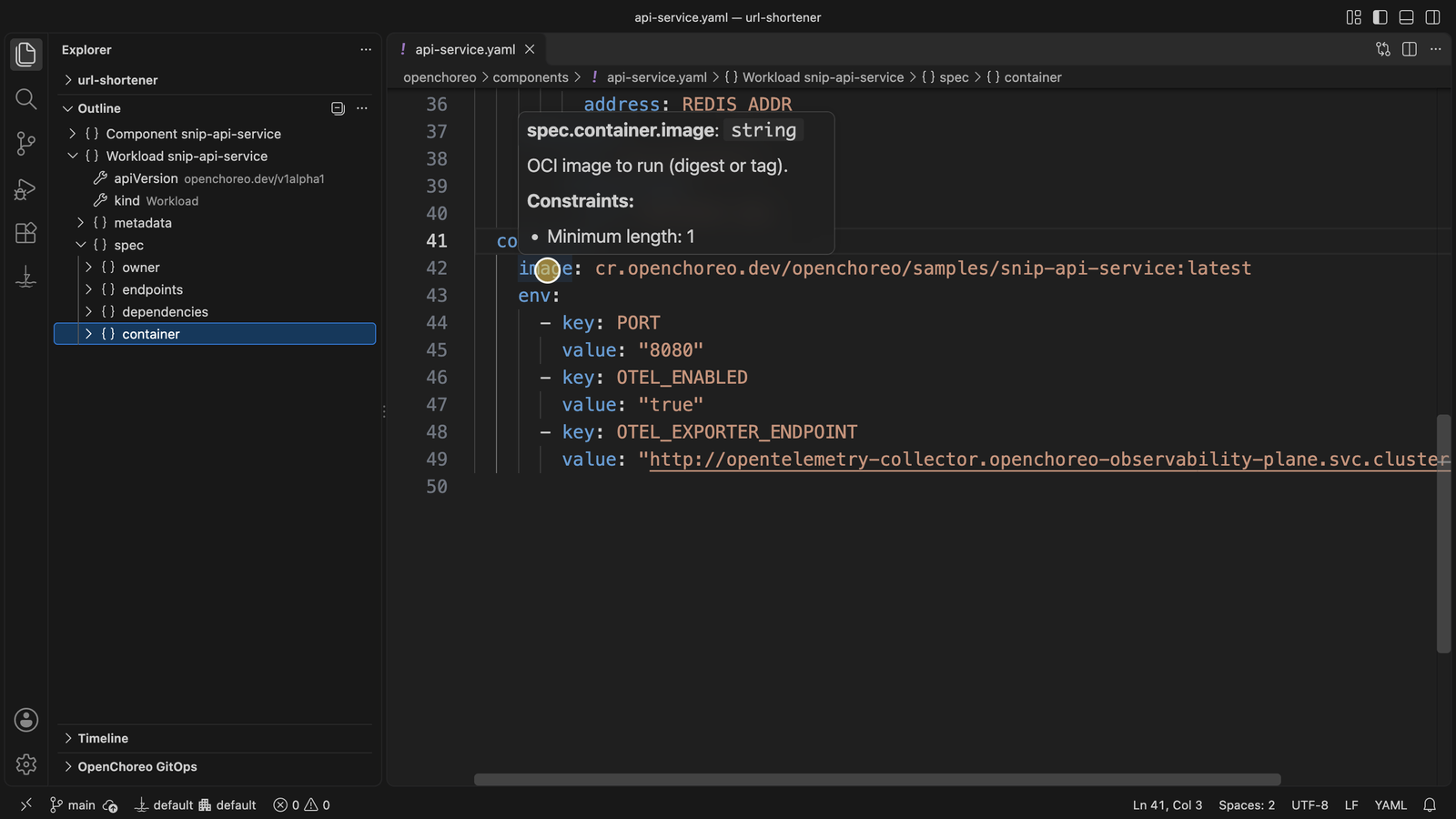
▶ Hover docs and outline
Common Labels & Annotations
Inside metadata.labels: and metadata.annotations:, the extension suggests common OpenChoreo keys:
Labels: openchoreo.dev/project, openchoreo.dev/component, openchoreo.dev/environment, app.kubernetes.io/name, app.kubernetes.io/part-of, app.kubernetes.io/managed-by
Annotations: openchoreo.dev/description
Copilot Chat Integration
On VSCode 1.99+ with GitHub Copilot, the extension registers the OpenChoreo MCP servers, named like the servers in the OpenChoreo skills:
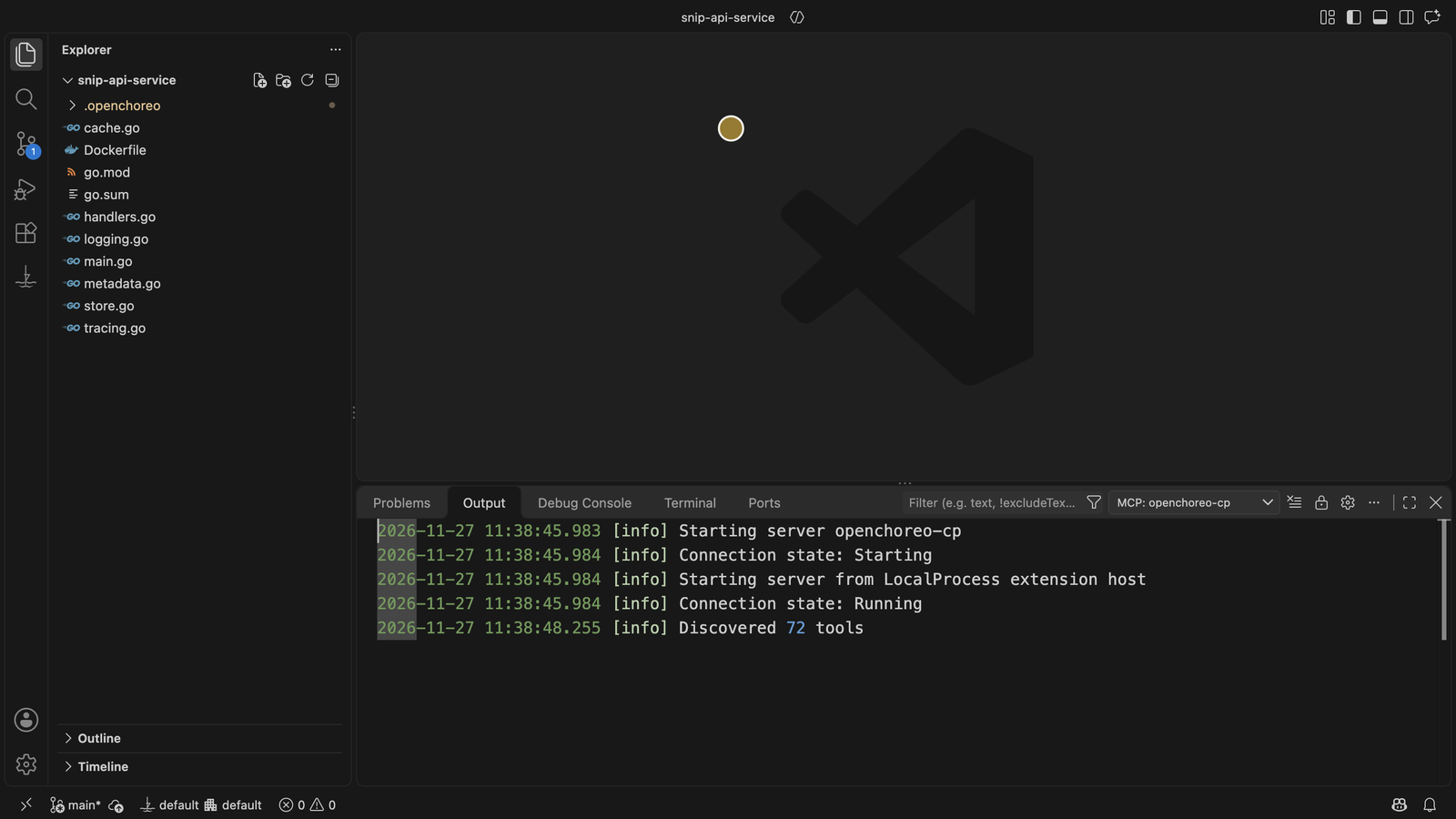
▶ MCP servers, zero config · Skills and agents · Use with other agents
| Server |
Tools |
Registered |
openchoreo-cp |
Developer toolsets: namespaces, projects, components, workloads, resources, deployments, builds, endpoints (1.4+) |
Always |
openchoreo-pe |
Platform-engineer toolset: environments, pipelines, component types, traits, workflows, planes, authorization |
When openchoreo.mcp.platformEngineerTools is on |
openchoreo-obs |
Observer: logs, metrics, traces, alerts, incidents |
When an environment in the current namespace has an observability plane, or the platform advertises one |
openchoreo-sre |
SRE agent: root-cause reports and analysis |
When the observability plane has an SRE agent |
The control plane offers more than 128 tools when every toolset is on, and chat requests are limited to 128, so the developer and platform-engineer toolsets are separate servers. Choose the control-plane toolsets with openchoreo.mcp.toolsets. If your role cannot read observability planes, set openchoreo.mcp.observerUrl / openchoreo.mcp.sreAgentUrl, or turn the observability servers off with openchoreo.mcp.observability.
Skills, agents and instructions: the extension ships the official OpenChoreo agent skills (developer, platform engineer, their GitOps variants, setup, and migration), mirrored at a pinned commit on every build. It also adds:
- the OpenChoreo Developer custom agent, which uses
openchoreo-cp, openchoreo-obs and openchoreo-sre;
- the OpenChoreo Platform Engineer agent, which uses
openchoreo-pe and openchoreo-obs (shown when openchoreo.mcp.platformEngineerTools is on);
- instructions for working with OpenChoreo resource YAML.
Chat tools: the extension also gives agents three tools of its own, which you can reference in a prompt with #:
| Tool |
Reference |
What it does |
| Validate OpenChoreo YAML |
#openchoreoValidate |
Runs the extension's validation (schemas, misspelled fields, references) on a file, including unsaved edits, or on YAML text |
| Get OpenChoreo Context |
#openchoreoContext |
The occ session (control plane, namespace, project), server version and features, registered MCP servers, and the resource in the active editor |
| Scaffold OpenChoreo Resource |
#openchoreoScaffold |
Starter YAML for a kind, matching the server's version |
Find them in Chat: Open Customizations. If you install the OpenChoreo agent plugin yourself, turn off openchoreo.ai.bundledSkills to avoid duplicate skills. The occ binary the extension manages is added to the integrated terminal's PATH (openchoreo.addCliToTerminalPath), so commands that agents and skills run find it.
Cursor: the extension registers the same servers through Cursor's MCP API. Cursor has been reported to drop the Authorization header for extension-registered servers, so on clusters with authentication these servers may fail to connect until Cursor fixes it; clusters with authentication disabled work.
Other agents: OpenChoreo: Use with Other AI Agents… shows your MCP server URLs with ready-to-run commands for Claude Code, and how to install the OpenChoreo skills into other agents.
MCP Server Auto-Registration:
- URLs derived from your occ CLI control plane configuration and the namespace's observability planes (not hardcoded)
- Authentication token passed automatically from your session
- Re-registers when you switch context or namespace, or change an
openchoreo.mcp.* setting
Add to Chat — right-click any resource in the tree to add it as context to Copilot Chat:
- Add to Chat — populates the chat input with a resource reference (e.g.,
Regarding OpenChoreo Component "api-service" in Project "my-project" in Namespace "dev": ). Type your question after the colon and press Enter.
- Add YAML to Chat — fetches the full resource YAML and populates the chat input with the content. Type your question and press Enter.
Both actions open Copilot Chat without auto-submitting, so you can compose your question before sending. Add YAML to Chat attaches the live resource as a file rather than pasting it into the prompt.
Troubleshoot with Copilot — right-click a failed workflow run or a deployment (release binding) to ask the agent why it failed or isn't healthy; the prompt names the resource so the agent can read its status, events and logs through the OpenChoreo MCP servers.
Fix with Copilot — OpenChoreo validation problems in the editor offer a Fix with Copilot quick fix (Ctrl+. / Cmd+.), which sends the file and the problems to chat.
Summarize with Copilot — after View Runtime Logs, summarize the lines with your chat model (Copilot or a model you added); the summary is appended to the log output.
These hand-offs are hidden when chat is turned off (chat.disableAIFeatures).
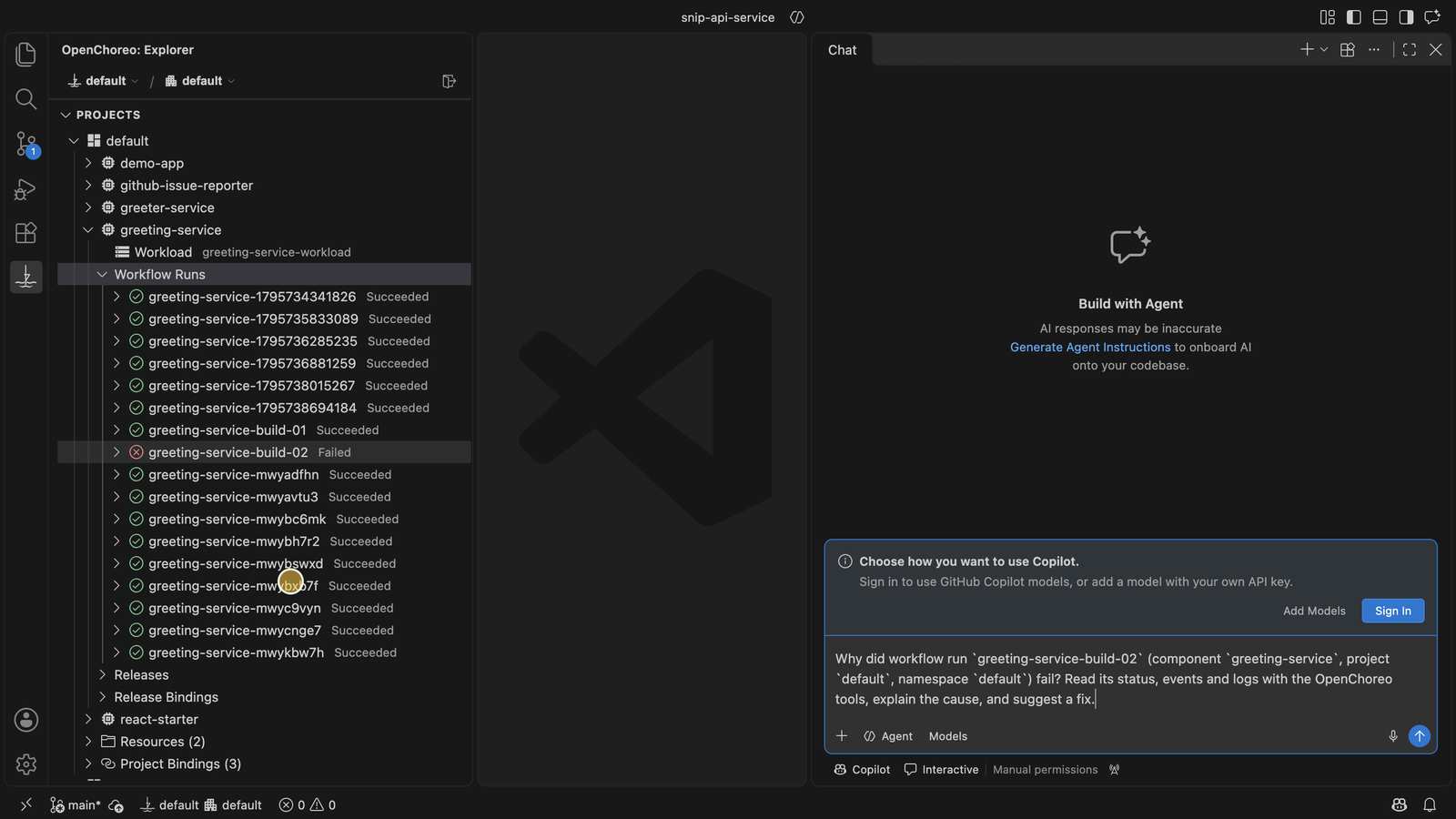
▶ Live YAML to chat · Troubleshoot a failed build · Fix with Copilot
Status Bar
The status bar shows your current connection status using the custom OpenChoreo icon font:
- Connected:
[OC logo] {context} [namespace icon] {namespace} — the tooltip adds the control plane URL and the server and occ CLI versions
- Not connected:
OC: Not connected
Click to switch context.
Debug Logging
View diagnostic information in Output > OpenChoreo:
- Token refresh flow (expiry, OIDC discovery, success/failure)
- API client creation
- Resource name/schema push to language server
- Namespace switches
Extension Settings
| Setting |
Default |
Description |
openchoreo.configPath |
"" |
Path to occ CLI config file. Defaults to ~/.openchoreo/config |
openchoreo.cliPath |
"" |
Path to the occ binary. Overrides the extension-managed download and the PATH lookup |
openchoreo.autoRefresh |
false |
Automatically refresh resource tree on changes |
openchoreo.autoRefreshInterval |
30 |
Auto-refresh interval in seconds |
openchoreo.mcp.toolsets |
developer toolsets |
Control-plane toolsets offered by openchoreo-cp; an empty list offers all of them |
openchoreo.mcp.platformEngineerTools |
false |
Also register openchoreo-pe (platform-engineer toolset) and the Platform Engineer agent |
openchoreo.mcp.observability |
true |
Register the observer (openchoreo-obs) and SRE agent (openchoreo-sre) MCP servers |
openchoreo.mcp.observerUrl |
"" |
Observer base URL; overrides discovery (for roles that can't read observability planes) |
openchoreo.mcp.sreAgentUrl |
"" |
SRE agent base URL; overrides discovery |
openchoreo.ai.bundledSkills |
true |
Offer the bundled OpenChoreo agent skills to chat; turn off if you install the OpenChoreo agent plugin yourself |
openchoreo.addCliToTerminalPath |
true |
Put the occ binary the extension uses on the integrated terminal's PATH |
openchoreo.builds.followAfterPush |
true |
After pushing a linked component's branch, follow its auto-build in the status bar (or offer a build) |
openchoreo.localDev.keepTunnelsOpen |
false |
Keep a debug session's occ remote tunnels open after it ends |
openchoreo.gitops.mode |
detect |
Which resources are GitOps-managed: those with Flux or Argo CD markers (detect), every resource (all), or none (off) |
openchoreo.gitops.allowDirectChanges |
true |
Offer Continue Anyway when changing a GitOps-managed resource through the API |
openchoreo.languageServer |
auto |
occ lsp when the installed occ has it, else the bundled server (auto); always one of them (occ, bundled) |
openchoreo.definitionDebug |
false |
Log Go to Definition requests and results (occ lsp); restart the language server after changing it |
Supported Resource Types
Namespace-Scoped
Project, Component, Environment, DataPlane, WorkflowPlane, ObservabilityPlane, ComponentType, ResourceType, ProjectType (1.3+), Workflow, Trait, Workload, DeploymentPipeline, SecretReference, ReleaseBinding, Resource, ResourceReleaseBinding, ProjectReleaseBinding (1.3+), ObservabilityAlertsNotificationChannel, WorkflowRun (read-only), ComponentRelease (read-only), ResourceRelease, ProjectRelease (read-only, 1.3+)
Cluster-Scoped
ClusterComponentType, ClusterResourceType, ClusterProjectType (1.3+), ClusterWorkflow, ClusterTrait, ClusterDataPlane, ClusterWorkflowPlane, ClusterObservabilityPlane
RBAC
AuthzRole, AuthzRoleBinding (in Namespace Resources), ClusterAuthzRole, ClusterAuthzRoleBinding (in Cluster Resources) — full CRUD support including scaffolds, create, edit, and delete (RBAC-gated)
Commands
| Command |
Description |
OpenChoreo: Login (via occ CLI) |
Opens a terminal with occ login |
OpenChoreo: Select Namespace |
Switch namespace or create a new one (syncs to occ config) |
OpenChoreo: Switch Context |
Switch occ CLI context or create a new one |
OpenChoreo: Create New Resource |
Create from scaffold template (command palette) |
OpenChoreo: Delete |
Delete resource (tree context menu) |
OpenChoreo: Generate Release |
Create immutable release snapshot from component (tree context menu) |
OpenChoreo: Trigger Build |
Trigger the component's configured workflow directly (tree context menu) |
OpenChoreo: Trigger Build with Parameters |
Open pre-filled WorkflowRun YAML for the component's workflow (tree context menu) |
OpenChoreo: Run Workflow |
Run a generic Workflow/ClusterWorkflow (tree context menu) |
OpenChoreo: Promote |
Promote a release binding to the next pipeline environment (tree context menu) |
OpenChoreo: Deploy Release… |
Deploy a release to an inactive pipeline environment (tree context menu) |
OpenChoreo: Deploy to Environment… |
Deploy a ComponentRelease to a chosen environment (tree context menu) |
OpenChoreo: View Logs |
View all workflow run logs (tree context menu) |
OpenChoreo: View Events |
View all workflow run Kubernetes events (tree context menu) |
OpenChoreo: View Step Logs |
View logs for a specific workflow run step (tree context menu) |
OpenChoreo: View Step Events |
View events for a specific workflow run step (tree context menu) |
OpenChoreo: View Pod Logs |
View deployed pod logs from release binding (tree context menu) |
OpenChoreo: Run Locally Against Environment |
Run a workload locally against an environment's dependencies via occ remote (Explorer context menu, Command Palette; 1.3+) |
OpenChoreo: Open Shell |
Interactive shell in a component's running pod via occ component exec (tree context menu; 1.3+) |
OpenChoreo: View Runtime Logs |
Query a component's runtime logs from the observability plane (tree context menu) |
OpenChoreo: Run Now (Scheduled Task) |
Start a one-off Job for a scheduled-task component (tree context menu; 1.3+) |
OpenChoreo: Scaffold Component from this Project |
Generate Component and Workload manifests from the open source folder |
OpenChoreo: Download occ CLI |
Download and verify the pinned occ CLI into extension storage |
OpenChoreo: View Definition |
View K8s resource YAML definition (tree context menu) |
OpenChoreo: Add to Chat |
Add resource reference to Copilot Chat (tree context menu) |
OpenChoreo: Add YAML to Chat |
Attach the resource's YAML to Copilot Chat (tree context menu) |
OpenChoreo: Troubleshoot with Copilot |
Ask the agent why a failed workflow run or a deployment isn't healthy (tree context menu) |
OpenChoreo: Fix with Copilot |
Send OpenChoreo validation problems in the file to chat (quick fix, Ctrl+. / Cmd+.) |
OpenChoreo: Use with Other AI Agents… |
MCP server URLs and setup commands for Claude Code and other agents |
OpenChoreo: Compare with Cluster |
Diff an OpenChoreo YAML file with the resource on the cluster (Explorer, editor context menu, editor title in a GitOps repository) |
OpenChoreo: Compare with Repository |
Diff a sidebar resource with the GitOps repository file that declares it (tree context menu) |
OpenChoreo: Clone Source |
Clone a component's repository at its build branch (tree context menu) |
OpenChoreo: Build This Commit |
Build the commit checked out in a linked folder (Command Palette, status bar) |
OpenChoreo: Compare Releases… |
Diff two releases of a component, or a release with another environment's (tree context menu) |
OpenChoreo: Roll Back… |
Bind an environment to an earlier release (tree context menu) |
OpenChoreo: Debug Against Environment |
Start a launch configuration with tunnels to an environment's dependencies (Explorer context menu, Command Palette; 1.3+) |
OpenChoreo: Manage Local Tunnels |
Close open occ remote tunnels or show their output (status bar) |
OpenChoreo: Check Sync with Cluster |
Re-check the GitOps view against the cluster |
OpenChoreo: Generate Releases in Repository… |
Generate ComponentReleases into the GitOps repository with occ (file-system mode) |
OpenChoreo: Promote in Repository… |
Generate ReleaseBindings for an environment into the GitOps repository with occ |
OpenChoreo: Linked Component Actions… |
Actions for the components built from the open folder (status bar) |
OpenChoreo: Restart Language Server |
Pick the language server again and restart it, e.g. after changing openchoreo.cliPath or logging in |
OpenChoreo: Run Pre/Post-Render Validation |
Render the current project with occ lsp and report problems (editor title; needs occ lsp) |
Architecture
packages/
├── extension/           # Main VSCode extension
│   ├── src/
│   │   ├── auth/        # occ CLI session & token management
│   │   ├── api/         # Typed OpenChoreo API client, server version parsing
│   │   ├── kinds/       # Kind registry: API routes, scope, tree mapping, operations
│   │   ├── cli/         # occ CLI download & resolution
│   │   ├── scaffolder/  # Source-folder detection → Component/Workload YAML
│   │   ├── treeView/    # Data providers (used by webview sidebar)
│   │   ├── webview/     # WebviewViewProvider & message protocol
│   │   ├── filesystem/  # Virtual filesystem (openchoreo://)
│   │   ├── commands/    # Command handlers & namespace selector
│   │   ├── services/    # RBAC, delete, resource, YAML services
│   │   ├── mcp/         # MCP server registration (VS Code and Cursor) and discovery
│   │   ├── ai/          # Chat tools, chat hand-offs, log summaries, other-agents guide
│   │   ├── statusBar/   # Status bar with custom icon font
│   │   └── logging/     # Output channel logger
│   ├── resources/
│   │   ├── openchoreo.svg           # Activity bar icon
│   │   ├── openchoreo-icons.woff2   # Custom icon font (generated)
│   │   ├── openchoreo-icons.json    # Codepoint map (generated)
│   │   ├── icons/                   # Material UI SVG source icons
│   │   └── ai/                      # Custom agents and chat instructions
│   ├── skills/                      # OpenChoreo agent skills, mirrored at build (not in git)
│   └── scripts/
│       ├── generate-schemas.mjs     # Regenerate schemas/ from OpenChoreo CRDs
│       ├── sync-skills.mjs          # Mirror openchoreo/skills at the pinned commit
│       ├── capture-demo.mjs         # Demo screenshots and recordings
│       └── update-icon-font.mjs     # Sync font codepoints to package.json
├── webview-ui/          # Preact-based sidebar webview
│   ├── src/
│   │   ├── components/  # TreeNode, TreeSection, NamespaceHeader, icons
│   │   ├── hooks/       # VS Code API wrapper
│   │   ├── styles/      # CSS with VS Code theme variables
│   │   └── types/       # Protocol & node type mirrors
│   └── build.mjs        # esbuild config
├── language-server/     # LSP server (separate process)
│   └── src/
│       ├── completion/  # YAML + CEL completions
│       ├── validation/  # Schema, CEL, reference validators
│       ├── hover/       # Hover documentation
│       ├── symbols/     # Document symbols (outline)
│       └── schemas/     # Schema loader
└── schemas/             # JSON Schemas generated from the OpenChoreo CRDs (+ refs.json overlay)
Kind Registry
src/kinds/registry.ts is the single source of truth for every resource kind the OpenChoreo API serves: collection and item routes (type-checked against the client's route list, so a wrong path fails tsc), scope, tree node type, and which operations the tree offers. API calls, delete permissions, editability and the language-server feed all read from it. Supporting a new kind starts with a registry entry.
Icon Font
Custom icons are generated from SVG source files using fantasticon:
cd packages/extension
pnpm generate:icons    # Generates WOFF2 font + JSON codepoints + updates package.json
To add a new icon: drop an SVG into resources/icons/, run pnpm generate:icons. The codepoints are auto-synced to both package.json (for VS Code contributes.icons) and the webview (via JSON import).
OpenChoreo Version Support
| Control plane |
Status |
| 1.3.x |
Fully supported — client, occ, schemas and scaffolds target 1.3.3 |
| 1.4 milestones (m.1, m.2) |
Supported; 1.4-only kinds (Endpoints, Release Lines) aren't surfaced yet, and fields new in 1.4 (such as releaseLine or allowedEndpoints) get "Unknown property" warnings |
| 1.1.x, 1.2.x |
Core browsing and editing are expected to work (not re-tested for this release); 1.3+ features report that they need 1.3 |
The extension reads the control plane version from /version when it connects.
License
Apache-2.0
Language servers
The extension runs occ lsp from your occ when it has the lsp command, and the language server bundled with the extension otherwise.
- Bundled server (released occ versions): schema validation, completions, hover and outline for OpenChoreo YAML.
- occ lsp adds Go to Definition (F12) on resource references, also to resources that exist only on the cluster, with underlines on references it can resolve; CEL and reference suggestions; and Run Pre/Post-Render Validation in the editor title.
Set openchoreo.languageServer to occ or bundled to choose one, and run OpenChoreo: Restart Language Server after changing openchoreo.cliPath or logging in. Explorer YAML tabs opened before an upgrade should be reopened from the Explorer, and tabs from another occ context must be reopened before reading or saving. If Go to Definition fails, enable openchoreo.definitionDebug and restart the language server; the OpenChoreo output then logs each request.

