Deep Ocean Amber
A dark VS Code theme with deep blue backgrounds (#122738 / #193549 / #1f4662)
and amber accents (#ffc600).
The palette comes from Cobalt2 by
Wes Bos, and the syntax highlighting from
One Dark Pro by Binaryify. See LICENSE for the notices.
Screenshots
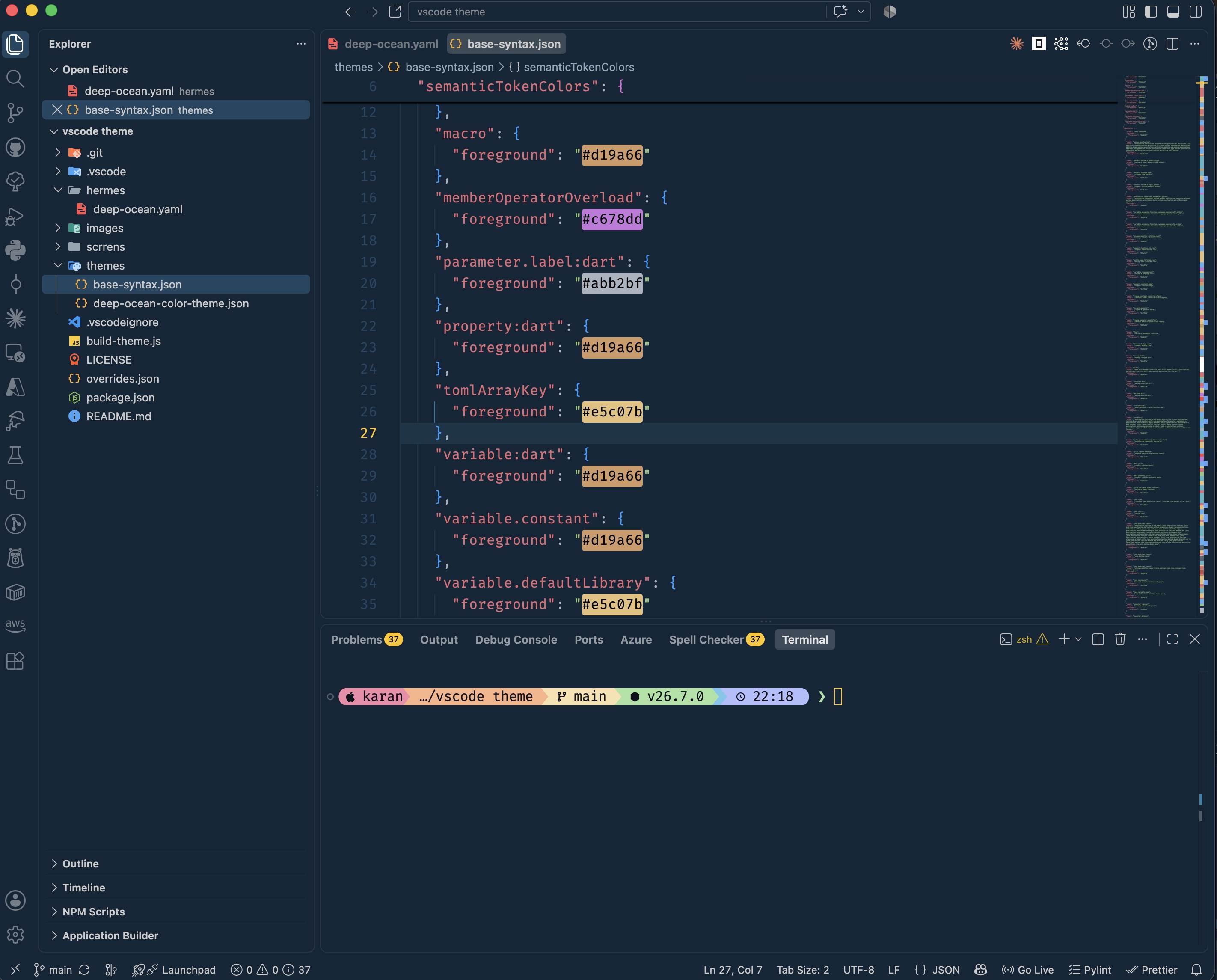
The full workbench — explorer, editor, integrated terminal:
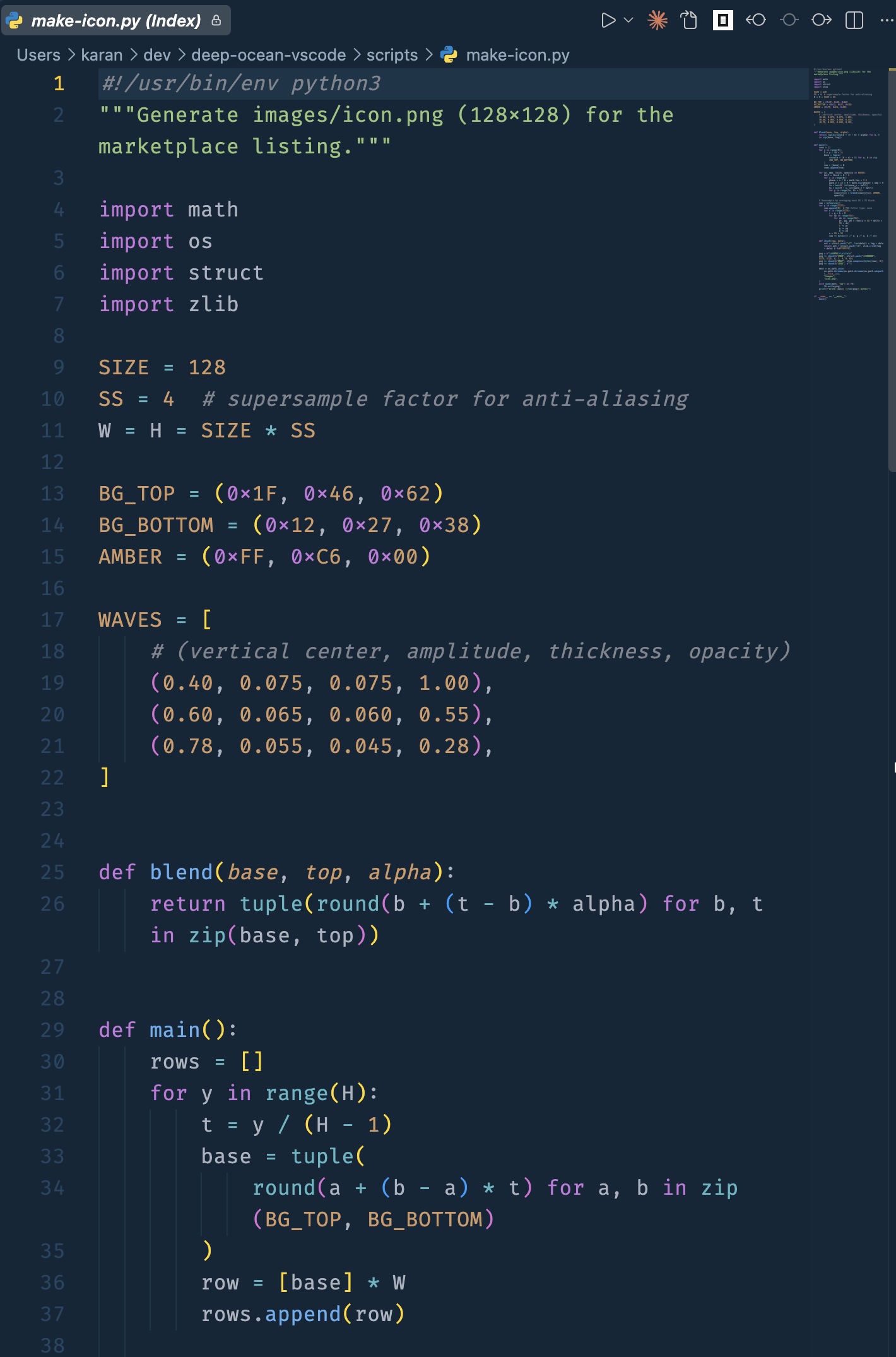
Python:
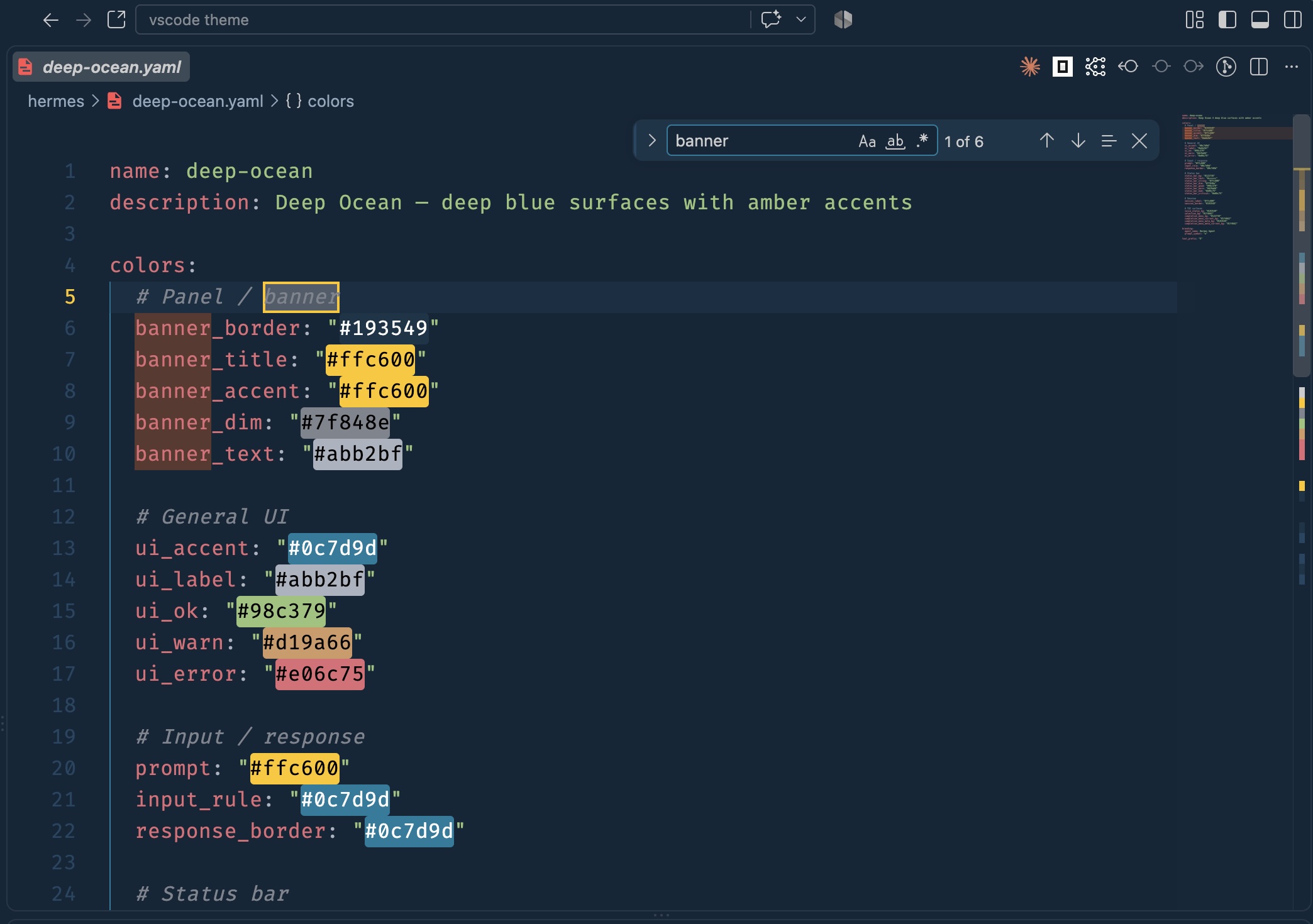
YAML
Hermes Desktop
The same palette ported to Hermes Desktop,
so a terminal-side session matches the editor. This is a separate application —
nothing here affects VS Code.
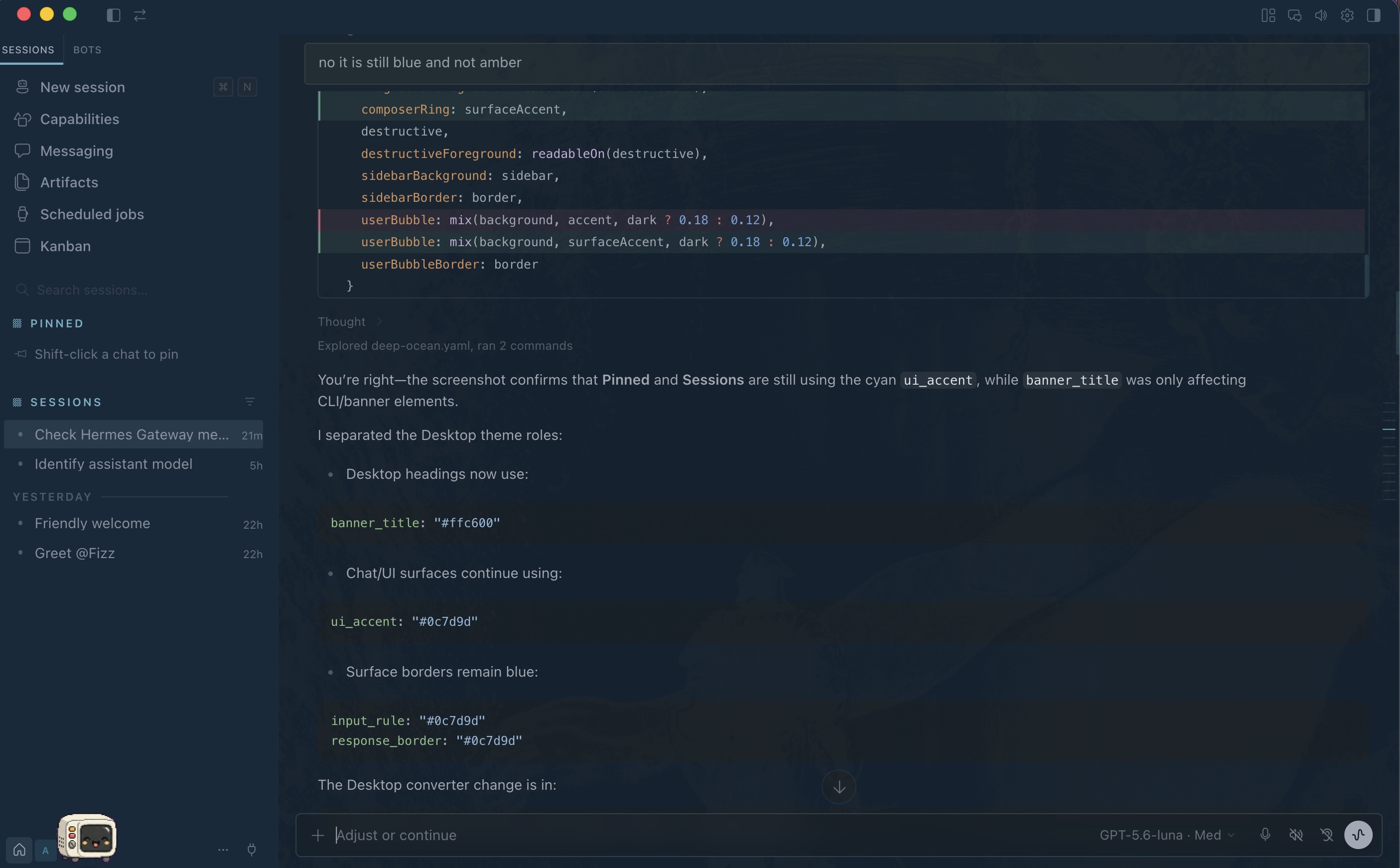
hermes/deep-ocean.yaml maps the same blues and amber onto Hermes' own surface
names (banner, status bar, prompt, TUI panels). Copy it into your Hermes themes
directory to use it.
Nice to have settings
The theme only sets colors. These settings are what it was tuned against —
add them to your settings.json:
{
  "workbench.colorTheme": "Deep Ocean Amber",
  "editor.fontFamily": "'FiraCode Nerd Font', Consolas, monospace",
  "editor.fontLigatures": true,
  "editor.fontSize": 16,
  "editor.fontWeight": "400",
  "editor.lineHeight": 25,
  "editor.letterSpacing": 0.3,
  "editor.cursorStyle": "line",
  "editor.cursorWidth": 2,
  "editor.cursorBlinking": "smooth",
  "terminal.integrated.fontFamily": "'FiraCode Nerd Font Mono'",
  "terminal.integrated.fontSize": 16
}
FiraCode Nerd Font.
The ligatures (editor.fontLigatures) are what turn => and !== into single
glyphs — the theme looks fine without them, but that's how it was designed.
Any monospace font works. If you'd rather not install one, drop
editor.fontFamily and terminal.integrated.fontFamily and keep the rest.
Using different syntax colors
The theme's workbench colors and its syntax highlighting are independent. To
keep the Deep Ocean Amber UI but colour code differently, override the syntax in
your settings.json:
"editor.tokenColorCustomizations": {
  "[Deep Ocean Amber]": {
    "comments": "#7f848e",
    "strings": "#98c379",
    "keywords": "#c678dd",
    "numbers": "#d19a66",
    "types": "#e5c07b",
    "functions": "#61afef",
    "variables": "#e06c75"
  }
}
The [Deep Ocean Amber] scope keeps the override from applying to your other
themes. Those seven names are shorthand for common TextMate scopes; for finer
control use textMateRules instead:
"editor.tokenColorCustomizations": {
  "[Deep Ocean Amber]": {
    "textMateRules": [
      {
        "scope": ["entity.name.tag", "support.type.property-name"],
        "settings": { "foreground": "#e06c75", "fontStyle": "italic" }
      }
    ]
  }
}
Run Developer: Inspect Editor Tokens and Scopes from the command palette to
find the scope name under the cursor.
Note that this only works in one direction. Themes cannot inherit from each
other across extensions, so there is no way to select a different theme and pull
in Deep Ocean Amber's workbench colors — the colors would have to be pasted into
workbench.colorCustomizations by hand.
Editing colors
themes/deep-ocean-color-theme.json is generated — don't edit it by hand.
overrides.json holds the workbench colors and themes/base-syntax.json the
syntax colors. Change overrides.json, then run:
node build-theme.js
A value of "default" in overrides.json means "keep the base theme's value".
VS Code caches parsed themes keyed by extension version, so rewriting the theme
file alone is not enough for a running window to show new colors. The build
therefore also bumps the patch version, repoints the symlink in
~/.vscode/extensions, and updates that directory's extensions.json. Run
Developer: Reload Window afterwards.
Pass --no-install to rewrite the theme file without bumping or relinking:
node build-theme.js --no-install
Previewing
Open this folder in VS Code and press F5 to launch an Extension Development
Host, then pick Deep Ocean Amber from the theme picker.

