PlotKeeper
Never lose the plot of your AI-generated codebase.
Demo
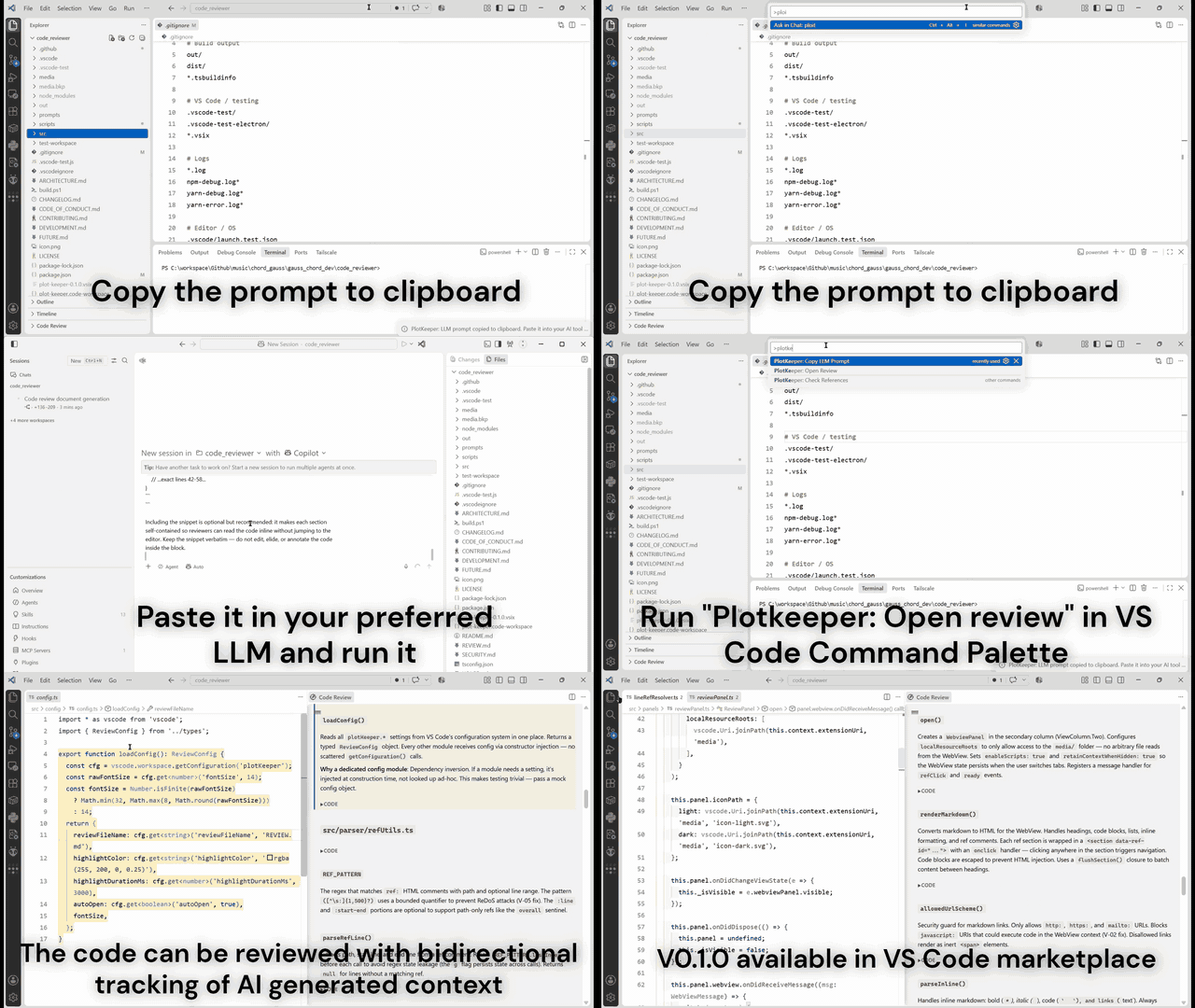
Copy the prompt into Copilot → generate REVIEW.md → the panel opens → click a
section to highlight the code, move your cursor to jump back to the explanation.
PlotKeeper is a VS Code extension that creates a bidirectional link between
your code and an AI-generated markdown document that explains it. Click an explanation
to highlight the code. Select code to jump to its explanation.
                 ┌──────────┐  click ref   ┌──────────────────────┐
   REVIEW.md ───►│   Panel  │─────────────►│  Code in the editor  │
                 └──────────┘              └──────────────────────┘
                      ▲                              │
                      │        select line           │
                      └──────────────────────────────┘
Installation
- Open VS Code → Extensions view (
Ctrl+Shift+X)
- Search for PlotKeeper → Install
- Generate a
REVIEW.md for your project (see Quick Start below) and save it
to your workspace root
Quick Start
Ctrl+Shift+P → PlotKeeper: Copy LLM Prompt- Paste the prompt into your AI tool (Copilot Chat, ChatGPT, Claude, Cursor…)
with your source files as context — it generates
REVIEW.md in the required
format
- Save
REVIEW.md to your workspace root — the panel auto-opens, and clicking
any reference highlights the code
Full instructions, the document format, and troubleshooting are in
USAGE.md.
The Story
Using AI to write code raises throughput, but it also introduces a gap: the more
changes are produced, the harder it is to keep a complete mental model of the
codebase. Code that was generated in minutes can take much longer to fully
review, and the understanding of why it was written a certain way fades
quickly. This project addresses that gap directly.
The core idea is a persistent REVIEW.md document in the repository, generated
by an LLM in a strict format, with invisible <!-- ref: --> markers that link
each explanation to the exact code it describes. The extension provides a
bidirectional view: click an explanation to see the code, or read the code and
jump to the corresponding explanation.
PlotKeeper takes the best from both sides and amplifies it. The LLM brings
speed, coverage, and recall — it reads the whole codebase and drafts a map of
what exists and why. The human brings judgment, intent, and context that no
model has — the ability to sniff whether an explanation is right, and to know
why a decision was actually made. Neither is sufficient alone. The AI drafts,
the human validates, and the questions asked along the way become the intent
the team inherits.
It is intended for developers who are comfortable writing code but want a more
efficient way to re-establish context — after returning to a project, before a
review, or while onboarding a teammate. The same workflow applies to any
codebase you need to understand quickly: an inherited or legacy system, code
that has grown beyond what one person can hold in memory, or a project last
touched months ago.
A Way of Working (Human in the Loop)
PlotKeeper is a workflow for robust coding, not a magic button:
- Draft — the LLM reads the code and writes
REVIEW.md in the required
format. Good enough is fine; perfection is not the goal.
- Review — you navigate doc ↔ code and validate. The explanation only needs
to be right enough to guide you to the code; your judgment confirms it.
- Clarify — anything unclear, you push back. The answer is merged back into
the section.
- Persist — what started as machine description becomes human-verified
intent documentation: why a decision was made, what was considered and rejected.
Crucially, PlotKeeper does not make your code better on its own. It doesn't
fix bugs, improve design, or generate features. It gives you tools to make
review easier and faster — the part of robust coding that usually gets cut when
velocity rises. The LLM does what it's best at (broad, fast, thorough); you do
what you're best at (judgment, intent, context).
The extension provides the navigation (doc ↔ code lookup) and the document
convention. The iteration loop — draft, review, clarify, merge — is a feature
you drive through your AI tool of choice. Automating parts of that loop is on
the roadmap.
Why
You're using AI to write code at an accelerating pace. The codebase grows faster than
you can read it. You need a way to:
- Re-board after weeks away from a project
- Review what AI generated and understand why
- Onboard team members onto AI-heavy codebases
- Audit decisions captured in the code
- Inherit a legacy codebase — generate a REVIEW.md and get a navigable map
of what exists and why, without reading every file end-to-end
- Amplify — combine the LLM's speed and coverage with your judgment and
intent, instead of trading one for the other
Existing tools are too granular (doc strings), ephemeral (chat), or lack bidirectional
navigation (CodeTour). PlotKeeper fills the gap: a persistent, check-in-friendly,
bidirectional document that lives in your repo.
Quick Start
Step 1: Copy the prompt
Cmd/Ctrl+Shift+P → "PlotKeeper: Copy LLM Prompt"
Step 2: Generate REVIEW.md
Paste the prompt into your AI tool (Copilot Chat, ChatGPT, Claude, Cursor, etc.)
with your source files as context. The LLM generates a REVIEW.md following
the required format.
Step 3: Save and open
Save REVIEW.md to your workspace root. The extension auto-detects it and opens
the review panel. Click any code reference to see the code highlighted.
Commands
| Command |
Description |
PlotKeeper: Open Review |
Opens the review panel (side by side) |
PlotKeeper: Copy LLM Prompt |
Copies the prompt template to clipboard |
PlotKeeper: Check References |
Validates all file references in REVIEW.md |
Features
Bidirectional Navigation
- Doc → Code: Click any reference in the review panel → the corresponding
code is highlighted (gold background) and scrolled into view. The highlighted
range is resolved by symbol name via the language server when available,
so it stays correct even after edits shift the original line numbers.
- Code → Doc: Move your cursor through code → the review panel auto-scrolls
to matching explanations. Lookup is drift-resistant: it resolves the enclosing
symbol first, falls back to exact line numbers, then to the nearest documented
section — so navigation keeps working in gaps and after code changes.
Tree View
The Explorer sidebar shows a Code Review tree organizing all sections by file.
Click any entry to navigate.
Inline Code Snippets
Each review section includes a collapsible Code block showing the exact
source of the referenced range, read live from disk — so you can see the code
being explained without leaving the panel. Click the section body to jump to the
code in the editor; use the Code disclosure to peek at the snippet inline.
Change Detection
When you save changes to REVIEW.md, the extension automatically re-parses and
refreshes the panel. Run Check References to validate all file paths and
line numbers still point to real code.
Settings
| Setting |
Default |
Description |
plotKeeper.reviewFileName |
REVIEW.md |
Name of the review document |
plotKeeper.highlightColor |
rgba(255,200,0,0.25) |
Code highlight background color |
plotKeeper.highlightDurationMs |
3000 |
Highlight duration (0 = persistent) |
plotKeeper.autoOpen |
true |
Auto-open review panel when REVIEW.md exists |
plotKeeper.fontSize |
14 |
Base font size (px) for the review document renderer |
Requirements
- VS Code 1.85+
- A REVIEW.md file in your workspace root (see prompt to generate one)
Extension Structure
code_reviewer/
├── src/
│   ├── extension.ts              # Composition root — wires everything together
│   ├── types.ts                  # Shared interfaces and types
│   ├── parser/
│   │   ├── refIndex.ts           # Parses REVIEW.md refs into bidirectional index
│   │   ├── IRefResolver.ts       # Strategy interface for ref resolution
│   │   ├── lineRefResolver.ts    # Line-number-based resolver
│   │   └── refUtils.ts           # Regex patterns and utilities
│   ├── panels/
│   │   ├── reviewPanel.ts        # WebView side panel for rendered markdown
│   │   └── reviewTreeProvider.ts # Tree view in Explorer sidebar
│   ├── navigation/
│   │   ├── docToCode.ts          # WebView click → code highlight
│   │   └── codeToDoc.ts          # Editor selection → WebView scroll
│   ├── symbols/symbolResolver.ts # LSP symbol lookup + cache (drift-resistant)
│   ├── config/config.ts          # Reads VS Code settings
│   └── test/                     # Test infrastructure
├── media/
│   ├── review.js                 # WebView client-side logic
│   └── review.css                # WebView styling
├── prompts/
│   └── review-prompt.md          # LLM prompt template
└── test-workspace/               # Fixture project for testing
Development
# Install dependencies
npm install

# Compile TypeScript
npm run compile

# Watch mode
npm run watch

# Run unit + integration tests
npm test

# Package for distribution
npm run package
Debug in Extension Development Host
Press F5 in VS Code with this project open. An isolated VS Code window opens
with the test-workspace loaded and the extension active.
For the full setup guide — prerequisites, project layout, testing, conventions,
packaging, and publishing — see DEVELOPMENT.md.
The extension uses REVIEW.md files with embedded HTML comments as references:
### FunctionName <!-- ref:path/to/file.js:42-58 -->
Description of what this function does, why it exists, and how data flows
through it. Cross-references other sections by name.
The <!-- ref: --> comments are invisible in the rendered document but tell the
extension which code corresponds to which explanation. See prompts/review-prompt.md
for the full template.
Sections may optionally include the exact source as a fenced code block (see the
prompt's Optional: Include Code Snippets rule). The extension also reads the
referenced range live from disk, so every section gets an inline collapsible
Code block regardless of whether the LLM included the snippet.
Roadmap
- Iteration loop automation — in-extension draft, clarify, and merge instead
of editing REVIEW.md by hand
- Symbol-based reference format —
path::symbol refs alongside line numbers
for languages without a language server
- Stale detection — flag sections where the code has diverged from the doc
Known Issues
- The test runner requires
glob — run npm install to pull it in
- On first activation, the panel may take ~500ms to open while parsing REVIEW.md
- Line-number-based references can drift as code changes. Run
Check References periodically to detect drift.
License
MIT
Contributing
Contributions are welcome — bug reports, docs, and features. See
CONTRIBUTING.md for the workflow, and
CODE_OF_CONDUCT.md for our community standards.

