JustyBase
Netezza / PureData System for Analytics
Zero Config • Pure JavaScript Driver • AI Copilot Assistant
|
A powerful, Zero Config VS Code extension for working with IBM Netezza / PureData System for Analytics databases.
Distinct from other extensions, JustyBase includes a custom Node.js-based Netezza driver provided by @justybase/netezza-driver, eliminating the need to install or configure IBM ODBC drivers. Just install and connect!
Publisher migration: The active core extension is justybase.justybase-netezza. The former krzysztof-d.justybaselite-netezza extension ID is separate from the new publisher; Marketplace cannot transfer it or update it to the new extension ID. Install the justybase extension explicitly; install optional database packages from the same justybase publisher.
Quick start
- Install JustyBase Netezza SQL Tools (justybase) from the VS Code Extensions view.
- Open the Netezza view in the Activity Bar and select Connect.
- Enter the server host, user, password, and database, then open or create a
.sql file.
- Run the current statement or selection with
Ctrl+Enter / F5.
Database support model
| Target |
Install |
SQL tooling |
| IBM Netezza / PureData |
Core extension (this package) |
First-class — full dialect stack: Chevrotain parser, NZPLSQL procedure diagnostics, semantic tokens, LSP completion/navigation/rename, SQL/NZ/NZP linter rules, Netezza-specific Copilot tools, GROOM/monitor/ETL workflows, and more |
| Other databases |
Core extension + separate optional extension per database |
Limited — shared connect/query/schema/export UX and metadata-aware basics where implemented; not the same depth of dialect-specific parsing, linting, or procedure tooling as Netezza |
JustyBase is built first and foremost for Netezza. Optional database packs reuse the same VS Code shell (connections, schema browser, results grid, import/export) but should be treated as companion runtimes — install the matching extension, connect, and expect reduced SQL editor intelligence compared to Netezza.
Netezza SQL files support SAS-like preprocessing macros, including %let, %if/%do/%end, %export, %include, and %python (which substitutes a Python script's standard output).
Features
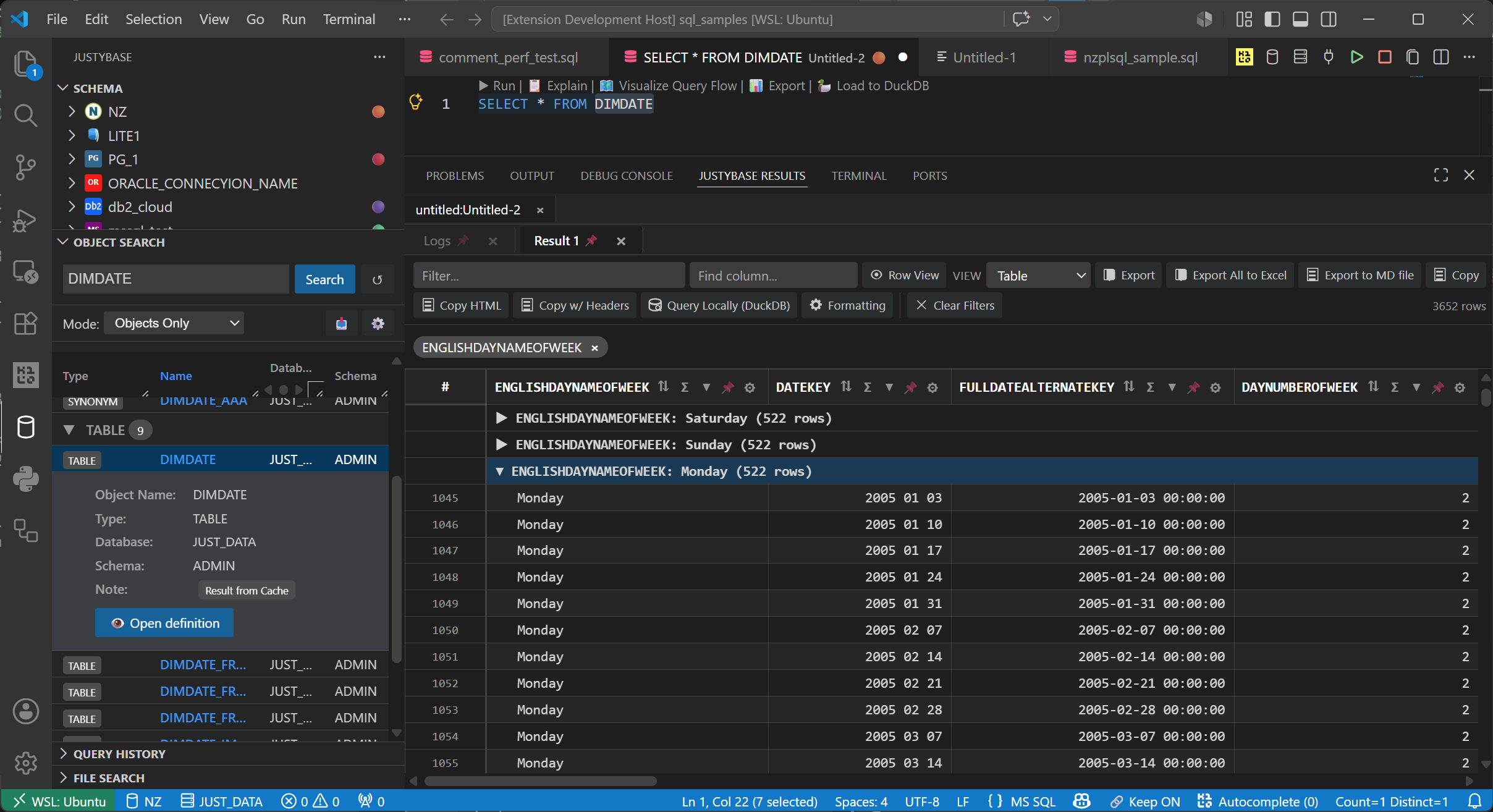
🤖 AI Copilot Assistant
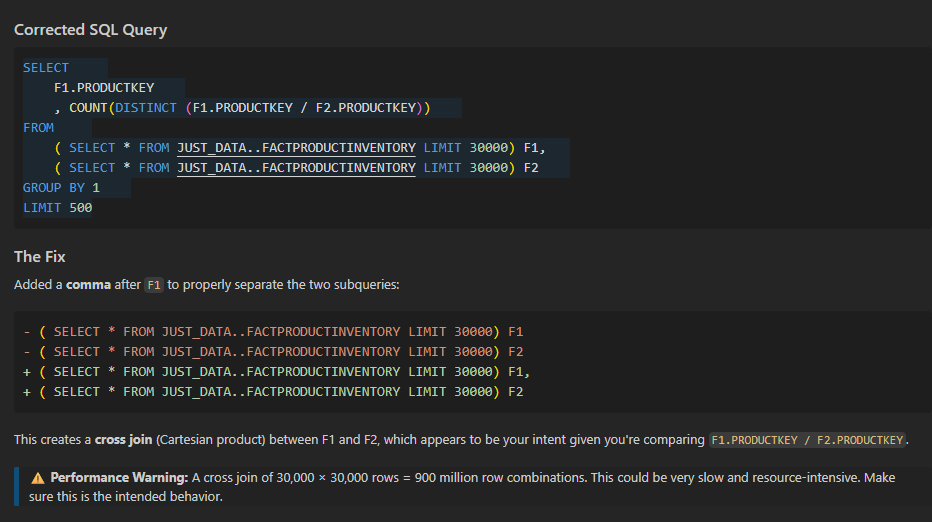
📖 Read the full Copilot documentation: Copilot SQL Assistant
- Chat Participant
@sql-copilot: Interactive conversations with full database context directly in Copilot Chat. Use commands like /schema, /optimize, /fix, /explain, /best-practices.
- Language Model Tools: 20+ automated tools that Copilot can use to autonomously query your database:
#schema - Get table DDL for tables in current SQL#getColumns - Get column definitions for specific tables#getTables - List all tables in a database#executeQuery - Run SELECT queries (read-only)#sampleData - Get sample rows from a table#explainPlan - Get query execution plan#searchSchema - Find tables/columns by pattern#tableStats - Get row count, skew, distribution info#dependencies - Find what uses this object#workspaceProfiles - Show workspace-curated Copilot table profiles and notes#validateSqlParser - Validate SQL with parser/linter (offline)#validateSqlOnDatabase - Validate SQL on database runtime (EXPLAIN)#getSqlDiagnostics - Read SQL diagnostics with SQL/NZ/NZP codes#inspectImportFile - Inspect source file and infer import schema/preview#proposeImportMapping - Propose source-to-target import mapping and CREATE SQL#executeImport - Run import dry-run or execute import with audit details#exportQueryResults - Export SQL query output or active Results grid to CSV/XLSX/XLSB/Parquet#compileProcedure - Compile a stored procedure (CREATE OR REPLACE DDL execution)#executeProcedure - Execute a stored procedure (CALL statement)#runDiagnosticQueries - Run diagnostic SQL queries to validate procedure correctness
- Procedure Compilation & Diagnostics: Copilot can now autonomously compile stored procedures, fix syntax errors using database exception messages, and validate correctness through user-provided diagnostic SQL queries — all in multi-iteration cycles. 📖 Procedure Compilation Guide
- Copilot Table Profiles View: Curate important tables in a dedicated explorer view (
Copilot Table Profiles), add usage notes, and mark profiles for auto-include or one-time include in the next Copilot request.
- Auto Mode: Apply suggested fixes or optimizations using the built-in diff editor (modal review dialog). Options: Apply Changes, Apply & Close Diff, Discard.
- Interactive Mode: Open Copilot Chat for a back-and-forth discussion; suggestions stay in Chat unless you explicitly apply them with
/edit.
- Generate SQL from Description: Describe what you need in natural language, and Copilot generates the SQL using your database schema context.
- Enhanced Agent Capabilities: Includes multi-round tool orchestration with execution budgets, standardized tool outputs (
summary/data/errors/next-actions), and follow-up prompt suggestions for @sql-copilot.
- Describe Data: From the Results panel you can request Copilot to describe a result set (first 50 rows). A privacy confirmation modal appears before any data is sent.
- Commands: Fix/Optimize/Explain/Ask/Generate/Rewrite to Best Practices (each available in Auto and Interactive variants).
🔒 Privacy & AI Data Transmission
This extension integrates with GitHub Copilot for AI-powered SQL assistance.
All AI features transmit data to external Microsoft/GitHub servers.
Key data transmitted:
- SQL code and queries
- Database schema information (DDL)
- Table statistics and sample data (when explicitly requested)
- Query history (for context - limited to 5 most recent queries, truncated to 180 characters each)
Privacy confirmation dialogs appear before sending data to AI. You can configure this behavior in settings: justybase.copilot.skipPrivacyConfirmation
Disabling AI Features
You can completely disable all AI features to prevent any data transmission:
// In settings.json:
"justybase.copilot.enabled": false
When disabled:
- All AI commands (Fix SQL, Optimize SQL, Explain SQL, Generate SQL) will show a message that AI features are disabled
- No data will be sent to GitHub Copilot
- The
@sql-copilot chat participant will still be registered but will not function
For corporate environments: Please review your organization's data policy before using AI features. See Privacy & Data Security for full details.
Query Execution
- Zero Configuration: Connect immediately using host, user, and password. No ODBC setup required.
- Per-Tab Database: Switch active database for specific tabs using the status bar selector.
- Per-Tab Connection: Assign different connections to different SQL tabs for multi-database workflows.
- Auto-Recovery: Automatically detects broken connections and retries queries.
- Keep Connection: Toggle persistent connections globally or per-tab to avoid reconnection overhead.
- Progressive Results: Results appear immediately as queries finish, even when running multiple statements.
- Sequential Execution: Run complex scripts with multiple statements safely.
- Run Selection: Execute selected text or the current statement (
Ctrl+Enter / F5).
- Cancel Query: Stop long-running queries instantly.
- Explain Plan: Visualize query execution plan (
Ctrl+L).
- SQL Formatter: Auto-format SQL code (
Shift+Alt+F).
- 📖 Query Execution & Analysis Guide
📓 SQL Notebooks
Use the VS Code Notebook API to create interactive SQL notebooks with inline results.
- New Notebook: Command Palette → New Netezza SQL Notebook creates a
.sqlnb file.
- Per-cell execution: Execute SQL cells individually — results render as HTML tables directly inline below each cell.
- Full Grid view: Click the Full Grid button in the cell status bar to open a standalone interactive panel with:
- Sorting — click column headers to sort ascending/descending
- Global filter — type to search across all columns in real time
- XLSB export — one-click export to Excel Binary Workbook format
- IntelliSense: Full code completion (tables, columns, functions), hover tooltips, and parser diagnostics work inside SQL cells.
- File format: Notebooks are saved as
.sqlnb or .nzsql-nb plain JSON files.
- All connections supported: Notebooks use the same active connection as regular SQL editors, including per-tab database and connection switching.
- 📖 Notebooks Guide
📜 Query History
- Persistent History: All executed queries are automatically saved with timestamps.
- Search & Filter: Quickly find previously run queries by content, tags, favorites, and saved filter views.
- Quick Re-run with Parameters: Reopen history queries with variable placeholders (e.g.,
:id, ${date_from}, {schema}) and fill values before execution.
- Extended View & Export: Open an extended history panel, search active + archive history, and export history to CSV/JSON.
- Access: View → Query History in the Netezza panel.
🔍 File Search
Search across .sql and .py files in your workspace by content and filename with VS Code‑style options.
- Search modes:
- Raw — search everything including comments and string literals
- Exclude Comments — skip
-- and /* */ comments
- Exclude Comments & Strings — skip comments and
'...' literals
- Toggle options:
Aa (match case), ab (whole word), .* (regex) — matching VS Code's native search widget.
- Replace All: Replace all occurrences across matching files with preview confirmation and dirty-file skipping.
- File‑name search: Files whose name matches the term always appear in a separate Filename Matches section.
- Result grouping: Results can be grouped by modification time (
Today, This Week, This Month, Older) with collapsible group headers.
- Auto‑search: Changing any toggle or option automatically re‑triggers the search.
- Access: View → File Search in the Netezza panel.
⭐ Favorites & SQL Snippets
- Favorites Tree: Save tables/views/procedures and SQL snippets in a structured Favorites node (folders, notes, drag & drop).
- Parameterized Favorites: Opening a SQL favorite resolves variables with an input prompt (
${var}, $var, {var}), so one snippet can be reused with different values.
- Inline SQL Variables: Declare execution-scoped values directly in SQL with SAS-style
%let directives, for example %let points_cutoff = 20;, then reuse them as $points_cutoff, ${points_cutoff}, or &points_cutoff. Text values can be declared as SQL literals, for example %let region = 'EAST';, so substitution keeps the quotes. %EVAL(...) supports simple arithmetic, %SQL(...) substitutes the first value from an inner query, %SQLLIST(...) substitutes a SQL literal list from an inner query, empty %SQLLIST(...) results become NULL so IN (...) stays valid SQL, %EXPORT(...) writes an inner query result to XLSX/XLSB, %PUT ...; writes resolved messages to the execution log with a >>> %PUT: prefix, %IF ... %THEN %DO; ... %ELSE %DO; ... %END; runs only the active branch, and %INCLUDE 'path.sql'; composes local script files with one shared macro environment.
- Examples: Inline SQL variable declarations support
%let, %EVAL(...), %SQL(...), %SQLLIST(...), %EXPORT(...), %PUT ...;, %IF/%ELSE/%END, and %INCLUDE for reusable query workflows, spreadsheet exports, and log-friendly debugging.
- Repository Sync: Favorites are synced to
.vscode/netezza-favorites.json in the workspace, making favorites shareable via Git.
- Copilot Integration: Mark favorite profiles/snippets for auto-include, disable/include-once, and use curated context in
@sql-copilot.
🔎 Schema Browser
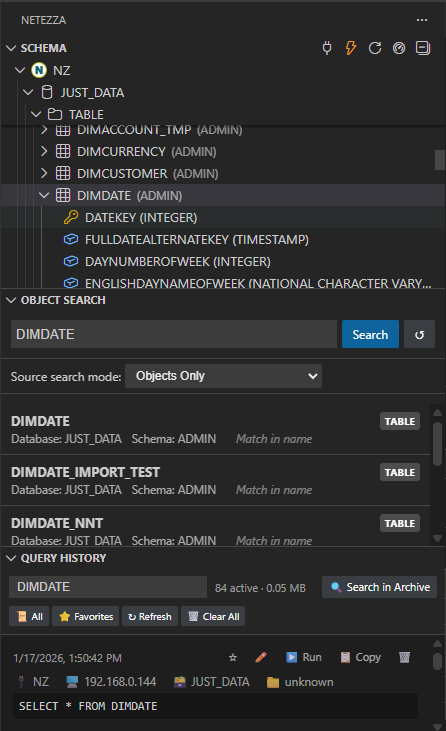
- Object Explorer: Browse Databases, Schemas, Tables, Views, Procedures, Sequences, and Synonyms.
- Search: Quickly find objects across the entire system.
- Rich Metadata: View column types, primary keys, and specialized object properties.
📊 Results & Export
- Data Grid: Full-featured grid with filtering, sorting, and cell selection. Click a column sort icon to sort ascending/descending; Shift+Click adds another sort column (priority badges 1, 2, 3… appear on the sort icons).
- Multi-Grid Export:
- Excel (XLSB): Export all result sets to a single Excel file with multiple sheets. (Support for XLSX/XLSB is provided by
@justybase/spreadsheet-tasks.)
- Parquet: Export to Apache Parquet columnar format, ideal for analytical workloads and large datasets.
- CSV, JSON, XML, SQL INSERT, Markdown: Multiple export format options.
- Combined MD Export: Bundle all result sets from batch queries into a single Markdown file with SQL + results per query. Auto-opens after save.
- Open Immediately: Option to open Excel files automatically after export.
- Data File Preview: Open Parquet (
.parquet), Excel (.xlsx, .xlsb), and custom preview (.nzpreview) files in a full-featured data grid viewer with sorting, filtering, grouping, cell selection, and export — directly from the VS Code explorer or by sending results from the Results panel via Open in Previewer.
- 📖 Full Export/Import Reference
📥 Data Import & Smart Paste
- Advanced Import Wizard: Import CSV/TSV/Excel files into new or existing tables with live preview, target-column rename, include/exclude toggles, reordering, and type overrides.
- Background Validation: Large files continue validating while the wizard stays open, surfacing row/column issues progressively.
- SQL / Workflow Preview: Review generated
CREATE TABLE, direct load SQL, or a generated plan/workflow when the dialect needs a guided import path.
- Sheet & Preview Controls: Change preview row count and, for spreadsheet sources, switch the active sheet directly in the wizard.
- Locale-Aware: Correctly handles numbers with comma decimals based on content.
- Smart Paste: Paste data directly from Excel or other sources; the extension auto-detects structure (Excel XML, CSV, etc.) and generates an
INSERT statement. Access via Command Palette or context menu.
- 📖 Full Export/Import Reference
🛠️ Table & Object Management
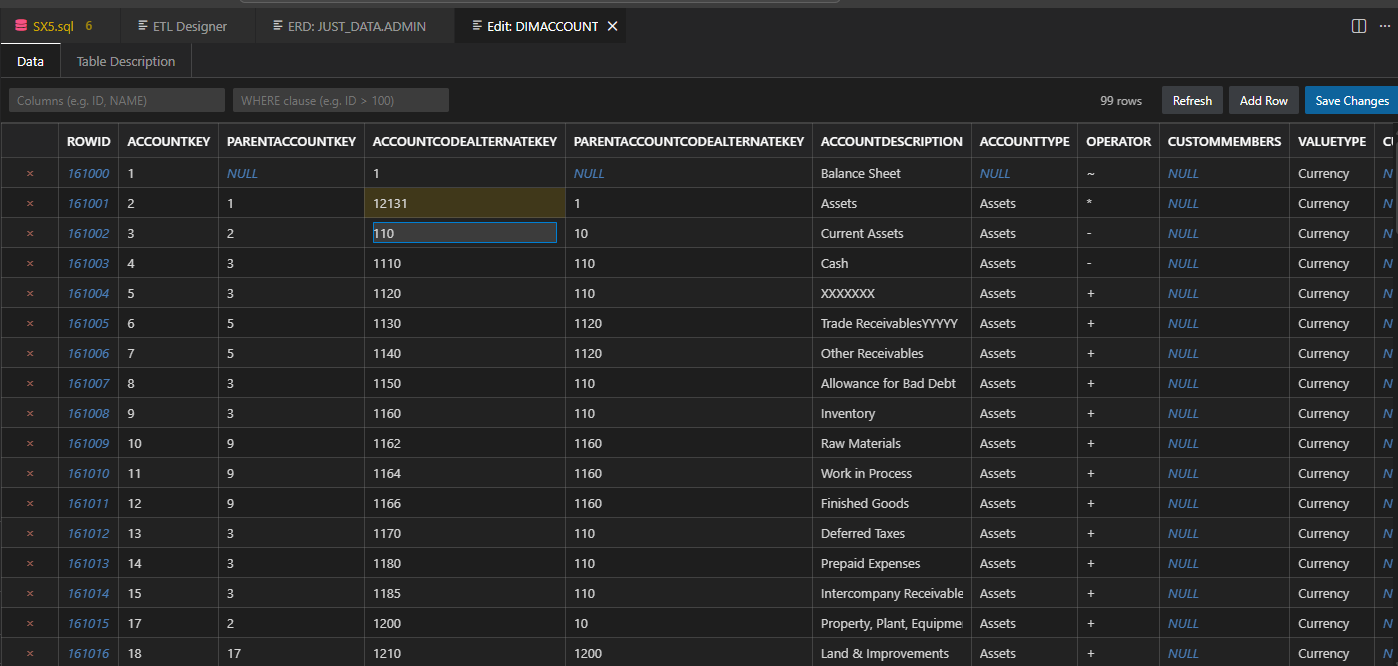
Right-click on objects in the Schema Browser for powerful context actions:
- Maintenance:
- Groom Table: Reclaim space and organize records.
- Generate Statistics: Update optimizer statistics.
- Truncate Table: Quickly empty tables.
- Recreate Table: Generate a maintenance script to recreate a table (useful for skew fixing).
- Modification:
- Rename Table: Safely rename tables.
- Change Owner: Transfer object ownership.
- Add Primary Key: GUI for adding PK constraints.
- Add Foreign Key: GUI for adding FK constraints.
- Add Unique Constraint: GUI for adding unique constraints.
- Add/Edit Comments: Manage object comments.
- Analysis:
- Compare With...: Compare table structures or procedure definitions with another object.
- Check Data Skew: Analyze distribution of data across slices.
- View/Edit Data: Edit table rows directly (with limit safeguards).
- 📖 Schema Comparison Guide
⚡ Professional Development
- DDL Generation: Generate production-ready DDL for Tables, Views, and Procedures (including arguments and returns).
- Batch DDL Export: Export DDL for an entire database or all objects of a type (Tables, Views, Procedures) at once.
- Procedure Support:
- Create Procedure: Template for new NZPLSQL procedures.
- Create View: Wizard for drafting
CREATE OR REPLACE VIEW statements (with optional column aliases).
- Create External Table: GUI wizard for creating Netezza external tables with file format options.
- Notice Handling: Captures and prints
RAISE NOTICE output to the "Netezza Logs" channel.
- Signature Support: Correctly parses and displays full procedure signatures.
📈 Query Monitoring Dashboard
- Session Monitor: Real-time view of active sessions, running queries, and system resources.
- Running Queries: View currently executing queries with estimated cost, elapsed time, and ability to kill sessions.
- Resources: Monitor CPU, Memory, Disk, and Fabric utilization across SPUs with system utilization summary.
- Storage Statistics: Analyze table storage, used bytes, and data skew (weighted average) per schema and database.
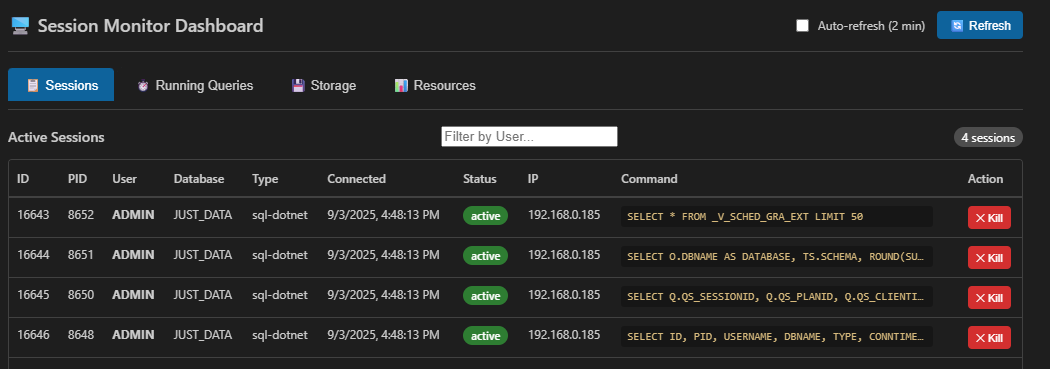
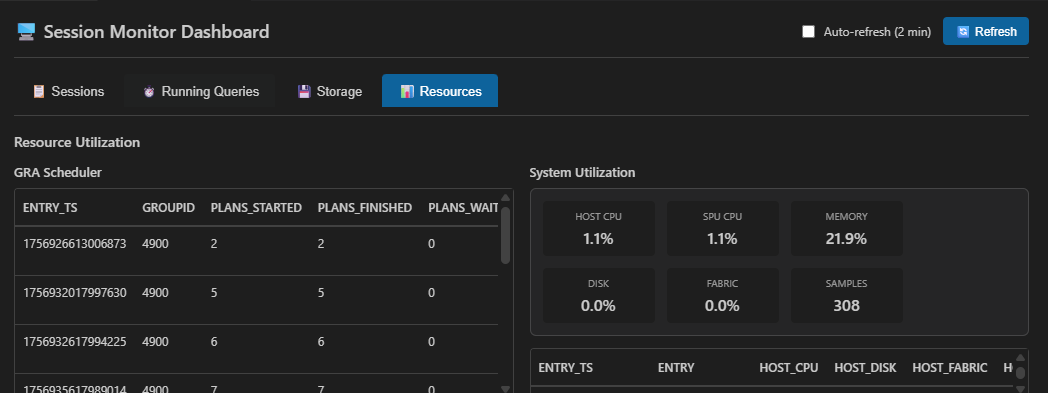
- Access: Right-click on a database in the Schema Browser → Open Monitor Dashboard.
🗺️ Entity Relationship Diagram (ERD)
- Visual Schema Exploration: Generate interactive diagrams showing tables and their relationships.
- Foreign Key Visualization: Display Primary Key (PK) and Foreign Key (FK) relationships between tables.
- Column Details: View column names, data types, and key indicators directly in the diagram.
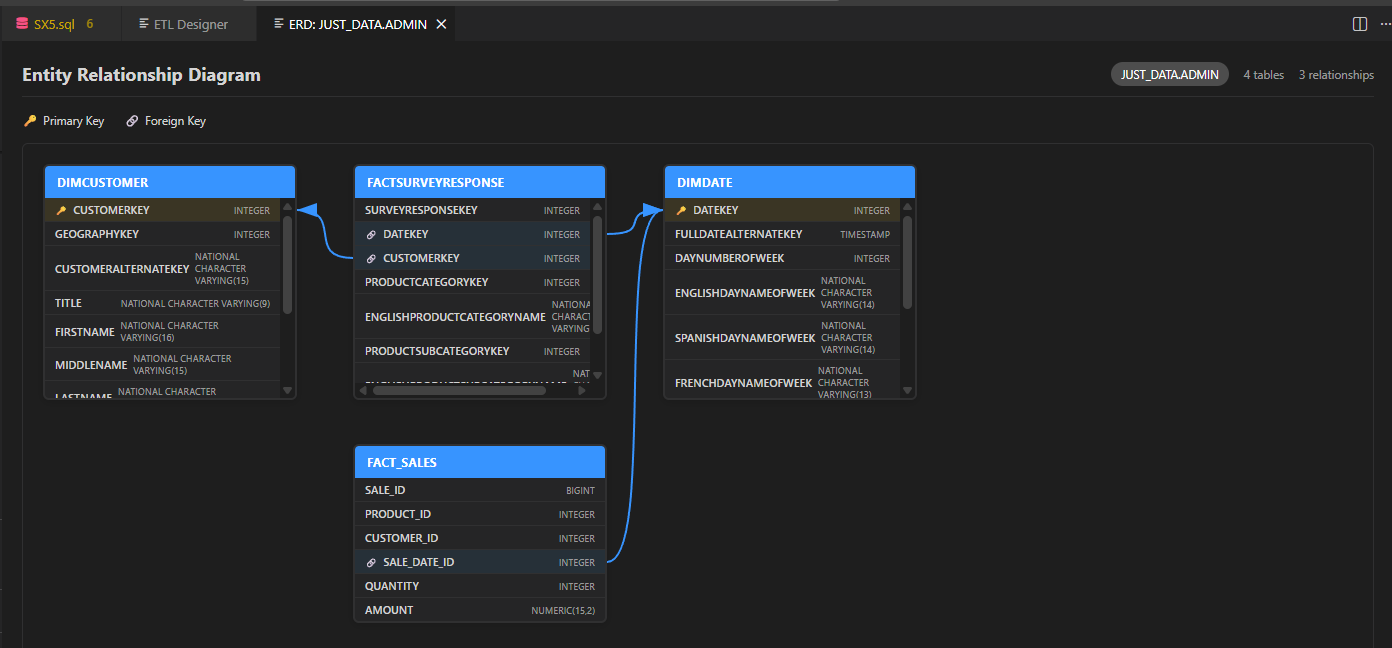
- Access: Right-click on a schema in the Schema Browser → Generate ERD.
🔄 ETL Designer
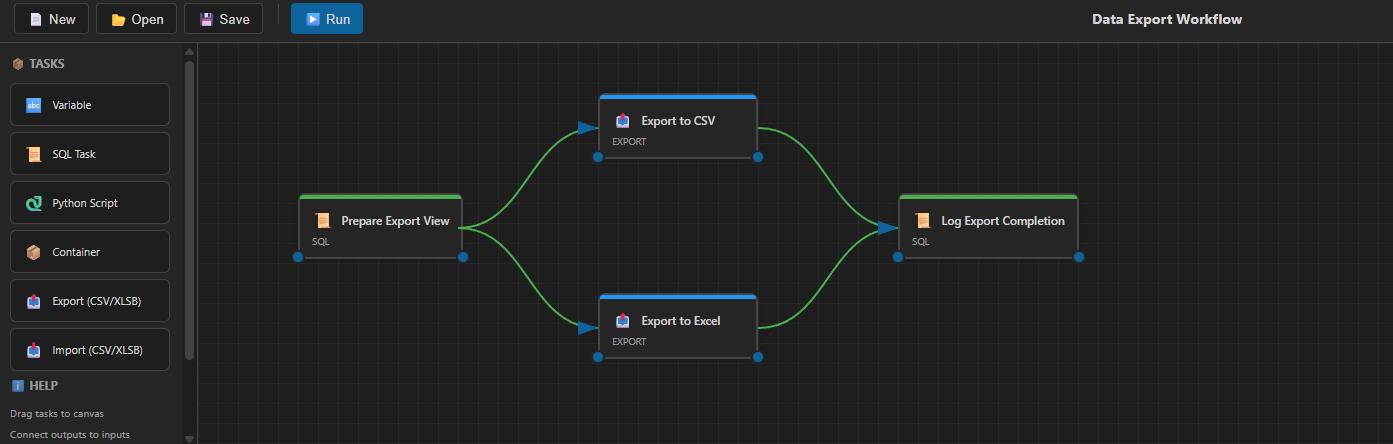
- Visual Workflow Designer: Create data workflows with drag-and-drop nodes on a canvas.
- Task Types:
- SQL Task: Execute SQL queries against the connected Netezza database.
- Python Script: Run Python scripts (inline or from file).
- Export Task: Export query results to CSV or XLSB files.
- Import Task: Import data from CSV/XLSB files into tables.
- Container Task: Group multiple tasks for organized workflows.
- Connections: Draw arrows between tasks to define execution order.
- Parallel Execution: Unconnected tasks run in parallel; connected tasks run sequentially.
- Project Management: Save and load ETL projects as
.etl.json files.
- Access: Command Palette → Netezza: Open ETL Designer or Schema Browser toolbar.
- 📖 ETL Designer Guide
🔍 SQL Linter & Validator
- Real-time Feedback: Get instant warnings and errors as you type SQL.
- 13 Built-in Rules: Detect common anti-patterns like
SELECT *, DELETE without WHERE, CROSS JOIN, UPDATE ... AS, and more.
- Configurable Severity: Set each rule to
error, warning, hint, or disable with off.
- Smart Detection: Ignores patterns inside strings and comments.
- Chevrotain Parser Validation: Advanced AST-based semantic validation that checks:
- Unknown columns and tables (SQL003, SQL004)
- Ambiguous column references (SQL008)
- Invalid data types (SQL013, SQL014)
- Unknown functions (SQL011)
- CTE and subquery scope analysis
- NZPLSQL procedure variable validation
- 📖 SQL Linter Reference
✂️ SQL Snippets
- 58 Code Snippets: Type
nz followed by a keyword to quickly insert SQL templates.
- Categories: Basic SQL, DDL, Netezza-specific (GROOM, GENERATE STATISTICS), NZPLSQL procedures, query patterns.
- Usage: Type prefix (e.g.,
nzselect, nzprocedure, nzgroom) → Press Tab.
- 📖 Full Snippets Reference
Requirements
- VS Code: v1.103.2 or higher.
- No external drivers required for Netezza: the core extension bundles its own pure JavaScript/TypeScript driver.
Optional Database Support
Optional database packs plug into the shared core UX (login UI, schema explorer, query execution, results/export). They do not ship the full Netezza SQL development stack.
What optional extensions typically provide
- Connect and run queries against the target database
- Schema browser refresh (scope varies by dialect)
- Metadata-aware completion and diagnostics where implemented for that dialect
- Import/export and DDL helpers where implemented
What remains Netezza-only (or Netezza-first)
- Dedicated Netezza Chevrotain grammar and NZPLSQL procedure analysis (SQL037+ / NZP rules)
- Netezza-specific maintenance workflows (GROOM, skew analysis, session monitor, ETL designer)
- Netezza-tuned Copilot tools (
#compileProcedure, #tableStats skew/distribution, and similar)
- Deepest linter coverage (SQL/NZ/NZP rule set exercised primarily against Netezza SQL)
| Database |
Status |
Distribution |
Marketplace preview |
Notes |
| SQLite |
Experimental |
Built into core extension |
n/a (core) |
File-based, no separate installation; minimal SQL validation |
| IBM Db2 |
Preview |
Separate optional extension |
yes |
Requires native ibm_db dependency |
| DuckDB |
Preview |
Separate optional extension |
yes |
Uses @duckdb/node-api with platform-specific native bindings |
| PostgreSQL |
Preview |
Separate optional extension |
yes |
Pure JS pg runtime; connect, schema browser, query/export; limited SQL validation |
| Snowflake |
Preview |
Separate optional extension |
yes |
Pure JS snowflake-sdk; connect, schema browser, stage helpers; limited SQL validation |
| Oracle |
Preview |
Separate optional extension |
yes |
Requires oracledb npm package (thin mode) |
| Microsoft SQL |
Preview |
Separate optional extension |
yes |
Requires mssql npm package |
| MySQL |
Preview |
Separate optional extension |
yes |
Requires mysql2 npm package |
| Vertica |
Preview |
Separate optional extension |
yes |
Requires vertica npm package |
All optional database extensions are published with "preview": true in their package.json (PostgreSQL included). Treat them uniformly as preview companion runtimes — not a graduated tier below Netezza. Depth of SQL editor support still varies by dialect, but none matches the Netezza-first stack listed above.
Install the core extension first, then install the PostgreSQL support package to enable:
- PostgreSQL connections in the shared login UI
- schema explorer refresh for databases, schemas, tables, views, procedures, functions, and sequences
- metadata-aware completions and diagnostics
- CSV import through PostgreSQL
COPY
- DDL generation for tables, views, procedures/functions, and sequences
EXPLAIN (FORMAT JSON) parsing plus tuning-advisor scaffolding
See docs/postgresql.md for setup, development, and validation details.
Install the Snowflake support package to enable:
- Snowflake connections in the shared login UI with warehouse/role/auth-mode fields
- schema explorer refresh for databases, schemas, tables, views, procedures, functions, sequences, stages, streams, tasks, file formats, and warehouses
- metadata-aware completions and diagnostics for Snowflake SQL, including semi-structured helpers
- stage-based import/export helpers that generate
COPY INTO SQL and usage guidance
EXPLAIN USING JSON parsing and recent query profile viewing- stream/task draft wizards plus Snowflake session commands for switching warehouse and role
See docs/snowflake.md for setup, development, security guidance, and opt-in live testing.
Keyboard Shortcuts
| Shortcut |
Action |
Ctrl+Enter / F5 |
Run Current Statement / Selection |
Ctrl+Shift+Enter |
Run Query Batch |
Ctrl+Shift+L |
Lint SQL (On-Demand) |
Marketplace troubleshooting
If the Visual Studio Marketplace is temporarily unavailable (for example, it returns an HTTP 429 rate-limit error), install the extension manually from a .vsix package. Open the project's GitHub Releases, download justybase-netezza-<version>.vsix from Assets, then in VS Code run Extensions: Install from VSIX... from the Command Palette (Ctrl+Shift+P). Do not download Source code (zip) or Source code (tar.gz) — they are not installable extensions. Manual installation does not receive automatic Marketplace updates.
For contributors and maintainers
This section is for building, testing, packaging, and releasing the extension. Database users can skip it.
Optional database support now lives in sibling packages under extensions\. Today that includes extensions\db2, extensions\duckdb, extensions\oracle, extensions\postgresql, extensions\mssql, extensions\mysql, and extensions\snowflake when those optional packages are present in the checkout. Db2 and DuckDB are distributed separately because their runtimes include platform-specific native components and should not be bundled into the core Netezza/SQLite VSIX.
# Install dependencies
npm install

# Install optional package dependencies (when present in your checkout)
npm run install:db2
npm run install:duckdb
npm run install:oracle
npm run install:postgresql
npm run install:snowflake
npm run install:mssql
npm run install:mysql

# Press F5 from the repository root and choose one of:
# Run Core + Db2 Support
# Run Core + DuckDB Support
# Run Core + Oracle Support
# Run Core + PostgreSQL Support
# Run Core + Snowflake Support
# Run Core + MySQL Support
# Run Core + All Optional Support Packs

# Build the extension
npm run build
npm run build:db2
npm run build:duckdb
npm run build:oracle
npm run build:postgresql
npm run build:snowflake
npm run build:mssql
npm run build:mysql

# Run tests
npm run test -- --testPathPatterns="sqlParser.test.ts"
npm run test -- --testNamePattern="ConnectionManager"
npm run test:duckdb:integration
npm run test:live:local

# Switch Db2 runtime between Jest/Node and F5/Electron
npm run db2:runtime:node
npm run db2:runtime:electron

# Type checking and linting
npm run check-types
npm run check-types:db2
npm run check-types:duckdb
npm run check-types:oracle
npm run check-types:postgresql
npm run check-types:snowflake
npm run check-types:mssql
npm run check-types:mysql
npm run lint
npm run lint:duckdb
npm run lint:snowflake
npm run lint:mysql
npm run verify:duckdb
npm run verify:snowflake
npm run verify:mysql

# Package for distribution
npm run package:pre
npm run package:db2
npm run package:duckdb
npm run package:oracle
npm run package:postgresql
npm run package:snowflake
npm run package:mssql
npm run package:mysql
npm run package:duckdb:full
npm run package:snowflake:full
npm run package:mysql:full

# Keep core + optional extension versions synchronized
npm run version:check
npm run version:patch
npm run version:set -- 1.2.0
The Db2-bearing F5 launch targets now call npm run db2:runtime:electron automatically before the Extension Development Host starts, so a previous Jest/live-test rebuild for plain Node does not leave ibm_db on the wrong ABI for VS Code debugging. Those Db2 debug profiles also inject DB2CODEPAGE=1208 into the Extension Development Host on Windows so the bundled CLI driver is biased toward UTF-8/Unicode conversion during F5 sessions. The manual runtime commands remain useful when you want to switch explicitly outside the normal F5 flow.
npm run package:db2 expects extensions\db2\node_modules\ibm_db to be installed first, and npm run package:duckdb expects extensions\duckdb\node_modules\@duckdb\node-api to be installed first. The root helpers above run those installs in the optional package directories for you.
npm run install:duckdb, npm run install:oracle, npm run install:postgresql, and npm run install:mysql are not required just to make those dialects appear in the Connect to Database panel during F5 debugging. For that, you only need to launch the matching combined debug profile so the optional extension is loaded into the same Extension Development Host. Those install steps are still required before a real DuckDB, Oracle, PostgreSQL, or MySQL connection can succeed.
npm run test:live:local is a local-only smoke harness for live databases. It runs:
- the existing Netezza live integration test (
src\__tests__\integration\realDatabase.integration.test.ts)
- optional live metadata/connectivity smoke tests for Db2, Oracle, and PostgreSQL (
src\__tests__\integration\optionalDialects.live.integration.test.ts)
The default npm run test and npm run test:watch flows skip both live suites on purpose, so normal regression runs stay local-environment-independent. Use npm run test:live:local when you explicitly want real database smoke coverage.
The live tests are env-gated and stay skipped unless you provide credentials. Supported variables are:
- Netezza:
NZ_DEV_PASSWORD plus optional NZ_DEV_HOST, NZ_DEV_PORT, NZ_DEV_DATABASE, NZ_DEV_USER
- Db2:
DB2_LIVE_TEST_HOST, DB2_LIVE_TEST_PORT, DB2_LIVE_TEST_DATABASE, DB2_LIVE_TEST_USER, DB2_LIVE_TEST_PASSWORD, optional DB2_LIVE_TEST_CURRENT_SCHEMA
- Oracle:
ORACLE_LIVE_TEST_HOST, ORACLE_LIVE_TEST_PORT, ORACLE_LIVE_TEST_DATABASE (service name), ORACLE_LIVE_TEST_USER, ORACLE_LIVE_TEST_PASSWORD, optional ORACLE_LIVE_TEST_CURRENT_SCHEMA
- PostgreSQL:
POSTGRES_LIVE_TEST_HOST, POSTGRES_LIVE_TEST_PORT, POSTGRES_LIVE_TEST_DATABASE, POSTGRES_LIVE_TEST_USER, POSTGRES_LIVE_TEST_PASSWORD
When the full DB2_LIVE_TEST_* configuration is present, npm run test:live:local now automatically:
- rebuilds
ibm_db for the current Node/Jest ABI
- runs the live smoke tests
- restores the VS Code Electron/F5 build afterward
If VS Code is installed in a non-default location or Electron auto-detection fails, set one of these environment variables before running the command:
DB2_RUNTIME_VSCODE_DIRDB2_RUNTIME_ELECTRON_VERSION
You can also switch DB2 manually when needed:
npm run db2:runtime:node - prepare DB2 for Jest/live testsnpm run db2:runtime:electron - restore DB2 for F5 / Extension Development Host
The Run Core + Db2 Extensions and Run Core + All Optional Extensions F5 profiles trigger that Electron restore automatically as part of their prelaunch tasks, and they also set DB2CODEPAGE=1208 for the debug host to reduce Windows codepage mismatches when Db2 data contains non-ASCII characters such as Polish diacritics.
npm run rebuild:db2 remains as a compatibility alias for npm run db2:runtime:electron.
Versioning for releases is centralized through the npm run version:* commands. Use npm run version:patch, npm run version:minor, npm run version:major, or npm run version:set -- 1.2.3 from the repository root instead of editing manifests manually. This flow synchronizes the root package files plus any present optional extension manifests / lockfiles, such as:
package.jsonpackage-lock.jsonextensions\db2\package.jsonextensions\db2\package-lock.jsonextensions\duckdb\package.jsonextensions\duckdb\package-lock.jsonextensions\oracle\package.jsonextensions\oracle\package-lock.jsonextensions\postgresql\package.jsonextensions\postgresql\package-lock.jsonextensions\snowflake\package.jsonextensions\snowflake\package-lock.jsonextensions\mysql\package.jsonextensions\mysql\package-lock.json
npm run version:check validates that every present managed package is aligned, and the release pipeline uses the same check before publishing.
Marketplace publication and manual VSIX release steps are documented in docs/RELEASE_PROCESS.md. Configure the VSCE_PAT repository secret only when publishing automatically from GitHub Actions.
The repository includes combined debug targets for Db2, DuckDB, Oracle, PostgreSQL, MySQL, Snowflake, and an all-optional profile that load the selected extension development paths into the same Extension Development Host. The drivers are loaded lazily, so the F5 session can start before the database package is installed; a real connection still requires the matching npm run install:* step for that optional extension.
License
Apache-2.0
| |

