Classroom 50Classroom50 student extension - browse classrooms, accept assignments. Installation Launch VS Code Quick Open ( Ctrl+P), paste the following command, and press enter.Copied to clipboard |

Classroom50 Student extensionClassroom 50 is an open-source GitHub Classroom alternative developed by the Fifty Foundation. This extension is designed for students using Classroom50 courses. Features
Prerequisites
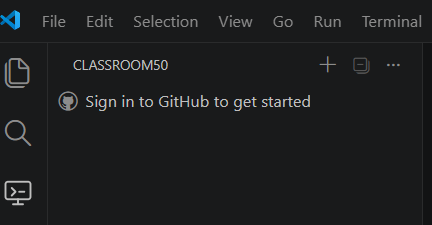
Getting started
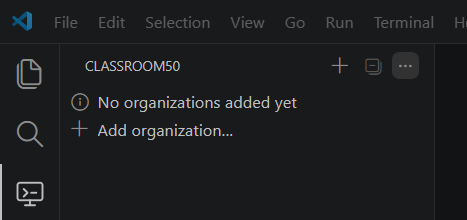
OrganizationsClassroom50 uses GitHub organizations for classes. You must be a member of the organization you want to use. Press Add organization... to open the list of organizations you belong to, then select one from the list.
ClassroomsOrganization can contain multiple classrooms. You can select which classrooms you want to show. Use Add classroom... to open the classroom list for that organization and select one or more classrooms to add.
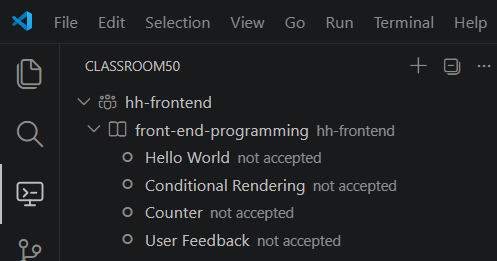
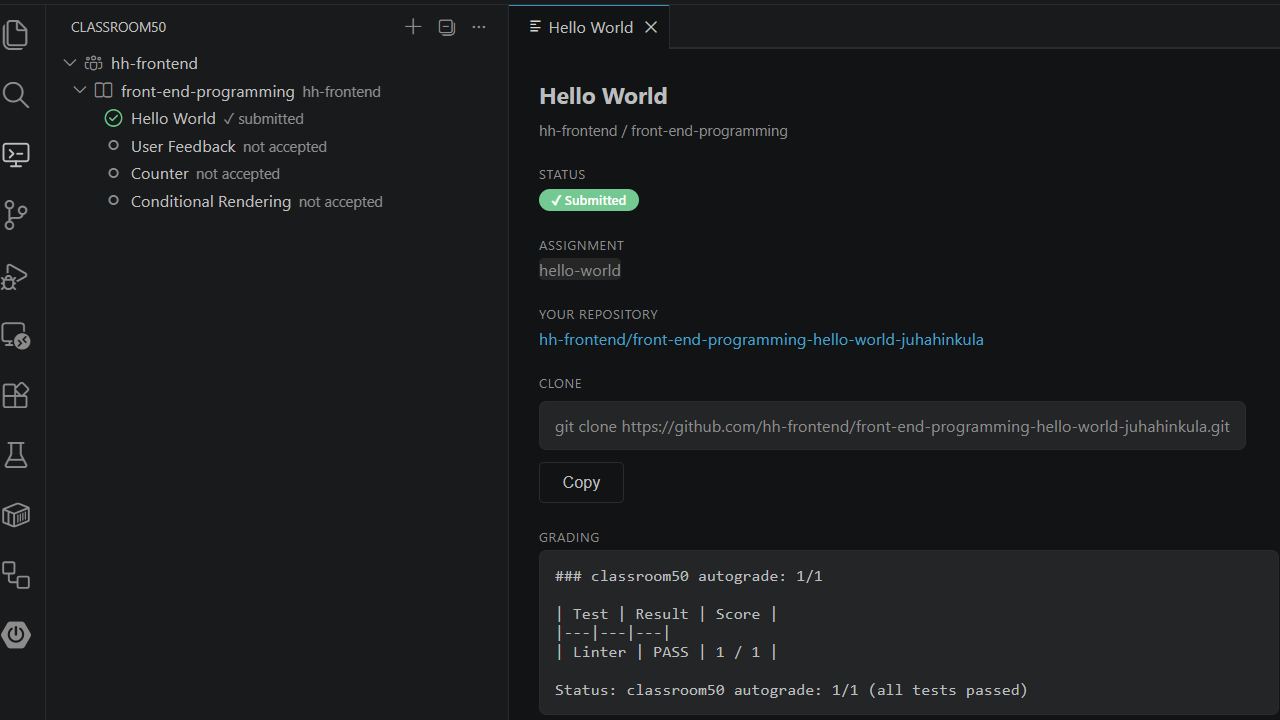
AssignmentsOpen the classroom in the tree view to see the list of assignments.
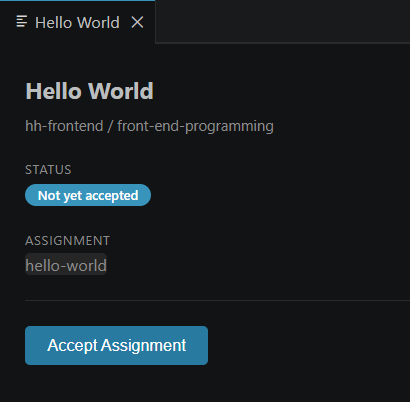
Accept assignmentThe not accepted status means you must accept the assignment before you can work on it. Click the assignment in the tree view to open it in its own view. Press the Accept Assignment button to accept the assignment.
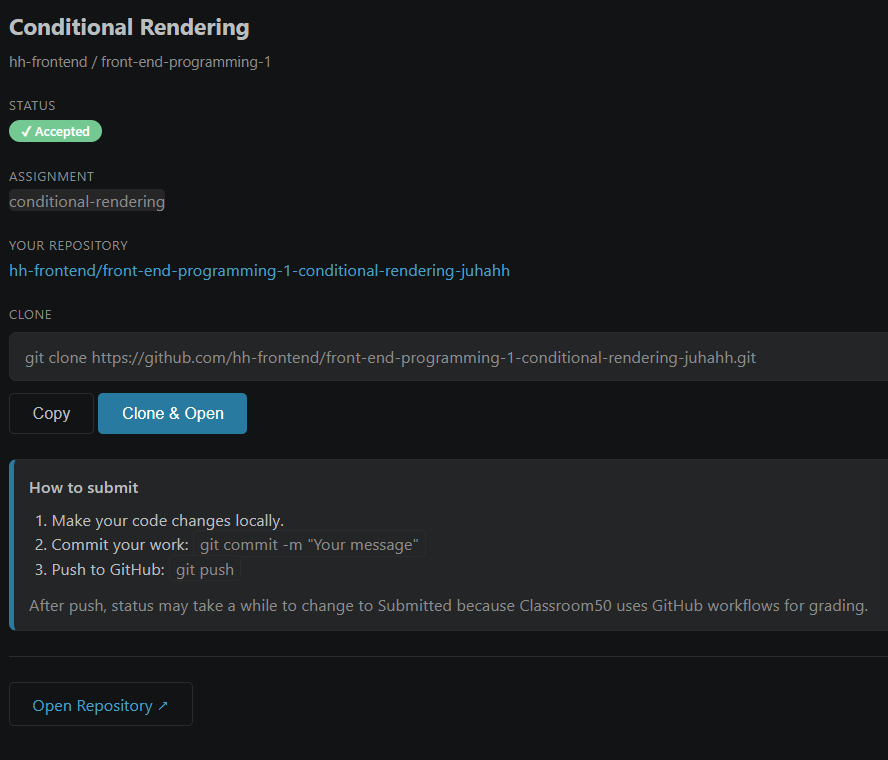
Accepted assignmentAfter you accept the assignment, its status changes to accepted. In accepted assignments, these buttons are available:
This extension does not provide a separate submit action. Submitting is done with standard Git commands: commit and push. Submitted assignmentAfter you submit the assignment, its status changes to submitted. You can view the autograding result, if available, in the assignment view.
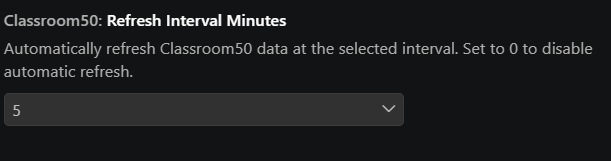
Extension Settings
How to change settings:
Extension icon by Icons8.com |