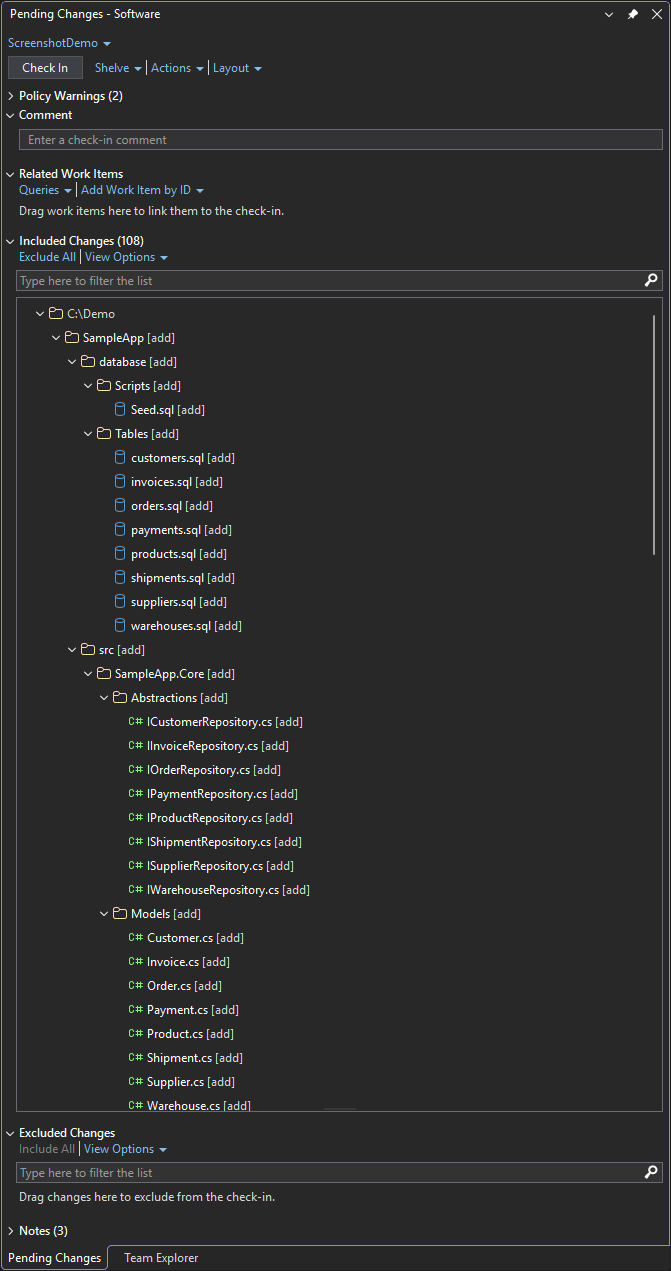
Roomy TFVC Pending ChangesGives the TFVC Pending Changes window room for large check-ins. Included Changes and Excluded Changes fill the window instead of stopping at a few hundred pixels, and drag grips let you size each sect |

Roomy TFVC Pending ChangesGives the TFVC Pending Changes window in Team Explorer room for large check-ins. Out of the box, the Included Changes list stops at a few hundred pixels, however tall the window is. With a big change set you end up scrolling a small list inside a mostly empty window. This extension lets the change lists use the space you have, and lets you size every section the way you want.
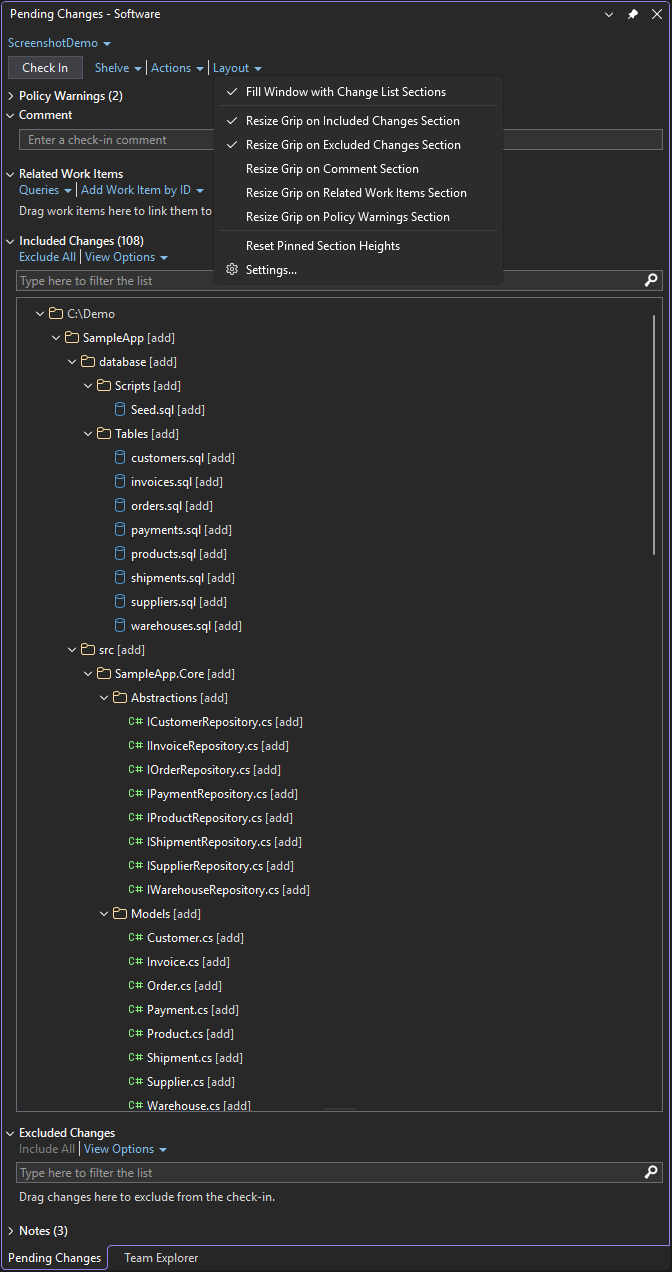
FeaturesChange lists fill the windowThe Included Changes and Excluded Changes sections grow to use all of the remaining height in the Pending Changes window, and resize with it. When both are expanded they share the space, and a short list keeps its natural size so the long one gets the room. Resize gripsDrag the grip under a section to set its height yourself. On Included Changes or Excluded Changes, dragging pins the section at that height; double-click the grip to go back to filling the window. Heights are remembered between sessions. Grips are on for Included Changes and Excluded Changes. They can be turned on for the Comment, Related Work Items and Policy Warnings sections too. Layout menuA Layout link sits next to Shelve and Actions on the Pending Changes page. It turns each feature on or off, resets pinned heights, and opens the settings. The same menu is under Extensions > Roomy TFVC Pending Changes.
SettingsFind them under Source Control > Roomy TFVC Pending Changes in Visual Studio's Settings, or open them from the Layout menu.
Compatibility
Everything else about the Pending Changes window works as before: check-in, shelve, filters, view options, drag and drop between Included and Excluded, and keyboard navigation. Disabling the extension returns the window to exactly how Visual Studio ships it. How it worksTeam Explorer has no public extension point for its layout, so the extension recognizes the Pending Changes sections by their internal names and adjusts their height limits. If a future Visual Studio update renames them, the extension stops doing anything rather than breaking the window. If that happens, turn on Write diagnostic log and include PrivacyThe extension collects no data and makes no network requests. The diagnostic log is off by default and is only written to your own machine. FeedbackQuestions, problems and ideas are welcome on the Q&A tab of this page. License |