Skip to content
| Marketplace
Sign in
Visual Studio Code>Other>Video DockNew to Visual Studio Code? Get it now.
Video Dock

Video Dock

json dev

|
23 installs
| (1) | Free
Watch YouTube and Facebook beside your code, then hide the player by pressing Ctrl twice.
Installation
Launch VS Code Quick Open (Ctrl+P), paste the following command, and press enter.
Copied to clipboard
More Info

Video Dock

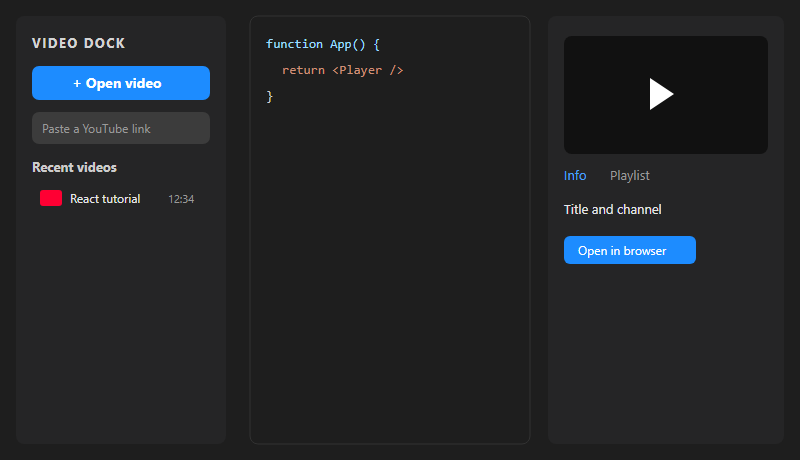
Watch YouTube and Facebook beside your code. Paste a link in the sidebar, and the player opens next to the file you are editing. Press Ctrl twice to hide it. Press Ctrl twice again to bring the same video back.

Player beside the code, with the sidebar for pasting a link

What this extension does

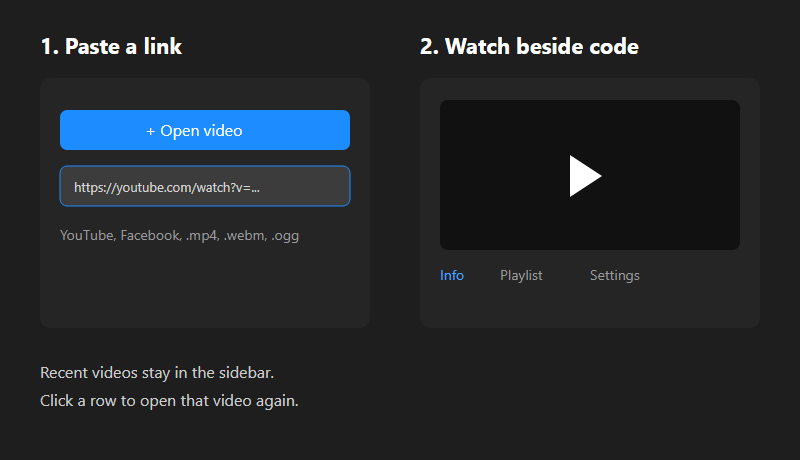
  • Paste a YouTube link, a Facebook link, or a .mp4, .webm, or .ogg file.
  • The sidebar keeps up to 20 recent videos, with the title and length when they can be read.
  • Play it in a tab next to your code, or keep the player under the link box. Switch this in Settings with Playback position.
  • The player has three sections: Info, Playlist, and Settings.
  • Open in browser and Copy URL sit under the description.

Paste a link, then watch beside the code

Private videos, videos that need a login, and videos that block embedding can still fail to play in the frame.

Hide and show the player

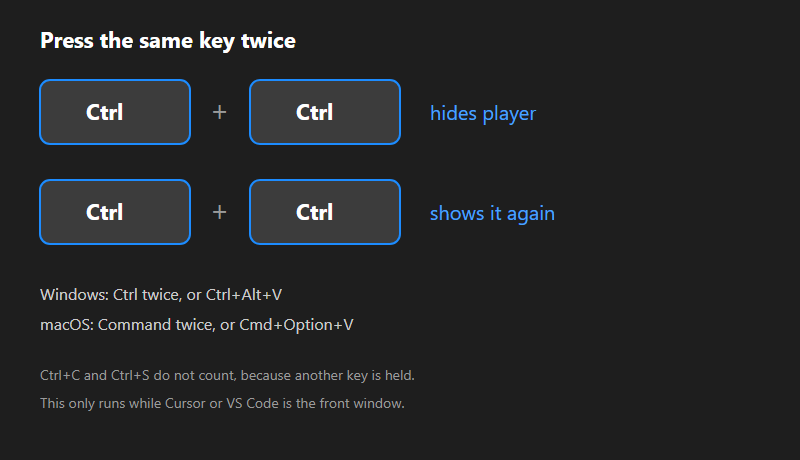
Press Ctrl, then Ctrl again within 400ms, while the editor window is in front. The player hides. Press Ctrl twice again and the same video comes back.

Ctrl+C, Ctrl+S, and any shortcut that adds another key are ignored.

If a double press does not hide the player, use Ctrl+Alt+V. That shortcut always works. On macOS the matching shortcut is ⌘⌥V.

Press Ctrl twice to hide, then twice again to show

System Double press (default) Shortcut that always works
Windows Ctrl, Ctrl Ctrl+Alt+V
macOS Command, Command ⌘⌥V
Linux Use the shortcut Ctrl+Alt+V

On macOS, the system may ask for Accessibility permission the first time, so it can see the Command key. ⌘⌥V still works before that permission is granted.

The status bar at the bottom right has a Video Dock item. Click it to hide or show the player as well.

Change the keys

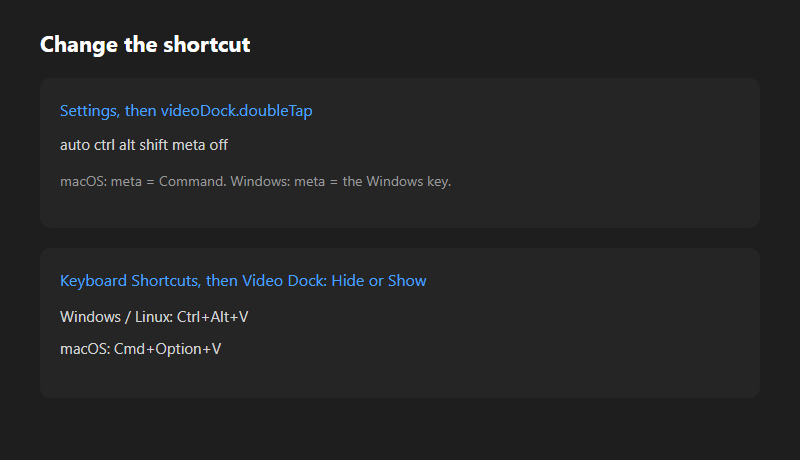
Two places to change the key

The double-press key is in Settings. Search for videoDock.doubleTap:

  • auto: Ctrl on Windows, Command on macOS
  • ctrl, alt, shift
  • meta: Command on macOS, the Windows key on Windows
  • off: turn the double press off

videoDock.doubleTapWindowMs is the longest gap between the two presses, from 150 to 800. The default is 400.

Change Ctrl+Alt+V in Keyboard Shortcuts: press Ctrl+K then Ctrl+S, search for Hide or show, click the pencil, and press the new keys. On macOS the default for that shortcut is ⌘⌥V, and it can be changed in the same place.

The extension also has a Guide button, and the command Video Dock: Open the guide.

Build

npm install
npm run compile
npx @vscode/vsce package --no-dependencies --allow-missing-repository
  • Contact us
  • Jobs
  • Privacy
  • Manage cookies
  • Terms of use
  • Trademarks
  • Your Privacy Choices
  • Consumer Health Privacy
© 2026 Microsoft