
OpenCode Go MonitorReal-time OpenCode Go monitoring in your VS Code: status bar Installation Launch VS Code Quick Open ( Ctrl+P), paste the following command, and press enter.Copied to clipboard |

OpenCode Go Monitor
Real-time OpenCode Go monitoring in your VS Code: status bar. Available in English and Spanish. Features
Screenshots
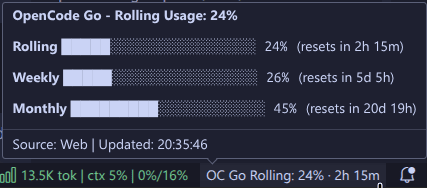
Hover over the status bar item to see detailed progress bars for all three quota windows (Rolling, Weekly, Monthly). What you'll see:
SetupInstallation
Obtaining CredentialsYou need two pieces of information from your OpenCode account: Getting your
|


| Setting | Type | Default | Description |
|---|---|---|---|
opencodeGoQuota.pollIntervalSeconds |
number |
300 |
How often to poll for quota updates (minimum: 60s) |
opencodeGoQuota.warningThreshold |
number |
80 |
Usage percentage to trigger warning color (yellow) |
opencodeGoQuota.errorThreshold |
number |
95 |
Usage percentage to trigger error color (red) |
opencodeGoQuota.displayWindow |
string |
"rolling" |
Which quota window to display: rolling, weekly, or monthly |
opencodeGoQuota.debug |
boolean |
false |
Enable debug logging to the Output panel |
Note: Credentials (
workspaceIdandauthCookie) are stored securely in VSCode's SecretStorage (OS keychain) and persist across all projects until you explicitly logout.
Commands
All commands are available from the VSCode Command Palette (Ctrl+Shift+P / Cmd+Shift+P):
| Command | Description |
|---|---|
| OpenCode Go: Configure Credentials | Set or update your workspace ID and auth cookie |
| OpenCode Go: Refresh Quota | Force an immediate quota fetch and status bar update |
| OpenCode Go: Show Details | Open QuickPick with detailed quota breakdown and prediction |
| OpenCode Go: Export History | Export all historical quota data to a JSON file |
| OpenCode Go: Open Dashboard | Open the OpenCode console dashboard in your browser |
| OpenCode Go: Clear Credentials | Remove all stored credentials and reset to initial state |
| OpenCode Go: Select Display Window | Choose which quota window to display in the status bar |
Status Bar
The status bar item shows:
- Text:
OC Go Rolling: 13% · 3h 23m(or Weekly/Monthly depending on your selection) - Hover tooltip: Detailed view with progress bars for all three windows, active workspace, data source, and last update time
- Colors: Green (normal), Yellow (≥80%), Red (≥95%)
Click the status bar item to open the details QuickPick.
Development
# Install dependencies
npm install

# Compile TypeScript
npm run compile

# Run tests
npm test

# Build production bundle
npm run build

# Package as .vsix
npm run package
Project Structure
src/
├── domain/        # Core types, formatting, and prediction algorithms
├── storage/       # Credentials (SecretStorage) and history (globalState)
├── fetchers/      # ApiFetcher, ScrapingFetcher, and FetcherSelector
├── ui/            # StatusBarItem and QuickPick UI components
├── commands/      # All 7 VSCode commands
├── i18n.ts        # Internationalization (English/Spanish)
└── extension.ts   # Extension entry point (activation, polling, lifecycle)
Troubleshooting
"Could not find quota usage data in HTML"
This usually means the cookie is invalid or expired. Try:
- Log out and log back in to opencode.ai
- Get a fresh
authcookie from DevTools - Re-configure credentials with the new cookie
"Auth expired" in status bar
Your session cookie has expired. Follow the steps above to get a new one.
Debug mode
Enable debug logging by setting opencodeGoQuota.debug to true in settings. View logs in View → Output → OpenCode Go Monitor.
License
MIT