Android Runner
A VS Code / Cursor extension that integrates the full Android build-and-run workflow directly in the editor: launch emulators, install APKs via Gradle, stream filtered logcat, intercept OkHttp network traffic, and run on physical devices — all without leaving the IDE.
Features
- One-command run flow — pick a device, pick a build variant, and the extension handles the rest: emulator start, Gradle install, app launch, and logcat — all in sequence.
- Physical device support — automatically detects USB-connected phones via
adb. They appear in the sidebar and in the device picker alongside emulators.
- Emulator management — lists all configured AVDs, shows which one is currently running, starts on demand, and optionally kills it when you stop the session.
- Gradle variant picker — scans your project's Gradle tasks automatically and shows all available
installXxx variants (Debug, Staging, Release, etc.) without any manual configuration.
- Filtered logcat — resolves the app's PID after install and streams only its log lines, eliminating noise from other processes.
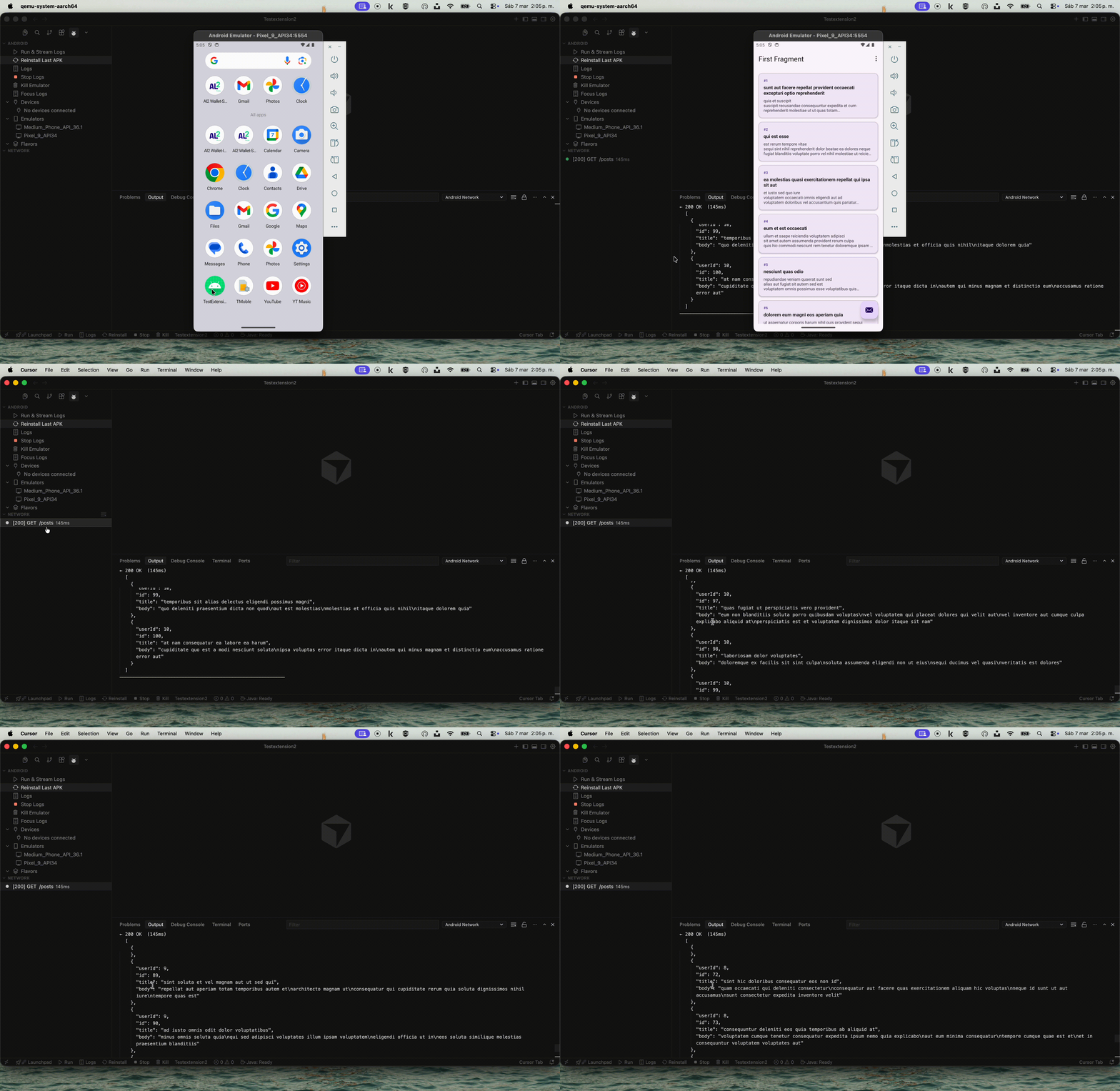
- Network inspector — intercepts OkHttp traffic directly from logcat without any instrumentation. Displays each HTTP transaction in a dedicated sidebar panel with status code, method, path, duration, and color-coded icons. Full request/response details (headers + pretty-printed JSON body) available on click.
- Reinstall shortcut — re-runs the last Gradle task and restarts logcat on the current device in one click, without restarting the emulator.
- Status bar integration — Run, Logs, Stop, Reinstall, and Kill buttons always visible at the bottom of the editor when a workspace is open.
- Sidebar panel — Activity Bar panel with sections for Devices (physical), Emulators (AVDs), and Flavors (Gradle tasks), all expandable and refreshable.
Demo
Run & Stream Logs
Network Inspector
How it works
Run & Stream Logs flow
Android: Run & Stream Logs
         │
         ├─ 1. Detect connected physical devices  (adb devices -l)
         ├─ 2. List configured AVDs               (emulator -list-avds)
         │      └─ QuickPick: choose physical device, running emulator, or AVD
         │
         ├─ 3. List Gradle install tasks           (./gradlew :app:tasks --all)
         │      └─ QuickPick: choose build variant (Debug / Staging / Release …)
         │
         ├─ 4. Start emulator if an AVD was chosen (emulator -avd <name>)
         │      └─ Poll adb every 5 s until device appears (up to 5 min)
         │
         ├─ 5. Run Gradle install                  (./gradlew <task>)
         │
         ├─ 6. Launch the app                      (adb shell am start -n <component>)
         │      └─ Retries up to 5× with 2 s delay if the app is not running yet
         │
         ├─ 7. Resolve app PID                     (adb shell pidof <package>)
         │
         └─ 8. Stream logcat filtered by PID       (adb logcat)
                └─ OkHttp lines → Network inspector panel
SDK and device detection
The extension resolves the Android SDK path in the following order:
androidRunner.sdkPath settingANDROID_HOME environment variableANDROID_SDK_ROOT environment variable- Common OS paths (
~/Library/Android/sdk on macOS, %LOCALAPPDATA%\Android\Sdk on Windows)
Physical devices are detected by running adb devices -l and filtering out emulator-XXXX entries. The model name is parsed from the model: field in the output.
Network interception
The extension hooks into the logcat stream looking for lines tagged okhttp.OkHttpClient:. It parses request/response pairs using the thread ID (TID) as the correlation key — no changes to your app code are required. Transactions are displayed in the Network sidebar panel and printed in full to the Android Network output channel when selected.
Requirements
- Android SDK installed (Android Studio is the easiest way to get it)
adb available — included in the SDK at platform-tools/adbemulator available — included in the SDK at emulator/emulator- Gradle wrapper (
gradlew / gradlew.bat) present at the root of your Android project
- VS Code
^1.105.1 or Cursor (any recent version)
Installation
From VSIX (recommended)
- Build the
.vsix package (see Build from source below), or download the provided file.
- Open VS Code / Cursor.
- Open the Command Palette (
Cmd+Shift+P / Ctrl+Shift+P) and run:
Extensions: Install from VSIX...
- Select the
.vsix file.
Build from source
# 1. Clone the repository
git clone <repo-url>
cd android-runner

# 2. Install dependencies
npm install

# 3. Compile TypeScript
npm run compile

# 4. Package as VSIX (requires vsce)
npm install -g @vscode/vsce
vsce package

# 5. Install the generated .vsix
code --install-extension android-runner-0.0.1.vsix
Development mode (run without packaging)
npm install
npm run compile   # or: npm run watch  (for auto-recompile)
Then press F5 in VS Code to open an Extension Development Host with the extension loaded.
Configuration
Add any of these to your settings.json (workspace or user):
{
  "androidRunner.sdkPath": "/Users/you/Library/Android/sdk",
  "androidRunner.defaultAvd": "Pixel_9_API34",
  "androidRunner.keepEmulator": false,
  "androidRunner.notifications": true,
  "androidRunner.taskAppIds": {
    "installDebug": "com.example.app.debug",
    "installStaging": "com.example.app.staging",
    "installRelease": "com.example.app"
  }
}
| Setting |
Type |
Default |
Description |
sdkPath |
string |
"" |
Absolute path to your Android SDK. Falls back to ANDROID_HOME / ANDROID_SDK_ROOT env vars, then common OS paths (~/Library/Android/sdk on macOS, %LOCALAPPDATA%\Android\Sdk on Windows). |
defaultAvd |
string |
"Pixel_9_API34" |
AVD name used by the Run Staging shortcut command. |
keepEmulator |
boolean |
false |
When true, the emulator is not killed after stopping logs. |
notifications |
boolean |
true |
Show VS Code popup notifications for lifecycle events (install complete, app launched, etc.). |
taskAppIds |
object |
{} |
Maps each Gradle install task suffix to its applicationId. The key is the task suffix (e.g. "installStaging"), the value is the package name (e.g. "com.example.app.staging"). Required for logcat filtering by PID. |
Finding your AVD name
emulator -list-avds
Finding your applicationId
Check app/build.gradle:
android {
    defaultConfig {
        applicationId "com.example.app"
    }
    buildTypes {
        staging { applicationIdSuffix ".staging" }
    }
}
Commands Reference
All commands are accessible via the Command Palette (Cmd+Shift+P / Ctrl+Shift+P). Type Android to filter them.
| Command Palette title |
What it does |
Android: Run & Stream Logs |
Full flow: pick device/AVD → pick task → build → install → stream logcat |
Android: Run Staging |
Shortcut: skips all dialogs, uses default AVD + installStaging |
Android: Reinstall Last APK |
Re-runs the last task on the current device (no emulator restart) |
Android: Logs |
Attach logcat to an already-running app (no build step) |
Android: Stop Logs |
Stop the logcat stream (emulator keeps running) |
Android: Kill Emulator |
Stop logcat + terminate the running emulator |
Android: Focus Logs |
Bring the Android Runner output channel into view |
Android: Clear Network Log |
Clear the Network inspector panel and output channel |
Android: Show Network Transaction |
Print full request/response details in the output channel |
Android Runner: Refresh |
Refresh the Devices, Emulators, and Flavors sections in the sidebar |
Status Bar
When a workspace is open, five quick-access buttons appear in the bottom status bar:
| Button |
Command |
▷ Run |
Android: Run & Stream Logs |
⧉ Logs |
Android: Logs |
◼ Stop |
Android: Stop Logs |
↻ Reinstall |
Android: Reinstall Last APK |
🗑 Kill |
Android: Kill Emulator |
Usage
Click the Android icon in the Activity Bar (left sidebar) to open the Android Runner panel. It contains:
- Action buttons — shortcuts to the most common commands
- Devices — lists physical devices connected via USB (with model name and ADB id). Refreshes on demand.
- Emulators — lists all configured AVDs. A running emulator is highlighted with a
running badge.
- Flavors — lists all
installXxx Gradle tasks found in your project (Debug, Staging, Release, etc.).
Run & Stream Logs
The main command. Use it to build, install, and start streaming logs in one shot.
Via Command Palette (Cmd+Shift+P):
Android: Run & Stream Logs
Via sidebar → click Run & Stream Logs
Flow:
- Select a target device:
- A connected physical device (shown at the top if one is plugged in)
- "Use running emulator" — uses the currently running
emulator-XXXX
- An AVD name — starts that emulator automatically
- Select a Gradle install task (e.g.
:app:installStaging)
- The extension:
- Starts the emulator (if an AVD was selected) and waits up to 5 minutes for it to boot
- Runs
./gradlew <task> and streams Gradle output
- Launches the app and detects its PID
- Streams logcat filtered to that PID in the Android Runner output channel
Run Staging (shortcut)
Skips all QuickPick dialogs. Uses androidRunner.defaultAvd and the installStaging task directly.
Android: Run Staging
Reinstall Last APK
Re-runs the last used Gradle task on the currently running device without restarting the emulator.
Android: Reinstall Last APK
Logs only
Attach logcat to an already-running app (no build step).
Android: Logs
Prompts you to pick an app from the configured taskAppIds, launches it if not running, and streams logs.
Stop Logs
Stops the logcat stream without killing the emulator.
Android: Stop Logs
Kill Emulator
Stops logcat and sends adb emu kill to terminate the emulator.
Android: Kill Emulator
Focus Logs
Brings the Android Runner output channel into focus.
Android: Focus Logs
Refreshes the Devices, Emulators, and Flavors sections.
Android Runner: Refresh
Network Inspector
OkHttp traffic is intercepted automatically from logcat during any run. A dedicated Network panel appears in the Android Runner sidebar showing each HTTP transaction with:
- Method, path, status code, and duration
- Color-coded status icons (green = 2xx, yellow = 3xx, orange = 4xx, red = 5xx/error, spinner = in-flight)
- Click any transaction to see full request/response headers and body (JSON is pretty-printed) in the Android Network output channel
Note: This works out of the box if your app uses OkHttp with logging enabled via HttpLoggingInterceptor. No instrumentation code is needed in the extension.
Use the Clear Network Log button (trash icon) in the Network panel title bar to reset the log.
Connecting a Physical Device
- Enable Developer options on the device (tap Build number 7 times in Settings → About phone).
- Enable USB debugging inside Developer options.
- Connect via USB and authorize the computer when prompted on the device.
- Verify the device appears:
adb devices
The device should show device (not unauthorized).
- In the extension, the device will appear in the Devices section of the sidebar and at the top of the QuickPick when running Run & Stream Logs.
Troubleshooting
adb: command not found
Set androidRunner.sdkPath in settings, or ensure ANDROID_HOME is set in your shell profile and VS Code is restarted.
No install tasks found
Make sure you have a gradlew at the project root and your Android project compiles. Run manually to verify:
./gradlew :app:tasks --all | grep install
App PID not found / unfiltered logcat
The applicationId for the selected task is not configured. Add it to androidRunner.taskAppIds in settings.
Emulator never becomes ready
The extension waits up to 5 minutes. If it times out, try starting the emulator manually via Android Studio first.
Device shows as unauthorized
Unlock the device and tap Allow on the USB debugging dialog. Then run adb devices again.
Development
npm install       # install dependencies
npm run watch     # compile in watch mode
npm run lint      # run ESLint
npm run compile   # one-off compile
Press F5 in VS Code to launch the Extension Development Host.
The project uses plain TypeScript (no bundler). Compiled output goes to out/.

