VSStats: Master Your Codebase with Real-Time Telemetry 📊
Stop flying blind. VSStats is a premium extension designed for developers who need to understand their project's composition, health, and growth at a glance. Built for VS Code, Antigravity, and all compatible editors, VSStats provides the telemetry you need to stay in control of your codebase.
🚀 Why VSStats?
| The Problem |
The VSStats Solution |
| Huge projects become "black boxes" over time. |
Instant Visibility: Get a real-time summary of files, size, and lines. |
| Large assets and bloated files slow down your IDE and Git. |
Resource Optimizer: Identify and fix bloat with the Top Files tracker. |
| Hidden dependency weight drags down your build performance. |
NPM Intelligence: Track dependency sizes and update alerts automatically. |
| It's hard to track how your project evolves week-over-week. |
Pulse Indicators: Visual comparison markers show you exactly what changed. |
📦 Installation
VSStats works seamlessly across the entire VS Code ecosystem:
- Open your editor (VS Code, Antigravity, Cursor, etc.).
- Go to the Extensions view (
Ctrl+Shift+X or Cmd+Shift+X).
- Search for
VSStats.
- Click Install.
- Once installed, click the VSStats icon (📊) in the Activity Bar to start analyzing.
📱 How to Use
Getting started with VSStats is simple:
- Install it: Download the extension from your editor's marketplace.
- Open the Sidebar: Once installed, you will see a new button with the icon (📊) in your left sidebar. Click it to open the VSStats panel and start inspecting your code immediately.
✨ Core Features
📈 Project Pulse (Summary Metrics)
The Problem: Finding out the total size of your project or the number of files usually requires external tools or terminal commands.
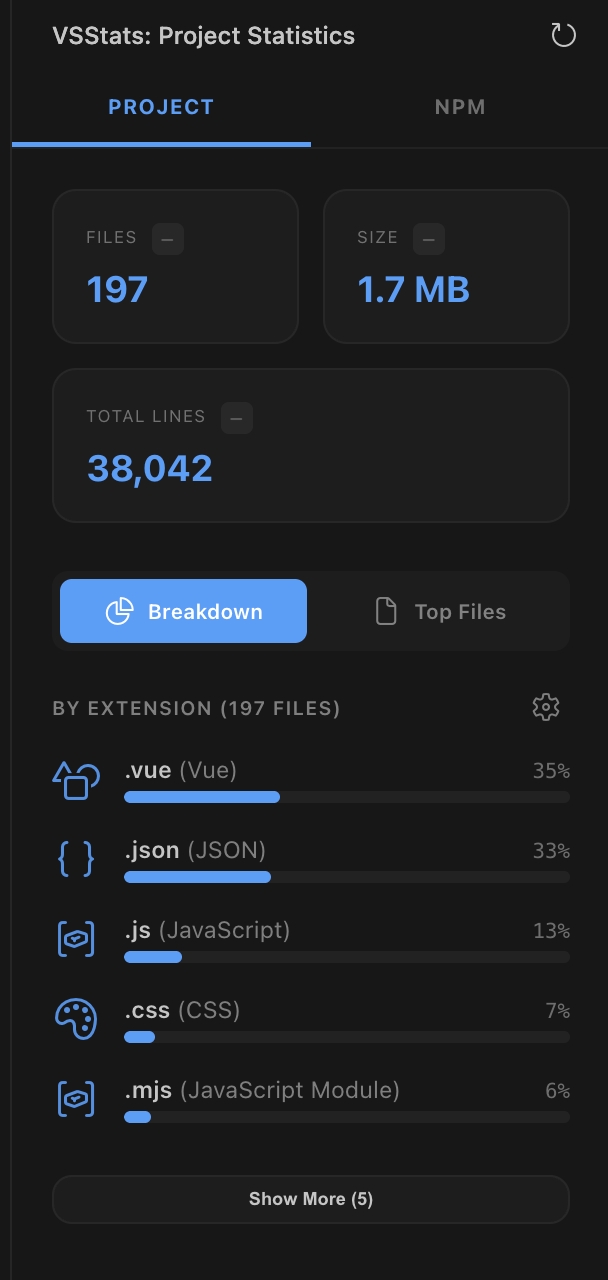
Small Win: VSStats puts your most important metrics—Total Files, Total Size, and Total Lines of Code—right at the top of your sidebar. Every time you refresh, you get Pulse Indicators (↑, ↓, —) that show you if your project is growing, shrinking, or staying lean.
🍱 Intelligent Codebase Breakdown
The Problem: Knowing which languages dominate your project is often a guessing game, especially in multi-language environments.
The Solution: The Breakdown Tab provides a beautiful, percentage-based view of your project's composition.
- Language Identification: Automatic detection of over 100+ file extensions.
- Visual Progress Bars: See at a glance which language owns the majority of your codebase.
- Exclusion Badges (L/S): Easily identify which extensions are currently excluded from Line or Size calculations in the view.
🔍 Fighting the Bloat (Top Files)
The Problem: A single 5MB JSON file or a 10,000-line legacy script can degrade your editor's performance and slow down your CI/CD pipeline.
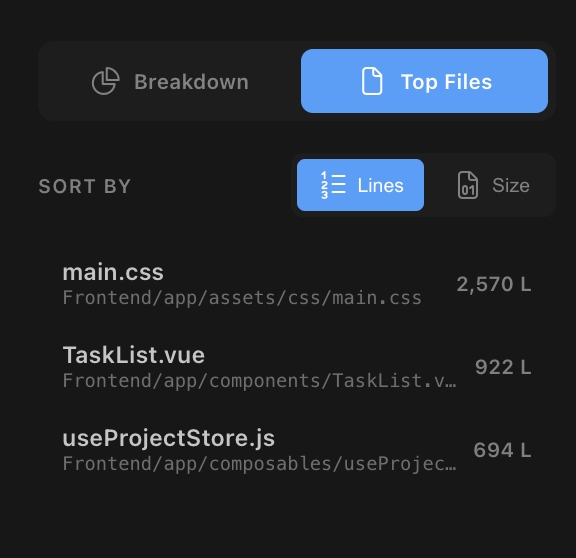
The Solution: Switch to the Top Files Tab to instantly find the "heaviest" files in your project.
- Sort by Lines or Size: Toggle between line count and storage size to find different types of optimization opportunities.
- Filtered Views: Files matching your exclusion rules are automatically hidden from this list, so you can focus on the code that matters.
- Deep Linking: Click any file in the list to open it instantly in your editor.
- Incremental Discovery: Load 5 items at a time to explore your project depth without clutter.
📦 NPM & Monorepo Intelligence
The Problem: JavaScript projects often suffer from "dependency rot" and hidden node_modules weight that's hard to manage in complex monorepos.
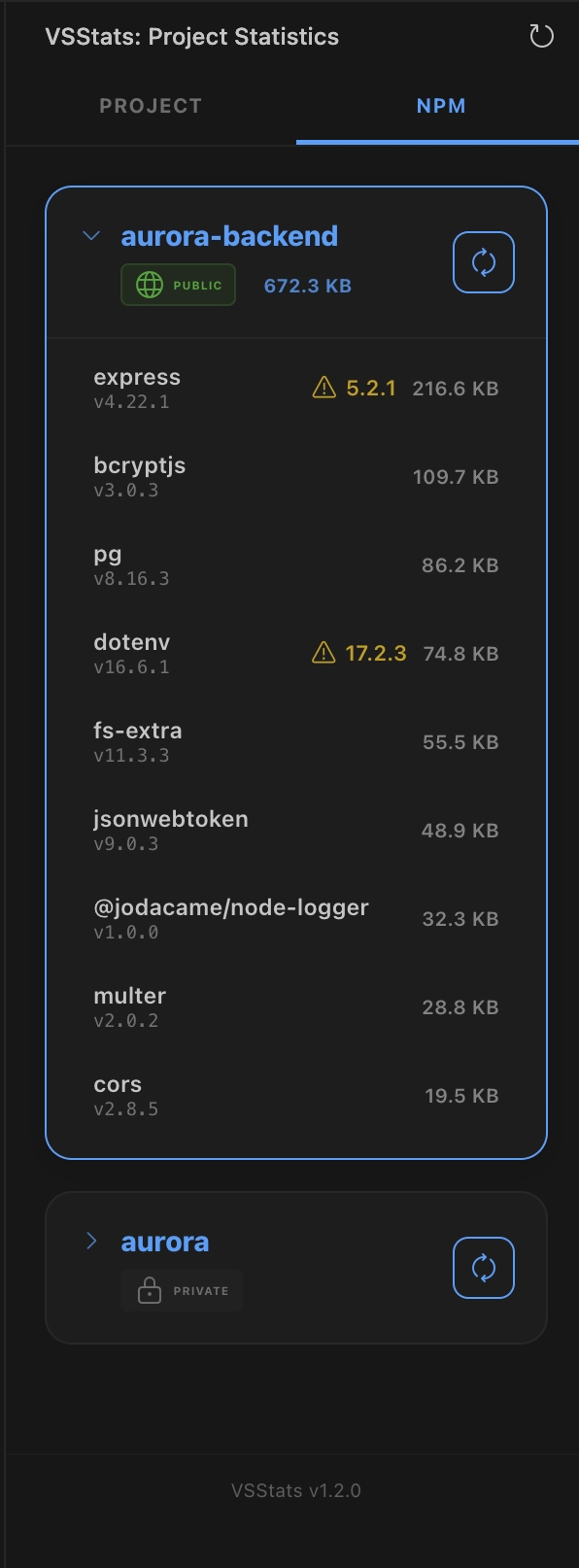
The Solution: The NPM Tab is a dedicated command center for your Node.js projects.
- Full Monorepo Support: Automatically detects package roots in your entire workspace.
- Dependency Audit: See exactly how much space each dependency occupies (including nested modules).
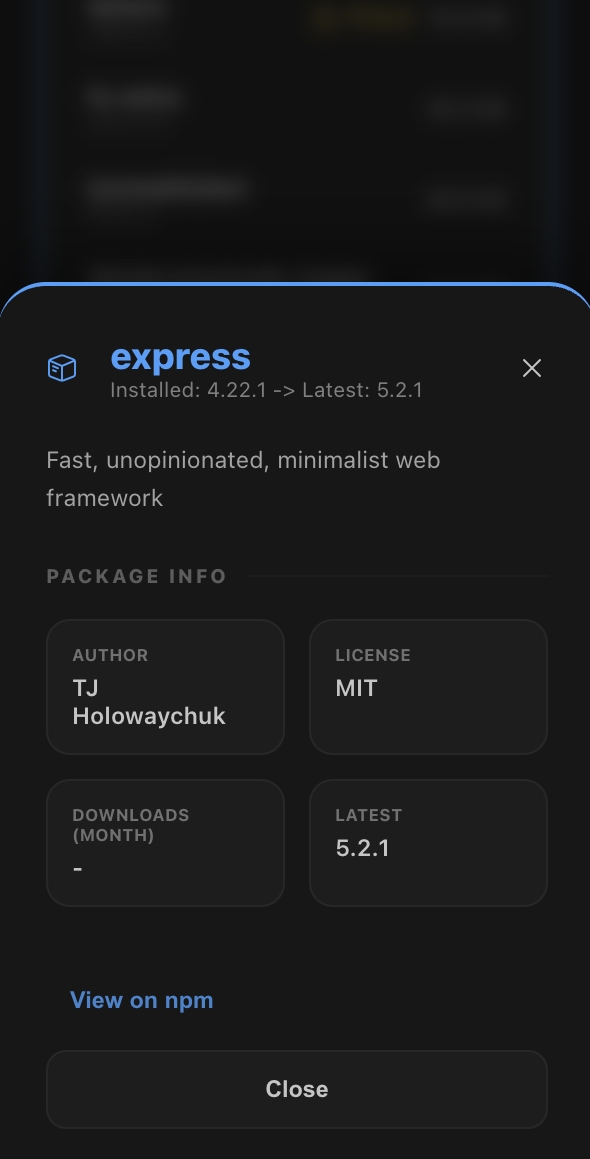
- Live Update Alerts: Get clear badges when a dependency has a newer version available in the registry.
🛠 Configuration
VSStats offers two levels of configuration to suit your workflow.
1. Global Exclusions (User Settings)
Global exclusions apply to all your projects. You can manage them through the native VS Code Settings:
- Open Settings (
Cmd+, or Ctrl+,).
- Search for
vsstats.
- Modify the exclusion rules.
Exclusion Settings Reference:
vsstats.exclude: Glob patterns to completely ignore from analysis (Summary, Breakdown, etc).
- Example:
["temp/**", "logs/*.log", "vendor/"]
vsstats.excludeFromLineCount: File extensions to exclude from line counts (e.g. .json).vsstats.excludeFromSizeCount: File extensions to exclude from size counts (e.g. .png).vsstats.excludeFilesFromLineCount: Regex patterns for filenames to exclude from lines.vsstats.excludeFilesFromSizeCount: Regex patterns for filenames to exclude from size.
2. Local Exclusions (Project Level)
Local exclusions are specific to your workspace and are stored in .vscode/vsstats.json. This file is auto-created the first time you open the VSStats panel.
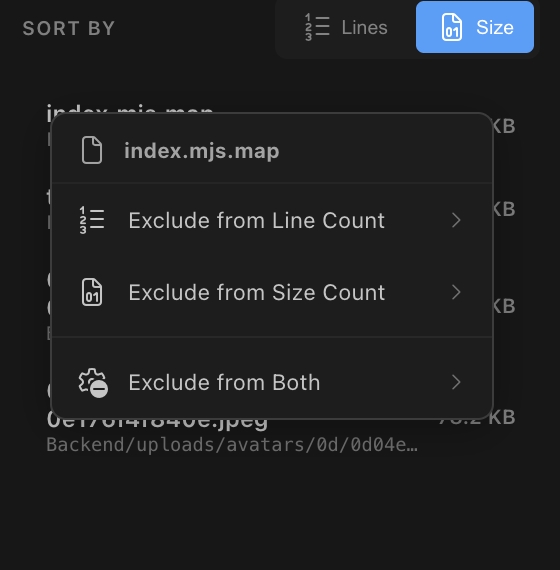
- How to Add: Right-click a file or extension in the VSStats panel and select "Exclude from... (This Project)".
- How to Edit: Open the
.vscode/vsstats.json file in your project root.
Structure Example (vsstats.json):
{
  "exclude": {
    "rules": {
      "lines": [
        "\\.json$",            // Exclude all .json files from line count
        "(^|[\\\\/])test\\.ts$" // Exclude only files named 'test.ts' from line count
      ],
      "size": [
        "\\.min\\.js$",         // Exclude minified JS from size count
        "\\.map$"               // Exclude source maps from size count
      ]
    }
  }
}
❓ FAQ
Q: Why didn't my Total Lines count drop when I excluded .json files?
A: The "Total Lines" summary card reflects the absolute reality of your project on disk (minus vsstats.exclude items). The excludeFromLineCount setting is a view filter—it adds an "L" badge to the breakdown and hides those files from the "Top Files (Lines)" list, allowing you to focus on source code vs. data files without pretending the data files don't exist.
Q: Does VSStats run automatically?
A: VSStats analyzes your project when you open the specific view or click the Refresh button. It doesn't run background watchers to preserve your system's battery and performance.
Q: Does this work in Antigravity or Cursor?
A: Yes! VSStats is built on the universal VS Code API, making it fully compatible with Antigravity, Cursor, VSCodium, and other editors based on the same engine.
📜 License
VSStats is released under the MIT License. Build with confidence.

