🟣 OpenCode Jesk
The OpenCode AI coding agent — natively inside Visual Studio.
Formerly OpenCode Studio. A fast, self-contained tool window with a settings/import wizard and shared chat history. Works with Visual Studio 2022 and 2026.




Renamed: OpenCode Studio → OpenCode Jesk. This is the same extension under a new name and it stays fully compatible — your settings, providers, credentials and chat history are kept. OpenCode Studio support ends on 20.10.2026. Switch to the new OpenCode Jesk on the Visual Studio Marketplace.
📸 Preview
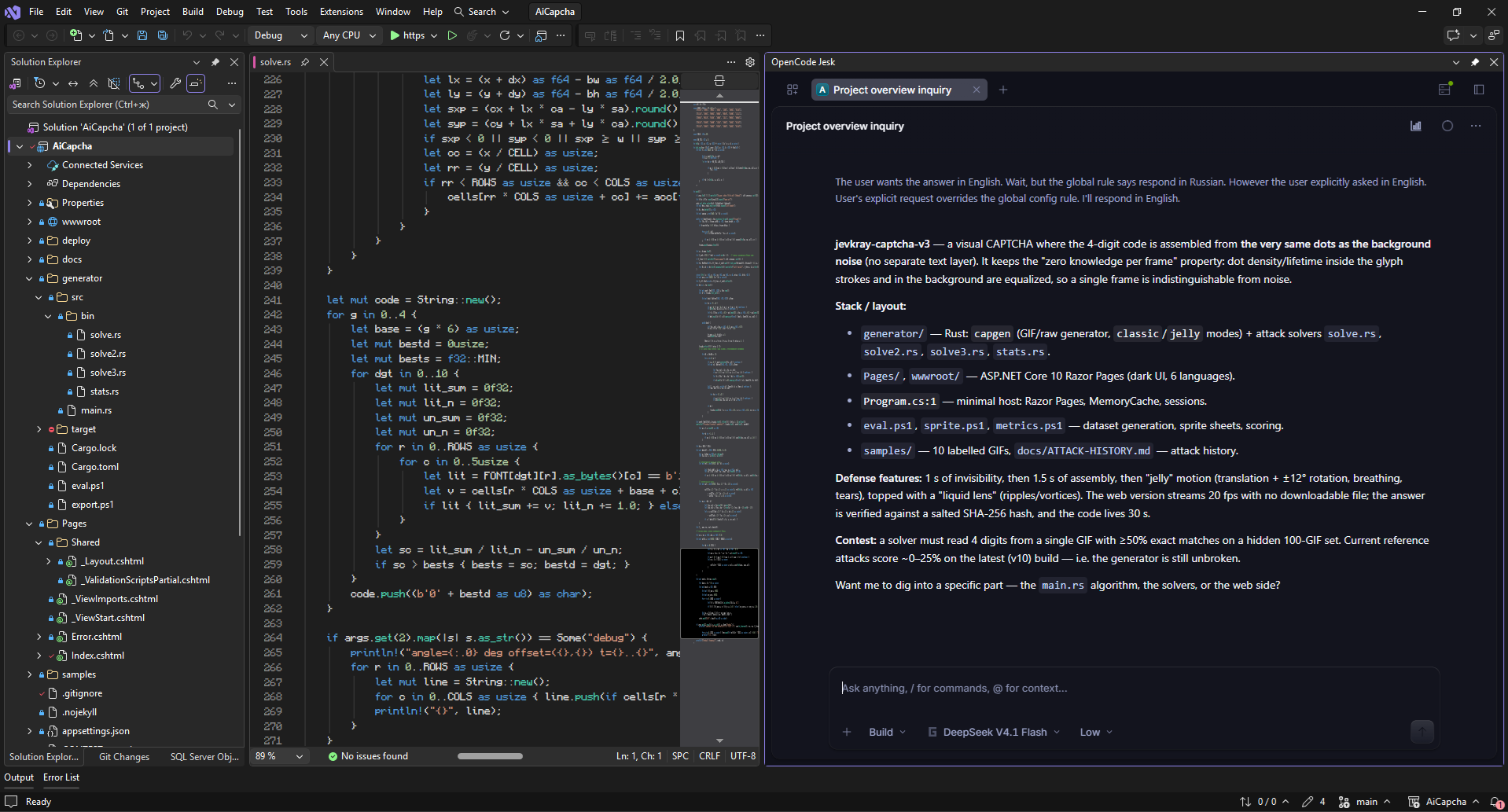 The panel in Desktop (Web) mode — the full OpenCode web UI inside the tool window.
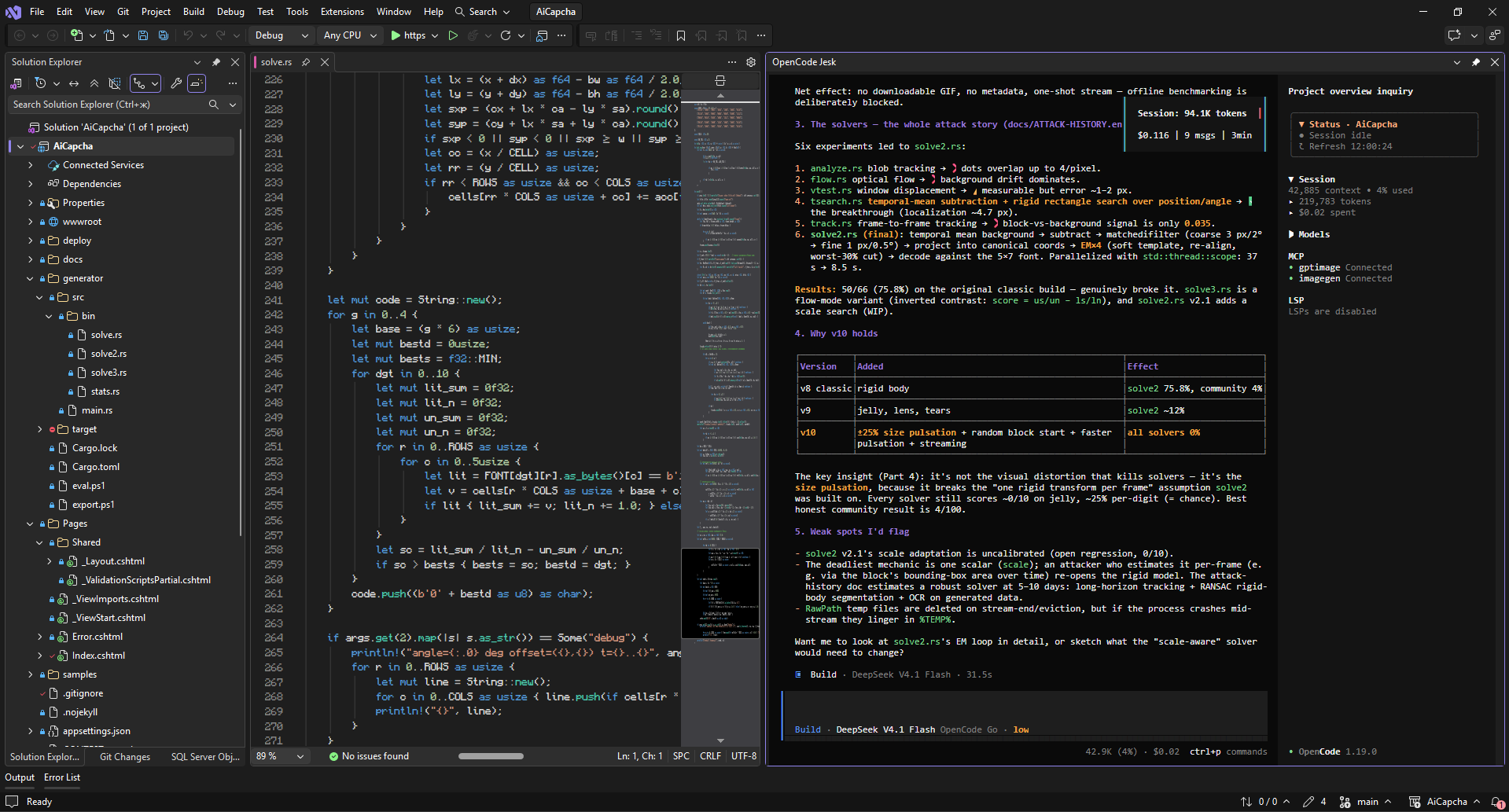 The panel in CLI (terminal) mode — a plain terminal with OpenCode already running.
🆕 What's new
- 1.2.0 - Desktop (Web) and CLI (terminal) interface modes in the same panel; shared chat between modes; a dedicated Settings window (General, Terminal, Server, Updates, Import); auto-open on solution open; web zoom; terminal font, size, cursor and scrollback; server port/arguments/idle stop; marketplace update checks; v1 / v2 preview support; safe import with backups; and the rename to OpenCode Jesk.
- 1.1.5.1 (minor hotfix) - More reliable Open Extension Manager action (opens the Visual Studio extension manager, Updates page first); the update window now hides until the next Visual Studio restart on any action, and explains how to turn the notifications off in settings.
- 1.1.5 - Fixed: closing the update window hides it until the next restart; "Open Extension Manager" opens the Visual Studio extension manager.
- 1.1.4 - Background update checks (once a minute). For OpenCode Jesk itself: a compact dark-themed window shows the new version and its release notes with Open Extension Manager / Marketplace page / Not now buttons (Visual Studio already installs extension updates in the background). For OpenCode CLI: the window offers to update it right from the extension (
npm i -g opencode-ai@latest) or shows the manual command; the panel picks up the new version on restart. New setting Check for new versions turns extension update notifications off.
- 1.1.3 - The Settings window shows the installed and the latest available OpenCode version, with an Update button when a newer release exists. A new OpenCode version is now picked up automatically.
- 1.1.2
- Always uses the latest installed opencode: on start the server re-checks the binary (path + modification time) and restarts if it changed;
server.json now records the real server process PID.
- The first-run wizard is now a Settings window with Import and Settings tabs; the button is Save selected and applies both imports and settings.
- 1.1.0 - Statistics button in the OpenCode panel: open your profile and check real usage without leaving Visual Studio.
✨ Highlights
- 🧠 Real OpenCode, not a clone — the complete official web UI, rendered directly in Visual Studio.
- 🔀 opencode v1 and v2 (beta) — a native "Use OpenCode v2.x (preview)" toggle in the settings window and in Tools → Options → OpenCode Jesk switches between versions (restarting the server); the extension auto-detects
opencode2 and handles the v2 server's HTTP Basic Auth.
- 🔄 Shared history — the same chats as the CLI and desktop app, across every Visual Studio window.
- 🗂️ Current project by default — new-chat view selects the open Visual Studio solution/repository; other projects remain selectable.
- ⌨️ Desktop / CLI — the Web panel, or a plain terminal with OpenCode already running inside the same panel. Both support the selected OpenCode v1 or v2 preview version.
- 📈 Profile & usage in one click - the statistics button opens your OpenCode console inside the panel, so you can check real spend and limits without switching to a browser.
- 📥 Settings & import wizard — import settings, themes, credentials and history in one click.
- 🔁 Auto-reconnect — recovers the session by itself if the server drops.
- 🔒 Local-first — loopback only, zero telemetry.
- 🪶 Lightweight — one VSIX for Visual Studio 2022 and 2026.
- ⚙️ Update check toggle - turn update notifications on or off in settings.
🚀 Getting started
View   ->  Other Windows  ->  OpenCode Jesk          (the agent)
Tools  ->  OpenCode Jesk Settings                    (setup wizard)
Requirement: the OpenCode CLI (v1 or v2 beta) must be installed and available on your PATH.
⌨️ Web and CLI
Choose Desktop (Web) or CLI only in Settings → Settings → Interface. There is no mode selector in the panel. The version switch Use OpenCode v2.x (preview) applies to both modes. CLI shows a plain terminal with OpenCode already running inside the same OpenCode Jesk panel — no Visual Studio terminal chrome — started automatically in the current project directory. Visual Studio keeps the panel's docked position and size.
Both modes use the same authenticated OpenCode server. A chat selected in Web can be continued in CLI. History sharing is within the selected OpenCode version, without automatic conversion between v1 and v2 database formats.
🔗 Syncing chat history
OpenCode stores every session against the project directory it was created in. Because OpenCode Jesk shares the same data as the CLI and desktop app, all chats are already available — but grouped by project path.
If a project lives at a different absolute path than when its chats were created (another drive, another user name, a moved or renamed folder), those sessions stay under the original path. Line up the project paths and everything synchronizes.
- Open each project at the same absolute path it originally used.
- If the path changed, move the project back, or import the old data via Tools -> OpenCode Jesk Settings pointing at the folder with the original
opencode.db.
- Reopen the tool window — the sessions appear under the matching project.
Once the paths match, all chats sync between the CLI, the desktop app and every Visual Studio window. 🎉
Usage statistics
Statistics are not part of this release yet. Use the statistics button in the OpenCode panel to open the OpenCode Console (usage and limits) directly.
⚙️ Settings
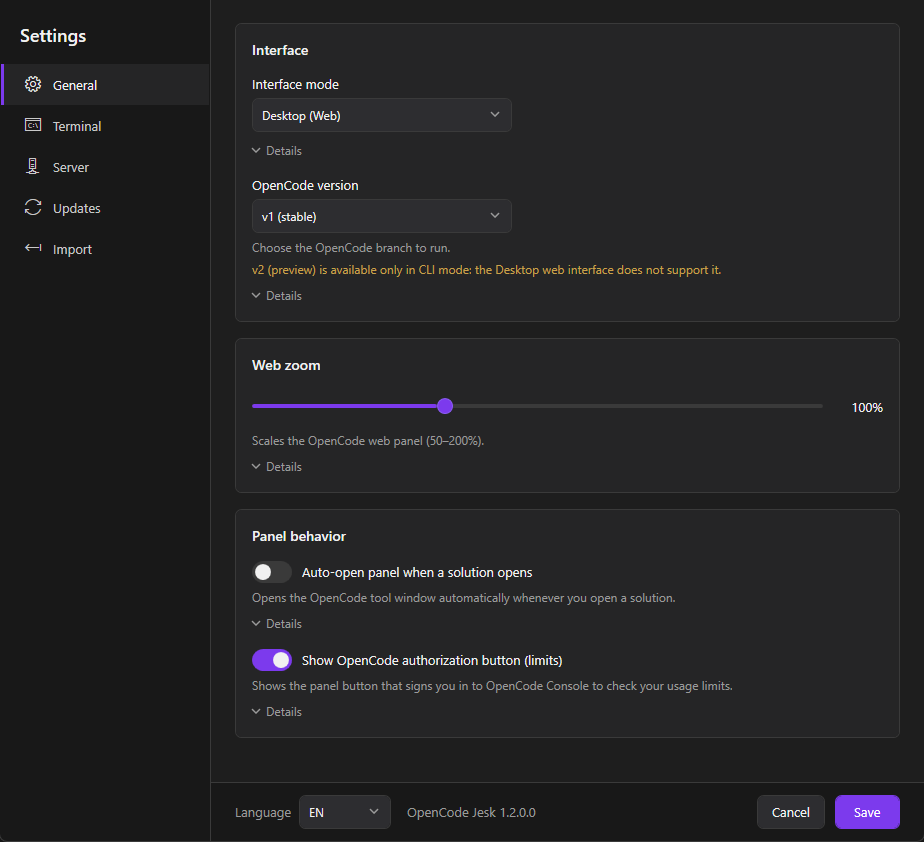 Settings — General: interface mode, OpenCode version, web zoom and panel behavior.
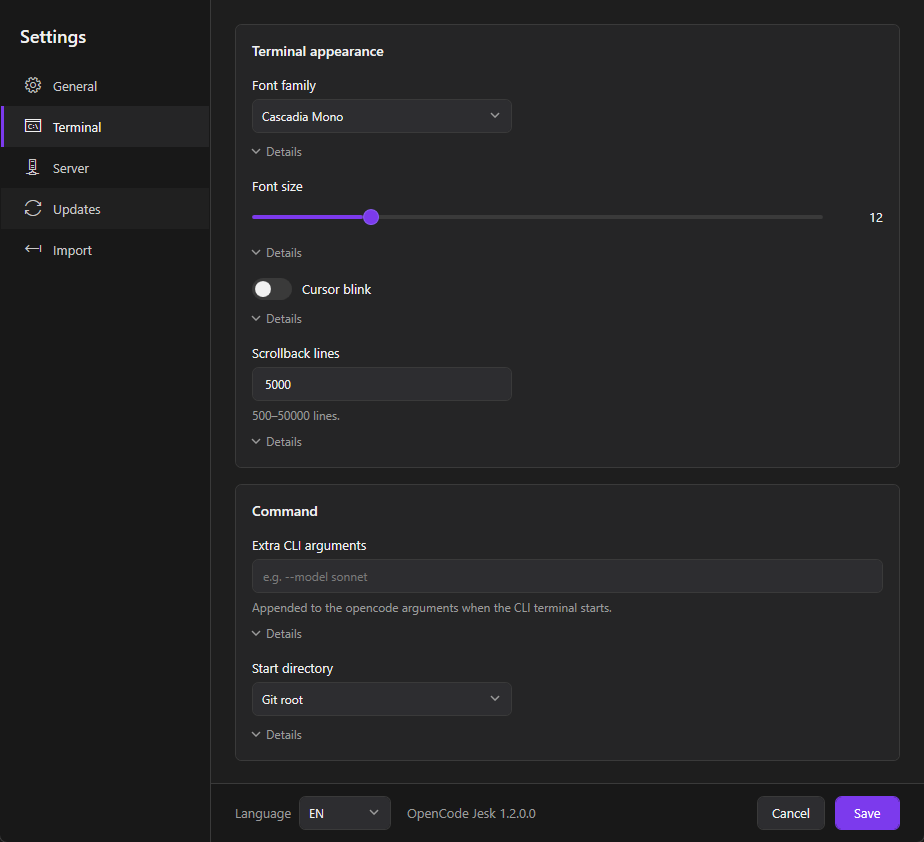 Settings — Terminal: font, size, cursor, scrollback and CLI command options.
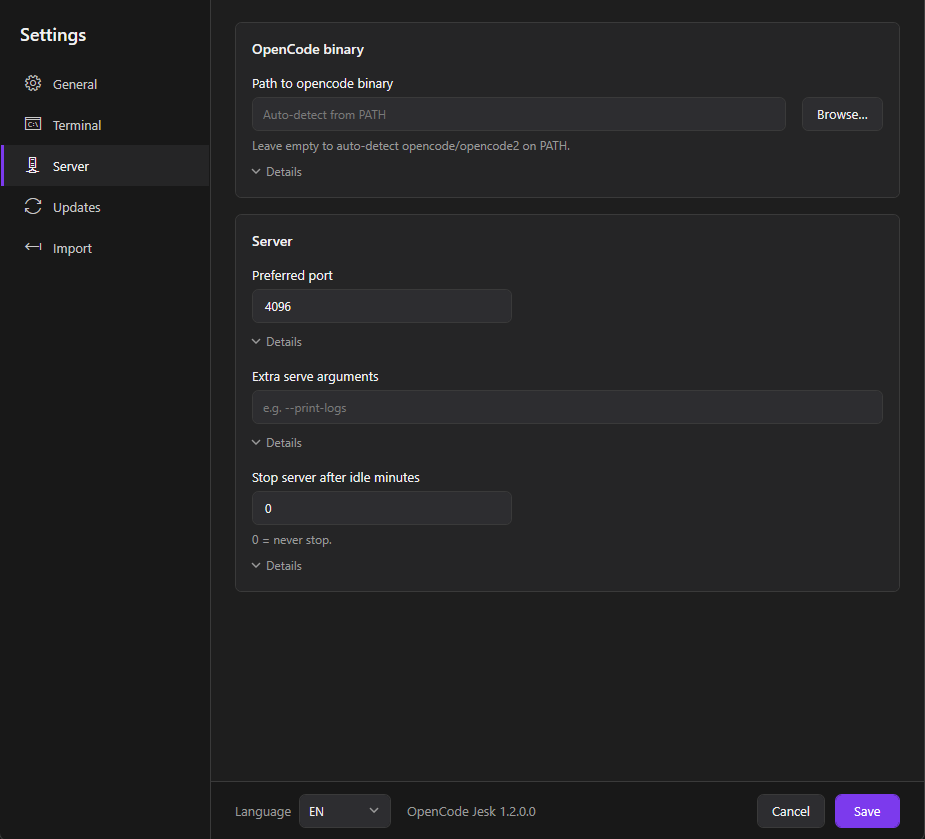 Settings — Server: opencode binary path, preferred port, serve arguments and idle stop.
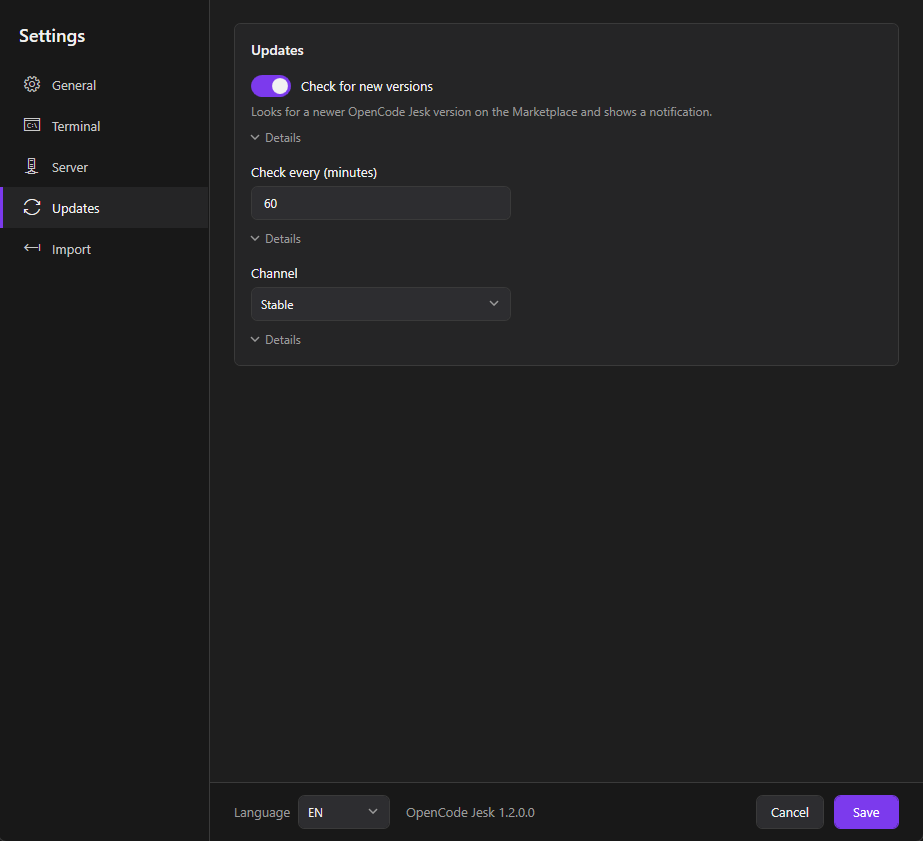 Settings — Updates: check for new versions, interval and release channel.
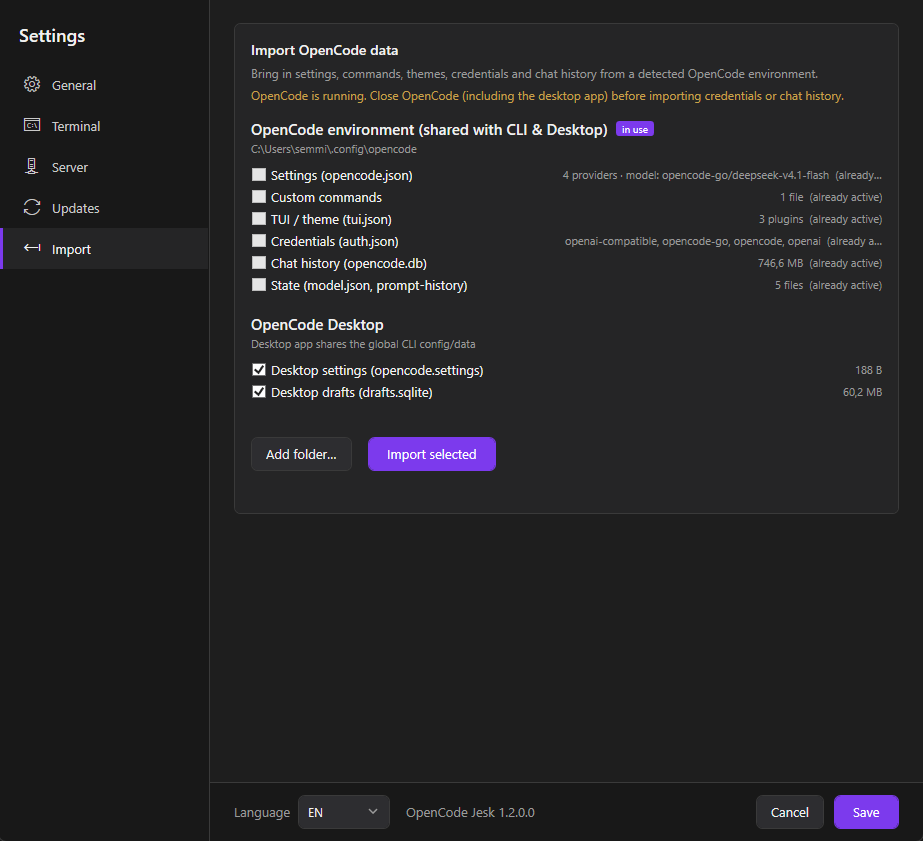 Settings — Import: detected OpenCode sources, add folder and import selected (with backups).
🛡️ Privacy
- 🖧 the server binds to
127.0.0.1 only
- 🔑 credentials are stored by OpenCode itself in your own environment
- 🚫 no telemetry, no analytics
- 📈 the usage overlay signs in to the OpenCode Console and reads your usage and limits from
opencode.ai using your own session cookie (stored encrypted with DPAPI) — no other data leaves your machine.
📜 License
Released under the MIT License.

