Skip to content
| Marketplace
Sign in
Visual Studio Code>AI>SynthraNew to Visual Studio Code? Get it now.
Synthra

Synthra

Jeffrey J

| (0) | Free
A memory and a skill book for Claude Code: it remembers your project, learns your workflows with your OK, and shows it all in the sidebar. Works in VS Code, Cursor, Antigravity and more.
Installation
Launch VS Code Quick Open (Ctrl+P), paste the following command, and press enter.
Copied to clipboard
More Info

Synthra

A memory and a skill book for Claude Code, right inside your editor.

Synthra helps Claude remember your project, learn from its work, and spend fewer tokens doing it. Claude stays the brain. Synthra keeps notes, writes down the workflows Claude figures out, and shows you all of it, so you stay in control of what your AI learns.

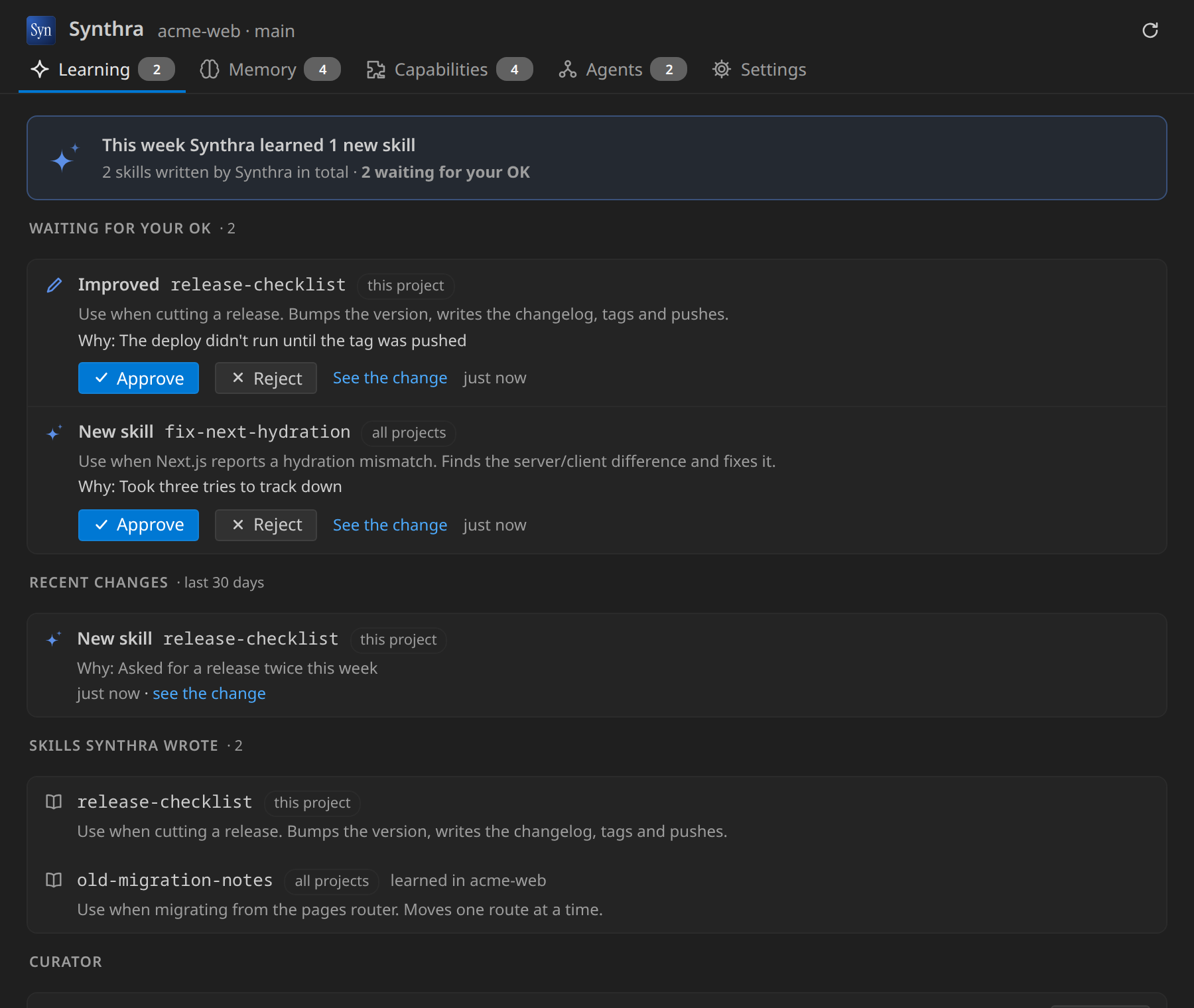
The Learning tab: two skills Claude wrote wait for your OK, with Approve, Reject and See the change

Before you start

Synthra needs Node.js on your computer. The extension is the window; the Synthra engine (the syn command) does the work. Both are free and open source.

  1. Install Node.js 18 or later for Windows, macOS or Linux: nodejs.org.
  2. Use an AI that works with your files. Synthra is built first for Claude Code. Codex, Cursor, GitHub Copilot and other tools that read AGENTS.md get the project's knowledge too.

That's it. If the Synthra engine isn't installed yet, the extension offers to install it for you in one click.

Get started

  1. Install Synthra.
  2. Open a project folder.
  3. Click the Synthra icon in the activity bar, then Install Synthra if it asks. Or open the Command Palette (Ctrl+Shift+P) and run Synthra: Start for this project.
  4. Work with Claude as usual. Synthra runs in the background.

To see everything at once, click the Synthra button at the top right of any open file. It opens the large panel in an editor tab.

What you get

Claude learns your workflows

When Claude works out something worth repeating, like a release, a fix for an error that keeps coming back, or your team's way of doing a task, it saves it as a skill. Next time, that is one step.

  • You decide. A new or changed skill waits in the Learning tab. Read why Claude wants it, See the change, then Approve or Reject.
  • Skills for one project or for all of them. A skill that only fits this repo stays with the repo, and your team gets it through git. A general one works in every project.
  • A gentle reminder. After a long stretch of work, Synthra asks Claude whether the work was worth saving as a skill.
  • The Curator keeps it tidy. Once a week it marks skills nobody used for two weeks, and offers to archive the ones unused for a month. Nothing is deleted: pin a skill to keep it, or restore it from the archive any time.

Claude remembers your project, and you

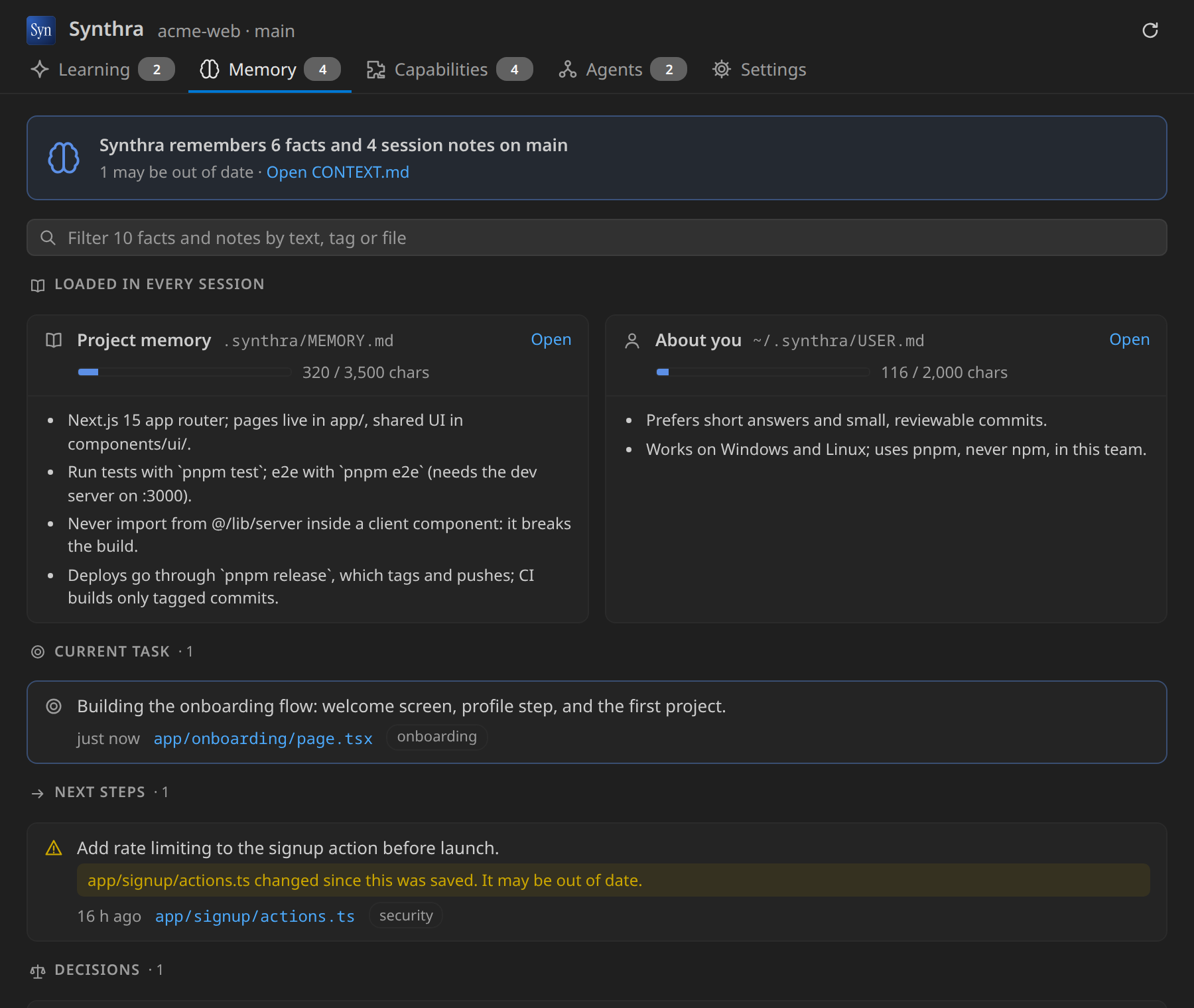
The Memory tab: the project's memory and notes about you, then the current task, next steps and decisions

  • Project memory: a short list of what every AI should know about this project: how to build and test it, traps to avoid, where things live. It is shared with your team in git, and each project has its own.
  • About you: how you like to work, private to your computer, for every project.
  • Both load at the start of every chat, and both have a size limit, so they stay short and current instead of growing stale.
  • Session notes: the current task, next steps, decisions and facts, per git branch. A ⚠ marks a note whose file changed since it was saved.
  • Every AI can read it. Synthra adds a short section to AGENTS.md, so Codex, Cursor, Copilot, Gemini CLI and others find the same knowledge.

See what Claude can use

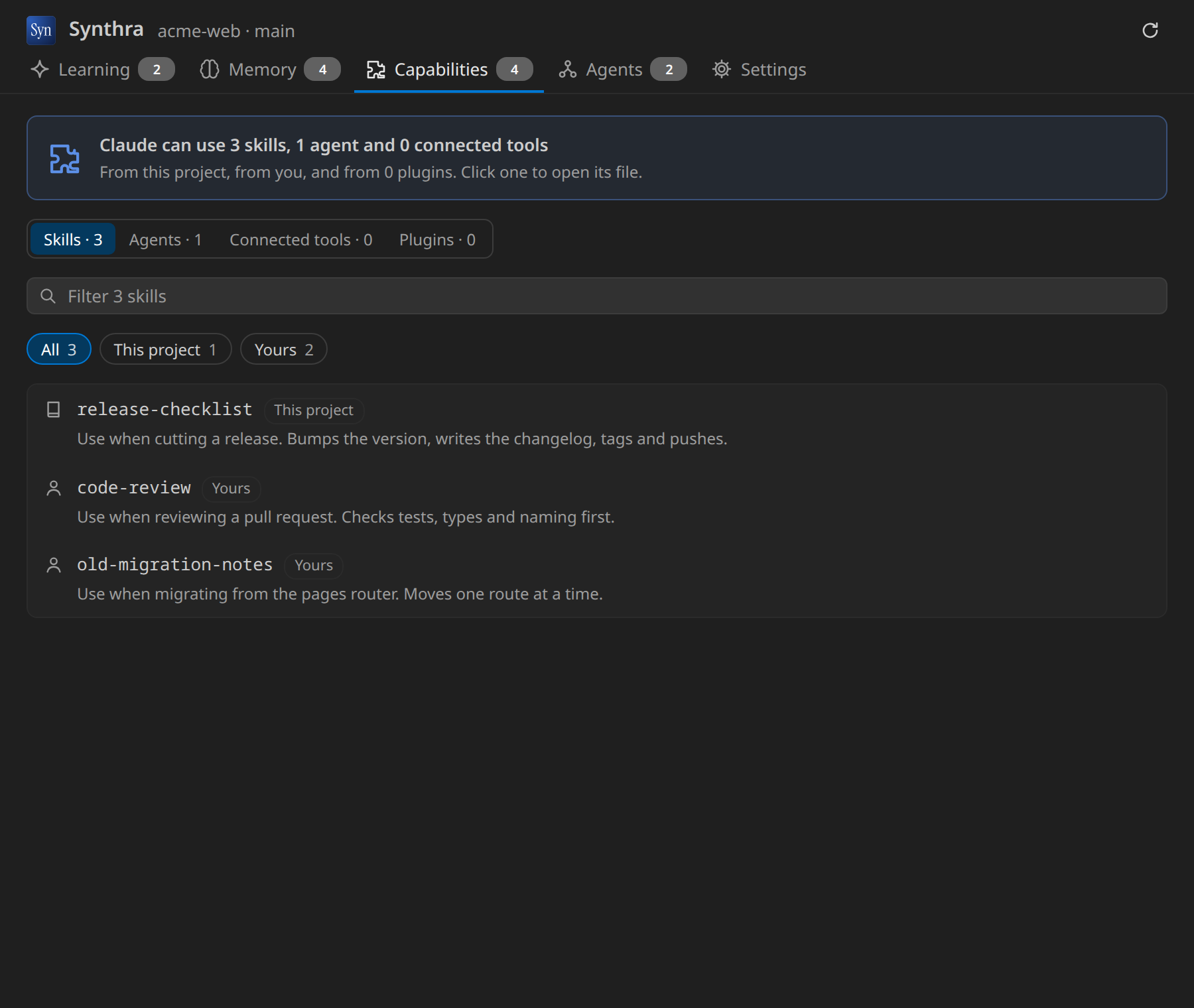
The Capabilities tab: skills, agents, connected tools and plugins, grouped by where they come from

  • Capabilities: every skill, agent, connected tool (MCP server) and plugin Claude Code can use, grouped by where it comes from. Search them, and click one to open it.
  • Agents: the helper agents Claude started this week, with the task it gave each one.

Spend fewer tokens

Synthra maps your code, so Claude reads one function instead of a whole file, and it stops Claude from searching for things it already knows. On a code-heavy session that can cut the cost by more than half. The live dashboard shows your own numbers.

Make it yours

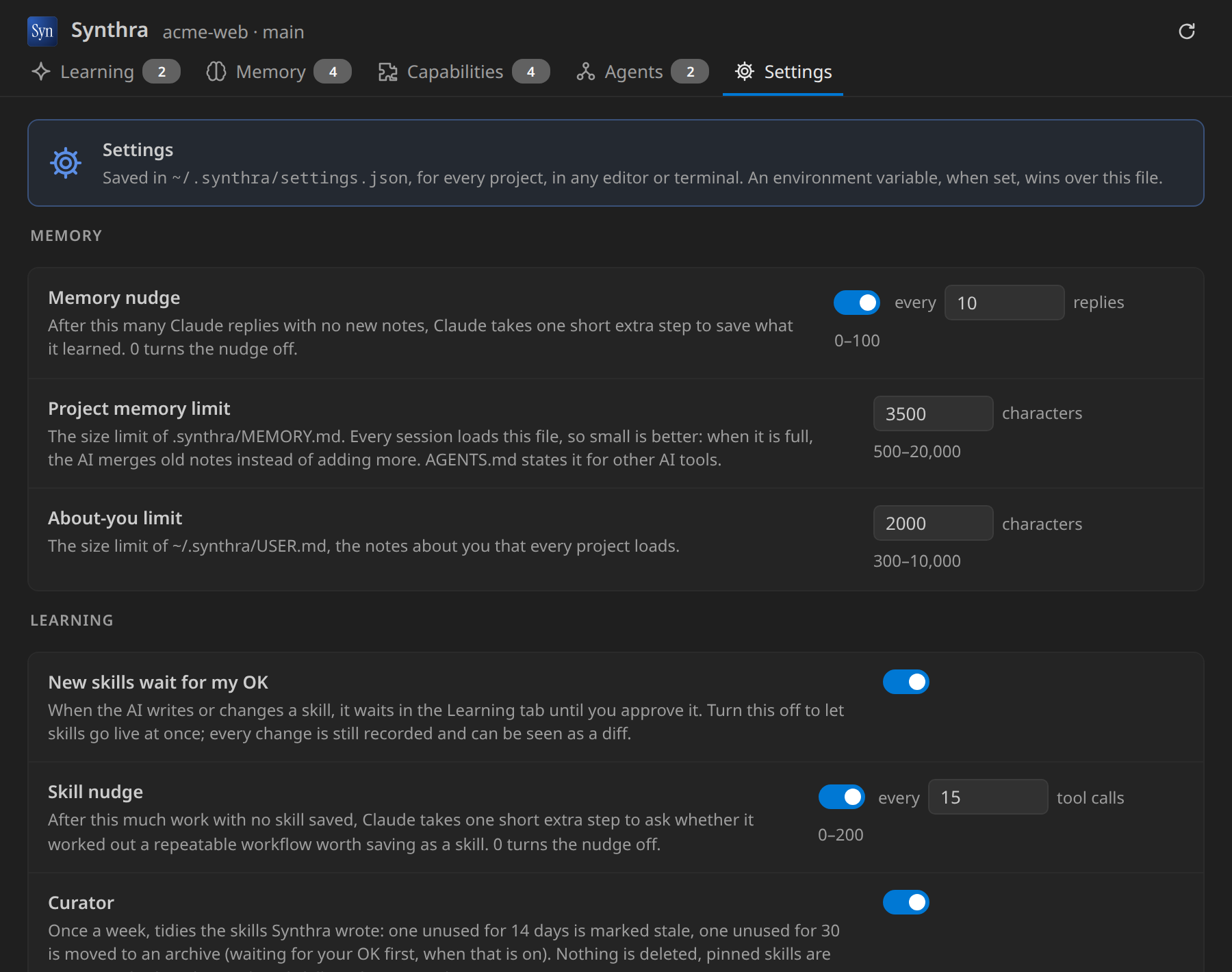
The Settings tab: the memory nudge, memory limits, skill approval, the skill nudge and the Curator

The Settings tab, or the ⚙ button in the sidebar, lets you choose how often Claude is reminded to save notes and skills, how big the memory files may grow, whether new skills wait for your OK, and whether the Curator runs.

Questions

Does it cost anything? No. Synthra and this extension are free and open source (MIT). You only pay for the AI subscription you already use.

Is my code sent somewhere? No. Synthra runs on your computer and sends nothing anywhere. It collects no data. There is no account and no telemetry.

Do I need to type commands? No. The extension starts Synthra when you open a project and stops it when you close the window. If the engine is missing, click Install Synthra.

Does it work in other editors? Yes: VS Code, Cursor, Google Antigravity, Windsurf and VSCodium. Cursor and the others install it from Open VSX.

Does it work on Windows, macOS and Linux? Yes. Every change is tested on Windows and Linux.

What does it change in my project? It adds a .synthra/ folder for the project's memory (share it in git), a section in CLAUDE.md and AGENTS.md, and Claude Code hooks in .claude/. It never touches your own text in those files. syn remove in a terminal takes it all out again.

Something not working?

  • Click the Synthra item in the status bar. When it is yellow or red, it lists what is wrong and offers Repair.
  • Synthra: Show log shows what the engine says.
  • Still stuck? Open an issue and paste what Synthra: Run doctor prints.

For developers: how Synthra works, every setting, and how to build the extension are in the Synthra repository and its extension notes.

  • Contact us
  • Jobs
  • Privacy
  • Manage cookies
  • Terms of use
  • Trademarks
  • Your Privacy Choices
  • Consumer Health Privacy
© 2026 Microsoft