Hermes Studio
Hermes Agent, right inside VS Code.
Ask Hermes to fix a bug, explain some code or build a feature, and watch it work next to
your files. You keep everything that makes Hermes yours: the skills it learns, its
memory, and your ChatGPT, Codex or Claude subscription.
Before you start
Hermes Studio needs Hermes Agent on your computer. Hermes Studio is the window;
Hermes is the brain. Hermes Agent is free and open source.
- Install Hermes Agent for Windows, macOS or Linux:
hermes-agent.nousresearch.com.
- Connect a model. Open a terminal, run
hermes model once and sign in with the
provider you want to use (for example your ChatGPT, Codex or Claude subscription).
- You need VS Code 1.106 or later.
That's it. Hermes Studio finds Hermes by itself.
Get started
- Install Hermes Studio.
- Open a project folder in VS Code.
- Click the Hermes icon at the top right of any open file, or open the Command
Palette (Ctrl+Shift+P) and run Hermes Studio: Open Chat.
- Tell Hermes what you need, in plain words.
The chat opens in the side bar. You can also move it into its own editor tab.
What you can do
Work on your code together
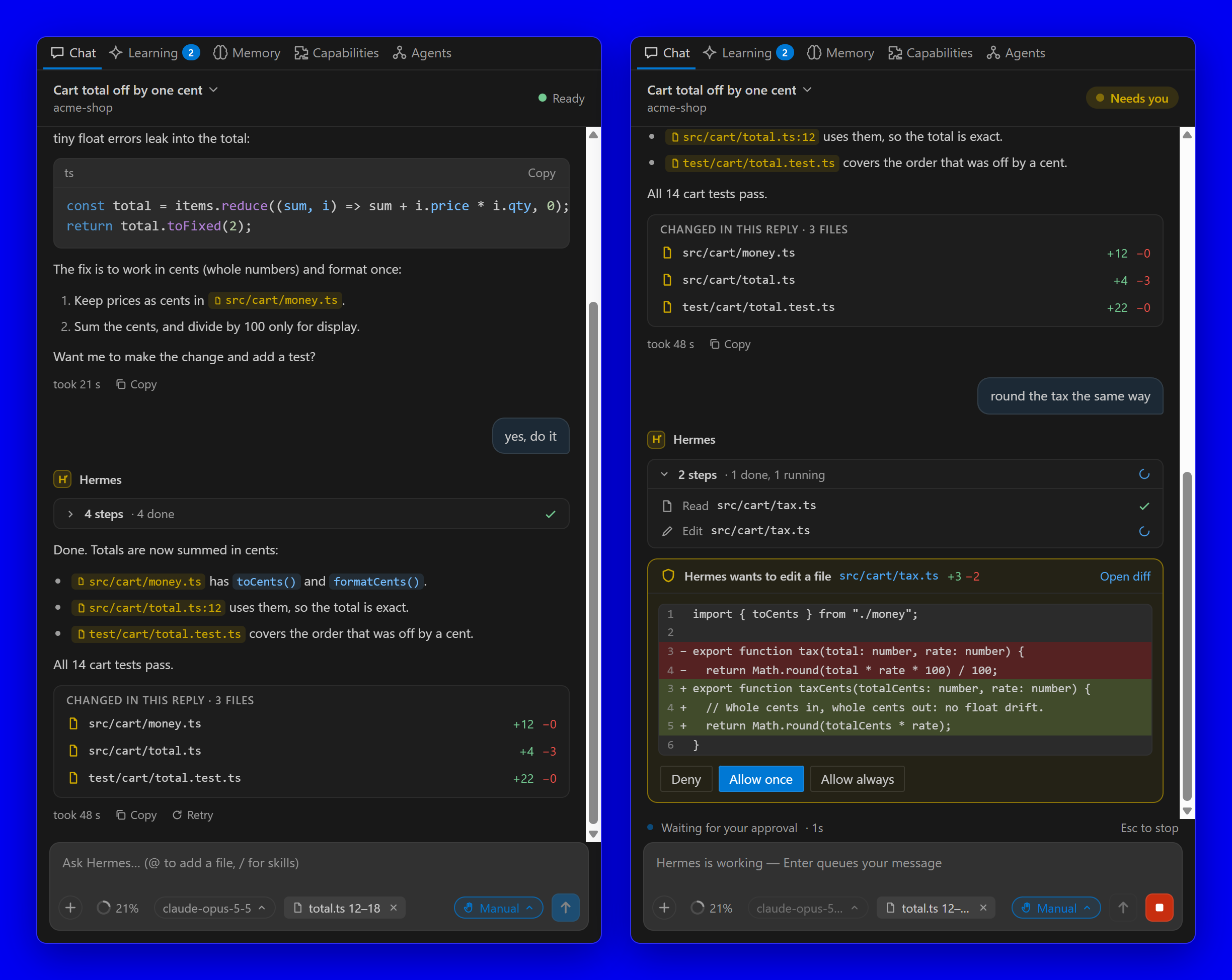
- Ask in plain words. Hermes reads your files, runs commands and changes code for you.
- See what Hermes did: every step in one tidy list, and under each answer the files it
changed, with a click to see the change.
- Click any file name Hermes mentions to open that file.
- Copy an answer, or ask again with Retry.
Stay in control
- Hermes asks first. Before it changes a file or runs a risky command, you see the
exact change and choose Deny or Allow. Nothing happens by accident while you
type.
- Choose how free Hermes is: Manual (it asks before every change), Edit
automatically (it changes files in this project without asking) or Auto. Risky
commands and sensitive files always ask.
- Stop at any time, or type a correction while Hermes works. It reads it at its next
step.
Give Hermes the right context
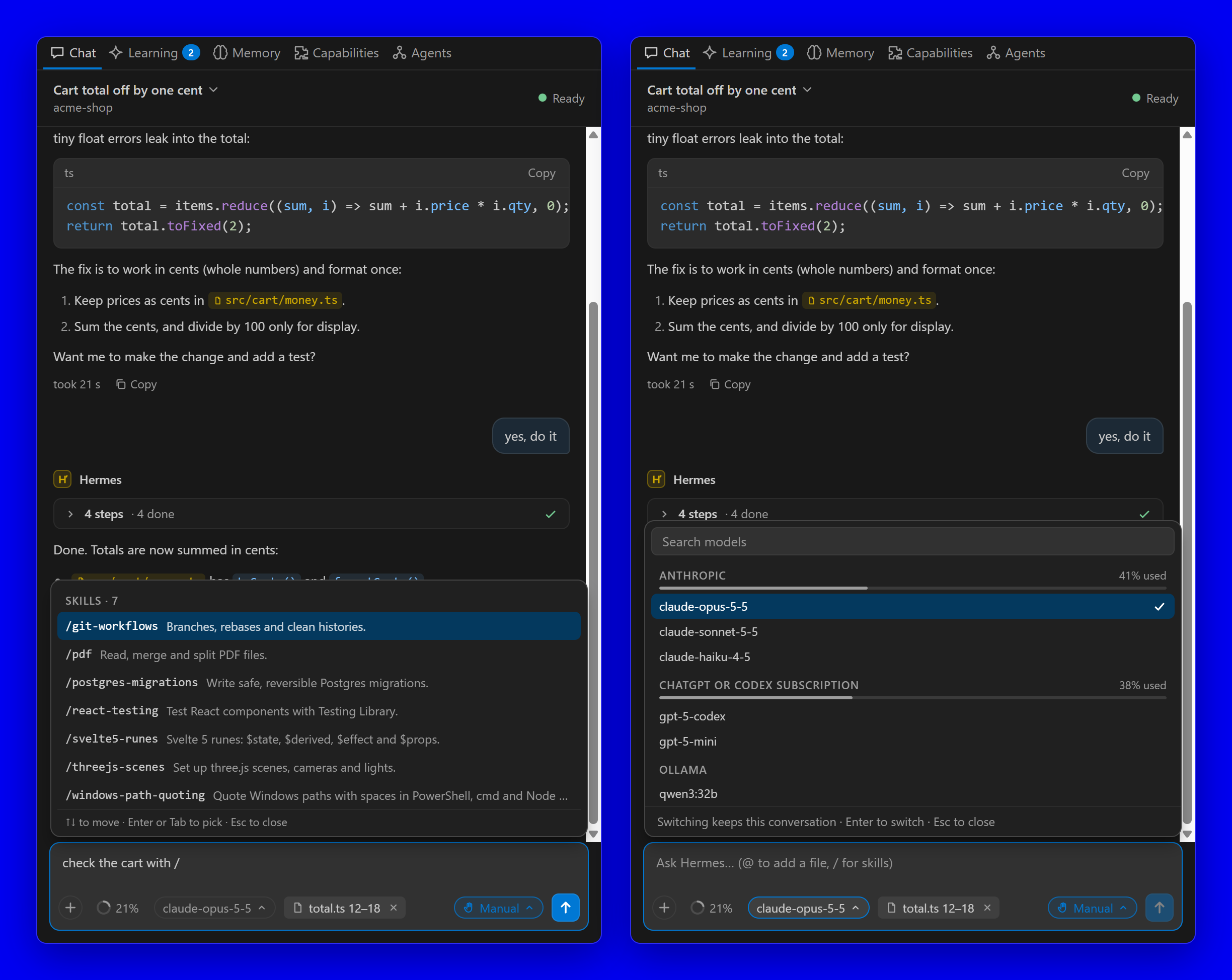
- The file you're in goes along by itself, so Hermes knows what you're looking at.
- Type @ to add a file from your project.
- Use + to add your selection, VS Code's errors, your git changes or a screenshot. You
can also paste an image.
- Type / to use one of Hermes's skills, anywhere in your message. You can use several
at once.
Choose your model
- Switch between Claude, ChatGPT, Codex and other models in the middle of a chat. The
conversation stays.
- See how much of each subscription you've used.
- Hit a usage limit? Continue with another model in one click.
- Choose how hard Hermes thinks, from Low to Max.
Pick up where you left off
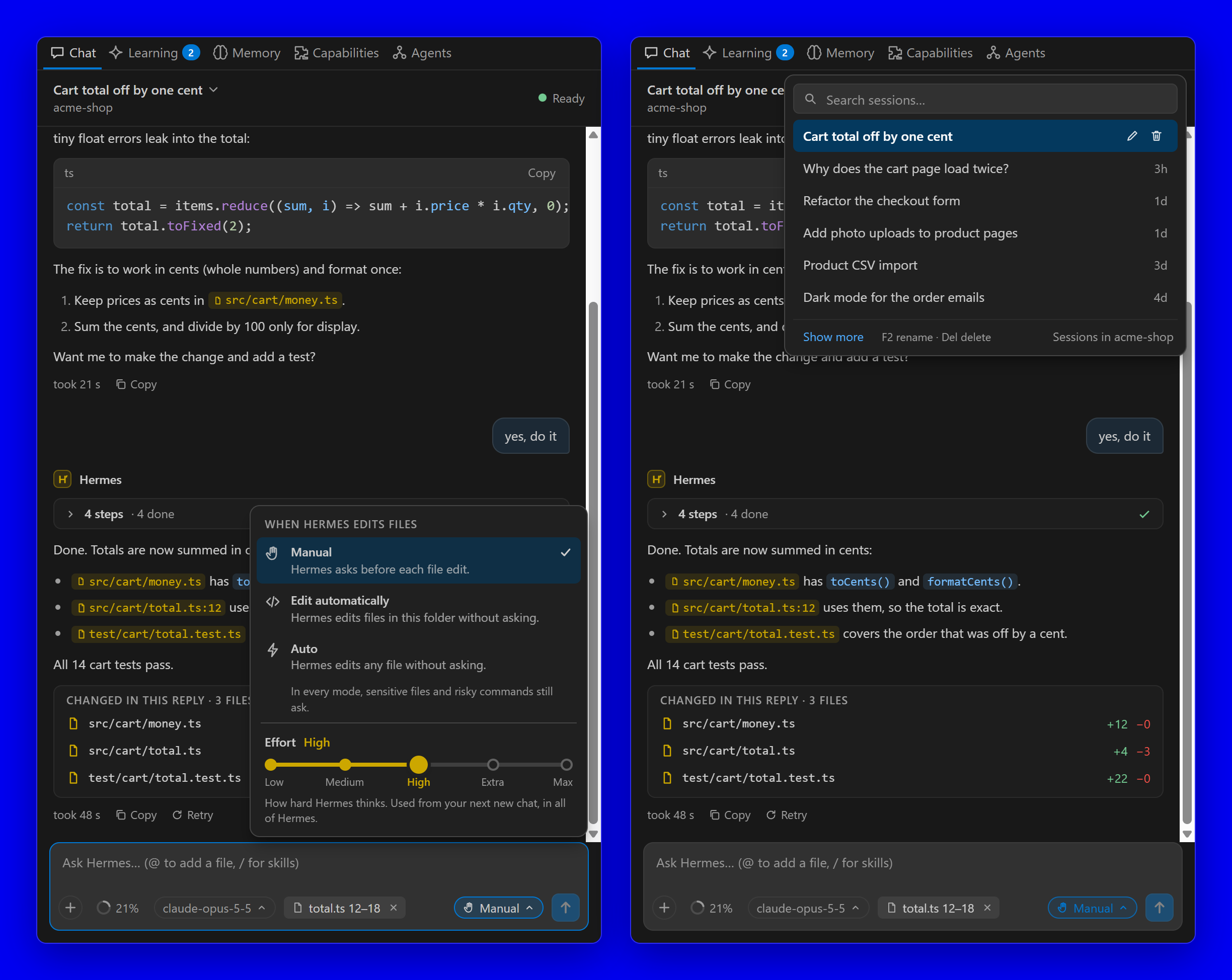
- Every chat is saved, per project. Search them, open one to carry on, rename or delete
them.
- Start a new chat while Hermes works: the first one keeps going in the background.
- Get a notification when Hermes needs you or is done. On Windows, even when VS Code is
in the background.
See what Hermes learns
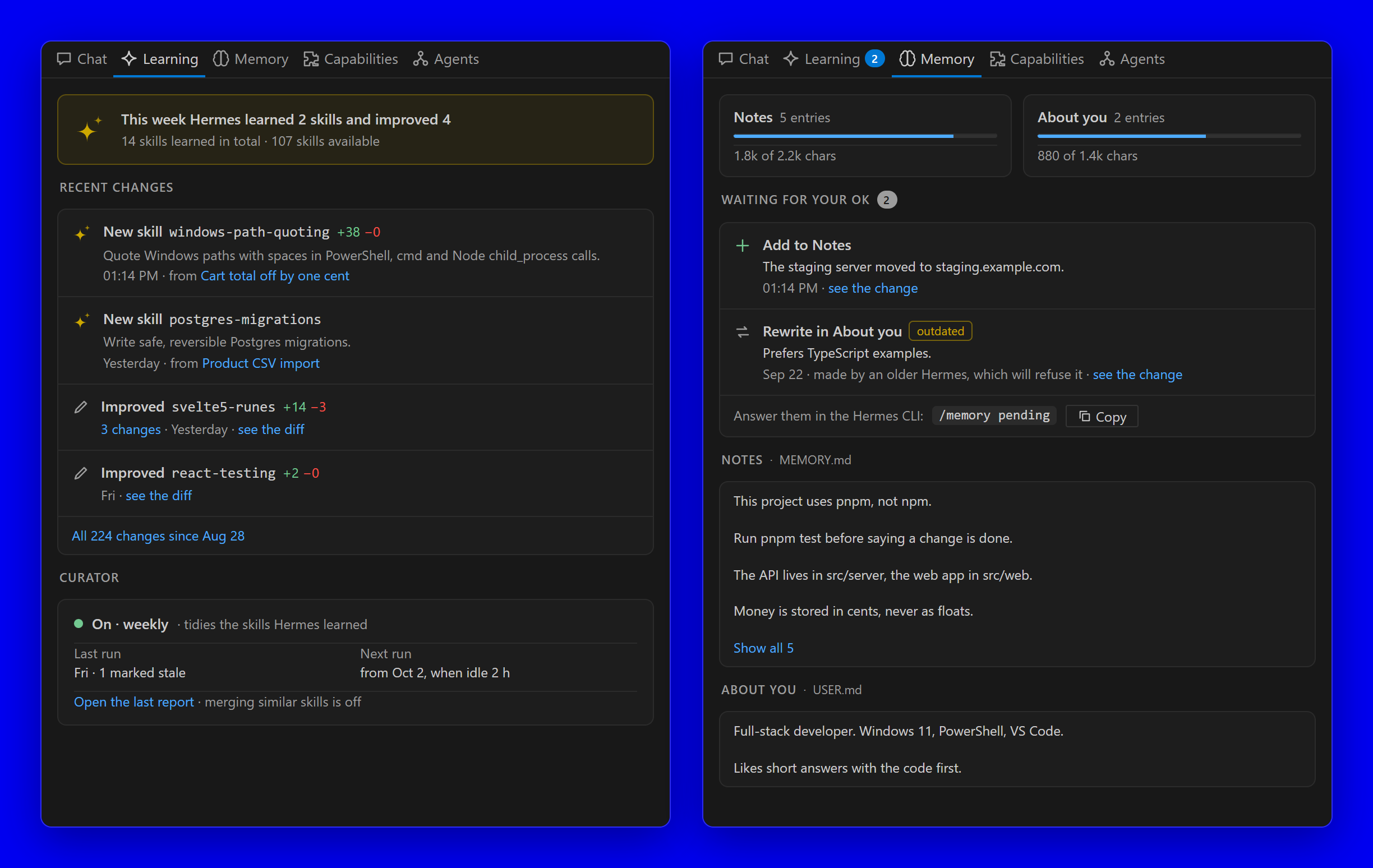
Hermes gets better the more you use it. Hermes Studio shows you how:
- Learning: the new skills Hermes made this week and the ones it improved.
- Memory: what Hermes remembers about you and your projects. When Hermes wants to
change its memory, click Approve or Reject, right there.
- Capabilities: all its skills and connected tools. Get more finds new skills on
the Skills Hub and installs them in one click, after Hermes checks them for safety.
- Agents: helpers Hermes started to work on a task in the background.
Questions
Does it cost anything?
No. Hermes Studio and Hermes Agent are free. You only pay for the model subscription you
already use, or nothing with a local model.
Is my code sent somewhere?
Hermes Studio itself sends nothing anywhere and collects no data. Your messages go to
Hermes on your computer, and Hermes sends them to the model provider you picked.
Does it work in other editors?
Google Antigravity: yes. Download the .vsix from
GitHub Releases and run
Extensions: Install from VSIX…. Cursor: no, sorry.
Does it work on Mac and Linux?
It is made and tested on Windows. Mac and Linux should work, but have had less testing.
Tell us if something is off.
Is this made by Nous Research?
No. Hermes Studio is a community extension by an independent developer. Hermes Agent is
made by Nous Research.
Something not working?
- "Hermes not found": Hermes Agent isn't installed, or it's in a place Hermes Studio
doesn't look. Install it (see Before you start), or set Hermes
Studio: Path in Settings to the full path of
hermes.exe.
- "Setup needed": Hermes has no model yet. Click Run setup and follow the steps.
- Anything else: open the Command Palette and run Hermes Studio: Show Log, then
tell us about it and
include what the log says.
Settings
Open Settings and search for Hermes Studio:
- Notifications: tell you when Hermes needs you, is done or stopped. On by default.
- Windows Notifications: also show them in Windows while VS Code is in the
background. On by default.
- Path: where Hermes is, if Hermes Studio can't find it by itself.
Feedback
Ideas and bug reports are welcome:
open an issue.
Hermes Studio is an independent community extension. It is not made or endorsed by Nous
Research, the makers of Hermes Agent. MIT License.

